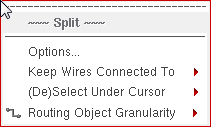
Split Wire Shortcut Menu Commands
Selecting and right-clicking the wire in the design canvas when the Split command is active displays the Split shortcut menu commands.
The following Split Wire shortcut menu commands are available.
|
Field
|
Description
|
|
Options
|
Opens the Split form. You can also press F3 to open the Split form.
|
|
Keep Wires Connected To
|
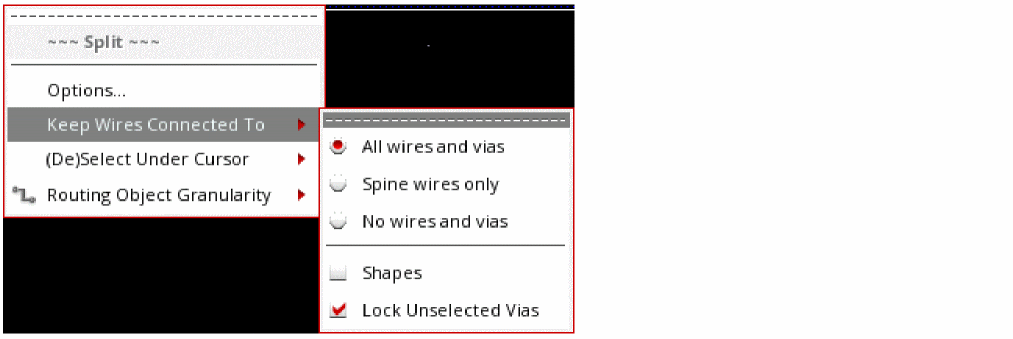
Maintains the connectivity even when wires and vias are split. The options available to maintain connectivity are shown in the following figure.
-
All wires and vias: maintains pathSeg-to-pathSeg and pathSeg-to-via connections during a split. This option is selected by default.
-
Spine wires only: maintains connections to spine pathSegs but not to connecting vias when splitting a spine. For information about selecting a spine, see Selecting a Path Vertex.
-
No wires and vias: does not maintain pathSeg-to-pathSeg and pathSeg-to-via connections during split. This option is selected by default.
-
Shapes: maintains the shape-to-via connection during the stretch.
-
Lock Unselected Vias: locks the vias that are not selected while stretching a wire. Since the via is locked, the wire is modified to keep the shape connected. In case, the wire could not be modified to maintain the connection, the via is anyway moved to maintain the connection. By default, this option is disabled. It is enabled only when the All Wires and Vias option is selected from the Keep Wires Connected To field.
|
|
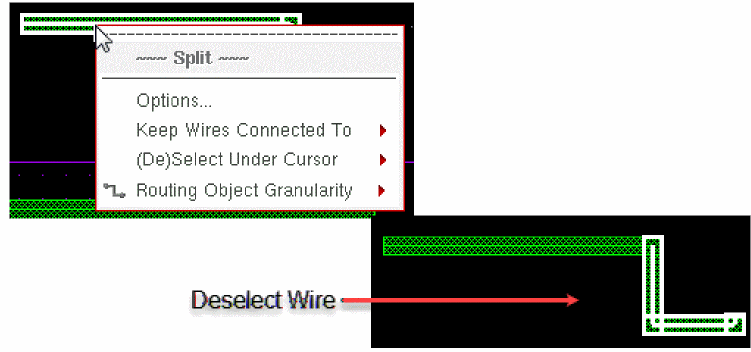
(De)Select Under Cursor
|
This option helps to select or deselect the wire(s) on which the mouse cursor exists as shown in the following figure.
|
|
Routing Object Granularity
|
Helps select routing objects by automatically expanding the selection based on the modes. For more information on modes, refer to Selection Options form.
|
Return to top