
Reshape Wire Shortcut Menu Commands
Selecting and right-clicking the wire in the design canvas when the Reshape command is active displays the Reshape Wire shortcut menu commands.
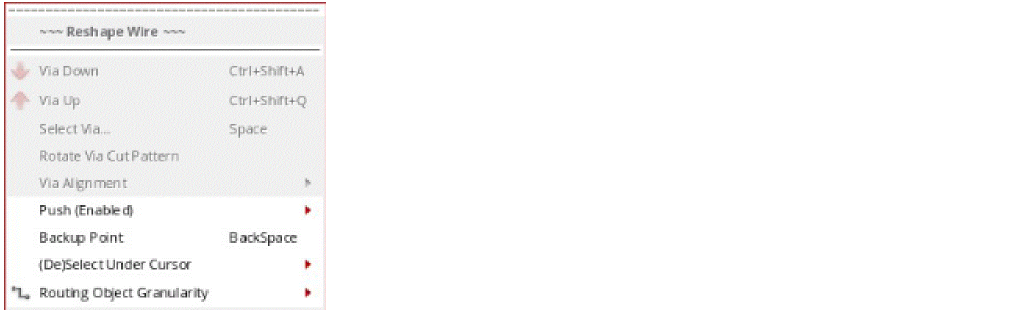
The following Reshape Wire shortcut menu commands are available.
| Field | Description |
|---|---|
|
Changes the layer to the next layer up and places the corresponding default via. |
|
|
Changes the layer to the next layer down and places the corresponding default via. |
|
|
Opens the Select Via Form to change to other layers. Using the Select Via form, you can rotate the via and also control via alignment. You can also rotate the via by using the Via command on this context-sensitive menu. |
|
|
Rotates the via cuts and swaps the rows and columns, if any, while rotating the via shape by 90 degree as you place or drag the via. You can also rotate pending vias by clicking the middle mouse button. This menu command is available while you are adding a via. You can also rotate a via by using the Rotate Via(s) Cut Pattern button on the Select Via Form. |
|
|
Provides options to align vias while adding them to the layout. You can choose to align a via either automatically or by selecting a custom alignment option. You can also align a via by using the Via Alignment options on the Select Via Form. For more information about the Automatic and Override alignment options, see the Select Via Form. The Override options on the Via Alignment sub-menu are available while you are adding a via. |
|
|
Removes the last digitized point. If a via had been added to the last digitized point, the via is also removed. |
|
|
Selects or deselects the wire(s) on which the mouse cursor exists. |
|
|
Helps select routing objects by automatically expanding the selection based on the modes. For more information on modes, refer to |
Return to top