Stretch Shortcut Menu Commands
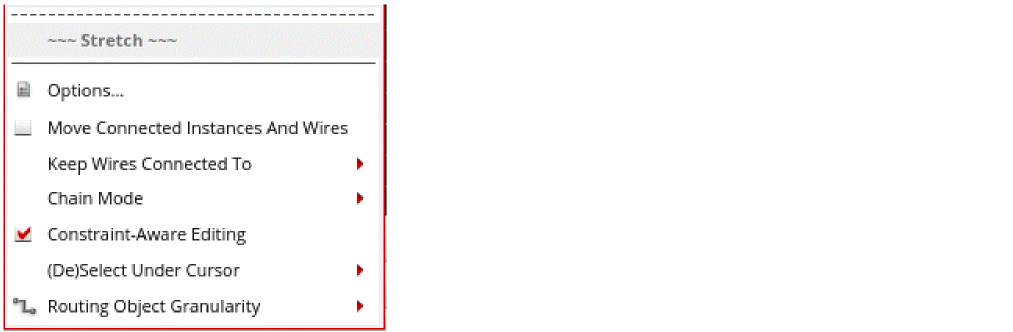
Right-clicking in the design canvas when the Stretch command is active displays the Stretch shortcut menu commands.
The following Split Wire shortcut menu commands are available.
|
Field
|
Description
|
|
Options
|
Opens the Stretch Form. You can also press F3 to open the options form.
|
|
Move Connected Instances and Wires
|
Maintains the connectivity between instances and pathSegs and the selected object while moving or stretching the instances or pathSegs. When this option is selected, the Keep Wires Connected to and Lock Unselected Vias options are disabled.
To maintain the connection from selected objects:
-
The selected objects move and stretch in both x and y directions.
-
The connected objects stretch or move to keep them connected to the selected objects.
Environment variable: moveConnectedInstancesAndWires
|
|
Keep Wires Connected To
|
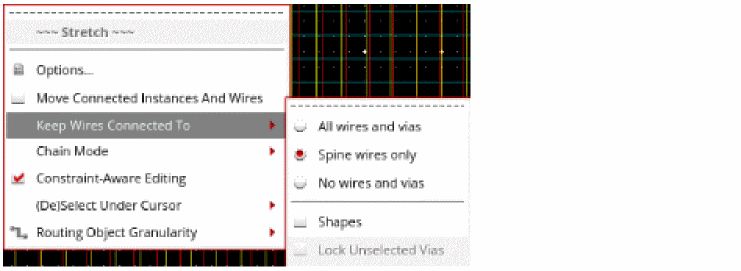
Maintains the connectivity when the wires and vias are stretched.
-
All wires and vias: maintains pathSeg-to-pathSeg and pathSeg-to-via connections during stretch.
-
Spine wires only: maintains connections to spine pathSegs but not to connecting vias when stretching a spine. This option is selected by default. For information about selecting a spine, see Selecting a Path Vertex.
-
No wires and vias: does not maintain pathSeg-to-pathSeg and pathSeg-to-via connections during split. This option is selected by default.
-
Shapes: maintains the shape-to-via connection during the stretch.
-
Lock Unselected Vias: locks the vias that are not selected while stretching a wire. Since the via is locked, the wire is modified to keep the shape connected. In case, the wire could not be modified to maintain the connection, the via is anyway moved to maintain the connection. By default, this option is disabled. It is enabled only when the All Wires and Vias option is selected from the Keep Wires Connected To field.
|
|
Push and Shove
|
This command is available only in the Virtuoso RF flow. The license required for Virtuoso RF is Virtuoso_RF_Option (95560).
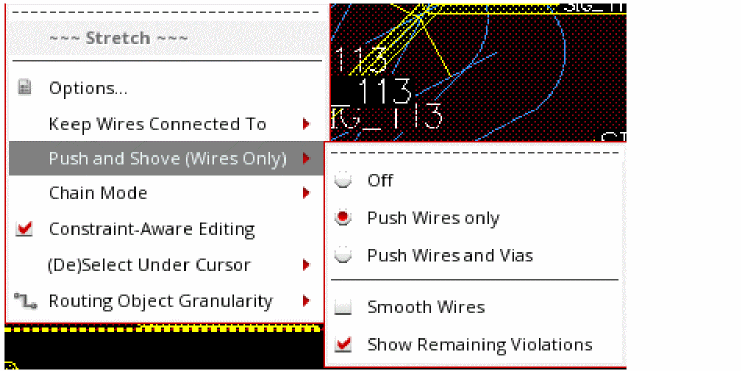
In the Stretch command you can enable or disable push-and-shove. The following figure shows the Push and Shove options that are available for the Stretch command.
-
Off: The push-and-shove feature is disabled. This is the default mode.
-
Push Wires only: The existing wires are pushed to create space for the edited wire. The wire that is edited moves and avoids the shapes that cannot be pushed, such as pins, bumps, and bond fingers.
-
Push Wires and Vias: Lets you push existing vias on a wire. The Push Vias option is enabled only when the mode is Prefer Shove.
-
Smooth Wires: The extra curves and bends of the wire edited by push-and-shove are smoothened. This option is available in case of Virtuoso RF designs.
-
Show Remaining Violations: The violations that exist on a wire as a result of push and shove are shown.
Environment variables: pushAndShoveMode, pushAndShoveSmooth, pushAndShoveCheckerStopLevel
|
|
Chain Mode
|
Specifies how to stretch chained devices. For more information refer to, Stretch Form.
|
|
Constraint Aware Editing
|
Enforces constraints for nets grouped in a bus constraint and for shielding wires. This option is on by default and is available in Layout XL and higher tiers.
|
|
(De)Select Under Cursor
|
Selects or deselects the wire(s) on which the mouse cursor exists.
|
|
Routing Object Granularity
|
Helps select routing objects by automatically expanding the selection based on the modes. For more information on modes, refer to Selection Options form.
|
Return to top