
Specifying New Default Values for a Virtuoso Session
To specify and save new default values from one session to the next:
-
From the Command Interpreter Window, choose Options – Save Defaults.
The Save Defaults form appears.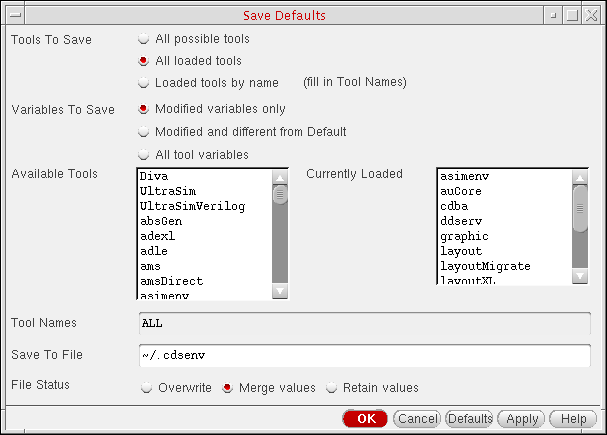
- Select an appropriate option from the Tools To Save radio buttons to specify the save method for the environments.
-
Select an appropriate option from the Variables To Save radio buttons.
Radio buttons are not available if you selected All possible tools above. -
(Optional) In the Save To File field, change the name and location of the environment file to save.
The default is the.cdsenvfile in your home directory (~/.cdsenv). - Select an appropriate option from the File Status radio buttons.
- Click OK.
Settings are saved to the .cdsenv file and read the next time you start the software.
Some applications require you to save application-specific defaults in a file other than ~/.cdsenv. Those applications provide a command to load the defaults. For that information, see the documentation for the application.
Recalling Defaults
To load a saved default file for your design session:
Environment settings from this file are loaded for this design session.
Related Topics
Editing an Environment Variable in Cdsenv Editor
Return to top