
Removing Items from a Workspace
You can remove assistant panes and toolbars from your workspace using the Window menu or a right-click menu.
To remove an assistant pane or a toolbar from your custom workspace using the right-click menu:
-
Right-click the title bar of an assistant pane or a toolbar.
A menu of those assistant panes and toolbars available to the current application/view type appears. Active items appear with a check mark to the left of their names.
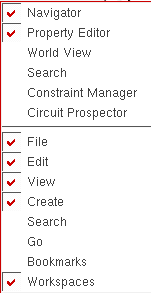
-
Select an active item to remove the check mark.
The item disappears from the workspace. If you display the right-click menu again, the check mark no longer appears next to the item.
To remove a toolbar from your custom workspace using the Window menu:
-
Choose Window – Toolbars.
A submenu of toolbars you can configure for the current application/view type appears. Active toolbars appear with a check mark to the left of their names. -
Select the toolbar you want to remove.
The toolbar disappears from your workspace. If you display the submenu again, the check mark no longer appears next to the toolbar name.
To remove an assistant pane from your custom workspace using the Window menu:
-
Choose Window – Assistants.
A submenu of assistant panes you can configure for the current application/view type appears. Active panes appear with a check mark to the left of their names. -
Select the assistant pane you want to remove.
The pane disappears from your workspace. If you display the submenu again, the check mark no longer appears next to this pane’s name.
Related Topics
Return to top