
Design Intent Glyphs
The glyph color is defined in the Style section of the Create Design Intent Form. In Schematics XL, the size of the glyph is controlled by the font size of the design intent, which is also specified in the Create Design Intent Form. In Layout XL, it is fixed to a size proportional to the size of the device with which the design intent is associated with and so is unable to be adjusted.
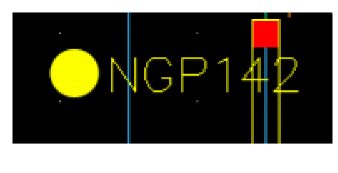
- Clicking a glyph displays a design intent info balloon which displays details of the design intent. The design intent info balloon also has an Edit button which directly opens the Edit Design Intent Form where you can edit the design intent.
- Right-clicking on a glyph displays a context-sensitive menu. The options available vary depending on the selections that are currently made.
- Double-clicking a glyph displays the Edit Design Intent form. You can use this form to edit the design intent.
Hovering on a glyph halos all the members of that design intent in the Navigator and on the canvas in Schematics XL and Layout XL and also in the Constraint Manager assistant in Layout XL. Haloing on a glyph halos the design intent members even if haloing has been turned off using the design intent toolbar.
Related Topics
Return to top