
6
Working with Corners
A corner is a combination of variables or process models that define a scenario in which you want to measure the performance of your design. In ADE Explorer, you can create corners using the Corners Setup form where you can vary the values for temperature, parameters, design variables, and model files from any test. You can then run the corners for a test and measure how the test performs in these varying conditions. If the corner settings are already available in pre-defined files, you can also load and use them to create corners.
This chapter describes the Corners Setup form and the procedures to create and use corners in ADE Explorer.
See the following topics for more details:
- Opening the Corners Setup Form
- Adding Corners
- Modifying Corner Values
- Working with Corners
- Working with Corner Groups
- Filtering Corners
- Simulating Corner
Opening the Corners Setup Form
You can add or remove corners or modify corner settings by using the Corners Setup form.
Perform the following steps to open the Corners Setup form:
-
In the Setup assistant, expand Corners and click the text Click to add corner.
The Corners Setup form is displayed.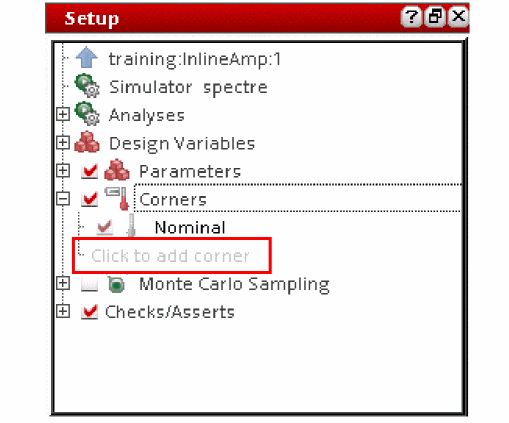
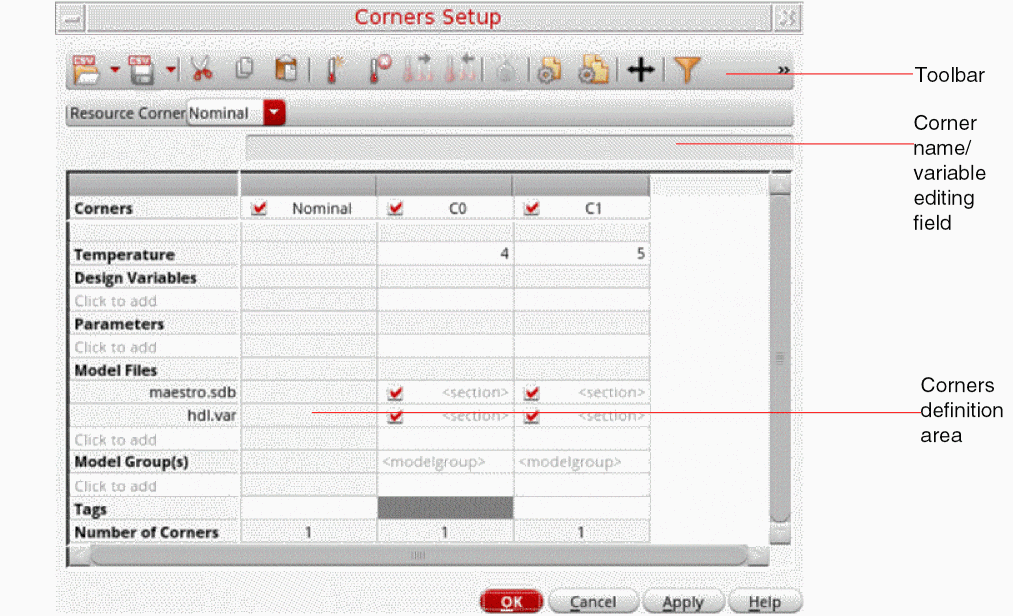 Each corner is added as a new column on this form. By default, the table contains a default corner, namedThe Corner Setup form contains the following:
Nominal. This is the nominal corner and runs without varying the corners variables.-
A toolbar that provides the following commands:
- Resource Corner drop-down list — Lets you select the corner for which you want to assess the resource requirement. By default, the tool runs resource estimation on the nominal corner. If your setup contains corners that would require a higher level of resources than nominal, it is a better option to assess the resource requirement for a corner with the highest resource requirements. For details, refer to Running Resource Estimation for a Specific Corner.
-
Variable editing text field — In this field, you can edit values for corner variables. The label to the left of this field changes dynamically to show the name of the corner and the variable that you are currently editing. For example, if you click in a cell that defines temperature for corner
C2, the label for this field is shown as C2/Temperature, as shown in the following figure.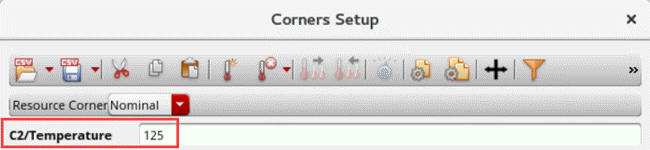
-
Corner definition area — Displays the corner definitions in a tabular format. The first column in the table lists the variables organized into various groups. Each subsequent column contains the definition of a corner where you can edit the values corresponding to these variables. When you add a corner, a new column is created for it. The top row in the table displays the corner names.
You can add variables to a corner definition by clicking where it says Click to add. You will learn more about this in the following sections. -
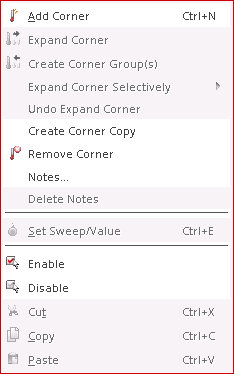
Context-sensitive menu — The most frequently used commands for corners are available in the context-sensitive menu of the Corners Setup form. When you right-click in a corner column, the following context-sensitive menu is displayed:
-
A toolbar that provides the following commands:


For more details about how to add a corner or specify variables, refer to the following sections:
- Adding Corners
- Modifying Corner Values
- Working with Corners
- Working with Corner Groups
- Simulating Corner
Adding Corners
You can add a corner to define the conditions under which you want to check a design of your test.
Perform the following steps to add a new corner:
-
In the Corners Setup form, click Add new corner
 on the toolbar. Alternatively, right-click in an existing column and choose Add Corner.
A new column is added in the Corners Setup form, as shown in the following figure.
New corners are, by default, applied the test and are named sequentially, prefixed with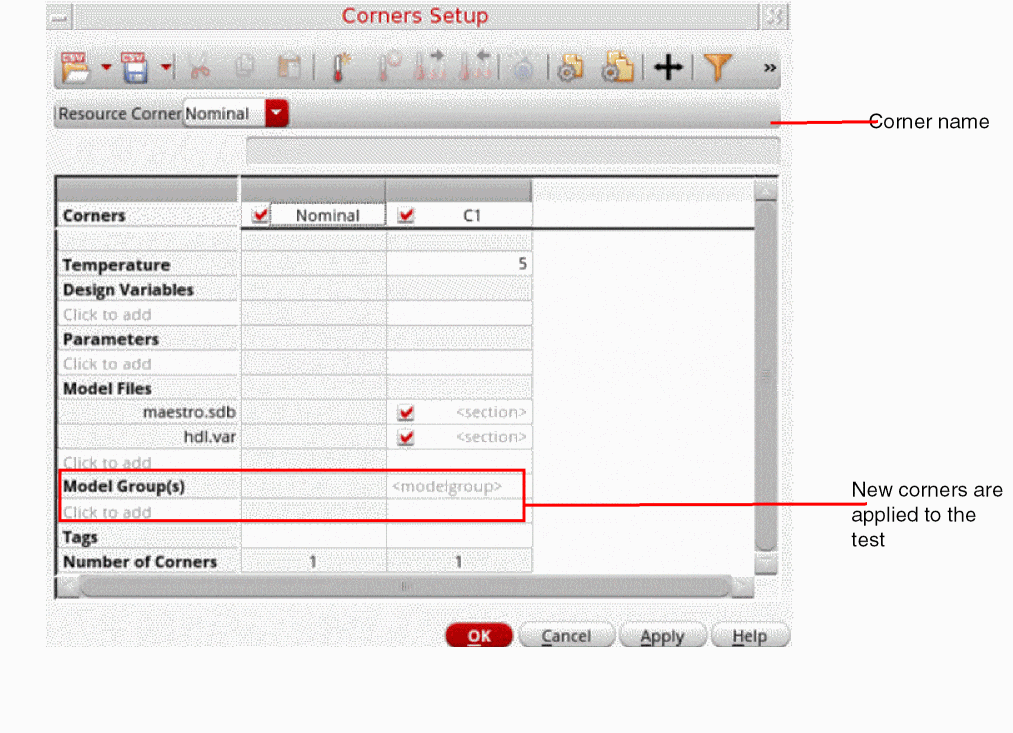
C, such asC1,C2, and so on. You can change the names, if required. -
After adding a new corner, specify values for the variables that define the corner conditions.In a corner column, all the text fields, for example, Temperature or a Design Variable, are by default edited in the append mode. When you click a field and type a value, it is appended to the already existing value, if any. To replace the existing value, select and delete it and enter a new value.
Related Topics
Specifying Values for Design Variables and Parameters
Specifying Values for Parameters
Adding Model Files to a Corner
Specifying Sections for Model Files
Specifying Temperature
To specify the temperature for a corner, in the column for that corner:
temperature is specified in your ADE Explorer test setup.Specifying Values for Design Variables and Parameters
To specify the value for a design variable for a corner, in the column for that corner:
-
Under Design Variables, click the text Click to add.
A drop-down list containing all the global variables is displayed.
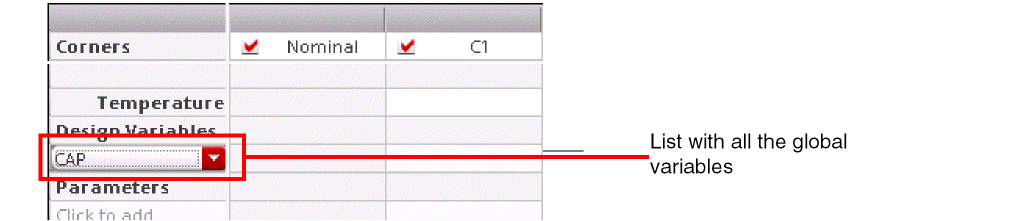
- From this list, select the name of the variable which you want to add to the corner.
-
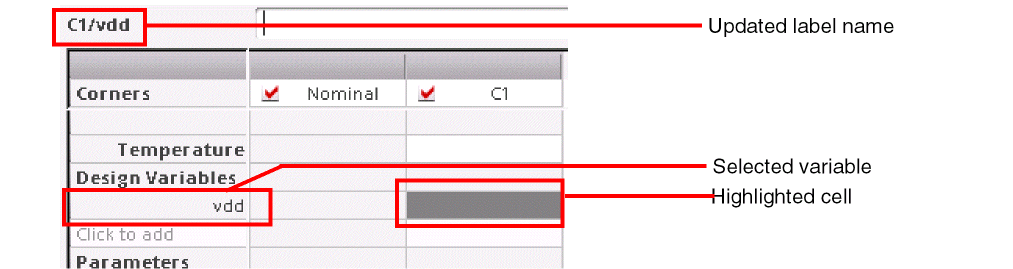
To specify the value for this variable, click in the cell corresponding to this variable in the column that contains the corner definition.
Observe the following changes:- The cell that you clicked is highlighted.
-
The label for the corner name/variable editing field changes to corner-name
/variable-name. - A new blank row, the label for which reads Click to add, is added below the variable you just created.
For example, when you select thevddvariable from the list, you will see the changes highlighted in the following figure.
-
Specify a value for the variable in the corner name/variable editing field.
You can either specify a single value, a space- or comma-separated set of sweep points, or a range of values in the startValue:increment:stopValue format.
If you specify a long list of sweep points for a variable, the tool automatically expands the text field up to the right margin of the form so that all the values can be viewed while editing, as shown in the following figure.
When you specify sweep points for a variable, the number of corners are calculated based on the number of sweep points for all the variables, parameters, or model files specified for that corner. For example, if for a corner, two variables have two sweep points each, the total number of corners is four. To see the setup for each corner, click Expand corner group on the toolbar.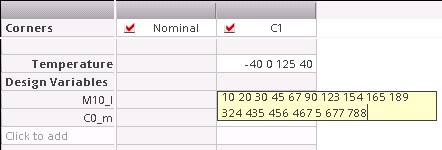 To remove the design variables for a corner, right-click the corresponding cell and select one of the following options:
- Remove: Removes the selected design variables.
-
Remove Unselected: Removes the unselected variables.By default, before running a simulation, ADE Explorer does not match the design variables in the Corners Setup form with the list of global variables in the active setup. If the setup for corners uses any design variable that is not present in the active ADE Explorer setup, a redundant simulation is run for that variable. To ensure that any design variable that does not exist in the ADE Explorer setup is reported as an error before running a simulation, set the
showErrorForNonExistingVariablesenvironment variable tot.
Specifying Values for Parameters
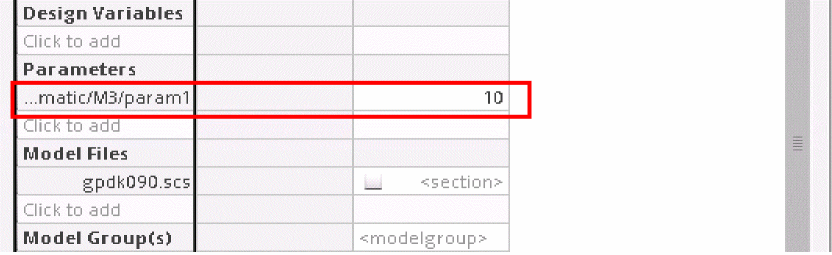
For a corner, you can specify parameters in the same way as you specify variables. When you click the text Click to add under Parameters, a drop-down list containing the names of all the CPF parameters, created for the cells or instances used in the test, is displayed. Select the required parameter from this list and specify a value for the parameter.
Adding Model Files to a Corner
Perform the following steps in the Corners Setup form, for each model file you want to add as a corner:
-
In the Corners Setup form, perform one of the following steps:
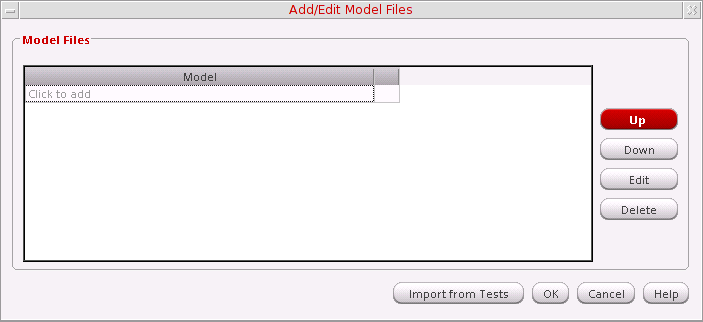
The Add/Edit Model Files form is displayed.
-
In the Model Files group box, do one of the following to add model files:
- Click the text Click to add and type the path to and name of a model file.
- Click the ellipses button to select a model file.
-
Click Import from Tests to import model files from the test in your setup.
All the model files specified for test in your setup are displayed in the form. For more information about specifying model files for a test, see Specifying Model Libraries.In addition to selecting the model files to be used for a corner, you can also do the following in the Add/Edit Model Files form:- Modify the search order which the simulator uses to find simulation models in the model files — By default, the simulator searches for models in the model files in the order as they are listed in the Corners Setup form. The simulator uses the first simulation model it finds with the matching name. To modify the search order, select the model file and click Up or Down. The selected model file moves up or down in the list.
- Edit a model file — Select the model file you want to edit and click Edit. The model file is displayed in a text editor. Make the changes you want to make. Save your changes and close the text editor.
- Remove a model file from the list — Select the model file and click Delete.
-
Click OK.
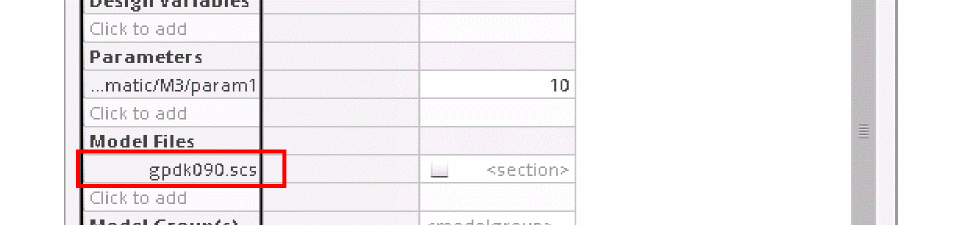
The model file name is displayed in the Corners Setup form.
-
In the column for a corner, select the check box in the cell corresponding to the model file, to add it to the corner.

-
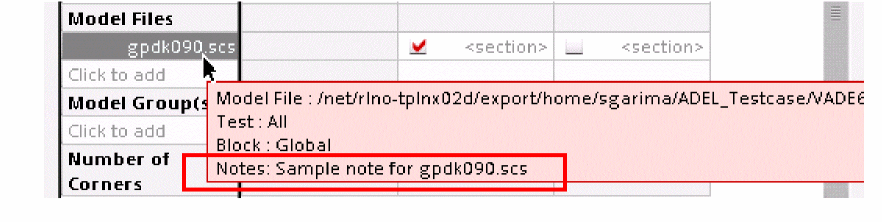
If required, add notes for the model file. To do this, right-click a model file and select Notes. In the Add/Edit Notes form, add notes for the model file and click OK. The notes added for model files are shown in their tooltips.
-
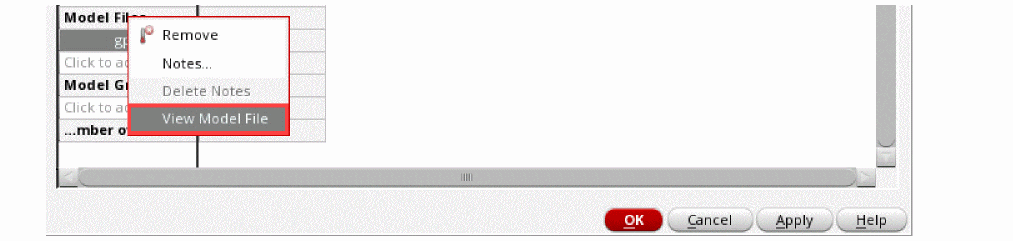
You can also view the model file in a text editor. To do this, right-click the model file and select View Model File.
-
If required, you can specify a selected set of sections of the model file. For more details on how to specify sections for a model file, refer to Specifying Sections for Model Files.If you have imported model files, the tool does not import the corresponding section names to be used. In this case, while running the corner simulation for a test, the tool considers those sections of the model file that are specified for the test. However, if required, you can specify a different set of section names.
Specifying Sections for Model Files
When you specify a model file for a corner in the column for that corner, the cell corresponding to the model file shows default text <section>. This implies that the corner uses all the sections defined in the specified model file. If required, you can specify a selected set of sections of the model file that you want to use for the corner.
To specify sections, double-click in the model file cell for the corner. A drop-down list containing the names of all the sections defined in the file is displayed. Select a section that you want to include in the corner. You can also select more than one section, by selecting the required sections one by one. Each section you select is displayed in a space-separated list, as shown in the following figure.

- If you do not have the read permission for the model file, the section names will not be displayed in the drop-down list.
Adding a Model Group to a Corner
Perform the following steps in the Corners Setup form to add one or more model groups to a corner:
-
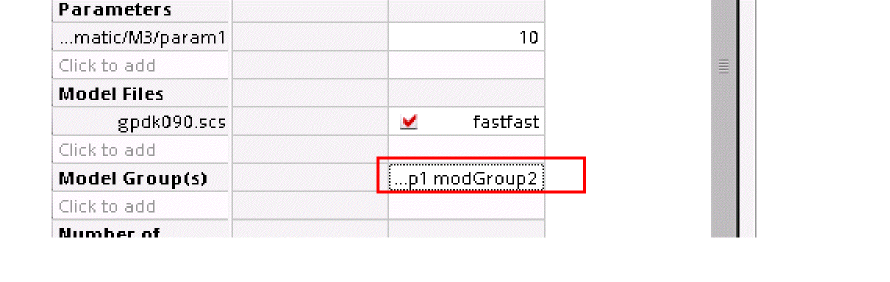
In the column for a corner, double-click where it says <modelgroup>.
A drop-down list with all the available model groups is displayed in this cell. -
Select all the model groups which you want to add to the corner, one by one.
Each model group that you select is displayed in a space-separated list in the column for the corner.
Creating a Model Group
A model group contains model files that you can use when simulating a corner. For each model file in the group, you can also specify selected sections to be used.
Perform the following steps in the Corners Setup
-
Click Add/Edit Model Group(s)
 on the toolbar.
Alternatively, click the text Click to add under Model Group(s).
The Add/Edit Model Groups form is displayed.
In the Model Groups field, type a name for the model group and click Add/Update.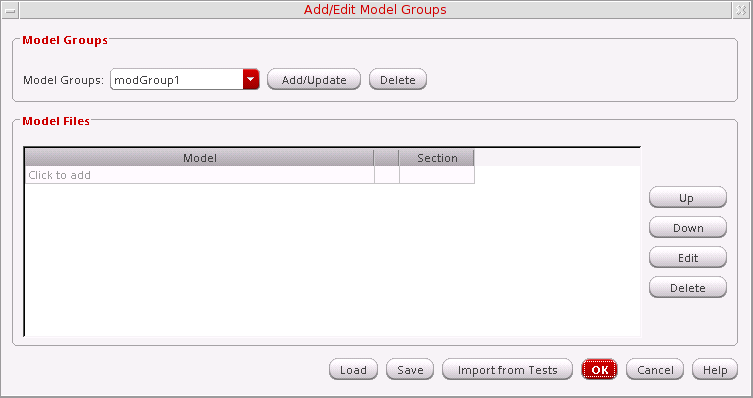
-
Perform one of the following steps to add one or more model files to the model group:
- In the Model column of the Model Files table, click the text Click to add and type a valid path to a model file.
- In the Model Files table, click the ellipses button to open the Choose Model File form. Browse to select a model file and click Open.
- Click Import from Tests. Model files are imported from the test and are displayed in the Model Files table. By default, the files appear enabled. You can disable a model file in a model group by clearing the check box to the left of the model file.
- Optionally, by default, the simulator searches for models in all the sections of a model file. If required, you can specify one or more sections from each model file by double-clicking in the Section column and selecting the required sections from the drop-down list that is displayed.
- Click OK.
In addition to creating a model group, you can also do the following using the Add/Edit Model Groups form:
- Remove a model file from the model group—Select the model file in the Model Files table and click Delete.
- Edit a model file: Select the model file in the Model Files table and click Edit.
- Modify the search order for the model files—Select the model file in the Model Files table and click Up or Down.
-
Create a new model group from an existing model group—You can do this by performing the following steps in the Add/Edit Model Groups form:
-
In the Model Groups field, select an existing model group from the drop-down list.
Model files in that model group appear in the Model Files table. - If required, make the changes you want for the new model group. You can add or remove model files or their sections. You can also edit a file or change the search order.
- In the Model Groups field, type a new name for the model group.
- Click Add/Update.
-
In the Model Groups field, select an existing model group from the drop-down list.
A new model group is created with the name you specify and this name is also added to model groups drop-down list in the Corners Setup form.
Saving and Loading Model Groups
You can save the model group information in the Add/Edit Model Groups form to a file and use the file later to load the model group information in the same or a different ADE Explorer view.
Saving a Model Group
Perform the following steps to save model group information:
- Click Save. The Save Model Groups form is displayed.
- Locate the directory in which you want to save the file and type a name for the file in the File name field.
- Click Save.
The model group information is saved in XML format and the filename contains the .sdb extension.
Loading a Model Group
Perform the following steps to load model group information from a previously saved file:
- Click Load. The Load Model Groups form is displayed.
- Locate the required model group information file.
- Click Open.
The model group information is displayed in the Add/Edit Model Groups form.
Adding Corners Tags
To filter or search through a long list of corners, you can assign specific tags to them.
To know more, see
Modifying Corner Values
After you add corners, you can modify values for individual corners in the Corners Setup form. To edit the values of design variables or parameters, select the cell to display its value in the variable editing text field. You can edit the value in this field. Alternatively, double-click in the cell containing that value and edit the value there.
In addition, to editing values, you can also perform one of the following steps to modify a corner:
-
Enable/disable a model for a corner— Select/deselect the check box next to the model name in the column for the corner.

-
You can enable/disable all corners—Select/deselect the check box to the left of the test name.

-
Remove a design variable, parameter, or model file from the Corners Setup form — Select one or more items that you want to remove, right-click and choose Remove.
Working with Corners
This section describes the various tasks that you can perform while working with the corners.
- Renaming a Corner
- Adding Notes to a Corner
- Disabling and Enabling Corners
- Changing the Order of Corners
- Removing Corners Using the Setup Assistant
- Removing Corners Using the Corners Setup Form
- Viewing Corner Settings
- Copying Corners
- Exporting Corners
- Importing Corners
- Importing Corners from Customization Files
- Setting Up a Default Set of Corners
- Running Resource Estimation for a Specific Corner
Renaming a Corner
By default, the program names corners as C1, C2, and so on.
Perform the following steps to change the default name of a corner:
-
In the Corners Setup form, select the name of the corner.
The name of the corner is displayed in Corner Name text field. - Change the name of the corner and press Enter.
- Click Apply.
Adding Notes to a Corner
If you have some additional information to add to the corners, you can add notes for each individual corner, which you can refer to later.
Perform the following steps in the Setup assistant or in the Corners Setup form to add notes for a corner:
-
Right-click the corner name and choose Notes.
The Add/Edit Notes form is displayed.
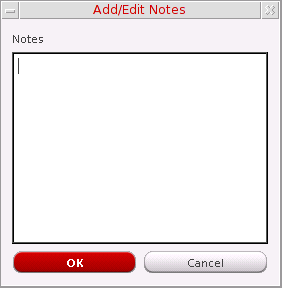
- In the Notes field, add notes for the test.
- Click OK.
The notes are saved in the setup database and displayed in the tooltip for the corner.
Disabling and Enabling Corners
By default, a corner is enabled to run for the test in the current ADE Explorer setup. You can selectively disable and enable the nominal corner, one or more corners for the test, or all corners.
- Disabling and Enabling the Nominal Corner
- Disabling All Corners
- Disabling and Enabling One or More Corners
- Changing the Order of Corners
Disabling and Enabling the Nominal Corner
Perform the following step to disable or enable the nominal corner simulation:
Perform one of the following steps to disable or enable the nominal corner simulation:
- In the Corners section on the Setup assistant, deselect/select the Nominal check box.
- In the Corners Setup form, deselect/select the Nominal check box.
Disabling All Corners
Perform one of the following step to disable all corners:
-
In the Corners Setup form, right-click a test name and choose Disable Corners on Test.
The check boxes for all the corners, except the nominal corner, are cleared. The simulator does not run the corner simulations for the test. -
In the Setup assistant, deselect the check box next to the Corners section.
All the corners, including the nominal corner, are disabled. The simulator does not run the corner simulations for the test.
Enabling All Corners
Perform one of the following step in the Corners Setup form to enable all corners:
-
In the Corners Setup form, right-click the test name and choose Enable Corners on Test.
The check boxes for all the corners are selected. The simulator runs the corner simulations for the test. -
In the Setup assistant, select the check box next to the Corners section.
All the corners are enabled. The simulator runs the corner simulations for the test.
Disabling and Enabling One or More Corners
Perform the following steps in the Corners Setup form to disable one or more corners:
- Select a corner.
- Optionally, hold down the Shift key (for contiguous corners) or the Ctrl key (for noncontiguous corners) and click the next corner to add more corners to the selection set.
-
Right-click the name of an enabled corner and choose Disable.
The check boxes next to the names of all the selected corners are cleared. The simulator does not run those corner simulations.
To enable one or more corners, select the name of the corners as described above, and then right-click and choose Enable.
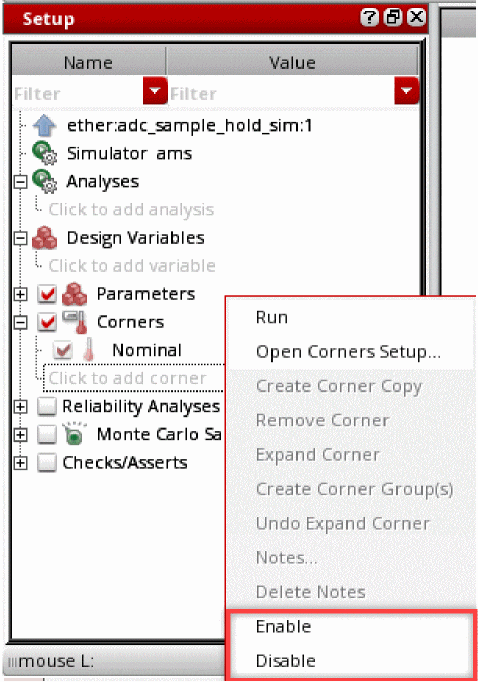
Alternatively, to enable or disable one or more corners in the Setup Assistant, select the name of the corners, right-click and choose Enable or Disable.
Changing the Order of Corners
You can change the order in which the corners are listed in the Setup assistant or the Corners Setup form. Any change done in either of these is reflected in the other as well. This also defines the order in which the corners are simulated.
You can change the order of corners either in the Corners Setup form or in the Setup assistant.
Perform the following steps to change the order of a corner in the Setup assistant:
- Expand Corners to view all the corners.
-
Click a corner name and drag it to the desired location.
A blue indicator line appears at the location where you have moved it. The tooltip also shows the name of the corner being moved. - Drop the corner.
Perform the following steps to change the order of a corner in the Corners Setup form:
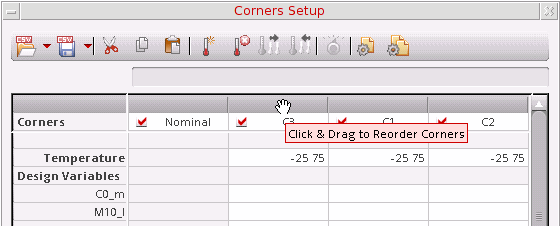
Important Points to Note
- To move multiple corners at a time, press the Control key and select all the corners, and then drag them to the new location.
-
You cannot change the order for the
Nominalcorner. - In the Corners Setup form, it is not possible to drag and drop a corner to the right-most location.
Removing Corners Using the Setup Assistant
Perform the following steps in the Setup assistant to remove one or more corners:
-
Expand Corners and select the name of the corner you want to remove.
Optionally, Use theShiftkey (for contiguous corners), or theControlkey (for noncontiguous corners) and click the next corner to add more corners to the selection set. -
Right click the corner name and choose Remove Corner.
The selected corners are removed from the Corners section.
Removing Corners Using the Corners Setup Form
Perform the following steps in the Corners Setup form to remove one or more corners:
-
Select the name of a corner.
Optionally, use theShiftkey (for contiguous corners), or theControlkey (for noncontiguous corners) and click the next corner to add more corners to the selection set. -
Select one of the following options from the Remove Corner command on the toolbar.
- Remove Selected Corners: Removes the selected corners.
- Remove Hidden Corners: Removes the hidden corners
-
Remove Corners with Undefined Variables: Removes the corners containing variables that have no value specified in a corner or the sections Design Variables and Global Variables of the Setup assistant.
For example, on selecting this option for the following setup, the cornerC2gets removed since the variablecloaddoes not have a value specified for it and is not defined in the Design Variables or Global Variables section of the Setup Assistant.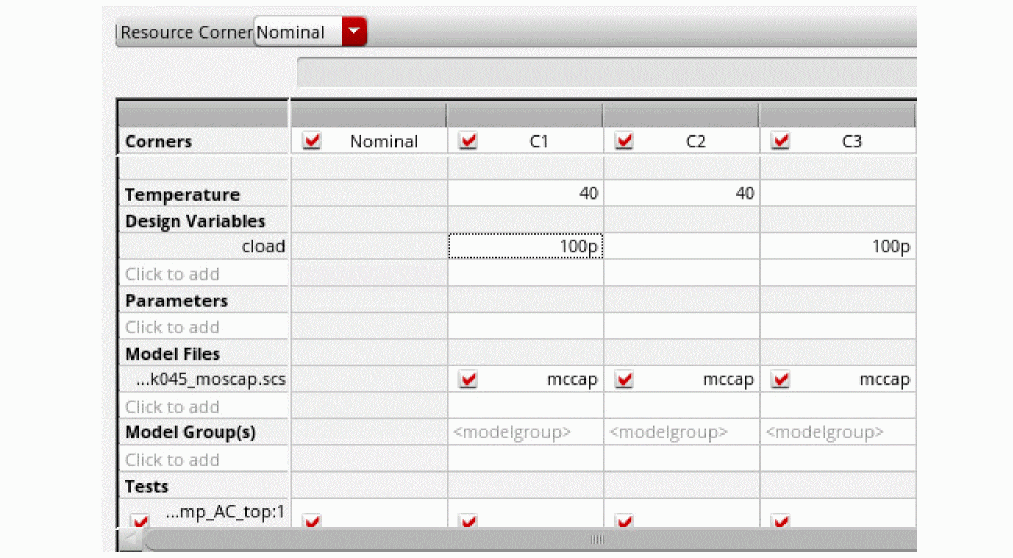
-
Remove Duplicate Corners: Removes any duplicate corners. These are corners that contain the exact same specified conditions.
For example, on selecting this option for the following setup, the cornerC2gets removed since it contains the same specified conditions asC1.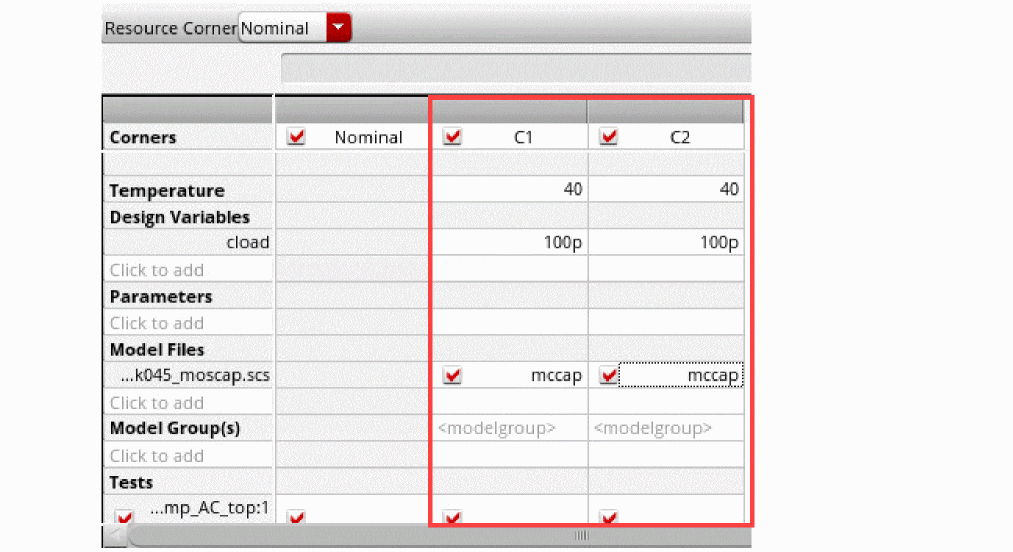
Managing Corners Using Editing Options
In case you have a standard set of instructions to review and consolidate a set of corners in the setup, you can specify these instructions as editing options.
-
Set the function
maeSetCornerEditingOptions. -
Whenever you want to review the desired list of corners, set the function
maeApplyCornerEditingOptions. This filters the list of corners according to the predefined settings.
ADE Explorer and ADE Assembler also provide the following functions:
-
maeGetCornerEditingOptions: Lets you review the editing options specified throughmaeSerCornerEditingOptions. -
maeResetCornerEditingOptions: Resets the corners setup to its state beforemaeSetCornerEditingOptionswas set.
Related Topics
Viewing Corner Settings
Perform the following step to view the settings for a corner:
-
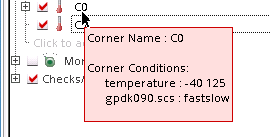
In the Corners section on the Setup assistant, hover the mouse pointer over the name of a corner.
The tooltip displays the corner settings, as shown in the following figure:
Copying Corners
You can reuse the information in a corner by creating a copy of the corner.
Perform one of the following steps to create a copy of a corner:
-
In the Setup assistant, expand Corners, right-click the corner name and choose Create Corner Copy.
A new corner containing the same corner information is added to the Corners section. -
Alternatively, in the Corners Setup form, right-click the corner name and choose Create Corner Copy.
A new column containing the same corner information is displayed in the Corners Setup form.
Exporting Corners
You can export corners from the Corners Setup form and save them in the following formats:
Perform the following steps to export corners setup information in any of these formats:
-
In the Corners Setup form, choose an appropriate command to export the corners, as shown in the figure below.
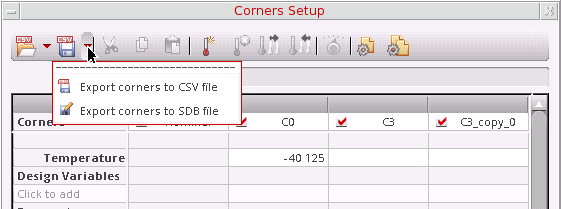 The default button displayed in the drop-down menu is defined by theThe Export Corners form is displayed, as shown below.
defaultCornerExportFileFormatenvironment variable. If required, you can change the default command by setting the value of this environment variable before opening the Corners Setup form.
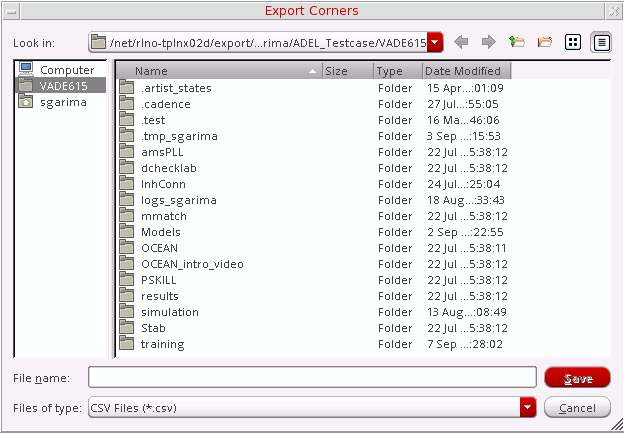
- Optionally, browse and select a directory in which you want to save the file.
- In the File name field, type a name for the file in which you want to save the exported corners setup.
-
Click Save.
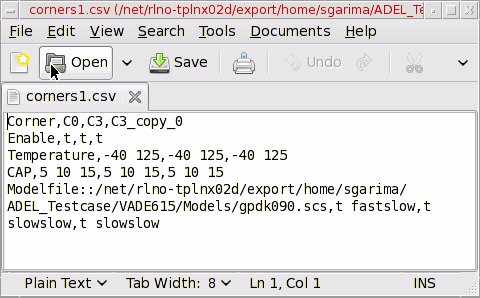
The corners setup information is saved in the specified.csvor.sdbfile.
If you saved the corners in the.csvformat, you can open the file to view or modify the details. However, you need to ensure that the format of the file is correct. For details on the format of a CSV file, refer to Format Details of a Corners CSV File.
 When you export the corner details in the CSV format, ADE Explorer ignores the following setup details:
- Model groups specified for any corner
- Statistical corners
- Worst case corners
If you have defined any of these details in the Corners Setup form, ADE Explorer does not save these in the.csvfile and displays an appropriate message.
Importing Corners
You can import the corner details from an existing .csv or .sdb or a customization file.
The following topics explain how to import corners from these files:
Importing Corners from .csv or .sdb Files
Perform the following steps to import the corners setup from a .csv or .sdb file:
-
In the Corners Setup form, choose an appropriate command to import the corners.
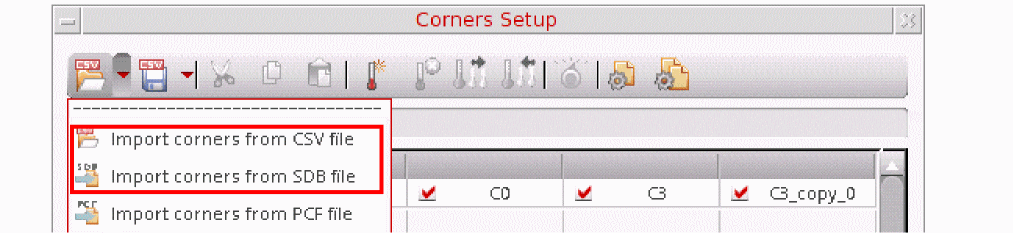 The default button displayed in the drop-down menu is defined by theThe Import Corners form is displayed.
defaultCornerImportFileFormatenvironment variable. If required, you can change the default command by setting the value of this environment variable before opening the Corners Setup form. - Browse and select a valid corners setup file.
-
Click Open.
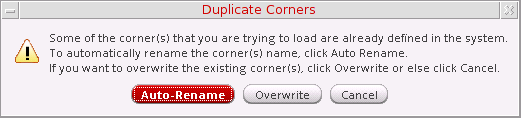
The corners setup information is loaded from the specified file and displayed in the Corners Setup form. If the file has a corner that has the same name as an existing corner, the following message is displayed.
-
Click Auto-Rename to import the duplicate corner from the file with a different name. For example, if there is an existing corner named
C1, the corner in the file will be imported asC1_0. In this case, both the existing corner and the corner being imported from the file are used. - Click Overwrite to overwrite the existing corner with the corner being imported. In this case, the column for the existing corner is removed from the corners setup table.
- Click Cancel to cancel the import process.
While importing the corners setup, if you have a predefined set of instructions specified through the functionmaeSetCornerEditingOptions, the tool reviews the corners according to these settings and filters the desired list of corners. -
Click Auto-Rename to import the duplicate corner from the file with a different name. For example, if there is an existing corner named
Related Topics
Format Details of a Corners CSV File
While importing corner details from a CSV file, ADE Explorer requires the information to be given in a desired format that it uses to identify different elements of a corner. This section explains how each row in a CSV file is required to be formatted, so that the information can be imported by ADE Explorer into the Corners Setup form.
The figure given below shows a sample CSV file.
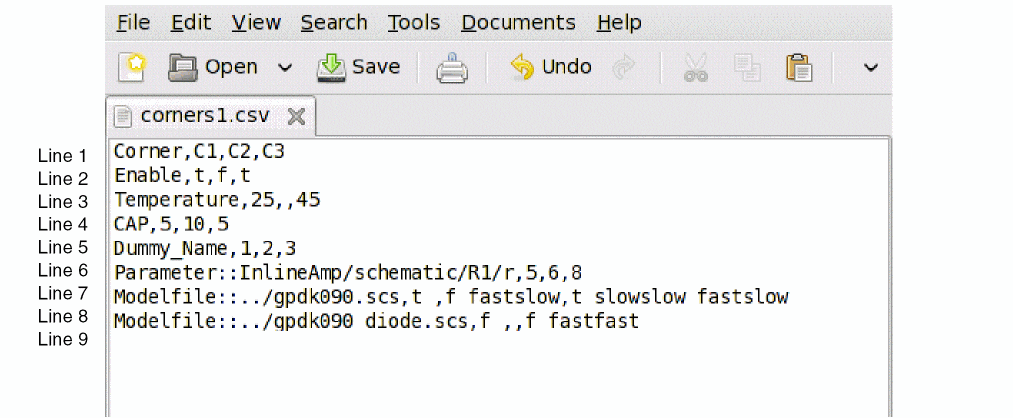
In the figure above, the lines have been numbered so that they can be referenced to explain the format.
-
Line#1 — The names of corners are identified by a comma-separated list given in a line that begins with the keyword
Corner. -
Line#2 — The state of a corner, enabled or not, is identified by a line that begins with the keyword
Enable. In the example, the cornerC2is not enabled. If a blank entry is found in this list, ADE Explorer considers the default value and marks the corresponding corner as enabled. -
Line#3 — The temperature value for each corner is defined by a comma-separated list given in a line that begins with the keyword
Temperature. A blank entry in this list is considered as aNULLvalue for the corresponding corner. -
Line#4, 5 — The lines that define the design variables and their values for each corner begin with variable names. There can be many lines for the design variables where each line is for a different variable. If more than one line is given for a single variable, only the values given in the last occurrence are used. A blank entry in the list for a variable is considered as a
NULLvalue for the corresponding corner. If a variable name does not match with any variable for the test in the setup, it is ignored and its details are not imported in the form. An appropriate warning message is also displayed in the CIW. In the example shown above,Dummy_namewould be ignored. -
Line#6 — The lines that begin with the keyword
Parameter::define the parameters and their values for each corner. A separate line is given for each parameter. If a parameter name does not exist in the Parameters pull-down list in the Corners Setup form, it is ignored and not imported. An appropriate warning message is also displayed in the CIW.A comma-separated list of values assigned to a single corner column forTemperature, design variable, or parameter is to be enclosed in double-quotes, as shown in the following example:Corner,C0,C1,C2,C3 Enable,t,t,f,t Temperature,"40,75",25,,45 vdd,2.0,"2.2,2.4",, 2.0
In this case, value ofTemperaturefor cornerC0is40,75. -
Line#7, 8 — The lines that begin with the keyword
Modelfile::define the model file names, their enabled status and the section names to be used for each corner. Separate rows are used for separate model files. Each value in this list is a space-separated sublist that gives the enabled status of the model for a corner and then the list of section names. The right-most value in line#7,t slowslow fastslow, mentions that the model file has been enabled for cornerC3and sectionsslowslowandfastsloware to be used forC3.
When a blank entry is found in this list, the model file is not used for the corresponding corner. In the above example, thegpdk090_diodemodel file is not used for cornerC2. -
Line#9 — The usage of corners for the test is defined by the rows that begin with the keywords
torffollowed by the keywordTest::, the test name, and the list of enabled status for each corner. In the following line from the example CVS file:
t Test::training_new_4:InlineAmp:1,t,f,t
tin the beginning indicates that corners will be run for theTest::training_new_4:InlineAmp:1test. Thet,f,tlist indicates that cornerC2is not enabled for this test.
Format of a .SDB File
While importing corner details from a SDB file, the maestro cellviews require the corner details to be given in the required set of XML tags that it uses to identify different elements of a corner. This section explains the XML tags used to read corners:
-
<setupdb>: (Mandatory tag) Specifies the name of the source setup database. The version property of this tag specifies the version of XML tags used in the .sdb file. The latest version is 6. -
<active>: (Mandatory tag) Specifies that the corners are to be imported for the currently active setup in the maestro view. -
<corners>: (Mandatory tag) Contains details for one or more corners. Each corner is specified by the<corner>tag. -
<corner>: Specifies the details for one corner. This tag can further contain<vars>,<parameters>or<models>tags to specify various corner settings.
The following code shows an example input file that contains only one corner with minimum details to be imported.
<?xml version="1.0"?>
     <setupdb version="6">SDB_NAME
          <active>Active Setup
          <corners>
               <corner enabled="1">CORNER_NAME</corner>
          </corners>
          </active>
</setupdb>
The following example input file contains multiple settings for the corners to be imported:
<?xml version="1.0"?>
     <setupdb version="6">b
     <active>Active Setup
     <corners>
          <!-- Can contain multiple corner tags-->
          <corner enabled="1">_default</corner>
          <corner enabled="1">C0
               <vars>
               <!-- Can contain multiple var tags to define corner variables -->
                    <var>temperature
                         <value>27</value>
                    </var>
                    <var>v1
                         <value>1</value>
                    </var>
               </vars>
               <parameters>
               <!-- Can contain multiple location tags to define different device parameters in corners. Specify the location in the libraryName/cellname/viewName/instName format-->
                    <location>design_180/inv/schematic/PM0
                        <parameter>fingers
                            <value>1u</value>
                        </parameter>
                    </location>
                </parameters>
                <models>
                   <!-- Can contains multiple model tags to define model files. modelblock is used for MTS model setting. For non-MTS blocks, set it to Global. modeltest is used to specify the test name for a model -->
                    <model enabled="1">gpdk.scs
                        <modeltest>All</modeltest>
                        <modelblock>Global</modelblock>
                        <modelfile> ./gpdk.scs</modelfile>
                        <modelsection>"FS"</modelsection>
                    </model>
                </models>
                <disabledtests>
                <!-- Defines the tests disabled for this corner. -->
                    <test>MTS_test2:testbench:1</test>
                </disabledtests>
            </corner>
    </corners>
    </active>
    </setupdb>
Importing Corners from Customization Files
You can import a set of predefined corners and their measurements from the following types of customization files:
- Process Customization Files (PCFs): PCF is a file that is typically created by a process engineer or process group, and defines the processes, groups, variants, and corners so that everyone in an organization uses the same definitions.
- Design Customization Files (DCFs): DCF is a file that is typically created by a design engineer or design group ,and defines the corner variables and measurement information for a particular design or for several designs within a design group.
Usually, you need to load the process customization information before you can import corners or measurements from a design customization file. The settings must refer to the definitions that you have already loaded.
Perform the following steps for each customization file you want to import:
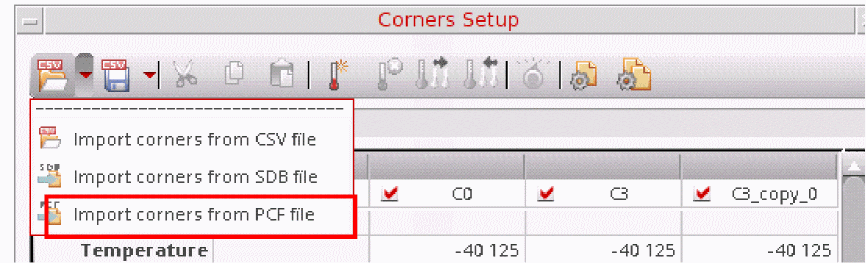
-
In the Corners Setup form, choose the Import Corners from PCF File
 command on the toolbar.
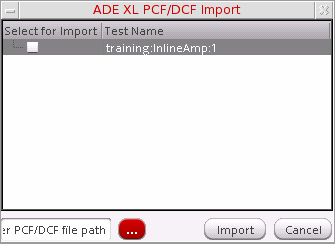
The ADE XL PCF/DCF Import form is displayed.
-
Click the ellipses button.
The Choose PCF/DCF File for Import form is displayed. - Browse and select the PCF/DCF file from which you want to import the corners.
-
Click Open.
The file is displayed in the field in the lower left corner of this form. - Select the check boxes next to the test name for which you want to use the imported corners.
- Click Import.
The program imports the corners and their measurements from the specified file. The new corners are added as new columns in the Corners Setup form. If required, you can edit the corner details, such as variable values or model sections. When you edit the section name for a model file, simulation for the corner would fail if the specified section name does not exist in the limited list specified in the PCF file. To avoid this, you can set the LimitModelSections environment variable to LimitedList to specify that if the section name does not exist in the limited list, the tool should display an error message in the Corners Setup form.
- If the program finds any errors while reading the file, these messages appear in the CIW output area.
-
If more than one process has a corner set with the same name, the corners will be displayed as
processName_cornerNamein the Corners Setup form. For example, if the process namedmyProcessdefines a corner set namedsampleand another process namedmyProcess1also defines a corner set namedsample, the corners are displayed asmyProcess_sampleandmyProcess1_samplein the Corners Setup form.
Setting Up a Default Set of Corners
Perform the following steps to automatically setup a default set of corners when you open an ADE Explorer view:
- Use the procedure described in Exporting Corners to create a file that contains a set of corners that you want to be used as the default set of corners in every ADE Explorer view.
-
Use the adexl.gui defaultCorners environment variable to automatically load the default set of corners from the file when you open an ADE Explorer view.
You can use the default set of corners as is, or use them to quickly setup up corners for your test.
The following examples describe the use of the adexl.gui defaultCorners environment variable.
Example 6-1 Loading a default set of corners using the defaultCorners environment variable
Add the following entry in your .cdsenv file to load the corners defined in the myDefaultCorners.sdb file:
adexl.gui defaultCorners string "$HOME/myDefaultCorners.sdb"
Example 6-2 Loading a default set of corners based on a custom SKILL procedure
Add the following procedure in your .cdsenv file to load a default set of corners defined in the myDefaultCorners.sdb file based on the myTechProp property assigned to a cellview in a technology library named myTechLibs:
procedure(myCornerLoadProc(args)
session = asiGetSession(args->window)
myTechName = ddGetObj(asiGetTopCellView(session)->libName)->technology
envSetVal( "adexl.gui" "defaultCorners" 'string strcat("/cadence/virtuoso/" myTechName "/libraries/myTechLibs/" getShellEnvVar("myTechProp")
"/myDefaultCorners.sdb"))
)
deRegUserTriggers("adexl" nil nil 'myCornerLoadProc)
Running Resource Estimation for a Specific Corner
The Resource Corner drop-down list in the Corners Setup form lets you select the corner for which you want to assess the resource requirement. By default, the tool runs resource estimation on the nominal corner. If your setup contains corners that would require a higher level of resources than nominal, it is a better option to assess the resource requirement for a corner with the highest resource requirements. For details, refer to
Working with Corner Groups
A corner group is a set of corners that ADE Explorer displays as a single corner. For more information about working with corner groups, see the following topics:
Creating a Corner Group
When two or more corners have same corner settings except few, you can group all these corners to create a corner group. For example, in the following figure, four corners, C1, C2, C3, and C4 have same values for Temperature, param1, and Model Group. However, these corners use different corner values for the design variable vdd and different sections of the same model file.
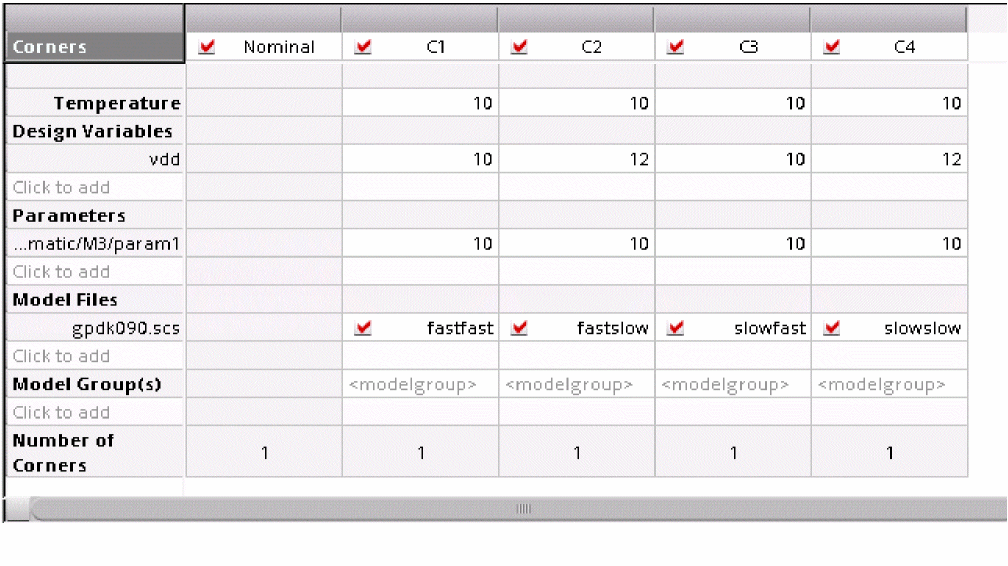
You can create groups for these corners, using the Corners Setup form or the Setup assistant, so that the Corners Setup form displays these corners in a single column. This helps in a better management of these corners.
Creating Corner Groups Using the Corners Setup Form
Perform the following steps to create a corner group using the Corners Setup form:
- Select the names of the corners you want to include in the corner group by doing the following:
-
Click Create corner group
 on the toolbar.
The corners are combined into one or more corner groups, depending on the corners settings. For the example shown above, the program creates two groups, as shown in the following figure.
Two corner groups,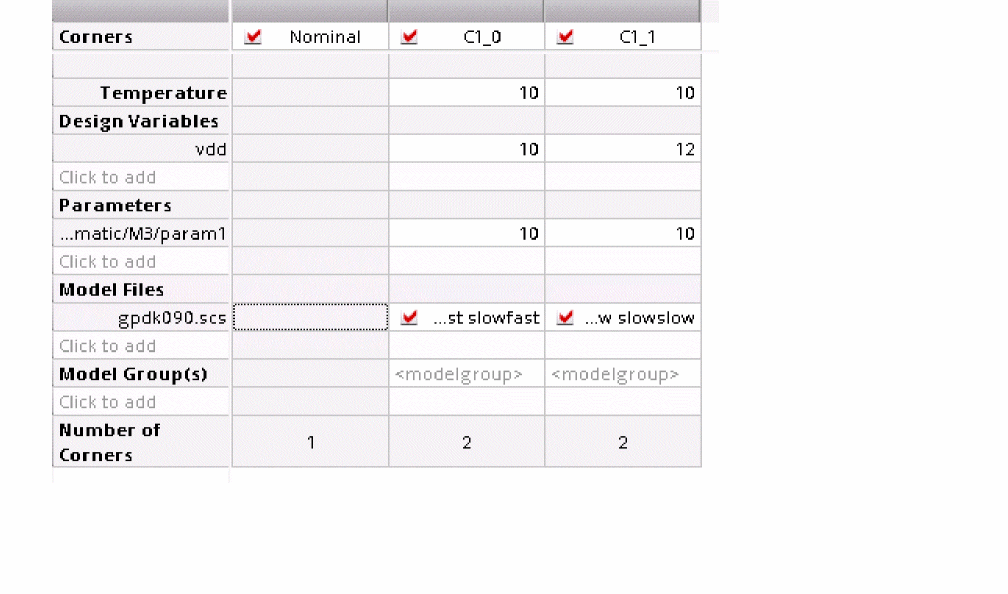
C1_0andC1_1have been created. The Number of Corners field for both the groups shows the value2. This implies that both the groups contain two corners each. This also indicates that for each corner group, two simulations will run.
Another way in which you can create a corner group in the Corners Setup form is by adding multiple values for corners settings.
For example, for cornerC1in the following figure, a list of values (-40,25,125) is specified for theTemperatureparameter, and a range of values (2:.5:4) is specified for thevdddesign variable.
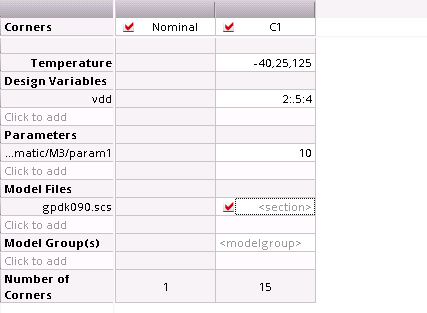
The program creates all possible combinations using these lists or ranges of corner values and writes the number of corners that will run for the corner group.
Creating Corner Groups Using the Setup Assistant
Perform the following steps to create a corner group using the Setup assistant:
-
In the Corners section on the Setup assistant, select the names of the corners you want to include in the corner group.
Hold down the Shift key (for contiguous corners) or the Control key (for noncontiguous corners) and click the next corner name to add more corners to the selection set. -
Right-click and choose Create Corner Group(s).
The corners are combined into a single corner group. For example, if you group corners namedC1,C2andC5, a corner group namedC1_0is created.
Expanding a Corner Group
This section describes, how to:
- Expand a corner group for all possible combinations of corner parameters
- Expand a corner group for selected corner parameters
- Undo an expanded corner group
Expanding Corner Group for all Combinations of Parameters
Perform one of the following steps to expand a corner group, so that it is displayed as several individual corners:
-
In the Corners Setup form, select a corner group name and click Expand corner group
 on the toolbar.
 -
In the Corners section on the Setup assistant, right-click a corner group and choose Expand Corner.
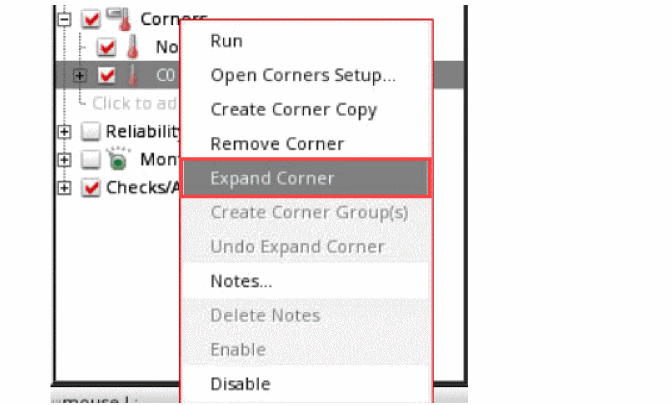
This option expands the corner group and creates corners for all possible combinations of corner values. Each expanded corner is named from the original corner followed by and underscore and a sequence number starting from zero.
For example, if you expand a corner group that contains two variables such as Temperature=-40,27,125 and vdd=2,2.5,3, the total number of expanded corners for these values is nine. If the original corner name is C5 (for example), the expanded corner names are C5_0 through C5_8.
Expanding Corner Group for Selected Parameters
If there are many corner variables, you may want to expand a corner by using values of only one or more parameters.
Perform the following steps to expand corner groups for selected variables:
- Press and hold the Control key and click the cells of selected parameters of the corner group.
-
Right-click and choose Expand Corner Selectively–Selected Params.
The corner group is expanded for all combinations of values of the selected parameters.To expand corners for value sets of the selected parameters, choose Expand Corner Selectively–Selected ParamSet. For example, in a corner group,C_temp_VDD, temp is varied for three values:-25,40and75.VDDis also varied for three values:1.8,2.0, and2.4. If you choose the Expand Corner Selectively–Selected ParamSet command, group1 will be expanded to create the following three corners: - C_temp_VDD_0 with temp =-25and VDD =1.8- C_temp_VDD_1 with temp =40and VDD =2.0- C_temp_VDD_2 with temp =75and VDD =2.4
Undo Expanded Corner Group
Perform one of the following steps to undo the expand of a corner group:
- In the Corners Setup form, right-click an expanded corner name and choose Undo Expand Corner.
-
In the Corners section on the Setup assistant, right-click an expanded corner name and choose Undo Expand Corner.
Filtering Corners
When the number of corners is large, you can apply filters to selectively display the corners that you want to work upon.
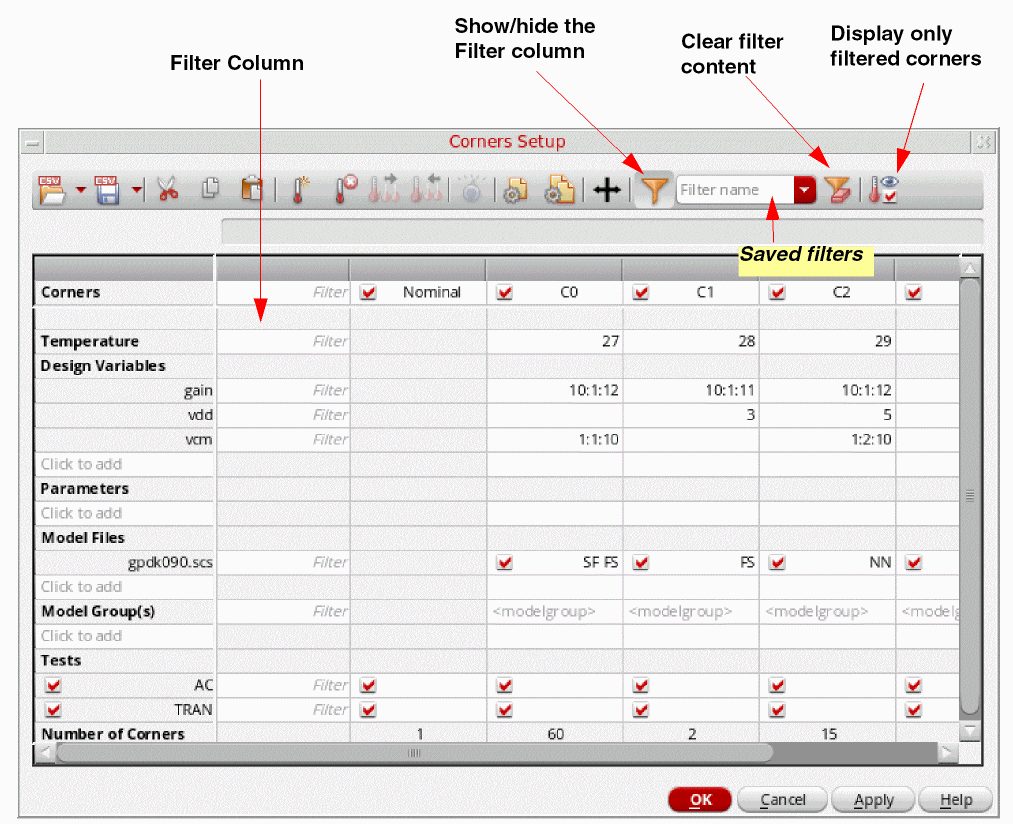
To apply filters in the Corners Setup form:
-
Click the
 button in the toolbar.
The Filter column is displayed as the first column. -
Specify filters for the required rows.
The accepted formats for specifying filters are:-
Space-separated list of values, such as
SF FS NN -
Comma-separated list of values, such as
27,28,29 -
Range of values, such as
2:6or1.0:0.1:4.0 -
Enabled or disabled status in the format
enabled:yesorenabled:no
For example, if you specifyenabled:yesfor a certain row, only the enabled columns for that row will be displayed.
The corners are dynamically filtered as you type in the filter criteria. -
Space-separated list of values, such as
-
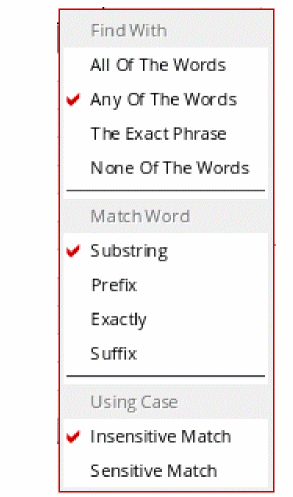
(Optional) Right-click the Filter column to specify the following advanced filter options, as shown in the following figure.
The options selected in this figure are the default selections.
The following figure shows examples of three filters applied in the Corner Setup form.
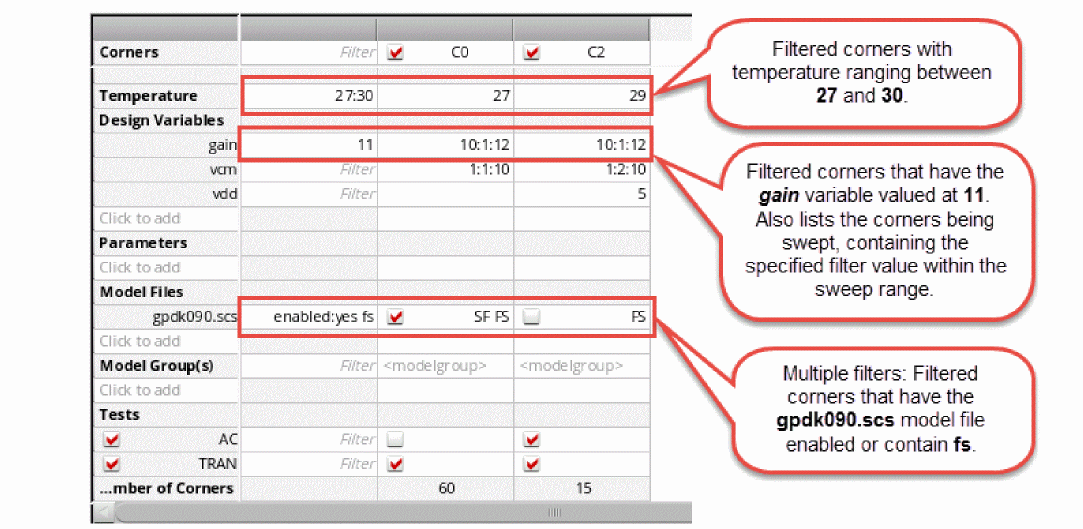
In the second example, the filter value 11 matches the corners with sweep value 10:1:12 also. This is because the sweep range in expanded form is 10 11 12 and it matches the default advanced filter, Find With: Any Of The Words.
To clear contents of all the filters at once, click  .
.
 button in the toolbar to enable only the filtered corners in the simulation.
Multiple Filters
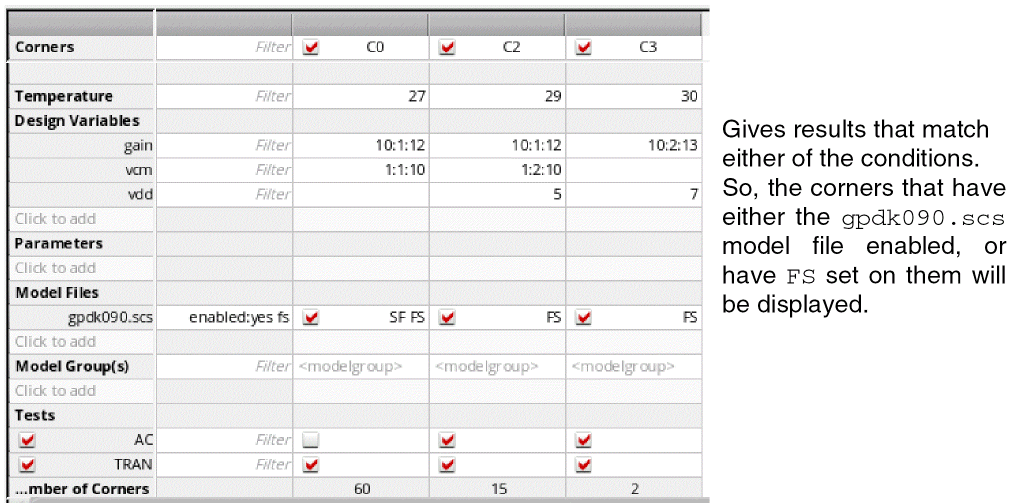
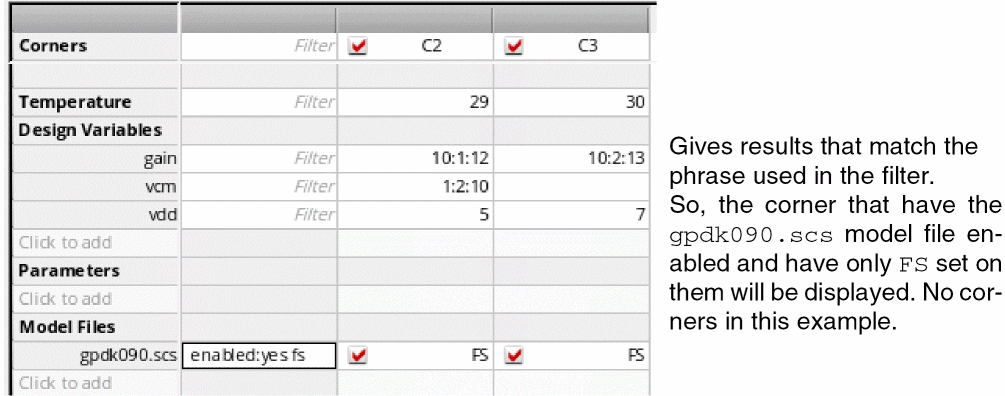
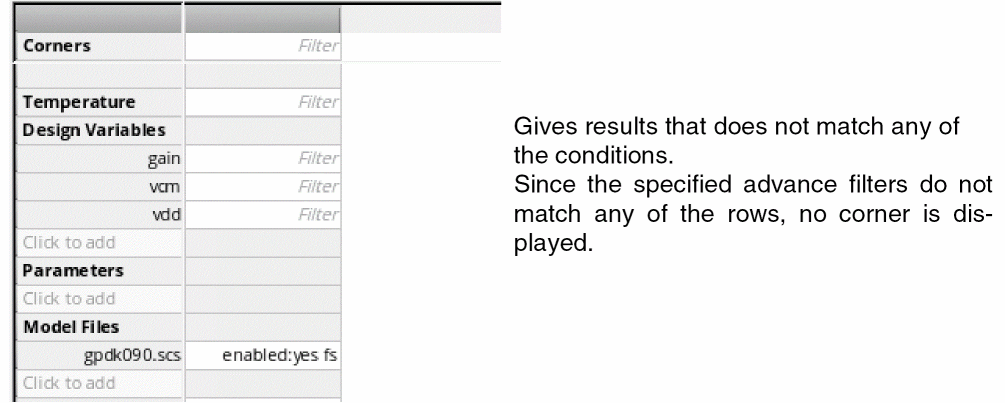
When you apply multiple filters to the rows with check boxes, the results are displayed based on the type of advanced filter applied to that filter. Consider the following example.
In the Corner Setup form, you want to filter the corners containing the gpdk090.scs model files with FS setting. To do so, apply a filter in the following format:
This filter will give you results based on your selections of advanced filters.
Case: 1
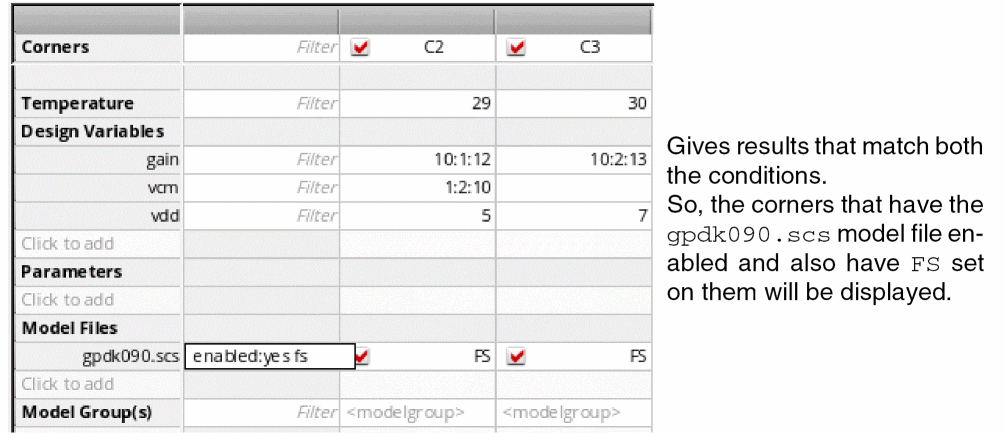
Case: 2
Case 3:
Case 4:
Saving Filters
You can save a set of commonly used filters through the following steps:
- Apply filters to the rows in the Corner Setup form.
- In the Filter Name field on the toolbar, enter a name for the set of filters.
-
Right-click and select Save. Alternatively, you can also press
Enterto save.
The saved filter name will start appearing in the Filter Name drop-down list. These filters are saved in the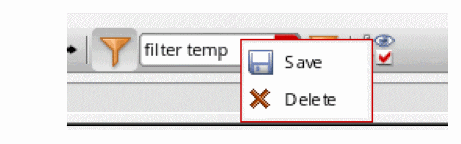
.sdband will be available for the future sessions.
Deleting Saved Filters
- In the Filter Name drop-down list, right-click the named filter that you want to delete and click Delete.
Enabling or Disabling Filtered Corners
After applying filters to view the desired set of corners, you can enable or disable all the displayed or hidden corners by using the commands in the  (Enable or disable filtered corners) drop-down list. The drop-down list contains the following commands:
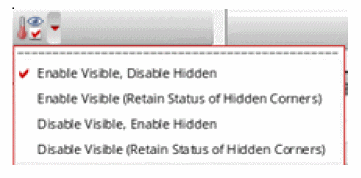
- Enable Visible, Disable Hidden: Enables all visible corners and disables all hidden corners. If any hidden corner was enabled earlier, it is disabled.
- Enable Visible (Retain Status of Hidden Corners): Enables all visible corners. The status of hidden corners is retained. Therefore, after this command is used, the set of enabled corners includes the visible corners and the hidden, but enabled corners.
- Disable Visible, Enable Hidden: Disables all visible corners and enables all hidden corners. If any hidden corner was disabled earlier, it is enabled.
- Disable Visible (Retain Status of Hidden Corners): Disables all visible corners. The status of hidden corners is retained as is. Therefore, after this command is used, the set of disabled corners includes the visible corners and the hidden, but disabled corners.
Resizing Corners
To automatically resize width of all the columns in the Corner Setup form to fit according to the corner name:
 (Resize Corner Columns) button.
 Simulating Corner
Perform the following step to run a simulation for a specific corner:
Perform the following step to run a simulation for one or more corners:
- In the Setup assistant, ensure that the name of the corners for which simulation is required to be run are selected in the Corners section.
-
Click Run Simulation
 on the Run toolbar.
The simulator runs simulation for the selected corners and shows results on the Results tab. If you run a corner group, simulations are run for all the corners in that group and results are displayed as shown in the following figure.
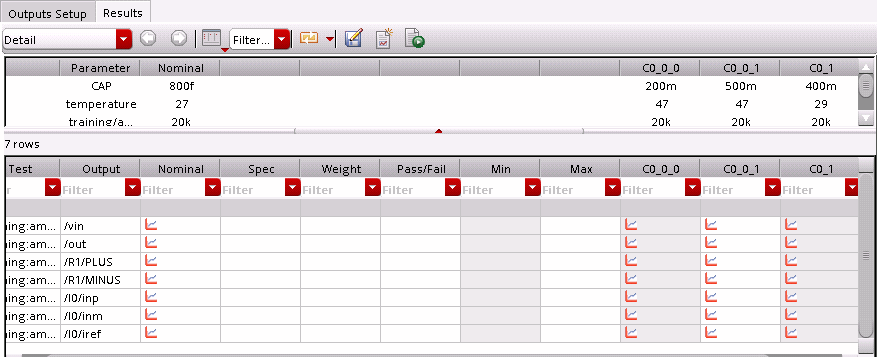
In case of a corner group, a column is displayed in the Results tab for each combination of corner parameters. Based on the results, if you want to create a corner by using the values of variables used for a particular data point, you can create a copy of that corner. For this, right-click in the corner column and choose Create Copy of Selected Corner. A new corner is created with the name same as that of the corner column, prefixed with Copy_.
sortVariableValues variable to nil.Return to top