
Density Calculation
You can generate metal density information for abstracts in LEF 5.8. The density value in LEF helps in verifying metal density fabrication rules early in the design cycle without having to replace the abstracts with the layouts. This information in LEF can reduce the memory requirements and increase the speed of metal fill tools and aid these tools to analyze and fix the designs using abstracts.
Specifying the Metal Layers for Density Calculation
For metal density calculation, you can either use the already specified metal layers and their geometry specifications or specify them afresh on this tab. These two alternatives are elaborated below:
-
You can use the same metal layers and their corresponding geometry specifications as you would have specified for signal nets, power nets, or antenna data extraction in the Extract step. To do this, select one of the following options on the Density tab:
- Use layer assignment for signal extraction
- Use layer assignment for antenna extraction
- Use layer assignment for power extraction
These options are mutually exclusive and selecting one disables the other two options. Only metal layers specified in the selected table will be considered for metal density calculation.
Along with selecting one of these options, you can ally specify the Width and Height of the density window in the Layer Assignment for Metal Density Regions table. See Specifying the Dimensions of the Density Window. -
Alternatively, you can specify a different set of geometry specifications for metal layers by using the Layer Assignment for Metal Density Regions table. To use the geometry specifications from this table, ensure that none of the three layer assignment options is selected. You can turn off these options individually.
The table contains the following columns:-
The Layer column is pre-populated with the metal layers from the technology file. You can remove or edit the existing layers or add any removed layers. Density data will not be calculated for metal layers that are not specified in the table.
If you use the Layer Assignment for Metal Density Regions table and you have specified a non-metal layer in the table, Abstract Generator will issue a warning message during density calculation. - By default, the Geometry Specification column contains the layer names corresponding to each metal layer name in the Layer column. You can modify these values as required.
-
The Width and Height columns are described in Specifying the Dimensions of the Density Window section.If you select to use a layer assignment table for density calculations from a different tab, you can still use the Width and Height columns of the Layer Assignment for Metal Density Regions table on the Density tab. In this case, though the geometry specifications in the Layer Assignment for Metal Density Regions table will not be considered for metal density calculation but you need to ensure that a valid geometry specification exists for every layer specified in this table.
-
The Layer column is pre-populated with the metal layers from the technology file. You can remove or edit the existing layers or add any removed layers. Density data will not be calculated for metal layers that are not specified in the table.
Specifying the Dimensions of the Density Window
You can specify the width and height of the density window either for all the layers or separately for each layer.
To specify the width and height on a per layer basis, use the Width and Height columns of the Layer Assignment for Metal Density Regions table. You can use the Width and Height columns of this table when you either select one of the layer assignment options or use the Layer Assignment for Metal Density Regions table for density calculation.
To specify the same width and height value for all the layers, use the following fields on the Density tab:
The default value for both the fields is 20, which is derived by calculating 10% of a typical 130nm window and 20% of a typical 90nm density check window size. You can modify this value to get Abstract Generator to override the default window size without having to change the Width and Height values for every layer.
Some density windows in the final abstract may be smaller in dimension than the option values specified. This happens around the edges of the PR boundary on various layers. This is illustrated in the following scenarios:
Scenario I: Rectangular PR Boundary
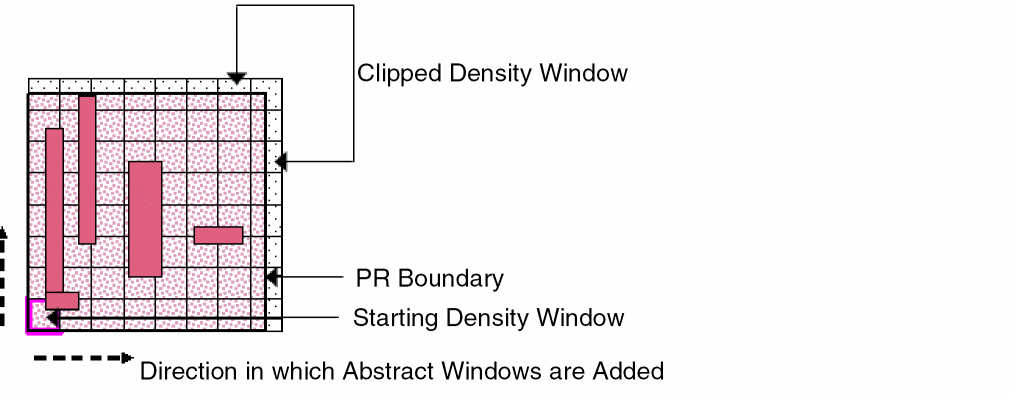
Starting from the lower left corner of the bounding box of the PR boundary, the abstract is divided into a rectangular grid with window size as specified in the GUI. The rectangles intersecting the PR boundary are clipped at the right and top sides. Therefore, the size of the density windows at the right and top sides will be smaller than the size specified for the density window in the GUI. This is shown in the figure below.
Scenario II: Rectilinear PR Boundary
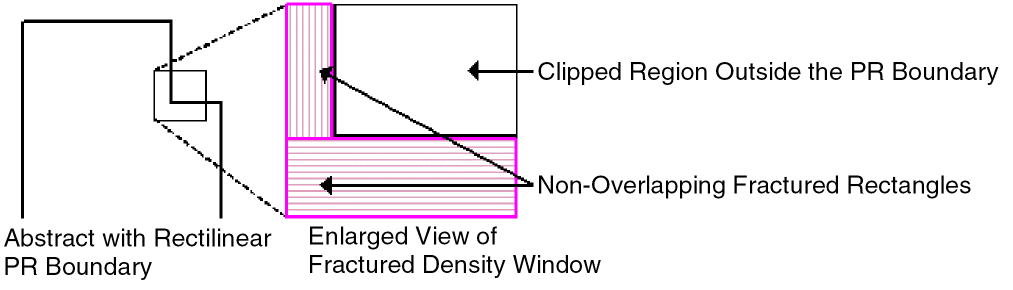
The density windows are clipped wherever they intersect the PR boundary. The resulting polygons are fractured into smaller rectangles and density data is generated for each of these independently.
Storage Location of Metal Density Information
On OpenAccess, the density rectangles are saved as an oaLayerBlockage object with type oacFillBlockageType. The bBox of the oaLayerBlockage object is reported as the metal density rectangle in LEF by the export tool.
Related Topics
Calculating Metal Layer Density
Return to top