
3
Composite Requirements
In Verifier, a typical requirement includes the ID, name, description, and other properties, which are displayed in a single row. In complex cases, a single requirement cannot be used to verify simulation results in different operating conditions. To meet the needs of such complex cases, Verifier provides a special type of requirement, known as Composite.
The key features of a composite requirement are as follows:
- The results for the same measurement can be verified under different conditions
- A composite requirement can have only one sub-level of hierarchy, with one parent and its child requirements
- The child requirements inherit the properties and mappings of the parent requirement of the Composite type, unless they are overridden
- The child requirements can be assigned with different verification spaces that define the special simulation conditions
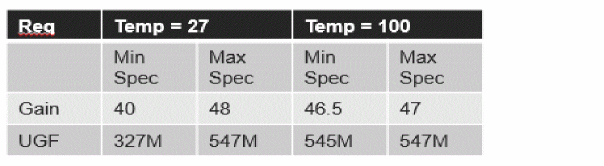
Typically, when you have a few requirements for which you want to verify measurements under different conditions, the requirements are recorded or logged in a tabular format. For example, data for verifying requirements Gain and UGF for different temperatures can be represented in a tabular format, as follows:
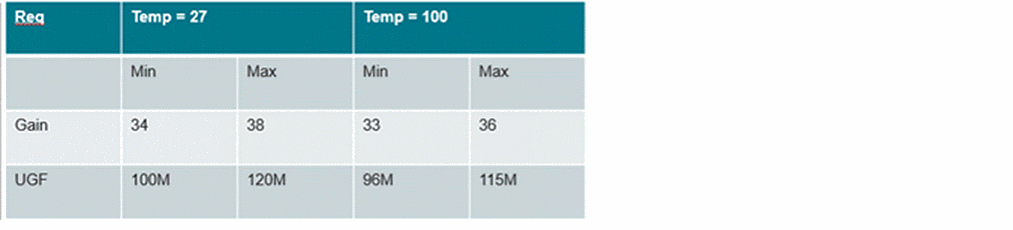
In this example, the conditions include a set of sweeps, corners and simulation settings, and are defined in a verification space in the Setup Library assistant. In this table, the group Temp=27 in the first row is the condition group and is used as a composite header for composite requirements. Similarly, you can create other condition groups as needed.
Adding Composite Requirements
In Verifier, composite requirements can be added in the following ways:
Adding a Composite Requirement Manually
To manually add a composite requirement:
-
In the Requirements pane of the Setup page, right-click and select the Add Requirement shortcut command to add a new requirement.
A new requirement is added. - In the Type column for this requirement, select Composite.
-
Right-click this requirement and choose Add Requirement.
A child requirement of typeSpec Passis added. Observe that the Title for the child requirement appears asparent_title::child_title.

- Select the Composite requirement and add more child requirements as needed.
Importing Composite Requirements from File
To create composite requirements in Verifier by importing data from a MS Excel file:
-
Choose File – Import – File.
The Import Form appears. - In the File group box, select Excel file.
- Click the Browse button next to the Excel file text box and select the required Excel file.
-
In the Rows group box of the Import form, select Use folded format for composite requirements.
In the folded format, the information is provided in the composite requirement structure based on the composite header specified in the file.
Enable this option to use the row preceding the header as the composite header. The Excel data in folded format will be converted into the composite requirement structure based on the composite header specified in the file. - Click OK to import the file.
The tabular data from the Excel file is imported and the data is converted into composite requirements in Verifier.
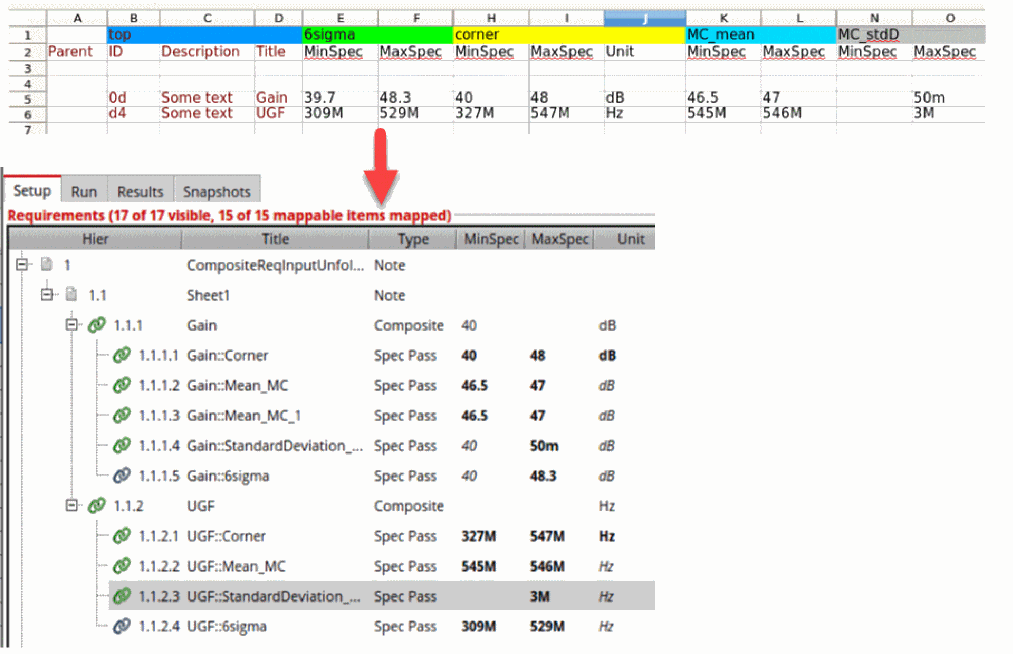
Alternatively, you can also create composite requirements by importing data in unfolded format from an Excel file. The unfolded format has all requirements in a flat structure, where all parent and child requirements are listed individually in a single row. You can also choose to keep your Excel data in the same structure as the Verifier hierarchy, so that after an import, the imported requirements appear the same as in the Excel file.
Overwriting Properties in Composite Requirements
Composite requirements follow a parent-child hierarchy structure. This means that any property defined for the parent is automatically inherited by its child requirements. When you make any changes to the property value of a composite requirement, all properties inherited by the child requirements are updated automatically. However, you can modify the properties of a child requirement individually.
To modify the properties of a child requirement
- Double-click the required property value to make it editable.
-
Specify a new value.
This overwrites the property value inherited from the composite requirement.
Inherited property values are indicated by italicized text; overwritten values are shown in bold.
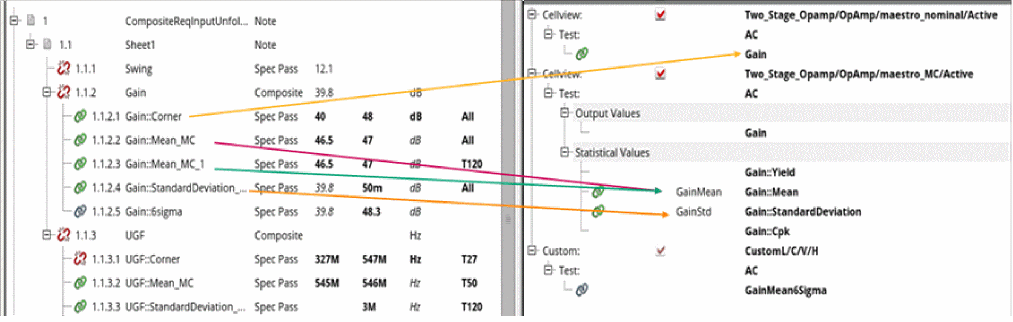
The following figure shows how Verifier displays inherited and overwritten property values:
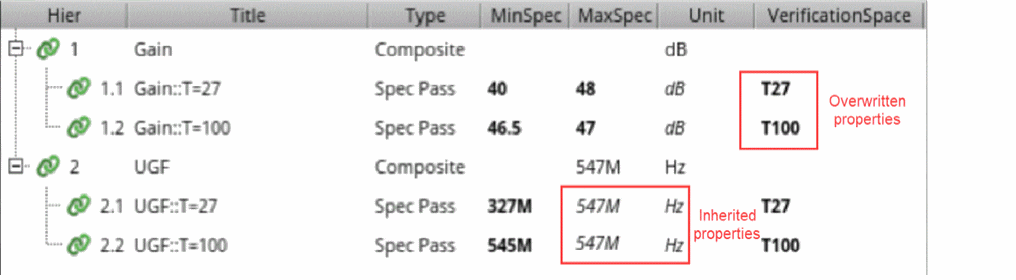
Observe that the requirement ID and title of the composite parent are not inherited by the child requirement. The title of the child requirement is created in the parent_title::child_title format, where the child title is the name of the condition group.
When you do not specify any value for the specification of a child requirement, the child inherits the specification values from the parent. However, if you want to present the child requirement from inheriting the specification values of its parent, you can specify a string value, such as "-". This makes the tool ignore this specification value without failing the simulation.
Overwriting Mappings in Composite Requirements
The inheritance of mappings is similar to inheritance of property values. When you map a composite requirement to an implementation, the same mapping is inherited by the child requirement. When you make any changes to the mapping of a composite requirement, all mappings inherited by the child requirements are updated automatically.
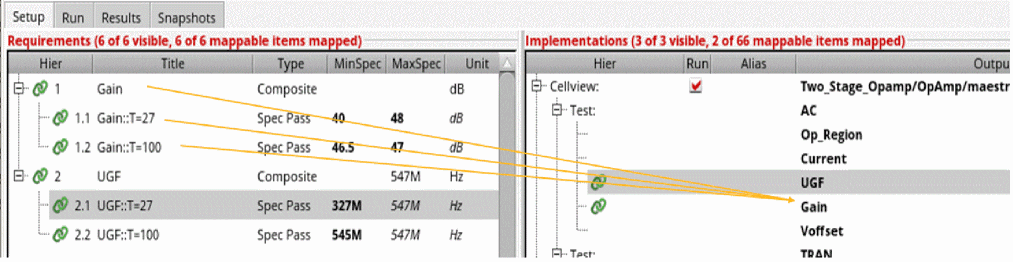
If you want to change the mappings for a child requirement, you need to overwrite the mapping individually.
To modify the mapping of a child requirement:
- Select the child requirement.
- Right-click and choose Delete Mapping.
- Select the child requirement once again.
-
Press the
Ctrlkey and select the required implementation to be mapped. - Right-click and select Map.
This overwrites the mapping inherited from the composite requirement and creates the individual mapping for the child requirement. If the composite requirement is not mapped, all of its child requirements need to be mapped individually.
Slicing Results According to the Assigned Verification Spaces
Composite requirements let you use different verification spaces that define the different conditions to run simulations, and then slice the data on the basis of these verification spaces.
Running Implementation with Multiple Verification Spaces
Verification spaces are a combination of sweeps, corners, and simulation settings that you specify in the Setup Library assistant. When you assign multiple verification spaces to requirements that are mapped to the same implementation, you can get results for all conditions with a single composite requirement by running the implementation with a superset of all assigned verification spaces.
Consider a scenario where the user wants to run a single implementation and the conditions to be checked are Temp=27 and Temp=100.
In this case, the user can specify corners with different temperatures in a verification space and then assign these spaces to the required child requirement and map this requirement to an implementation.
During a Local with SPACE or Batch with SPACE run, when multiple verification spaces are detected on an implementation, the assigned verification spaces are temporarily merged and the implementation is run with the merged verification space.
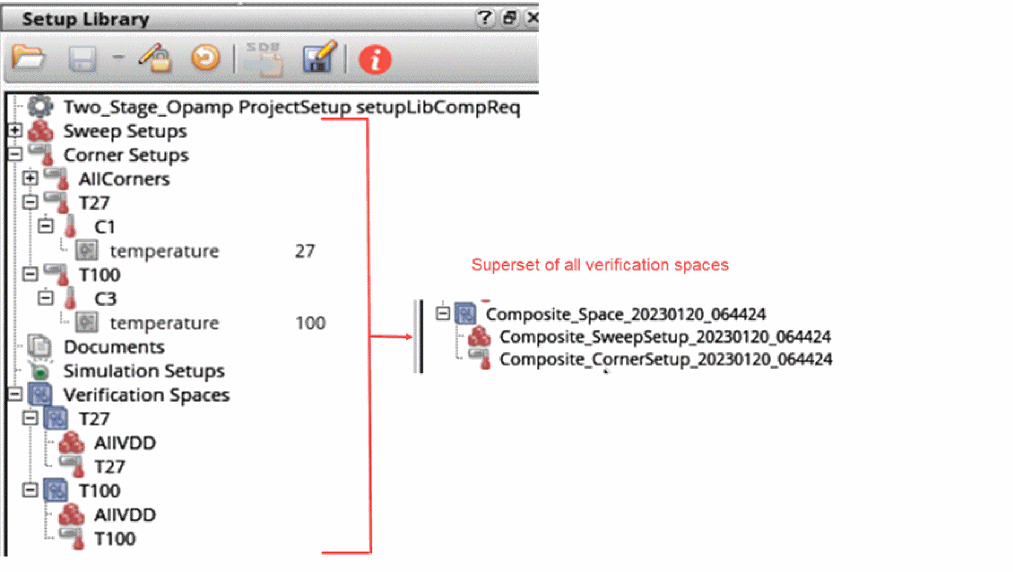
If more than one simulation setup is found, the temporarily merged verification space picks the first simulation setup found from the assigned verification spaces. This means that simulation setup data is not merged but only the first of all verification spaces is used. You can save the merged verification space by using:
envSetVal("maestro.sla" "saveCompositeSetup" 'boolean t)
Viewing Sliced Results
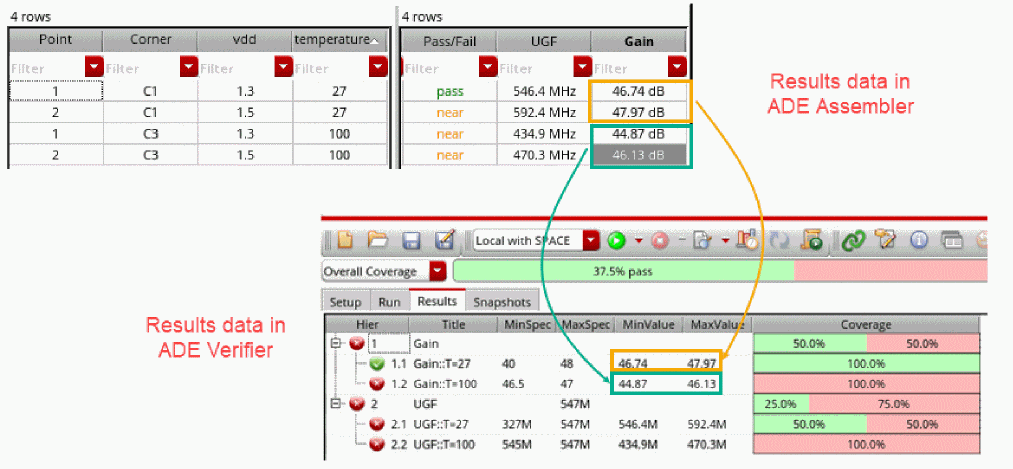
After simulation, the results are sliced according to the assigned verification spaces and assigned to the corresponding requirement.
To see the slicing of results data according to the verification spaces:
-
On the main toolbar, click the Overall Progress list option and switch to the Overall Coverage option.

- Click the Calculate Coverage button, if required.
The Results pane displays the sliced results data.
Exporting Composite Requirements
When you export your composite requirements data to an MS Excel file, the data can be exported into two formats, folded and unfolded. The unfolded format has all requirements in a flat structure, where all parent and child requirements are listed individually in a single row. In the folded format, the information is provided in the composite requirement structure based on the composite header specified in the file.
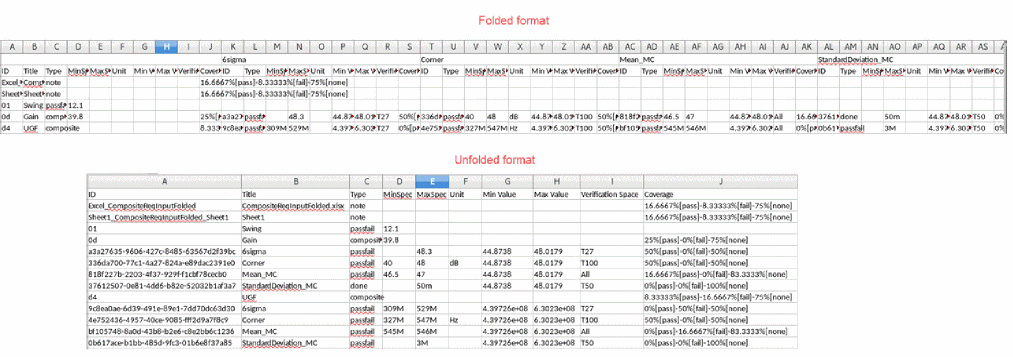
To export composite requirements:
-
Choose File – Export – Excel file.
The Export Requirements to Excel File form appears.
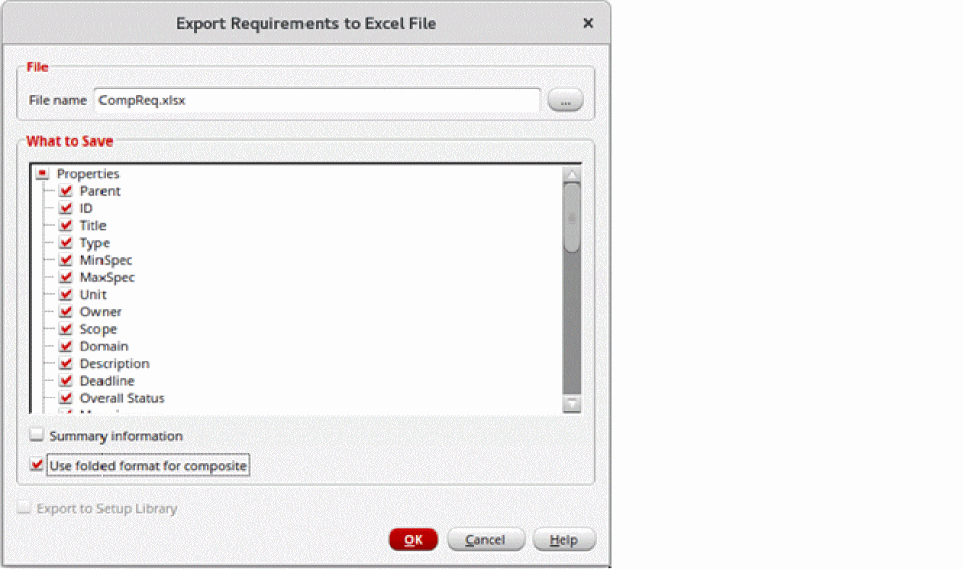
- In the File name field, specify a new file name or click Browse to select an existing MS Excel file.
- In the What to Save group box, select the properties that you want to export.
-
Select the Use folded format for composite option.
If this option is not selected, the requirements are exported in an unfolded format. -
Click OK.
The data is exported in folded format.
Similar to the import functionality, you can export your composite requirements in the unfolded format.
Return to top