
Tracing the current flow and understanding its direction is essential to debug an analog net. Tracing currents in large designs can be a time consuming and effort-intensive task.
SimVision MS has a Browse Currents sidebar that provides a clear understanding of the current distribution while saving a lot of debugging time. Probing the current distribution in SimVision MS does not require you to set up current probes or save ports before the simulation starts.
To open the Browse Currents sidebar, do the following in Schematic Tracer:
- Select an analog net in the schematic.
- Click Browse analog current on a given analog net (
 ) on the left bar to open the Browse Currents sidebar.
 - Click Browse the current for the selected net (
 ) in the Browse Currents sidebar to browse the currents for the selected net.
SimVision MS queries Spectre and displays a list of terminals and currents on the selected net. The voltage of the net is shown above the terminals and currents table.
An example is shown below.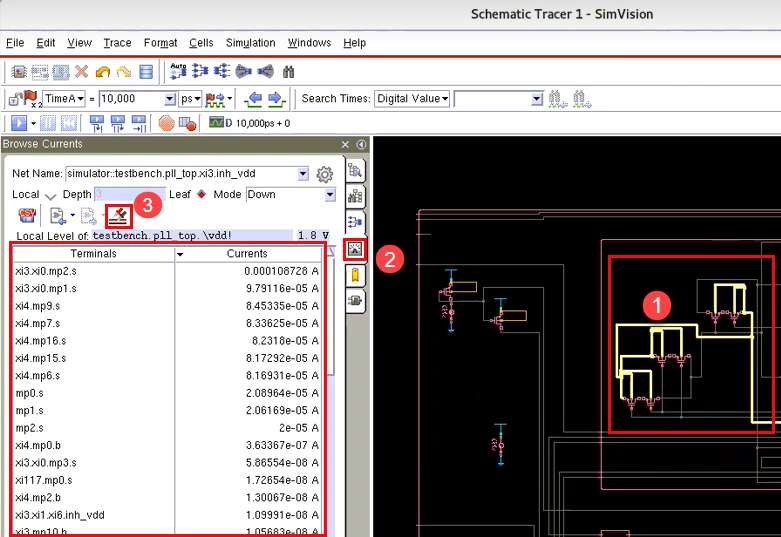
- Dynamic current versus static current: Due to the different methods used by Spectre to calculate the static and dynamic currents, a small discrepancy is expected for some large net. Refer to Spectre Classic Simulator, Spectre APS, Spectre X, and Spectre XPS User Guide for more information.
- Batch mode versus debugging mode: When SimVision MS is enabled, the simulation runs in the debugging mode. In this mode, some optimization techniques are turned off. It may cause numerical discrepancy. However, it should be within tolerance levels.