
Spectre XPS MS delivers a high-performance transistor-level multi-rate simulation solution by combining a highly accurate SPICE engine (Spectre APS) together with a fast digital simulation engine (Spectre XPS). The identification between the analog and digital portions of the circuit is done automatically, with the added flexibility for advanced users to optimize it. The Spectre XPS MS mode is valuable for DUTs including MOS or FinFET device instances in Spectre or SPICE subcircuits.
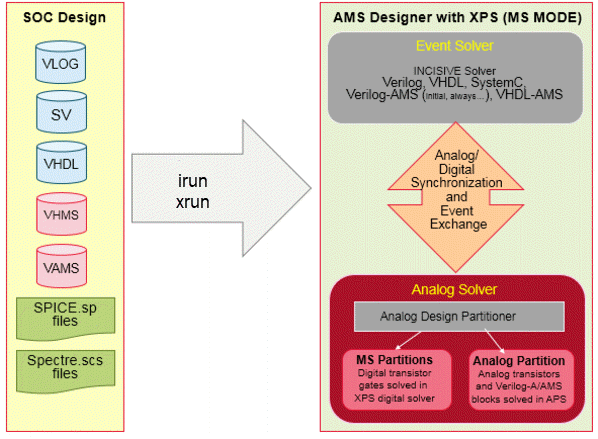
The AMS Designer simulator supports the Spectre XPS MS simulation mode for AMS applications with mixed-signal transistor level circuits. The AMS Designer simulator first partitions the design between the AMSD event solver and Spectre XPS MS analog solver. Next, the analog block circuit is automatically partitioned into analog and mixed-signal partitions where the digital partition is solved in the XPS solver and the analog partition is solved in APS.
The following figure provides an overview of the AMS Designer simulator with Spectre XPS MS mode:
You should use Spectre XPS MS when there is a large number of gates described by device transistors. For such cases, Spectre XPS MS mode provides additional high-performance and large simulation capacity as compared to Spectre or Spectre APS.
To enable Spectre XPS MS mode in AMS, use +ms with the -spectre_args option of the xrun command.
Example :
xrun -spectre_args "+ms" input.scs test.v
When the Spectre XPS MS mode is enabled, a message is displayed in the xrun log file stating the same. Following is an example of the message that is displayed:
Notice from Spectre.
Spectre XPS Mixed -signal Mode Enabled (speed=2)
You can specify the errpreset settings with the +aps option at the command line to tighten the accuracy, with +aps=liberal being the default setting. You can use +aps=moderate or +aps=conservative setting for more accurate results while compromising on the simulation time.
xrun -spectre_args "+ms +aps=moderate" input.scs test.v
AMS Spectre XPS MS supports multi-threading computation on multi-core platforms. The multi-threading use model and behavior are identical to Spectre APS.
The AMS Spectre MS mode supports the following features:
- Verilog, SystemVerilog, Verilog-A, Verilog-AMS, VHDL, SystemC
- Transient analysis
- TCL voltage and current probing
- Spectre
savestatement for current and voltage
- SimVision debugger
- Re-invoking the simulation
- AHDL linter
+diagnoseoption
Adjusting AMS Spectre XPS MS Speed and Accuracy
The Spectre XPS MS mode supports all performance and accuracy settings of Spectre APS for the analog portion. You can use the ++aps option to improve the performance of the APS analog engine in AMS Spectre XPS MS mode, as shown below.
xrun -spectre_args "+ms ++aps" input.scs test.v
You can also specify the errpreset options with ++aps to control the speed and accuracy of the analog engine with liberal being the default setting which results in faster simulation time but lower analog partition accuracy. Use ++aps=moderate for moderate analog partition accuracy. However, if accuracy is your primary concern, specify ++aps=conservative at the command line, as shown below.
xrun -spectre_args "+ms ++aps=conservative" input.scs test.v
The simulation speed and accuracy of digital portions in the AMS Spectre XPS MS mode can be controlled by the option + speed=1/2/3. The default value is 2, which is sufficient for most applications. Use +speed=1 for more accurate timing and power simulation of digital portions. Use + speed=3 for faster digital verification. For example:
xrun -spectre_args "+ms ++aps +speed=3" input.scs test.v
You can use the +cktpreset=[sampled|pll] option to improve the speed of ADC and PLL applications.
The xrun log file contains important information on the circuit partitions, simulation time spent on the analog and digital partitions, and suggestions to improve accuracy.
********Pre-Simulation Summary********
(MS) Table model. VDD=2.5V used for XPS table model creation, to overwrite tmopt options vdd=val
(MS) Circuit Partitions: 100% transistors and 99.4% nodes are identified as digital partitions. To force a subcircuit or subcircuit instance to digital, add in the netlistoptD options cktprest=digital subckt=[subckt_def_name]optD options cktpreset=digital inst=[subckt_inst_name]
*********Post-Transient Simulation Summary*********
4.74% simulation time spent in analg partition. Consider force more circuit blocks to digital, or use more aggressive APS options.95.26% simulation time spent in digital partition Consider use more aggressive XPS options, add +speed=3 on command line
*********
********Post-
Digital Partitioning and Virtual Power Nodes
The Spectre XPS MS mode automatically detects the digital functions in a given circuit. For cases where a design has explicit hierarchical digital or analog functions, you can manually identify the functional blocks (subcircuit or instance) by using the following Spectre options:
optD options cktpreset=digital subckt=[dig_ctrl pll]
optA options cktpreset=analog subckt=[opamp adc]
or
optD options cktpreset=digital inst=[x1.xdig_ctrl x1.xpll]
optA options cktpreset=analog inst=[x2.xopamp x2.xadc]
You can define the virtual power supply nodes manually by using the ms_vpn option that defines the pairs of node names (wildcard is supported) and voltage values. The virtual ground nodes can be defined using the ms_vgnd option. The ground voltage is assumed to be 0V.
opt1 options ms_vpn = [I1.VDD_DIG 1.8 I1.VDD_DIG1 3.3]
opt3 options ms_vgnd = [I1.VSS]
The xrun log file provides information on the nodes that are identified as power/ground supplies and other nodes that are potential power/ground supplies. A sample log file report is shown below.
|
|
|||||
|
|
|
|
|
|
|
|
|
|
|
|
|
|
|
|
|
|
|
|
|
|
|
|
|
|
|
|
|
|
|
||||
|
|
|||||
|
|
|||||
In the above report #CC refers to the number of MOS channel connected devices, #BULK refers to the bulk connections, Voltage refers to the node voltage, and Name refers to the node name. In the above example, 6386 MOS drain or sources are connected to a vsource on the node named vdd. The node voltage is 2.5 volts.
AMS Spectre XPS MS DC Operating Point Calculation
The Spectre XPS MS mode calculates the DC operating point before performing the transient simulation. By default, the DC operating point for the entire circuit is calculated by Spectre APS. For cases where the Spectre APS operating point calculation takes too long, you can enable the mixed-signal DC calculation - Spectre APS for the analog partition and Spectre XPS for the digital partition, by using the +msdc=ms command-line option, as shown below.
xrun spectre "+ms +msdc=ms" input.scs test.v //MS DC
Multi-Rate IE Partitioning in AMS Spectre XPS MS
All the IEs in AMS are simulated at the same rate (time step size) in the APS block. This process may have a major impact on the simulation speed if a design has high-frequency digital clocks between Verilog or SystemVerilog digital context and SPICE blocks.
The Spectre AMS designer simulator with XPS MS mode has been enhanced such that if an IE is connected to an XPS block (also called MS partition), it is computed with the same time step as the MS partition. When there are multiple IEs connected to different MS partitions (or XPS blocks), they are simulated at a different rate. As a result, the time step of an APS block is not limited by such IEs and the simulation can run much faster.
AMS IEs that connect only to the XPS block are tagged as XPS-IEs and are partitioned in XPS block also. AMS inh_conn IEs that have Ain/Aout port connected to an XPS block and power supply port (in port) connected to APS block are also partitioned in XPS. All other AMS IEs are tagged as APS-IE. Verilog-AMS or VHDL-AMS models with no IE remain in APS block.