
5
Working with Constraints
ADE Assembler supports the matched parameter and correlation constraints you specify in Virtuoso Constraint Manager.
- ADE Assembler creates parameters for the matched parameter constraints specified in Constraint Manager. These parameters are displayed on the Data View and the Parameters tab on the Variables and Parameters assistant panes. For more information about working with parameters created for matched parameter constraints, see Working with Parameters Created for Matched Parameter Constraints.
- Correlation constraints are used for Monte Carlo analysis. Correlation constraints are not displayed on the Data View or the Variables tab of the Variables and Parameters assistant panes—they are written to the netlist when you run a Monte Carlo analysis. For more information about Monte Carlo analysis, see Chapter 11, “Monte Carlo Analysis.”
For more information, see the following topics:
- Adding, Modifying, and Deleting Constraints
- Working with Parameters Created for Matched Parameter Constraints
Adding, Modifying, and Deleting Constraints
To add, modify or delete matched parameter and correlation constraints in Constraint Manager, do the following:
-
On the Data View assistant pane, right-click a test and choose Open Design in Tab.
The schematic design associated with the test appears on a new tab in your session window. -
Choose Window – Assistants – Constraint Manager.
The Constraint Manager pane appears. - Add, modify or delete matched parameter and correlation constraints. For more information about using Constraint Manager, see the Virtuoso Unified Custom Constraints User Guide.
- Click the Save button in Constraint Manager.
- Click Check and Save in Virtuoso Schematic Editor.
Working with Parameters Created for Matched Parameter Constraints
To work with the parameters, you need to import the matched parameters constraints from Constraint Manager to ADE Assembler. These parameters are displayed in the Parameters tree on the
- In the Parameters tab on the Variables and Parameters assistant pane, you cannot modify or delete the matched parameter constraints that are created by Constraint Manager.
- If you make changes to matched parameter constraints in Constraint Manager while ADE Assembler is running, the changes are automatically reflected in ADE Assembler. For example, if you modify a matched parameter constraint in Constraint Manager while ADE Assembler is running, the corresponding parameters in ADE Assembler are also automatically modified.
Importing Matched Parameter Constraints to ADE Assembler
To import constraints from Constraint Manager to ADE Assembler:
- In the Data View assistant, right-click the Parameters tree.
-
Choose Import Constraints.
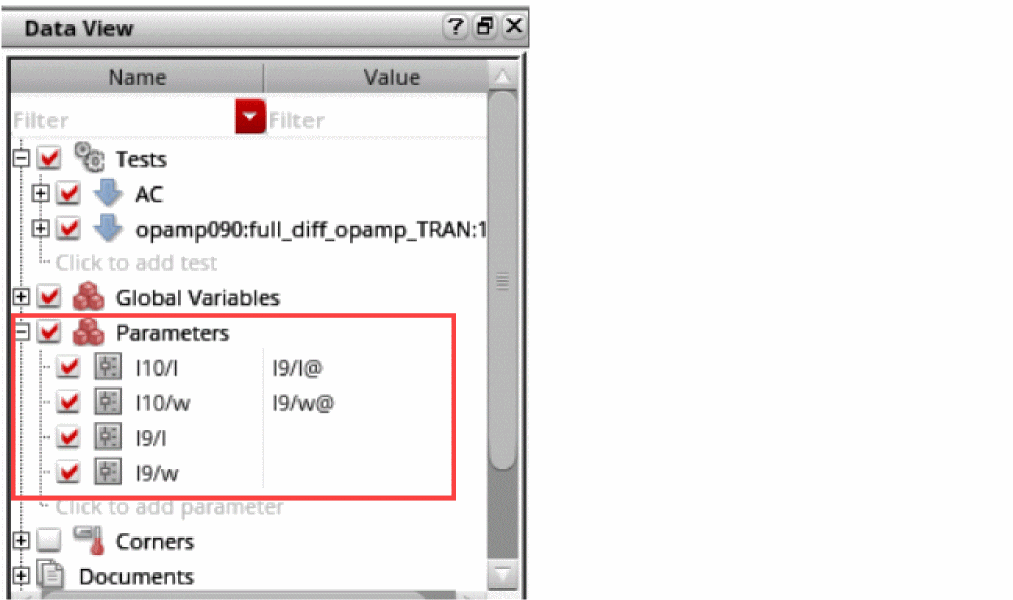
The parameters with matched constraints listed in Constraint Manager are imported to ADE Assembler and listed in the Parameters tree.
Consider the following example design with a matched parameter constraint defined for two devices I9 and I10.
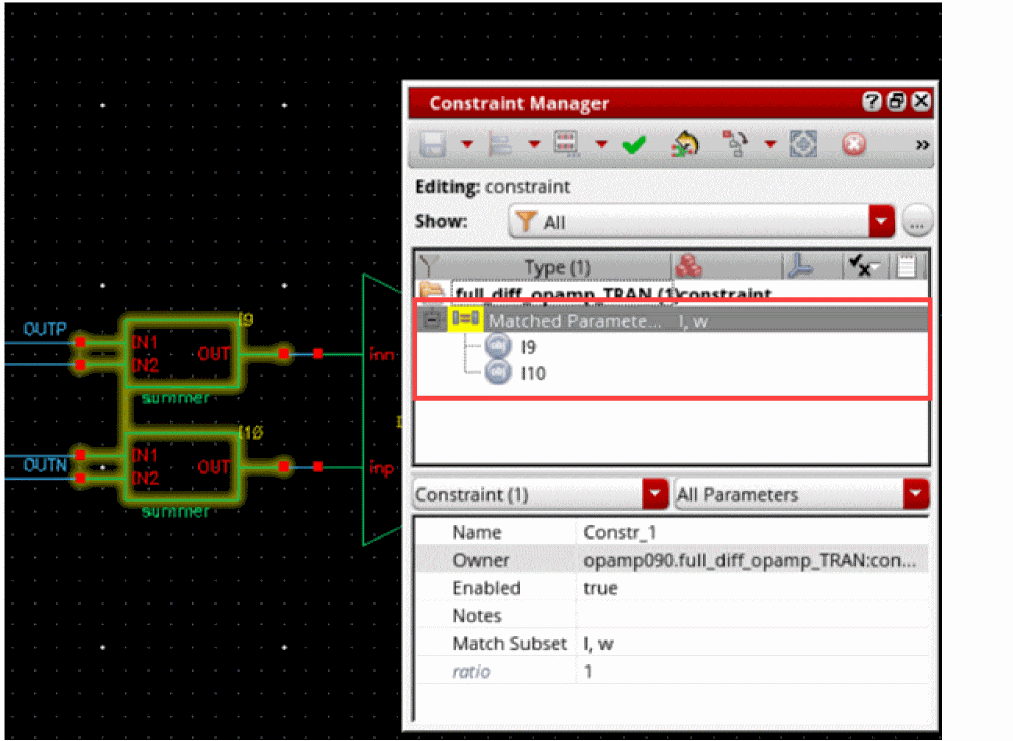
The Import Constraints command adds these constraints to the Data View assistant, as shown below.
Resolving Mismatch Between Matched Parameter Constraints and their Corresponding Parameters
When you launch ADE Assembler, or restore a history item, ADE Assembler checks if there is any mismatch between the matched parameter constraints in Constraint Manager and their corresponding parameters in ADE Assembler. The following message is displayed for each mismatch:

- Click Yes to update the parameter based on the corresponding matched parameter constraint.
- Click No to ignore the mismatch and mark the corresponding matched parameter constraint as impossible in Constraint Manager.
- Click Yes to All to update all mismatched parameters based on their corresponding matched parameter constraints.
- Click No to All to ignore all the instances where there is a mismatch and mark the corresponding matched parameter constraints as impossible in Constraint Manager.
Return to top