
6
Working with Corners
A corner is a combination of variables or process models that define a scenario in which you want to measure the performance of your design. In ADE Assembler, you can create corners using the Corners Setup form where you can vary the values for temperature, parameters, design variables, and model files from any test. You can then run the corners for one or more tests and measure how the tests perform in these varying conditions. If the corner settings are already available in pre-defined files, you can also load and use them to create corners.
This chapter describes the Corners Setup form and the procedures to create and use corners in ADE Assembler.
See the following topics for more details:
- The Corners Setup Form
- Creating Corners
- Filtering Corners
- Running Simulation with Corners
- Plotting Across Corners
The Corners Setup Form
You can add or remove corners or modify corner settings by using the Corners Setup form.
To open the Corners Setup form, do one of the following:
- Choose Create – Corners.
-
On the Create toolbar, click
 .
. -
In the Data View pane, expand Corners and click where it says Click to add corner.
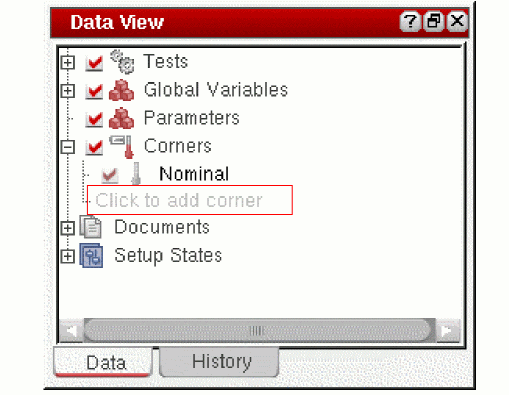
The Corners Setup form is displayed.
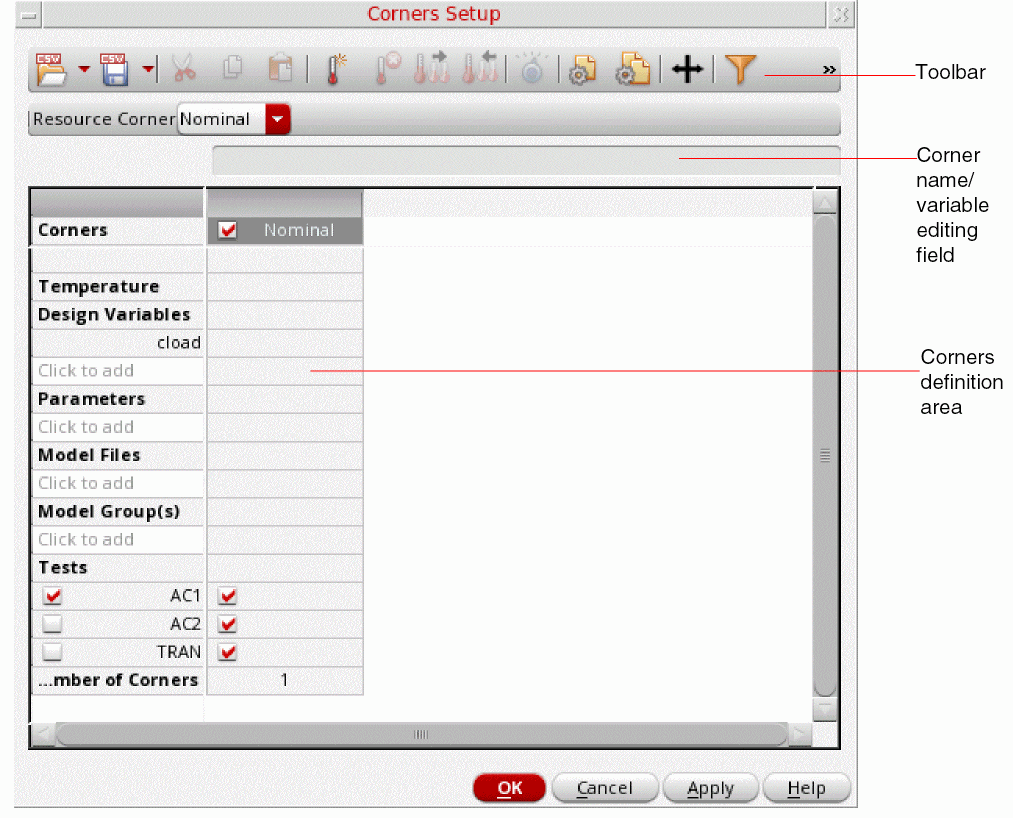
Nominal. This is the nominal corner and runs without varying the corners variables.For more information on the Corner Setup form, refer to the Virtuoso Analog Design Environment Explorer User Guide.
Creating Corners
You can create a corner to define the conditions under which you want to check a design of your tests.
To create a new corner, in the  on the toolbar.
A new column is added in the Corners Setup form, as shown in the following figure.
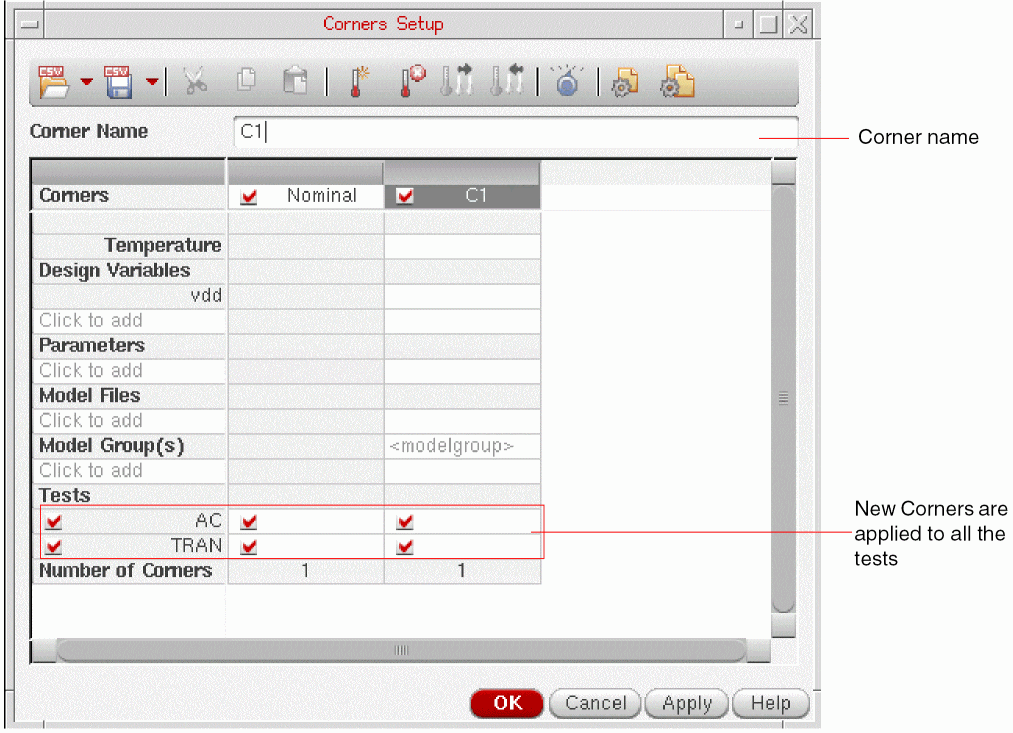
By default, the corners are named sequentially, prefixed with C, such as C1, C2, and so on. You can change the names, if required.
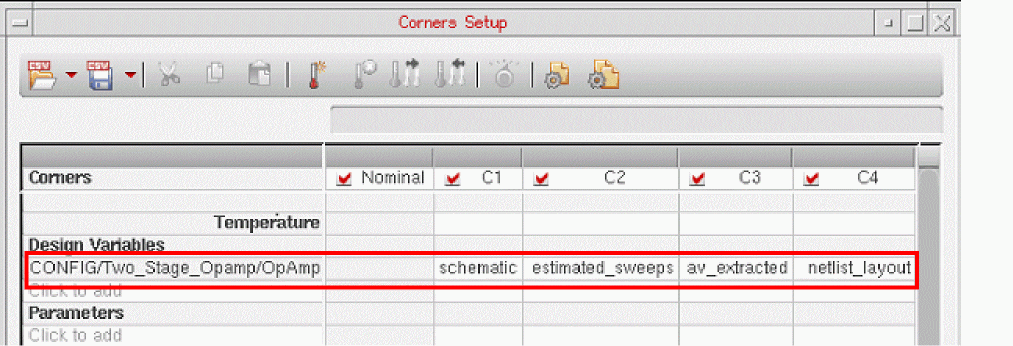
After adding a new corner, specify values for the variables that define the corner conditions. You can also use config sweep variables to define corners, as shown below.
.sdb file that you want to be used for a maestro view, set the defaultCorners environment variable to that file path. If no other corners are defined for the maestro view, corner definitions from the given file are loaded into the corners setup. Currently, you can load the default corners only from .sdb files. This feature is not supported for .csv files.You can specify one or more of the following settings for a particular corner:
- Specify temperature
- Add design variables
- Add parameters
- Add model files
- Specify sections of model files
- Add model groups
For information on the tasks listed above, refer to the Chapter 6, Working with Corners in the Virtuoso ADE Explorer User Guide.
Disabling or Enabling Corners
You can use the Corners section in the Data View assistant to enable or disable corners. Disabled corners are automatically hidden in the results. To view these corners in the Results tab, select the Disabled Corners option in the Configure what is shown in the table drop-down list. The Results tab then displays the text disabled in the corresponding column.
For example, let us consider the following setup.
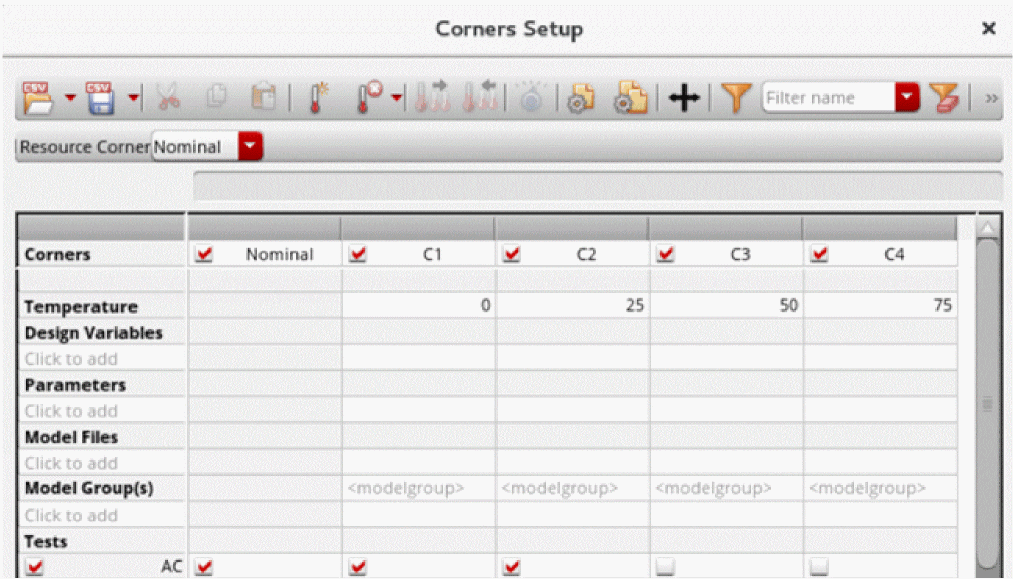
In this setup, the corners C1 and C2 are enabled for test AC, and the corners C3 and C4 are enabled for test TRAN. If you disable the test AC through the Select which tests are displayed in the table drop-down list, only the corners C3 and C4 are visible in the Results tab.
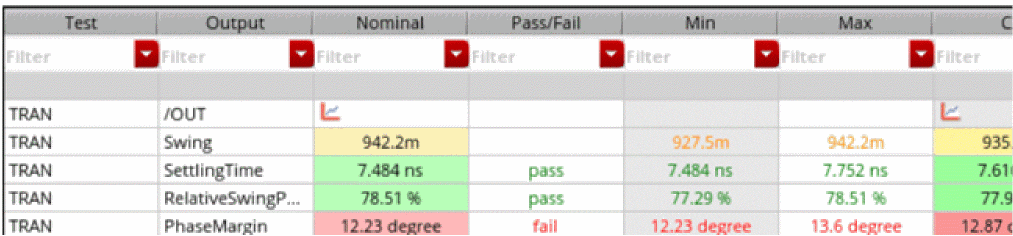
To view the disabled corners C1 and C2 in the Results tab, select the Disabled Corners option in the Configure what is shown in the table drop-down list. The corresponding columns for corners C1 and C2 then display the text disabled.

For more details, see
Filtering Corners
When the number of corners is large, you can apply filters to selectively display the corners that you want to work upon.
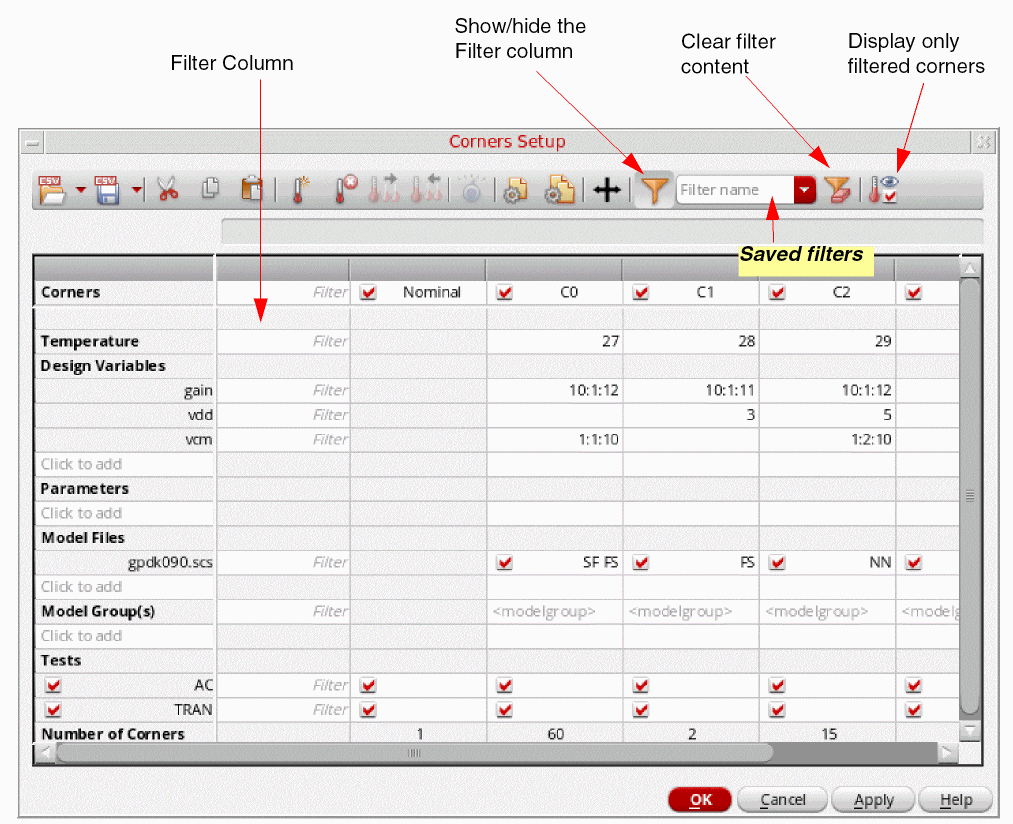
To apply filters in the Corners Setup form:
-
Click the
 button in the toolbar.
The Filter column is displayed as the first column. -
Specify filters for the required rows.
The accepted formats for specifying filters are:-
Space-separated list of values, such as
SF FS NN -
Comma-separated list of values, such as
27,28,29 -
Range of values, such as
2:6or1.0:0.1:4.0 -
Enabled or disabled status in the format
enabled:yesorenabled:no
For example, if you specifyenabled:yesfor a certain row, only the enabled columns for that row will be displayed.
The corners are dynamically filtered as you type in the filter criteria. -
Space-separated list of values, such as
-
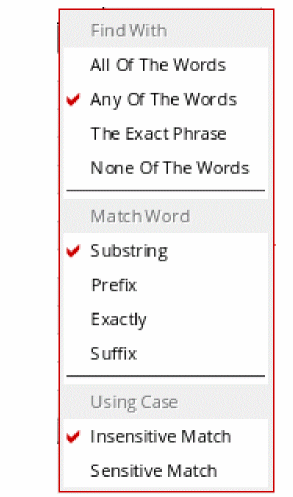
(Optional) Right-click the Filter column to specify the following advanced filter options, as shown in the following figure.
The options selected in this figure are the default selections.
The following figure shows examples of three filters applied in the Corner Setup form.
In the second example, the filter value 11 matches the corners with sweep value 10:1:12 also. This is because the sweep range in expanded form is 10 11 12 and it matches the default advanced filter, Find With: Any Of The Words.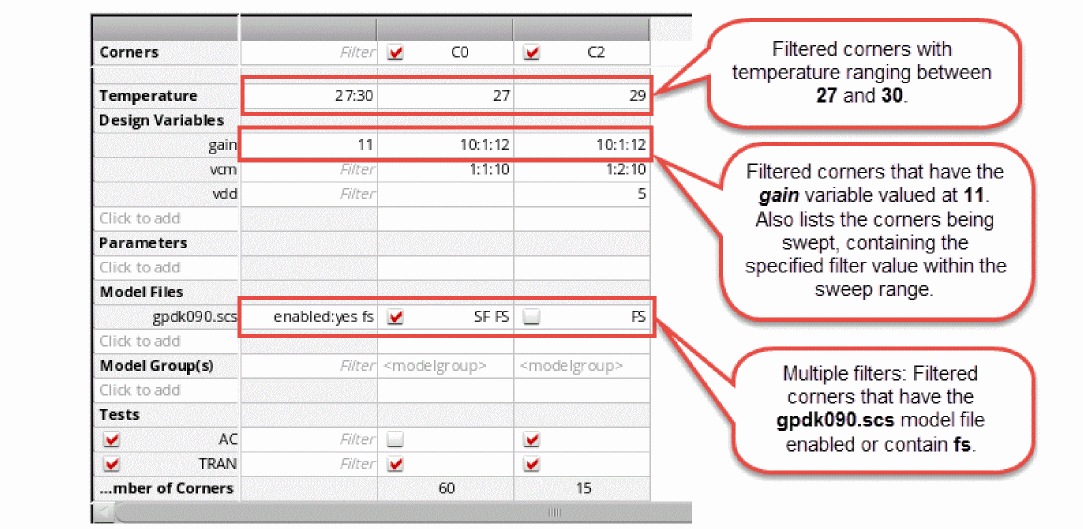
To clear contents of all the filters at once, click .
. -
(Optional) Click
 on the toolbar and choose the Enable Visible, Disable Hidden command to enable only the filtered corners in the simulation.If you use this option to enable the filtered columns, the previously enabled corners that do not match the filter criteria will be disabled in the Data View pane. For more details, refer to Enabling or Disabling Filtered Corners.
Applying Multiple Filters
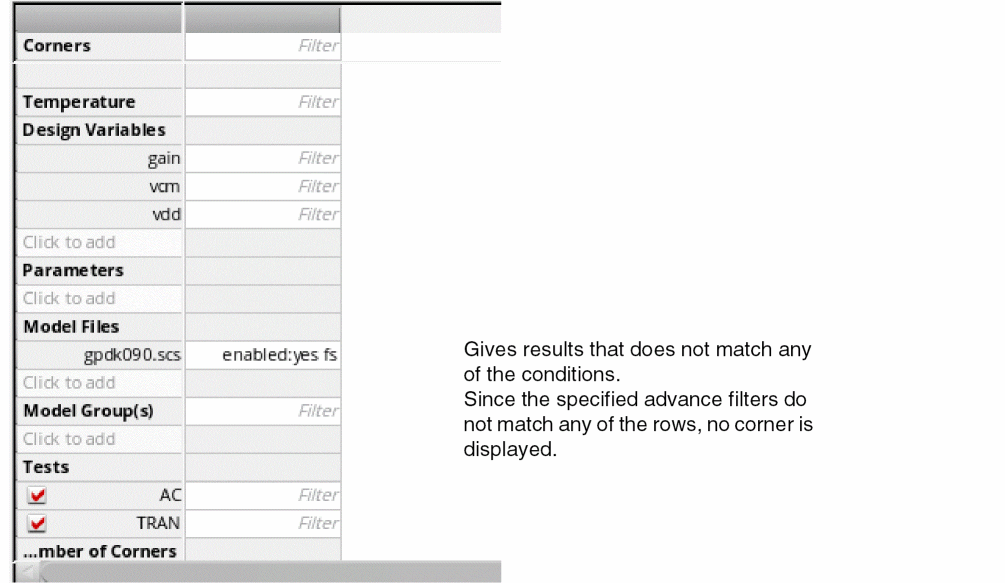
When you apply multiple filters to the rows with check boxes, the results are displayed based on the type of advanced filter applied to that filter. Let us consider the following example.
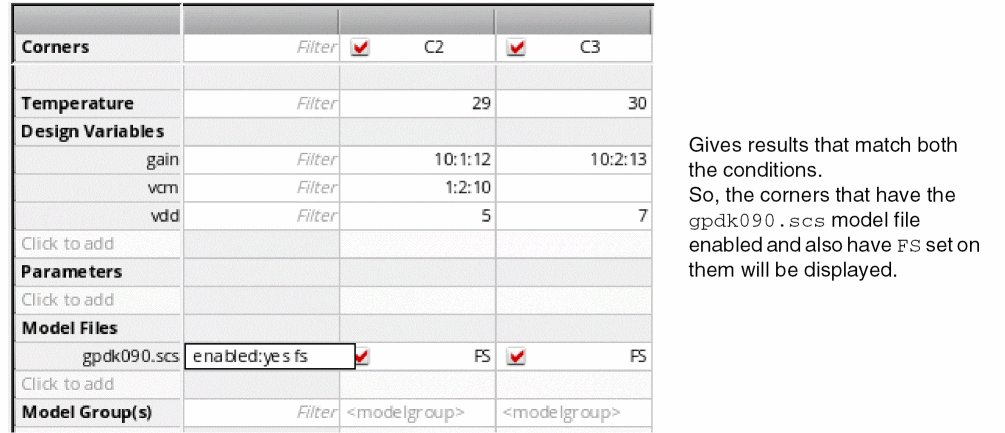
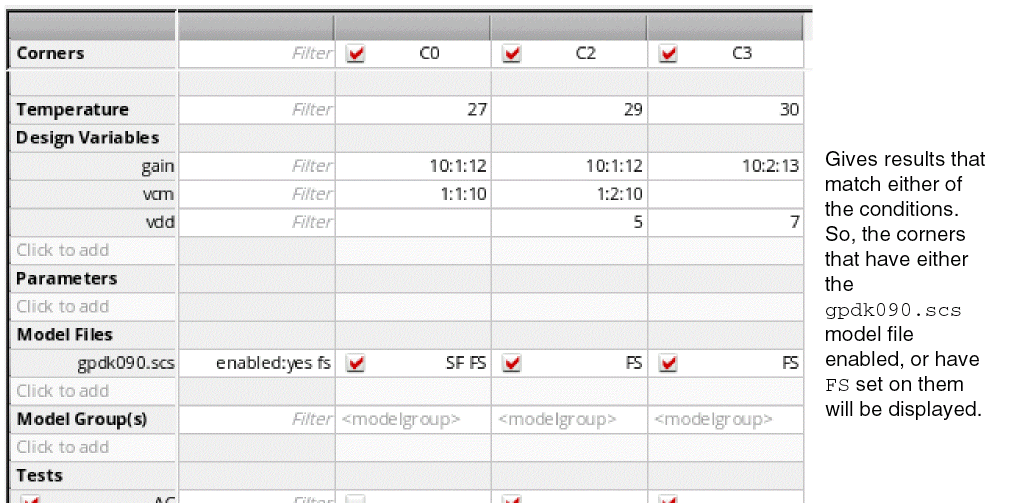
In the Corner Setup form, you want to filter the corners containing the gpdk090.scs model files with FS setting. To do so, apply a filter in the following format:
This filter will give you results based on your selections of advanced filters.
Case: 1
Case: 2
Case 3:
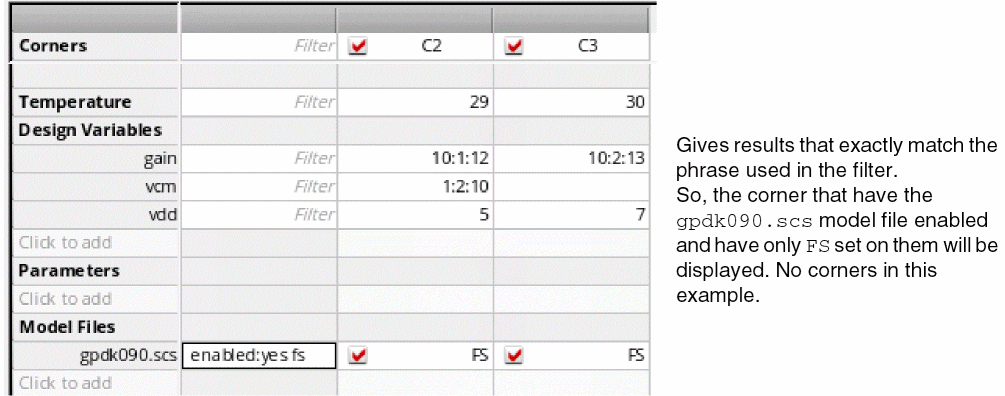
Case 4:
Enabling or Disabling Filtered Corners
After applying the filters to view the desired set of corners, you can enable or disable all the displayed or hidden corners by using the commands in the  (Enable or disable filtered corners) drop-down list on the toolbar. This drop-down list contains the following commands:
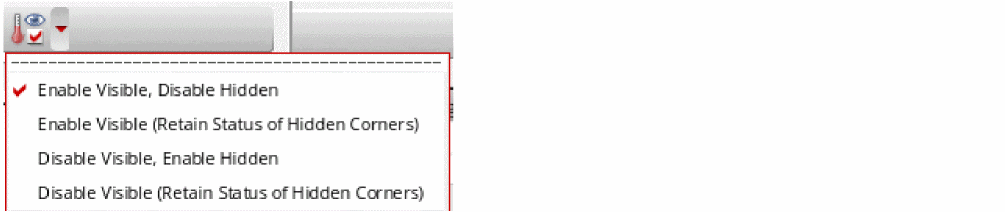
- Enable Visible, Disable Hidden: Enables all visible corners and disables all hidden corners. If any hidden corner was enabled earlier, it is disabled.
- Enable Visible (Retain Status of Hidden Corners): Enables all visible corners. The status of hidden corners is retained as is. Therefore, after this command is used, the set of enabled corners includes the visible corners and the hidden, but enabled corners.
- Disable Visible, Enable Hidden: Disables all visible corners and enables all hidden corners. If any hidden corner was disabled earlier, it is enabled.
- Disable Visible (Retain Status of Hidden Corners): Disables all visible corners. The status of hidden corners is retained as is. Therefore, after this command is used, the set of disabled corners includes the visible corners and the hidden, but disabled corners.
Saving Filters
You can save a set of commonly used filters through the following steps:
- Apply filters to the rows in the Corner Setup form.
- In the Filter Name field on the toolbar, enter a name for the set of filters.
-
Right-click and select Save. Alternatively, you can also press
Enterto save.
The saved filter name will start appearing in the Filter Name drop-down list. These filters are saved in the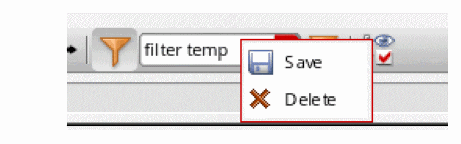
.sdband will be available for the future sessions.
Deleting Saved Filters
- In the Filter Name drop-down list, right-click the named filter that you want to delete and click Delete.
Running Simulation with Corners
To run a simulation for a specific corner, do the following:
- In the Corners tree on the Data View pane, right-click a corner and choose Run.
To run a simulation for one or more corners, do the following:
- In the Data View pane, ensure that the name of the corners for which simulation is required to be run are selected in the Corners tree.
-
Click Run Simulation
 on the Run toolbar.
The simulator runs simulation for the selected corners and shows results on the Results tab. If you run a corner group, simulations are run for all the corners in that group and results are displayed as shown in the following figure.
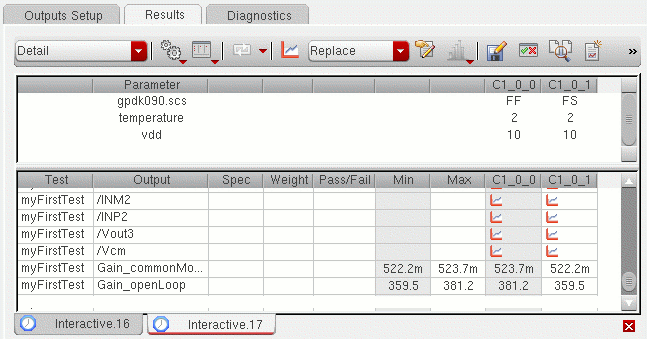
In case of a corner group, a column is displayed on the Results tab for each combination of corner parameters. Based on the results, if you want to create a corner by using the values of variables used for a particular data point, you can create a copy of that corner. For this, right-click in the corner column and choose Create Copy Of Selected Corner. A new corner is created with the name same as that of the corner column, prefixed with Copy_.
nil.Plotting Across Corners
To plot waveforms across all corners for a signal or waveform expression, do the following:
- Select the plot mode. For more information, see Selecting the Plot Mode.
- Right-click any of the following on the Results tab and choose Plot Across Corners:
Return to top