
22
Working with Specifications
You define performance specifications on the
You can view specification (spec) results from one or more
You can control the format for each specification such that the program uses particular units or engineering or scientific notation when displaying each spec. You can sort by measurement name and export your spec sheet to a comma-separated values file.
See the following topics for details:
- Working with Specifications
- Comparing Waveforms Using Wave Specifications
- Defining Operating Region Specifications
- Working with the Specification Summary
Working with Specifications
The outputs of type Expression, OCEAN Script, MATLAB Script, Area Goal, or Op Region Spec that are added in the
You can define a performance specification for a measurement in the Spec column on the
By default, the specification defined for a measurement applies to all the corners enabled for the test. You can override the measurement specification for a corner or disable the corner specification.
For more information, see the following topics:
- Defining a Specification
- Using Variables in Specifications
- Overriding the Measurement Specification for a Corner
- Removing a Corner Specification Override
- Disabling and Enabling Corner Specifications
- Defining Operating Region Specifications
- Viewing Specification Results in the Results Tab
- Viewing Operating Region Violations
Defining a Specification
To define a specification for a measurement on the Outputs Setup tab, do the following:
-
On the Outputs Setup tab of the Outputs pane, double-click in the Spec column.
The Spec cell has two parts: a specification type (which you select from a drop-down list) and a target value.

-
In the drop-down list that appears in the left half of the cell, select one of the following specification types and fill in the right half of the cell with an appropriate target information as indicated:
Specification Types
Objective Target Description Returns the pass status when the result is less than the target value
Returns the pass status when the result is greater than the target value
Returns the pass status when the result falls between the boundary values
Returns the pass status when the result is within the specified percentage deviation of the target value
Returns the pass status when the result is a scalar value. It shows the fail status if the result is a waveform.
Compares and validates the analog and digital waveform signals for the reference and compared data sources. For details, refer to Comparing Waveforms Using Wave Specifications.
A target specification value can be specified in the form of constant values or expressions using global variables or other output names. For more details, refer to Using Variables in Specifications. - (Optional) In the Weight column next to the specification, specify the weighting factor for the specification.
Using Variables in Specifications
The target values for specifications can be specified as a constant or an expression using variables. In case the value is specified as an expression, the evaluated value of the expression is compared with the output value to identify the pass or fail status. By using expressions in specifications, you can vary the specifications across sweep points.
Single Run, Sweeps, and Corners and Monte Carlo run modes support expressions in specification target values.The expressions can be created for specification target values in any of the following ways:
-
By creating calculator expressions: An example is given below.

-
By using global variables: You can create an expression that refers to a global variable using the
VARfunction. For example, if the ADE Assembler setup has a global variablemaxLimit, you can specify a specification value asVAR("maxLimit"). -
By using other outputs of the same test: You can use the
calcValfunction to create an expression that refers to another output of the same test. For example, if the testTest1has two outputs,expr1andexpr2, the specification value for outputexpr2can use the expressioncalcVal("expr1" "Test1"), which is referring to outputexpr1of the same test. -
By using the outputs of other tests: For this, you can use the
calcValfunction to refer to the output of another test in the same ADE Assembler setup. For example, specification value for an output ofTest2can use the expressioncalcVal("tdcd" "Test1"), which is referring to outputtdcdofTest1. - By using a SKILL or OCEAN script: For this, you can add the SKILL or OCEAN code in the Spec column. Alternatively, you can create a separate output with a SKILL or OCEAN script. Result of that output can be referred in the expression for a specification type.
Important Points to Note
- In case of an overridden specification, a corner can use only a constant value as an overridden target value. You cannot specify an overridden expression different from that specified for the global target value.
- For a history checkpoint, you can change a constant specification value to an expression and re-evaluate the results.
Also see: Viewing Specification Results in the Results Tab.
Overriding the Measurement Specification for a Corner
By default, the specification defined for a measurement applies to all the corners enabled for the test. For example, assume that the nominal corner and two corners named C0 and C3 are enabled for a test named myTest. If you define a measurement named Gain_commonMode for the test, the specification for the Gain_commonMode measurement applies to the nominal corner and to corners C0 and C3.
For example, in the following figure, the specification <550m for the Gain_commonMode measurement applies to all the corners displayed in the Corner column.
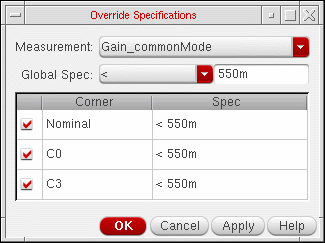
If you modify the specification for a measurement in the Gain_commonMode measurement is changed from <550m to <600m, the change is applied to all the corners displayed in the Corner column.
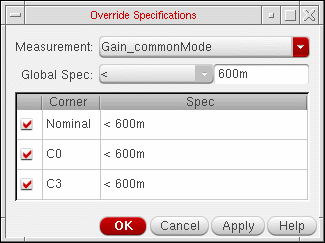
You can override the measurement specification for a corner by specifying a different specification for the corner.
To define a specification for a measurement in the Override Specifications form, do the following:
-
Right-click the row for a measurement in the Outputs Setup tab of the Outputs pane and choose Override Specifications from the context-sensitive menu.
The Override Specifications form appears.
Field Description Displays the measurements for which you can define specifications. Note the following:
- By default, the name of the measurement you selected on the Outputs Setup tab of the Outputs pane is displayed.
- This drop-down list displays only the names of the measurements for the test whose measurement you selected on the Outputs Setup tab. To define a spec for a measurement of another test, right-click a measurement for that test and choose Override Specifications.
- If you have not specified the name for a measurement in the Name column on the Outputs Setup tab, the expression for that measurement is displayed as its name in this drop-down list.
Displays the specification for the measurement.
To define or modify a specification, select one of the
specification types from the drop-down list, and fill in the text field next to the drop-down list with appropriate target information for the measurement.Displays the list of corners enabled for the test.
You can disable or enable a corner specification for a specific measurement. For more information, see Disabling and Enabling Corner Specifications
Displays the specification for each corner enabled for the test.
For more information about specifying a different specification for a corner, see Overriding the Measurement Specification for a Corner.
- In the Measurement drop-down list, select the measurement for which you want to define the specification.
- In the Global Spec drop-down list, select one of the specification types from the drop-down list, and fill in the text field next to it with appropriate target information for the measurement.
-
In the Spec column, specify an overridden value next to the corner for which you want to use a different specification.
For example, in the following figure, the specification<450mfor cornerC0overrides the specification<550mfor theGain_commonModemeasurement.
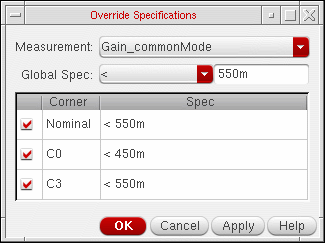
- Click OK.
Gain_commonMode measurement is changed from <550m to <600m, the change is applied only to the Nominal corner and corner C3. The change is not applied to corner C0 because the specification <450m for corner C0 overrides the specification for the Gain_commonMode measurement.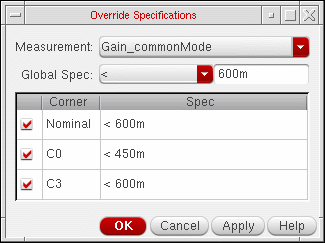
By default, the specification applies to all the corners selected for the test. You can do the following:
- Override the specification for a specific corner. For more information, see Overriding the Measurement Specification for a Corner.
- Undo a corner specification override. For more information, see Removing a Corner Specification Override.
- Disable or enable the corner specification for a specific measurement. For more information, see Disabling and Enabling Corner Specifications.
- Disable or enable the corner specification across all measurements for a test. For more information, see Disabling and Enabling Corner Specifications.
The next time you run a simulation, the program measures the result against the performance specification and displays the results in the
 button on the Results tab to update the results displayed in the Results tab based on the new or modified expressions and specifications.
The results will also be updated based on the new or modified expressions and specifications if you click the  button on the Results tab to plot across all points. For more information about using the
button, see Refreshing Graphs.
button on the Results tab to plot across all points. For more information about using the
button, see Refreshing Graphs.
- Starting a Simulation
- Re-Evaluation of Expressions and Specifications
- Viewing Specification Results in the Results Tab
Removing a Corner Specification Override
To remove a corner specification override, do the following in the
- In the Measurement drop-down list, select the measurement for which you want to undo a corner specification override.
-
In the Spec column, right-click the specification for the corner for which you want to undo the specification override and choose Set to Global from the context-sensitive menu.
To undo the overrides for multiple corners, hold down the Shift key (for contiguous selection) or the Ctrl key (for noncontiguous selection), right-click and then choose Set to Global from the context-sensitive menu.
The specification for the measurement (displayed in the Global Spec field) is applied to the corner.
Disabling and Enabling Corner Specifications
By default, the specification defined for a measurement applies to all corners enabled for the test. You can do the following:
- Disable or enable the corner specification for a specific measurement.
- Disable or enable the corner specification across all measurements for a test.
To disable or enable a corner specification for a specific measurement, do the following:
-
Right-click the row for a measurement in the Outputs Setup tab of the Outputs pane and choose Override Specifications from the context-sensitive menu.
The Override Specifications form appears. - In the Measurement drop-down list, select the measurement for which you want to disable or enable the corner specification.
-
Do one of the following:
-
To disable a corner specification for the measurement, clear the check box next to the corner.
For example, in the following figure, the specification for cornerC0is disabled.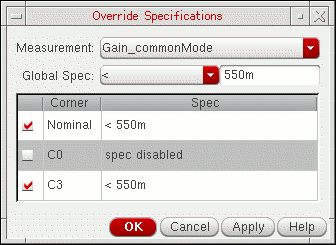
- To enable a corner specification for the measurement, select the check box next to the corner.
-
To disable a corner specification for all the measurements for the test, select All in the Measurement drop-down list, then clear the check box next to the corner.
For example, in the following figure, the specification for cornerC0is disabled for all the measurements for the test.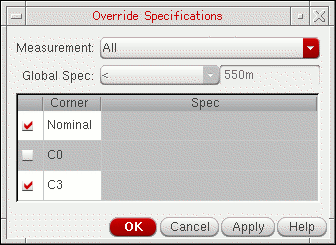
-
To enable a corner specification for all the measurements for the test, select All in the Measurement drop-down list, then select the check box next to the corner.
-
To disable a corner specification for the measurement, clear the check box next to the corner.
- Click OK.
Viewing Specification Results in the Results Tab
Comparing Waveforms Using Wave Specifications
ADE Assembler provides various types of specifications, such as <, >, range, tol, etc. that you can use to compare scalar values in simulation results with the given targets. Depending on the comparison results, the status of the resulting scalar values is shown as pass/fail.
Similarly, you can also compare and validate the waveforms in simulation results with the given target waveforms using the wave type of specification as per the acceptable tolerance values.
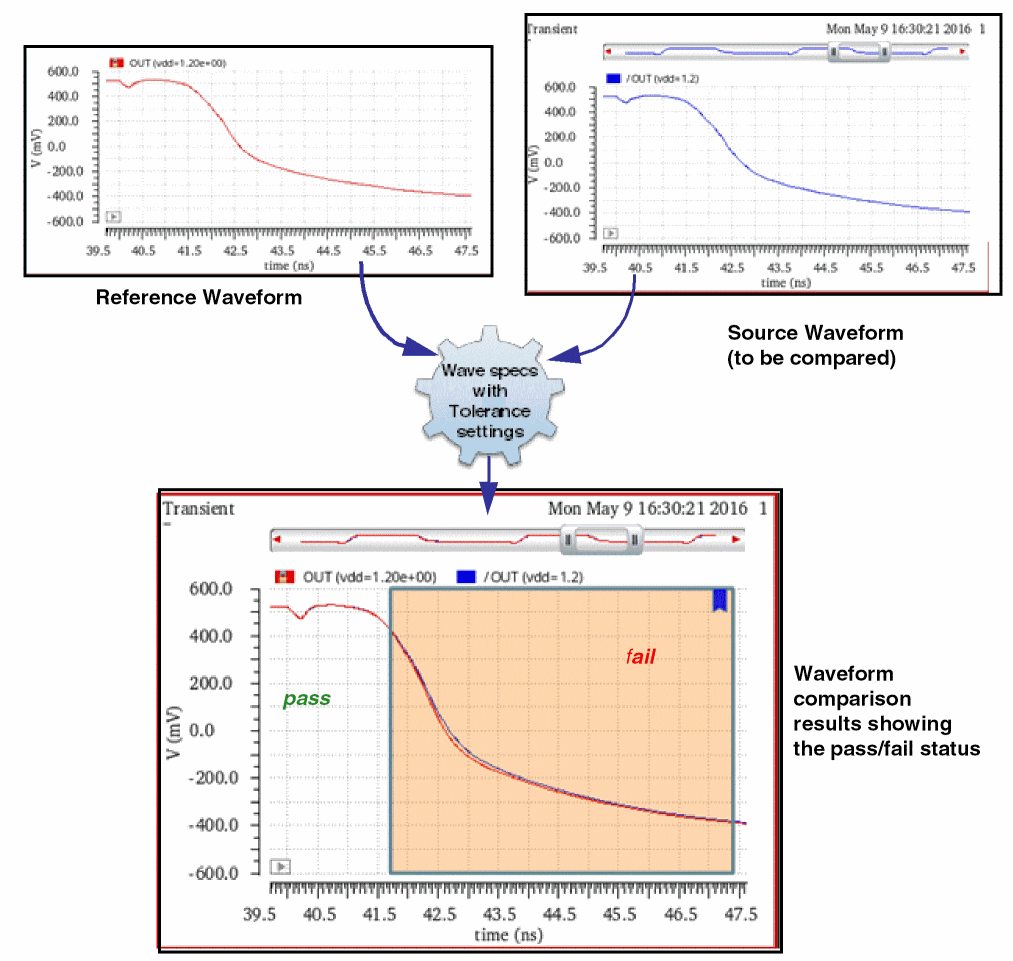
ADE Assembler supports waveform comparison for the following formats:
- Cadence SignalScan Turbo 2 (SST2)
- Cadence Parameter Storage Format (PSF)
- Cadence PSF XL
- Fast Signal DataBase (FSDB)
For waveform comparison, you need to specify:
- A source (to be compared) data source: An output or measurement in the current setup that would result in a waveform to be compared.
-
A reference data source: An output or measurement to be taken as target or reference against which the source is to be compared.
- A wave spec: A specification to be set on the data source to be compared.
- Analysis and tolerance settings: These settings can be specified globally for all the waveforms to be compared, or individually for each waveform.
When you run waveform comparison for two signals, the waveforms or signals are plotted in Virtuoso Visualization and Analysis XL graph window.
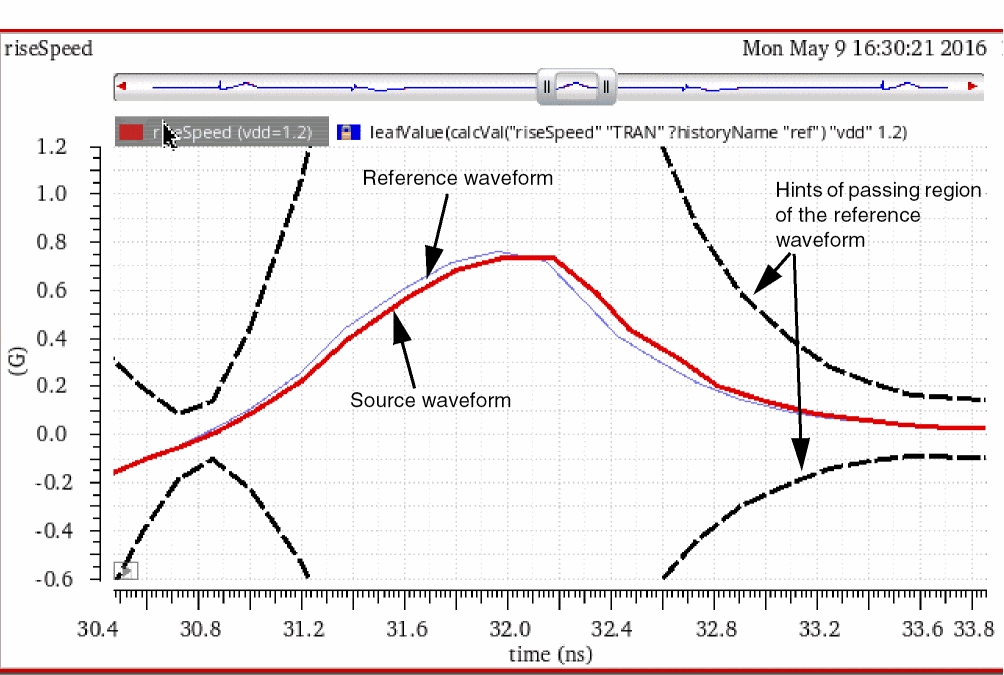
You can identify the difference between the waves, zoom into them for a closer view, and see the passing or failing areas as per the given tolerance settings.
Performing Waveform Comparison
You can use the menus and commands in ADE Assembler to specify the data sources and tolerance settings.
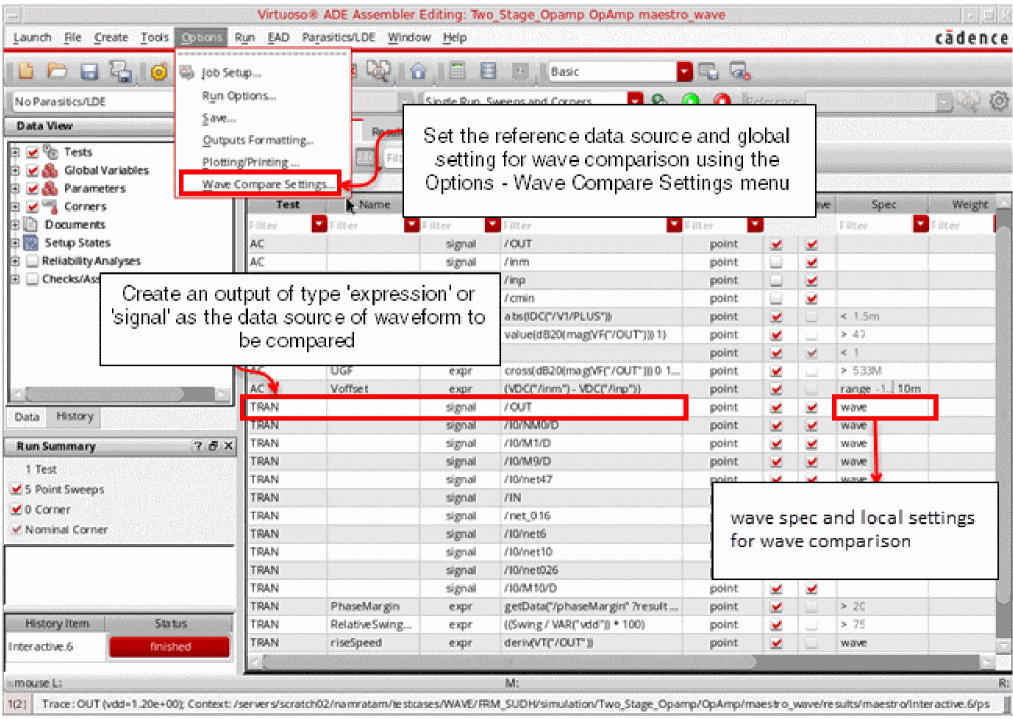
To compare waveform signals, do the following:
- Specify the global options (reference history and tolerance settings) to be used for waveform comparison. You can do this by using the Global Waveform Compare Settings form. For more details, refer to Specifying Global Options for Waveform Comparison.
-
Ensure that your test in ADE Assembler contains an analysis of type
tran. If it does not have, create a new analysis of this type. -
For tran analysis, create outputs of type
signalorexprthat you need to compare to a reference output from a reference data source.
For digital outputs, you can choose bus signals. For example,/I0/net1<0:10>. -
Ensure that the check box in the Save column for this output is selected.
-
Specify
wavespecification for the output to be compared. For this, click in the Spec column of the output and selectwavefrom the drop-down list.
By default, the global comparison options specified in step 1 are applied to the wave spec for this output. However, you can override the global options at the output level. For this, click ( ) to the right of the drop-down list in the Spec column.You can set wave specifications for multiple outputs together by using the Create wave spec for all signals or Create wave spec for selected outputs commands available in the (
 ) drop-down list on the Outputs Setup pane toolbar. For more details, refer to Applying Waveform Options to Multiple Outputs Together.
 -
(Optional) Verify the comparison options for the output in any of the following ways:
-
Move the mouse over the (
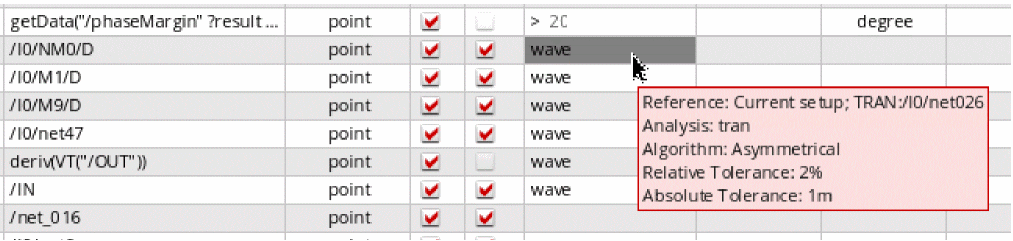
 ) button. A tooltip is displayed to show the waveform comparison settings applied for this output.
 -
Click (
 ) to open the Waveform Compare Setup form in which the waveform comparison settings are displayed.
-
Move the mouse over the (
- (Optional) If required, change the values to override the options. For more details, refer to Specifying Local Options for Waveform Comparison.
- Run simulation to generate results that are saved in a history.
-
View the wave comparison results on the Results tab.
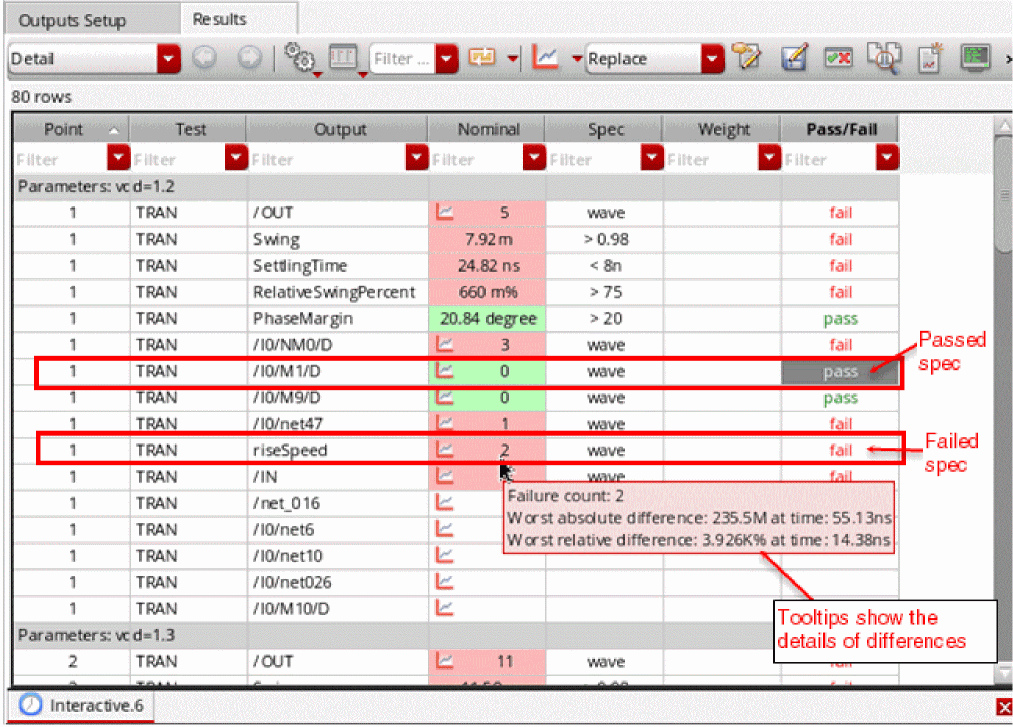
As shown in the figure below, the status of waveform comparison is displayed in the Pass/Fail column.
Observe the following:-
If difference between the source and reference wave is within the tolerance range, the output row is colored green and the pass/fail status is displayed as
pass. In addition, the error count next to the plot icon is set to0. -
If the difference is out of the tolerance range, the pass/fail status is displayed as
failand the error count is greater than0.
Move the mouse over the error count to view the failure details in a tooltip.
-
If difference between the source and reference wave is within the tolerance range, the output row is colored green and the pass/fail status is displayed as
- Right-click in the result cell and choose Plot to view the comparison of waveforms or traces. For more details, refer to Analyzing Waveform Comparison Results.
The following topics provide more details about waveform comparison:
- Specifying Global Options for Waveform Comparison
- Specifying Local Options for Waveform Comparison
- Analyzing Waveform Comparison Results
- Waveform Compare Algorithms
Specifying Global Options for Waveform Comparison
You can use the options in the Global Waveform Compare Settings form to control how all the waveforms are validated. These options apply to all the outputs with
Choose Options – Wave Compare Settings to open the Global Waveform Compare Settings form, as shown below.
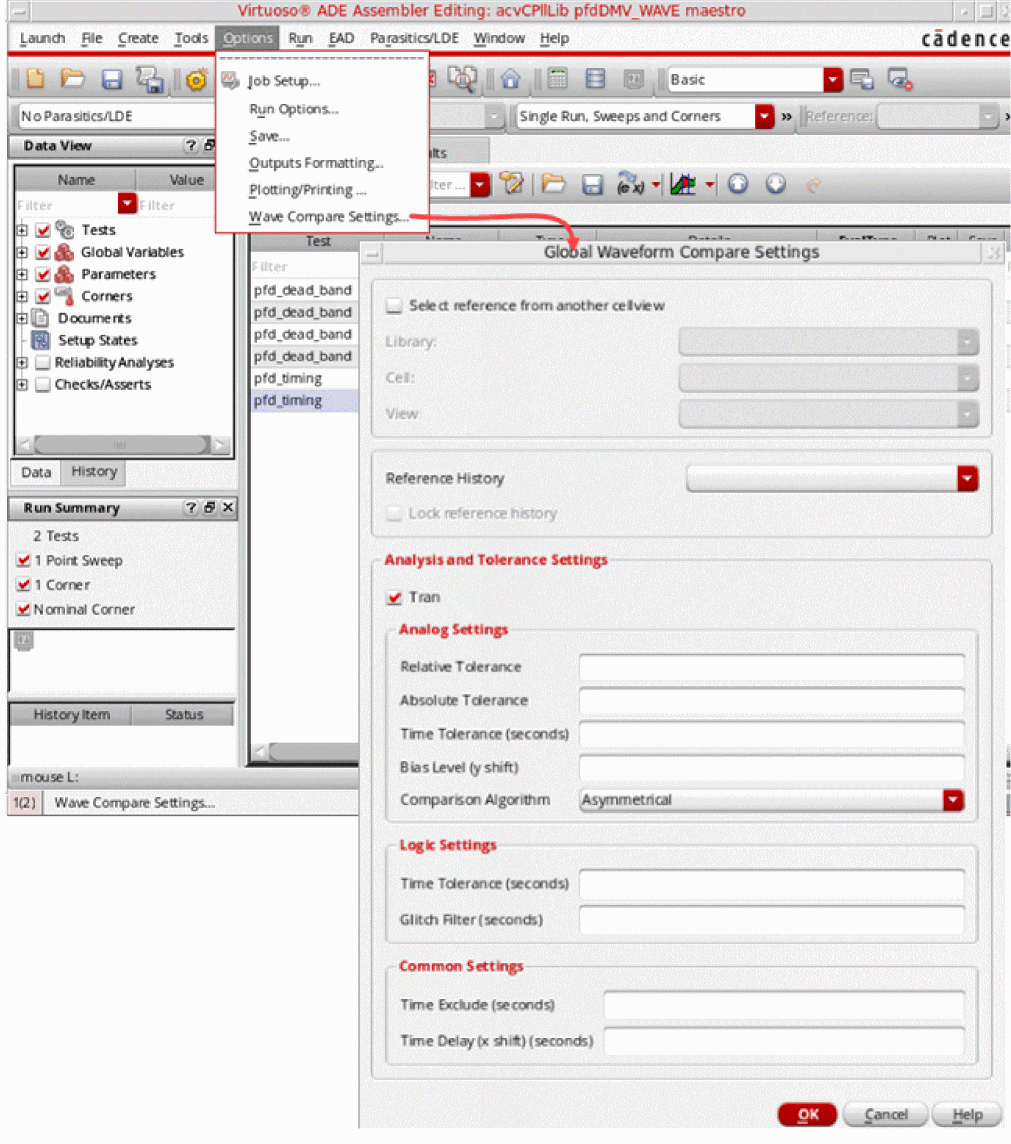
By default, the fields on the Global Waveform Compare Settings form are blank. Fill in the required values.
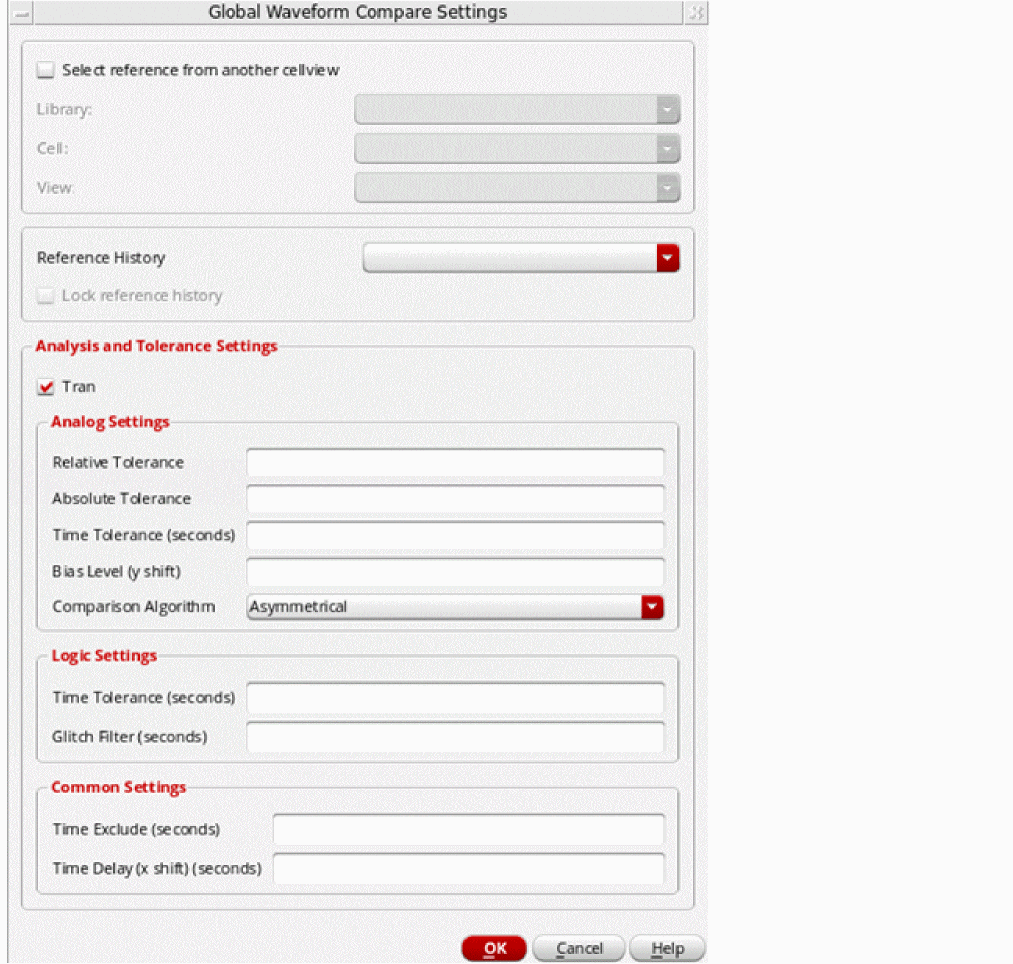
The following sections describe the values you can set in this form:
- Reference History to be Used as Data Source
- Analysis and Tolerance Settings for Waveform Comparison
- Maximum Acceptable Tolerance Values
- Time Tolerance Values
- Time Ranges to be Excluded from Compared Waveforms
- Parameters to Shift Data of a Compared Waveform Before Comparison
- Algorithm for Comparison
- Applying Waveform Options to Multiple Outputs Together
Reference History to be Used as Data Source
You can use a saved history from the current or any other cellview as a reference history for waveform comparison.
To choose a reference history from another cellview:
-
Select Select reference from another cellview on the Global Waveform Compare Settings form.
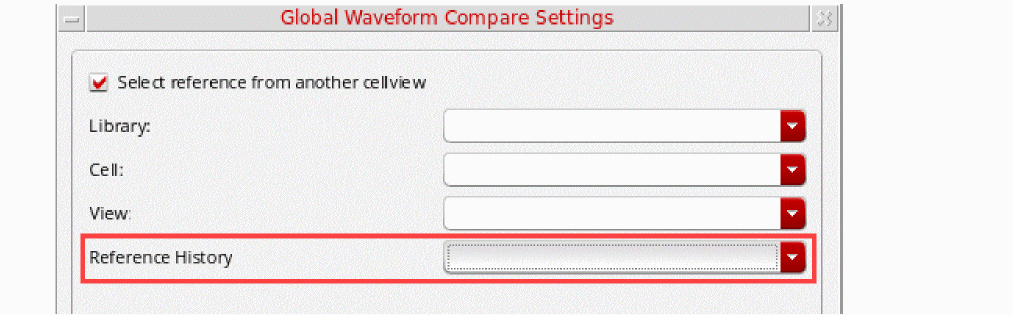
The form fields to specify the library, cell, and view of another cellview are enabled. In addition, the Reference History field is also included in the group displayed on top of the form.
-
Use the Library, Cell, and View drop-down lists to specify the maestro cellview of the reference history.
All the histories available in the specified cellview are listed in the Reference History drop-down list. - Select a reference history from the Reference History drop-down list.
To choose a reference history from the current cellview:
- Select a history from the Reference History drop-down list, which shows the list of histories available in the current maestro cellview.
- Select the Lock Reference History check box to save the reference history from being overwritten. It is recommended to lock the history if you need to use its results for many waveform comparisons. Otherwise, depending on the History Entries to Save settings on the Save Options form, when new simulations are run, the selected history might get overwritten.
Important Points to Note
- For the runs that create children histories, for example, Manual Tuning, only the names of children histories are available in the Reference History drop-down list.
-
You cannot use the results saved from ADE Explorer as reference. Therefore,
Explorer.0is not available in the Reference History drop-down list. -
When the setup contains multiple corners, ADE Assembler can compare waveforms only when either of the following two conditions is met:
- Both source and referenced history contain the same number of corners (n, where n>=1). In this case, one-to-one mapping of corners is done for comparison.
- The compared setup contains n corners and referenced history contains 1 corner. In this case, wave for each corner from the compared setup is compared with the wave for this single corner in the reference history.
- In other cases of mismatch in the number of corners, ADE Assembler shows errors.
Analysis and Tolerance Settings for Waveform Comparison
Currently, ADE Assembler supports waveform comparison only for transient analysis. To ensure that comparison are run for the results of this analysis, select the Tran check box.
The tolerance settings that you can specify on this form are grouped in the following categories:
Analog Settings
These settings are used when comparing waveforms for analog signals.
| Field | Description |
|---|---|
|
The maximum acceptable % tolerance value for the worst-case relative deviation reported for analog signals. For more information, refer to Maximum Acceptable Tolerance Values. |
|
|
The maximum acceptable tolerance value for the worst-case absolute deviation reported for analog signals For more information, refer to Maximum Acceptable Tolerance Values. |
|
|
The maximum acceptable tolerance value for the time difference (skew) between transition times reported for analog signals For more information, refer to Time Tolerance Values. |
|
|
An integer value by which the waveform needs to be shifted on y axis For more information, refer to Parameters to Shift Data of a Compared Waveform Before Comparison. |
|
|
Algorithm to be used to compare analog waveforms For more information, refer to Algorithm for Comparison. |
Logic Settings
These settings are used when comparing waveforms for digital signals.
| Field | Description |
|---|---|
|
Specifies the maximum acceptable tolerance value for the time difference (skew) between transition times reported for digital signals. The default unit of time for this field is seconds. For more information, refer to Specifying the Time Tolerance Values for Digital Signals. |
|
|
Specifies the maximum glitch size (in seconds) up to which the glitches in digital signals are acceptable and ignored while comparing waveforms. For more information, refer to Filtering Glitches in Digital Signals. |
Common Settings
These settings are common for both analog and digital signals.
| Field | Description |
|---|---|
|
The time ranges that should be excluded when validating each signal. Only the time ranges that fall outside the specified time ranges will be validated for each signal. For more information, refer to Time Ranges to be Excluded from Compared Waveforms. |
|
|
An integer value by which the waveform needs to be shifted on x axis For more information, refer to Parameters to Shift Data of a Compared Waveform Before Comparison. |
Maximum Acceptable Tolerance Values
You can specify the maximum acceptable tolerance values—the maximum acceptable differences between the reference and compared analog signals. The compared signal is resampled and interpolated at the reference waveform time points and the values at these time points are compared using the specified tolerances. The tolerances define a window around the reference waveform within which the compared waveform values should fall—if they do not, they fail. For more details, refer to Waveform Compare Algorithms.
To specify the maximum acceptable tolerance values, do either or both of the following:
- In the Relative Tolerance field, specify the % maximum acceptable tolerance value for the worst-case relative deviation reported for analog waveforms.
-
In the Absolute Tolerance field, specify the maximum acceptable tolerance value for the worst-case absolute deviation reported for analog waveforms.
If only one of these tolerance values is defined, Assembler uses only that and ignores the other. If both relative and absolute tolerance are defined, Assembler compares their value for each reference data point and uses the one that is larger.
For example, the value of reference waveform is 13mV at some point. The difference of reference wave and compared wave is 2mV and the timing tolerance is not specified.
Relative Tolerance is 1% (13mV*0.01=0.13mV) and absolute Tolerance not specified
 relative tolerance = fail
  it is a fail overall
In this case, the relative tolerance criteria is difficult to match, given that the reference signal is close to zero.
Relative Tolerance is 1%. (13mV*0.01=0.13mV) and Absolute Tolerance is 10mV
 relative tolerance = fail, absolute tolerance = pass
  it is a pass overall
In this case, the small absolute tolerance helps to overcome the limitation of a small relative tolerance.
The Pass/Fail column on the Results tab displays a pass status for the waveforms that fall within the specified tolerance value, and a fail status for the waveforms that fall outside the specified tolerance value. This allows you to validate only the waveforms with the fail status.
Time Tolerance Values
You can specify the maximum acceptable time difference (skew) between transition times on the reference and compared waveforms in the Time Tolerance field. For more details, refer to Waveform Compare Algorithms
- The default unit of time for the Time Tolerance field is seconds.
- If this field is left blank, a simple value comparison is done on the reference and compared waveforms.
- If a value is specified in this field, time and value comparison is done on the reference and compared waveforms.
Algorithm for Comparison
Waveform comparison can use the following three algorithms for waveform comparison:
By default, ADE Assembler uses the asymmetrical algorithm. You can select any other algorithm from the Comparison Algorithm drop-down list.
For details on how these algorithms compare the waveforms, see Waveform Compare Algorithms.
Time Ranges to be Excluded from Compared Waveforms
You can specify the time ranges that should be excluded when validating each waveform. Only the time ranges that fall outside the specified time ranges will be validated for each waveform.
To specify the time ranges that should be excluded when comparing each waveform specify the time ranges in the Time Exclude field.
Use the following syntax to specify a comma-separated list of time ranges:
from:to[, from:to]
For example, specify 70n:72n,110n:112n to exclude the time range starting from 70n to 72 and 110n to 112n when validating each waveform.
Parameters to Shift Data of a Compared Waveform Before Comparison
You can shift the data of compared waveforms on x or y axis before comparison.
To shift the data on x axis, specify an integer value in the Time Delay field. This adds a delay of the given number of seconds. A positive value shifts the data to the right and a negative value shifts the data to the left.
To shift the data on y axis, specify an integer value in the Bias Level field. A positive value shifts the data upwards by the given number of units and a negative value shifts the data downwards.
Specifying the Time Tolerance Values for Digital Signals
You can specify the maximum acceptable time difference (skew) between transition times on the reference and compared digital signals in the Time Tolerance field.
A time tolerance, when specified, checks both the timing and function of the digital signal even if there is functional non-equivalence. As a result, if the digital values are same and the timing change in digital values take place within the given time tolerance in the reference and compared signals, the timing and functional check passes. Otherwise, it fails.
- The default unit of time for the Time Tolerance field is seconds.
- The logic time tolerance value can be applied in any situation.
Filtering Glitches in Digital Signals
If there are small acceptable glitches in digital signals because of spurious noise or behavior, you can specify a time value (in seconds) in the Glitch Filter field to filter glitches that are equal to or smaller in width than the specified time value. The glitches are ignored when reference and compared digital signals are compared.
The glitch filter, when specified, filters out digital pulses faster than the entered time value before the validation process. Therefore, the glitch filter time should be set carefully to a value significantly smaller than the minimum signal pulse length.
Applying Waveform Options to Multiple Outputs Together
When you need to apply similar wave compare specifications to all or multiple outputs defined in the Outputs Setup pane, you can use the commands available in the ( ) drop-down list on the Outputs Setup pane toolbar.
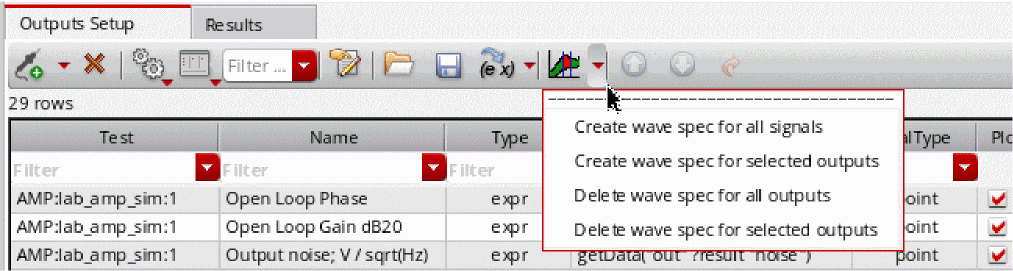
- Create wave spec for all signals: Creates wave specifications for all the signals defined on the Outputs Setup tab. Outputs of other types, such as expr, opregion, and MATLAB, are ignored. This is the default action for the command on the toolbar.
- Create wave spec for selected outputs: Creates wave specifications for all the outputs for which you selected rows on the Outputs Setup tab. Ensure that you select outputs that return a waveform result. Output of type opregion, violation, area, and oppoint do not support wave specification.
- Delete wave spec for all outputs: Deletes all the wave specifications currently defined on the Outputs Setup tab.
- Delete wave spec for selected outputs: Deletes wave specifications for all the outputs for which you selected rows on the Outputs Setup tab.
Important Points to Note
- The wave specifications created by the commands listed above use the settings defined in the Global Waveform Comparison options form.
- If required, you can modify the waveform comparison options individually for any output. For more details, refer to Specifying Local Options for Waveform Comparison.
- If the reference history does not contain any output with the same name as that of the output for which the wave specification is defined, the name of the reference output remains blank. You need to correct the output mapping in such cases. Otherwise, ADE Assembler reports errors while running a simulation.
Specifying Local Options for Waveform Comparison
By default, the options specified in the Global Waveform Comparison Options form are applied to all the waveforms. You can override the global options for specific signal outputs by specifying local options for wave specifications on those signals.
To specify local waveform comparison options for a specific signal output, click in the Spec column of that output and choose wave from the drop-down list. The Waveform Compare Setup form is displayed for that signal output.
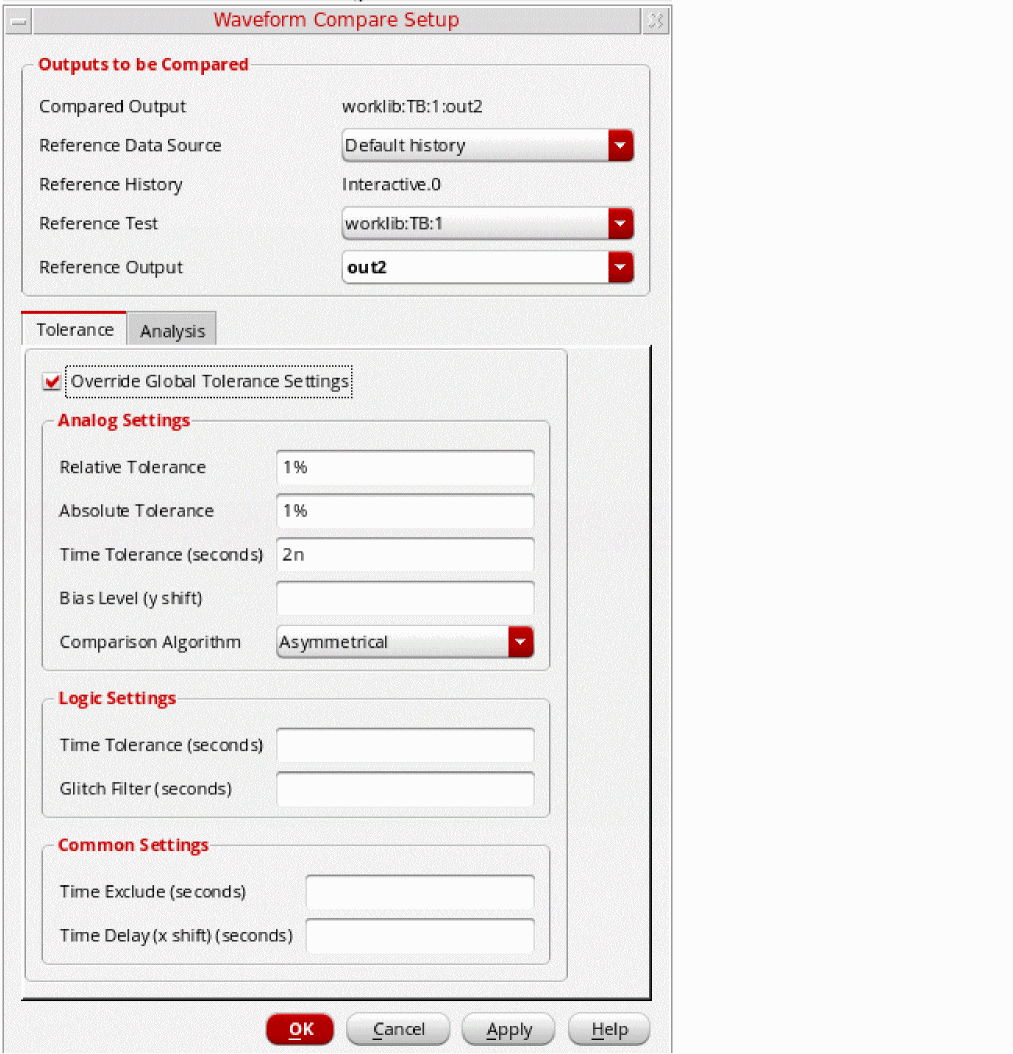
The settings on the form are same as the global waveform compare options.
Note the following points related to these settings:
-
The Reference Data Source field is set to
Default History, which indicates that the default history set in the global options to be used here.
If required, you can select other data sources from the drop-down list. The other fields in the Outputs to be Compared section of this form change accordingly.
The other data sources can be:-
Specific history: Use this to select a history other than that specified in global options. You also need to select a reference test and reference output from that history in the Reference Test and Reference Output drop-down lists, respectively. -
Current setup: Use this when the reference output is another signal output from the current setup. In this case, the reference and compared data source is same. You need to select the name of reference output in the Reference Output drop-down list.
-
-
If the Reference Data Source field is set to
Default HistoryorSpecific History, the name of that history is displayed in the Reference History field. - If the reference history contains a test with the same name as that of the current test for which you added a signal output, that is displayed in the Reference Test drop-down list.
-
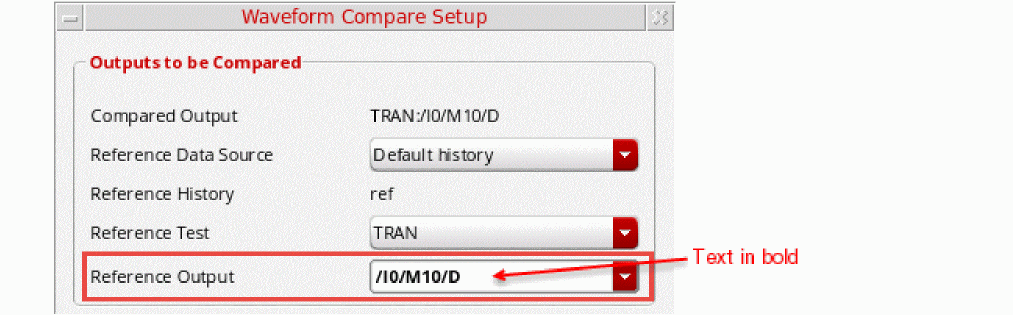
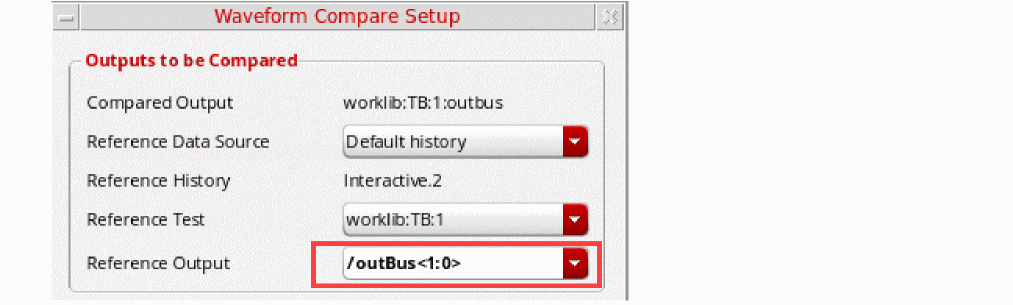
If the reference test contains a signal output with the same name as that of the compared output, it is displayed in the Reference Output drop-down list. The bold format of this value also indicates that the names of reference and compared waveforms are same.
-
If the reference test does not contain a signal output with the same name as that of the compared output, the Reference Output drop-down list is left blank. You can select an appropriate signal name. The italicized format of this value indicates that the names of reference and compared waveforms are different.
For digital outputs, waveform comparison can be done for signals or buses. Therefore, you can choose a bus as a reference output, as shown below.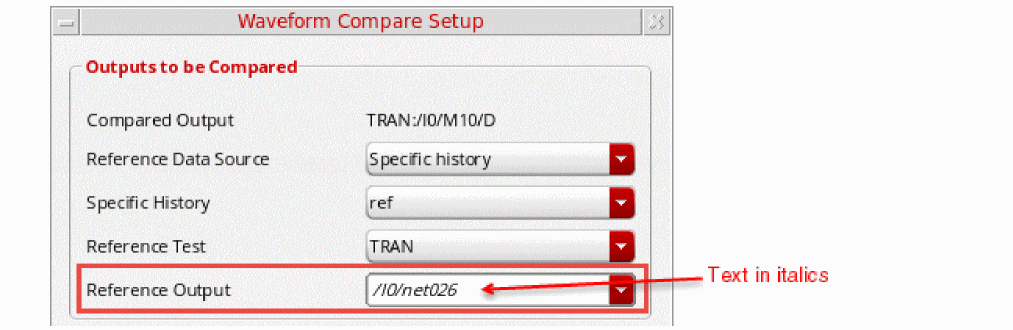
-
The Tolerance tab shows the settings copied from the Global Waveform Comparison Options form. You need to change these settings for a specific output, select the Override Global Tolerance Settings check box. The fields for tolerance value settings are enabled and their values are deleted. You can edit the values as required.
For details about the values that you can specify in these fields, refer to the following sections:
Analyzing Waveform Comparison Results
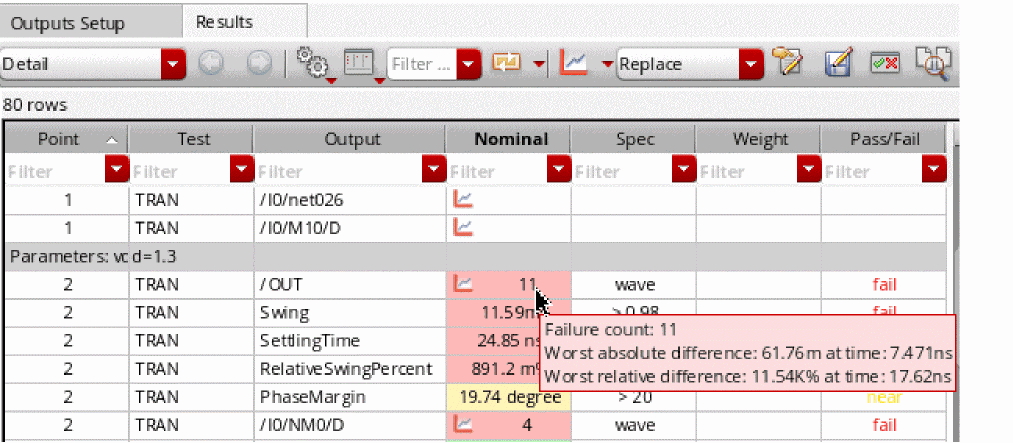
As described earlier, the pass/fail status of signal outputs on the Results tab shows the overall result of waveform comparison for each compared signal. In addition, the error count is shown in the result cell and its tooltip, which also shows the details of the maximum difference between the reference and compared waveform.
For example, in the figure shown below, the tooltip indicates the following points:
-
The difference between the reference and compared waveforms was greater than the specified time tolerance value at
11instances. -
The worst-case absolute difference was reported at time=
7.471nsand the deviation was of61.76m. -
The worst-case relative deviation was reported at time=
17.62nsand the deviation was of11.54%, which is higher than the tolerance value of2%.
Important Points to Note
- When time tolerance values are specified in the waveform compare settings, the tooltip shows only the failure count. It does not show the worst absolute difference and worst relative difference.
- If the specified exclude time interval falls within a failure region, the failure count is increased by 1.
- If the simulations are running across NFS, you can use the maxRDBSyncWait environment variable to increase the wait time to retrieve the results data before running comparison.
The tooltip display is different in case of logic signals. For more details, refer to Analyzing Waveform Comparison Results for Digital Signals.
You can do a detailed analysis of waveform comparisons by viewing the graphs plotted in the graph window.
To plot the result of a waveform comparison, right-click in a result cell and choose Plot. The reference and compared waveforms are plotted in the graph window. By default, both the waves are shown in the same color. You can change their colors for a better analysis.
If the reference and compare analog signals have different time ranges, the time ranges for which only one signal is available are ignored during comparison.
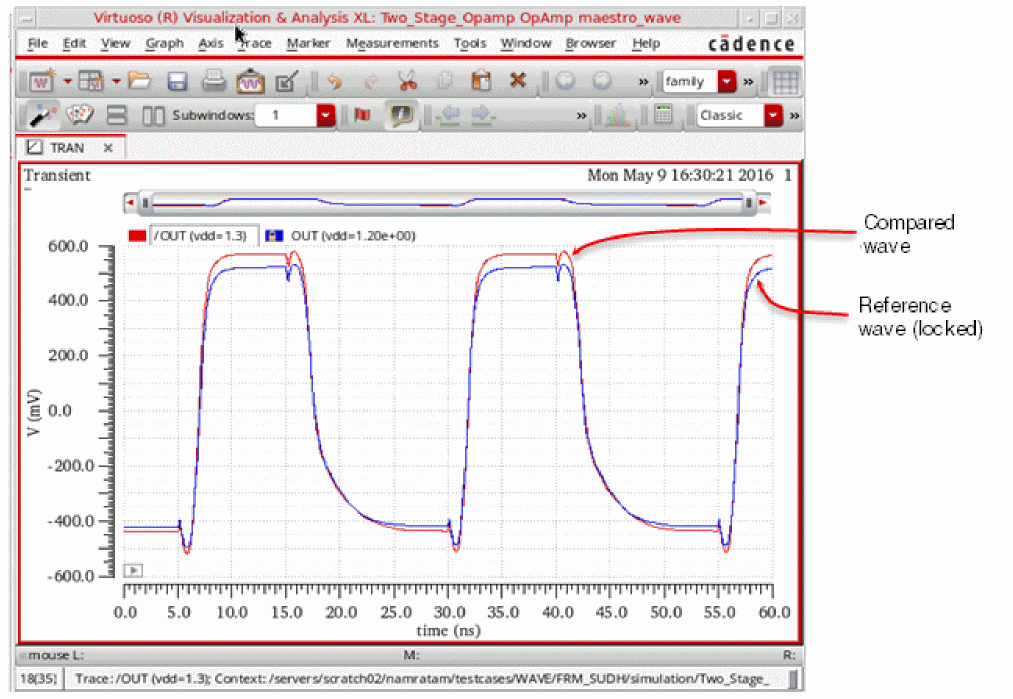
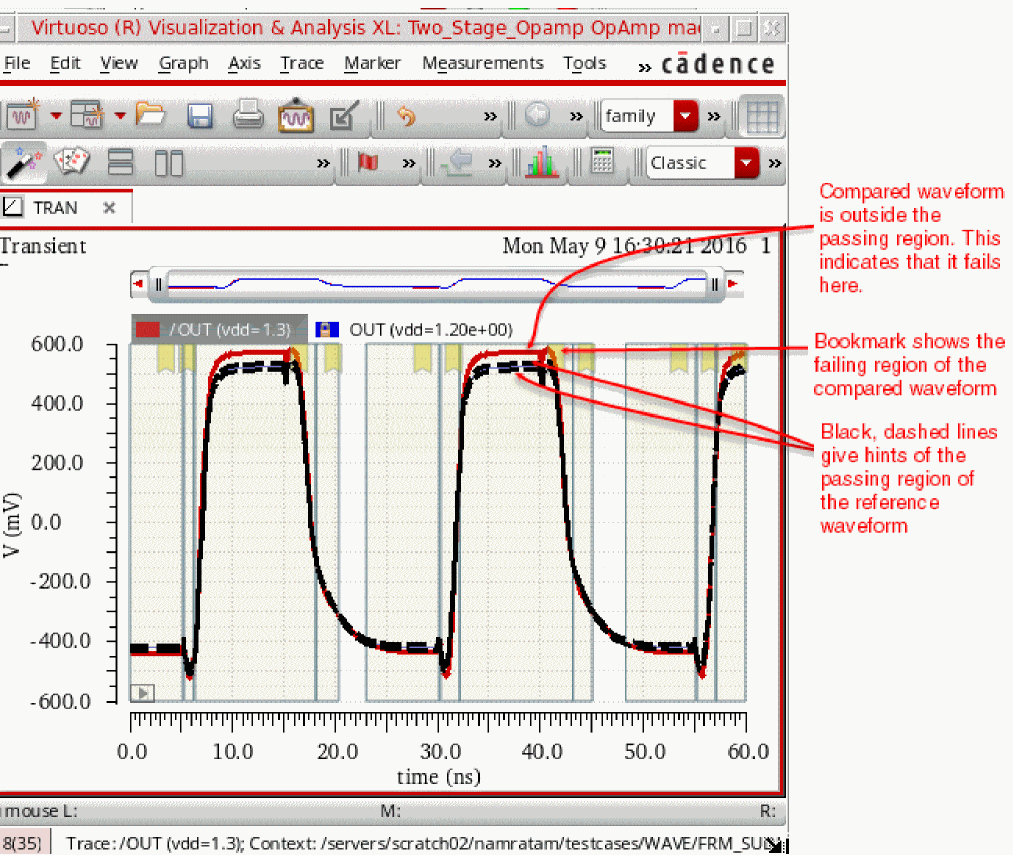
Click any point on the compared waveform. As shown in the figure given below, two black, dashed lines are shown to indicate the hints of tolerance region of the reference waveform that is calculated using the waveform comparison options. The points for these lines are calculated as:
- The value of the reference waveform at a particular point + y_tolerance
- The value of the reference waveform at a particular point - y_tolerance
In addition, region bookmarks are also shown to highlight the failing regions of the compared waveform.
Zoom into a smaller area to view the details either by using the zoom slider on top of the graph or by using the right-click context menu of a region bookmark.
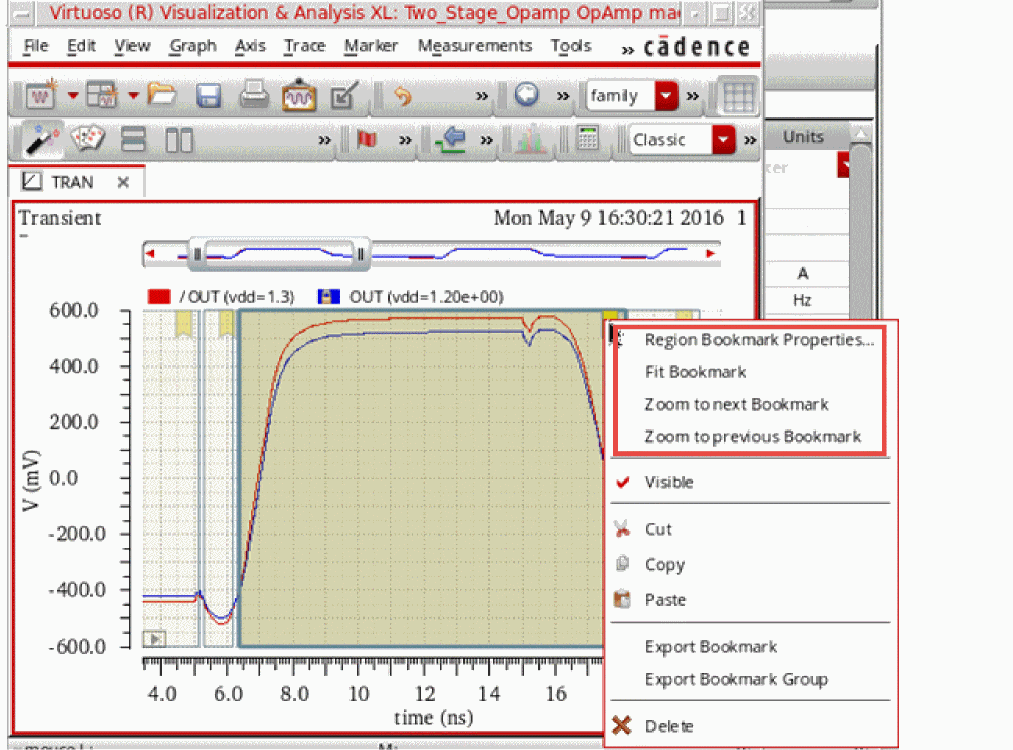
The Fit Bookmark command in the context menu zooms in the graph to show the failing region of the compared waveform.
Zoom to next Bookmark and Zoom to previous Bookmark commands for quick transition to the next or previous failing regions of the compared waveform. You can also use Shift + N and Shift + P bindkeys.Move the mouse over the trace to view the values in the tracking cursor.
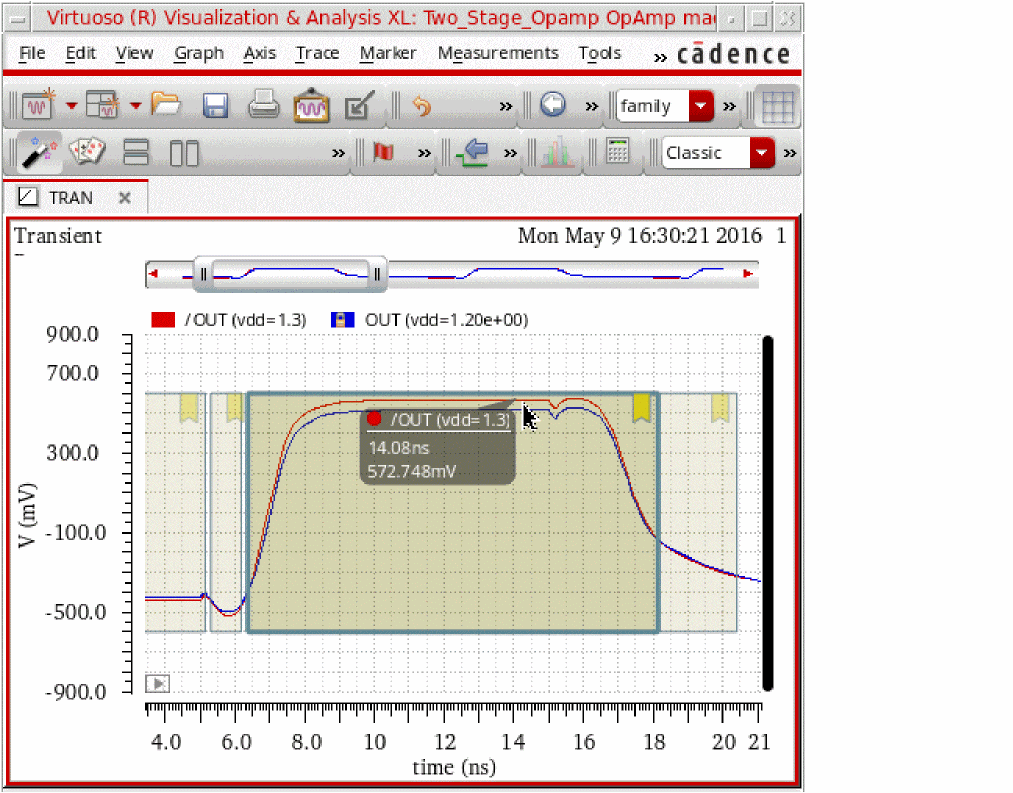
Based on your analysis, you can make the required changes in your design to improve the results.
Visibility Settings for Specification Markers
This section describes the properties that you can set to customize the visibility of tolerance markers and region bookmarks on the plots for waveform comparison.
-
Ensure that the graph legend is visible to the left of graph. You can do this by setting the Legend Position option on the Graph Properties form to
left. - Set the visibility setting of tolerance markers by changing the icon in the Spec column of the legend.
-
Set the visibility setting of region bookmarks by changing the icon in the Region column of the legend.
Possible values that you can set in the Spec and Region columns in the graph legend are:
 ): Always show
 ): Never show
 ): Shows only when the compared waveform is selected
The following figure shows how these properties are set in the graph legend:
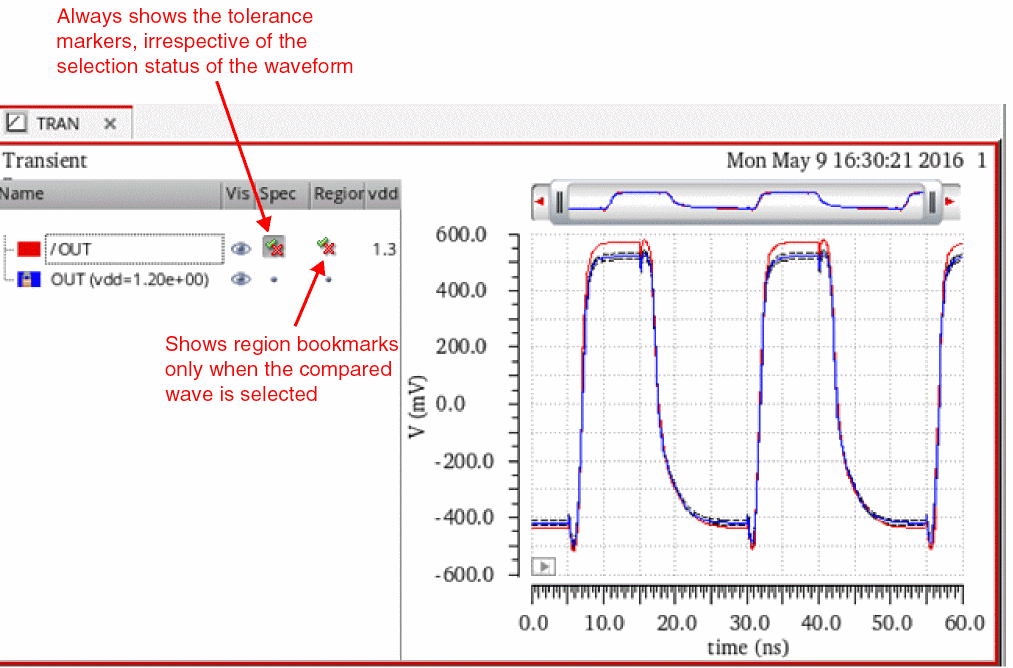
You can also set the spec properties on the Spec Marker Properties for Specification form.
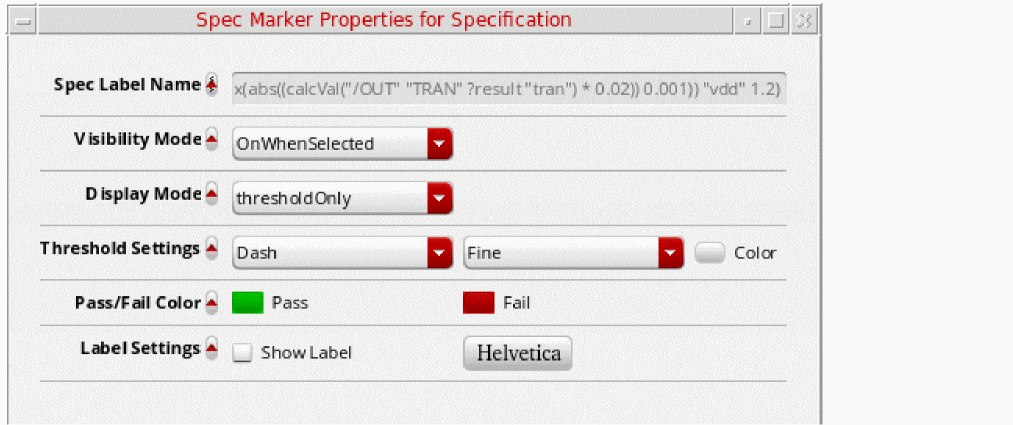
All the spec marker properties that you can set on this form are:
-
Visibility Mode: Specifies when to make the spec markers visible. By default, this property is set to
OnWhenSelected, which implies that the spec markers for a waveform are shown only when the waveform is selected.
Related environment variable:viva.specMarker visibilityMode -
Display Mode: Specifies what to display for the pass and fail markers. These markers use the colors specified by the Pass/Fail Color property.
Set this property to:-
noneto never show the pass and fail markers -
passto show only the pass markers -
failto show only the fail markers -
bothto always show the pass and fail markers -
thresholdOnlyto show only the threshold lines between the pass and fail markers (This is the default value) -
pointsOnlycolors the individual points green or red instead of using filled areas for pass/fail. This is exclusively used for histograms and QQplots.
-
- Threshold Settings: Specifies line style and color for the tolerance markers.
- Pass/Fail Color: Specifies the colors to be used to highlight the pass and fail marker areas.
Analyzing Waveform Comparison Results for Digital Signals
For logic or digital signals, the tooltip on the Results tab shows only the failure count.
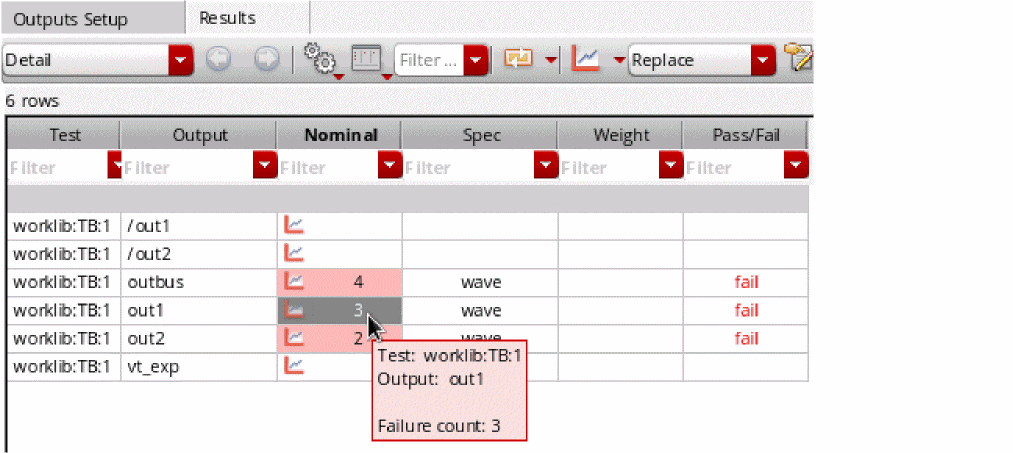
Click the plot icon to plot the graph in Virtuoso Visualization and Analysis XL window.
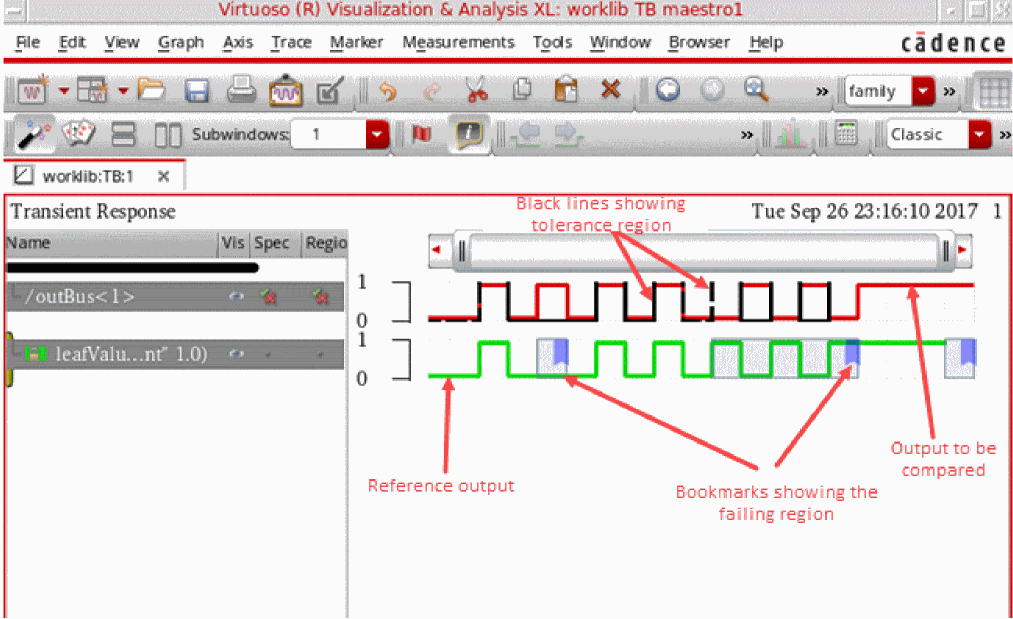
For a clear view of the failing region, use the Fit Bookmark command in the context menu of the compared waveform.
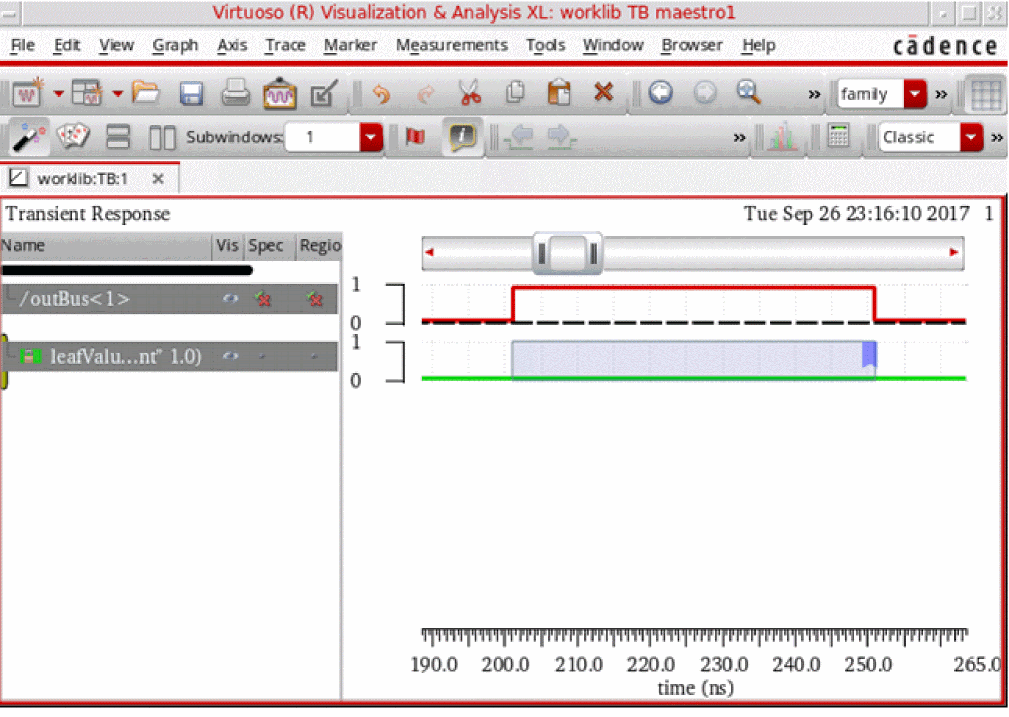
Also see: Visibility Settings for Specification Markers
You can now analyze the failing areas and make modifications in the active setup or the waveform comparison settings to resolve the issues.
Saving Waveform Comparison Results in a Datasheet
The datasheet saved from ADE Assembler includes the details of wave specifications and resulting values. The error count for a particular result is in the Failures: x format, as shown below.
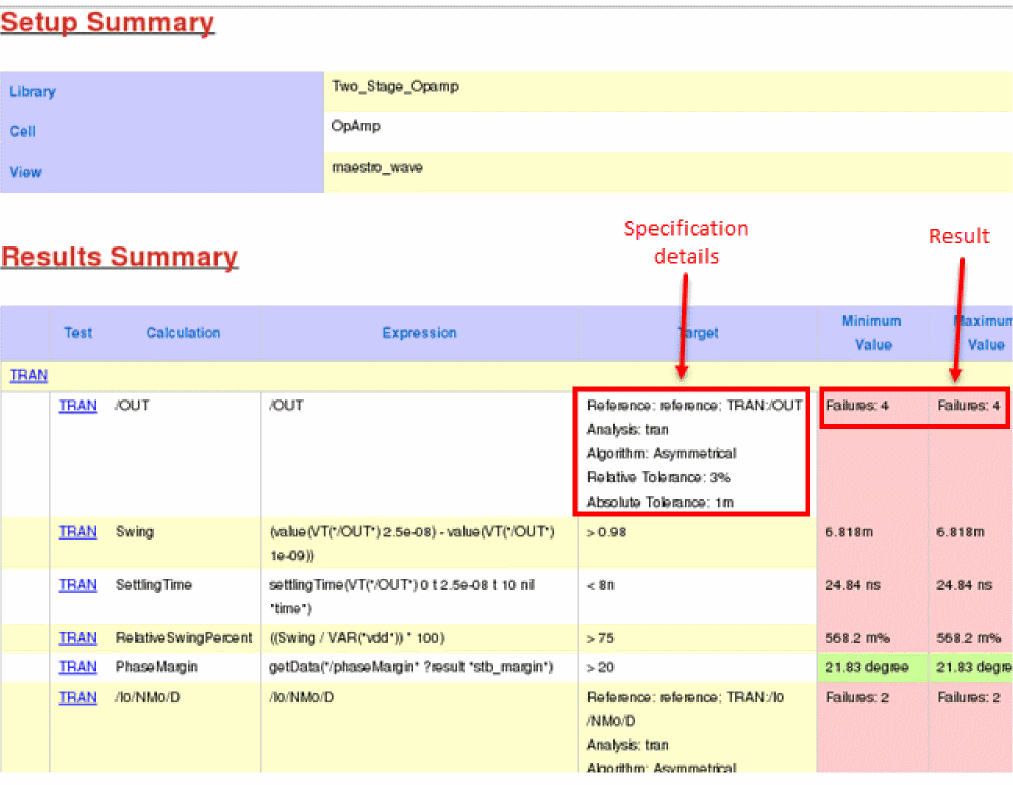
Waveform Compare Algorithms
ADE Assembler uses the following algorithms for waveform comparison:
It is important to understand these algorithms so that you can make an appropriate choice for the waves you need to compare.
Asymmetrical Comparison
This is the default algorithm used for waveform comparison in ADE Assembler. This shows a better performance as compared to the other algorithms and is sufficient for most of the cases.
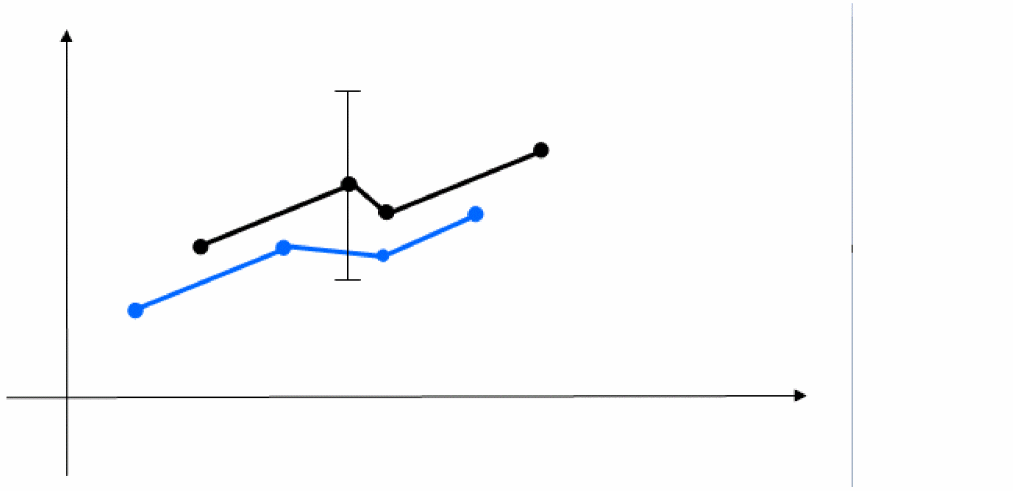
For each data point of the reference waveform, an acceptance region is calculated based on the absolute and relative tolerance specified. Note the upper black waveform and the vertical acceptance region for the second data point in the graph in the figure shown below. If the compared waveform is within the region, the point is marked as passed, else it is a failure. This procedure is repeated for all the reference data points.
In addition, it uses time tolerance, if provided, for time and value comparison. Time tolerance specifies an absolute time difference that is acceptable between the two analog waveforms. An acceptance region is calculated based on the absolute and relative value tolerance and the provided time tolerance. This defines a rectangular region, as shown in the figure below.
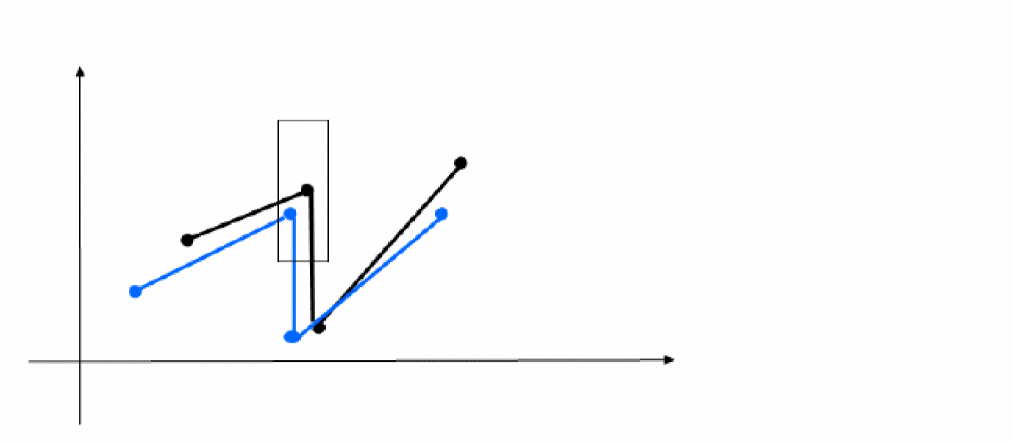
If the compared waveform is within the region, the point is marked as passed, else it fails.
Limitations of Asymmetrical Algorithms
Some of the other limitations of the asymmetrical algorithm are as follows:
- If the compared and references waveforms are swapped, the results might be different.
-
The comparison is done only at time points of the reference waveform.
- If the compare waveform changes significantly between two time points of the reference waveform, the algorithm might not detect problem in this area.
- If the time points in a reference waveform are too less as compared to the compare waveform, the remaining parts of the compared waveform are ignored. However, if the compared waveform is shorter, you will get errors for the parts where there is a reference signal but no compared signal.
- The relative tolerance is calculated based on the reference value, if this value is close to zero, the relative tolerance is almost zero too. Therefore, a reasonable value for the absolute tolerance is highly recommended.
Symmetrical (Conservative)
In this algorithm, the comparison of waveforms is done twice—first, the reference waveform is compared with the compared waveform and then, the compared waveform is compared with the reference waveform. An area is marked as failed if any one of the runs fails at the same time.
Symmetrical (Liberal)
Similar to the conservative approach, in this algorithm too, the comparison of waveforms is done twice, but an area is marked as failed if both the runs fail at the same time.
Defining Operating Region Specifications
Operating region specifications define expressions that ensure that your devices are operating in a desired region (saturation, triode, and so on).
For more information, see the following topics:
- Setting Up Operating Region Specifications
- Saving Operating Region Expressions to a File
- Loading Operating Region Expressions from a File
- Modifying Operating Region Specifications
- Deleting Operating Region Specifications
- Disabling and Enabling Operating Region Specifications
- Viewing Operating Region Violations
- Re-evaluating Operating Region Expressions
Copying a Specification
To copy a specification, do the following:
- In the Spec column on the Outputs Setup tab of the Outputs pane, select the specification.
- Press Ctrl+C to copy the specification.
- Click in the Spec column next to the expression for which you want to paste the specification.
- Press Ctrl+V to paste the specification.
Setting Up Operating Region Specifications
To set up an operating region specification for a test, do the following:
-
Ensure that a DC analysis with option to save DC operating point information is set up for the test as shown below:
For more information about setting up a DC analysis, see Adding an Analysis.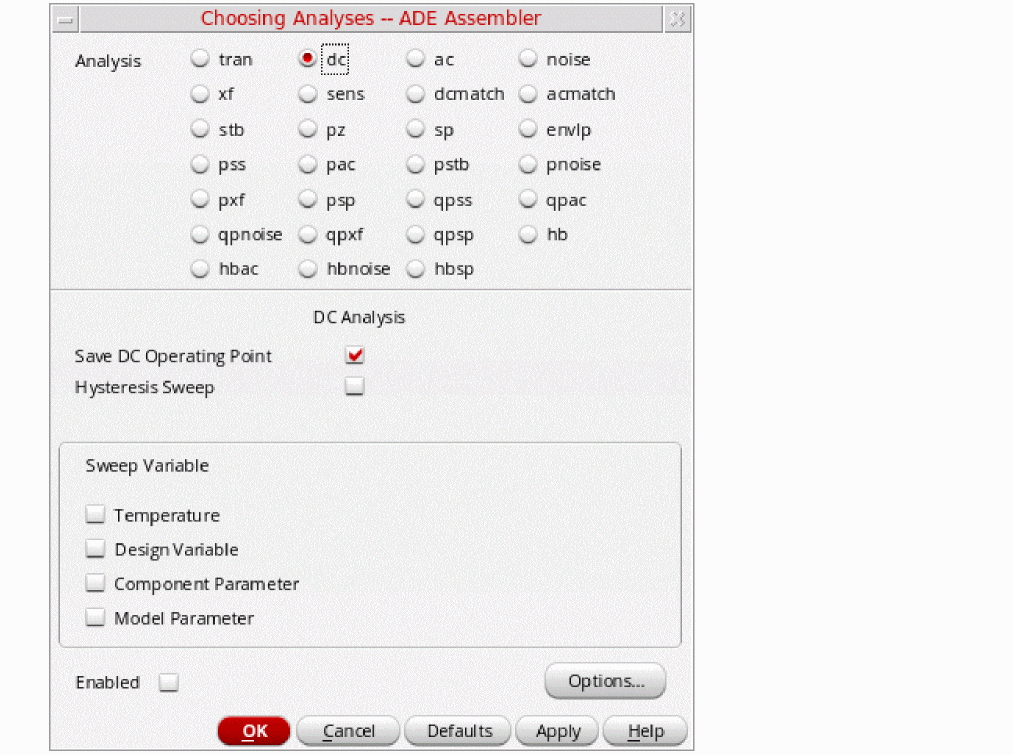
-
On the Outputs Setup tab, click the Add new output
 toolbar button, to view the drop-down list of available tests.
 -
In the drop-down list, select a test and choose Op Region Spec.
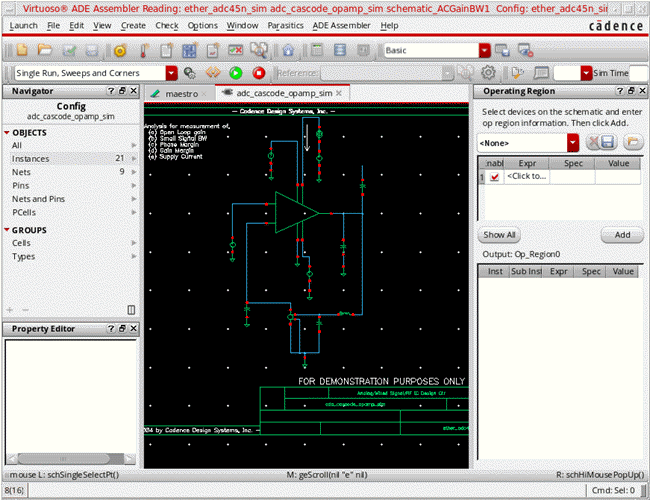
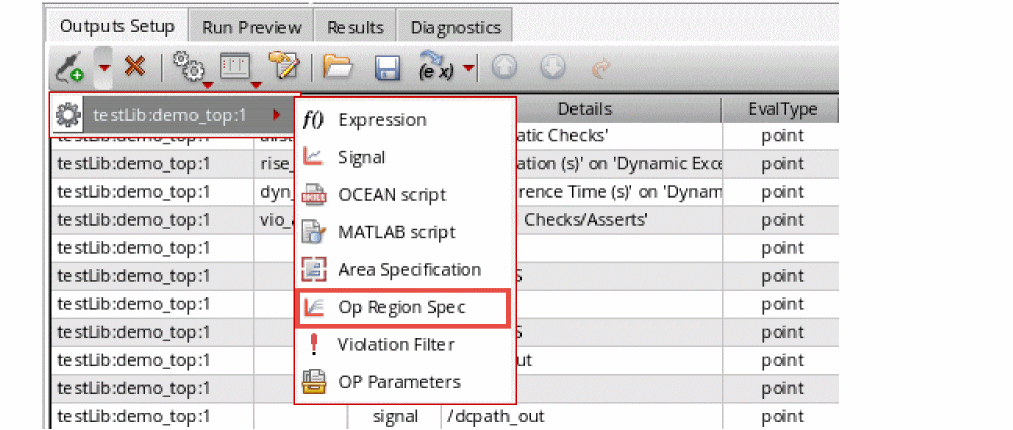 You can also right-click a test name in the Outputs Setup tab and choose Add Op Region Spec to set up an operating region specification for that test.The schematic for the test is displayed with the Operating Region and Navigator assistant panes docked.
-
Specify operating region expressions using the Operating Region assistant pane or the Operating Region Specification form.
The Operating Region assistant pane enables you to quickly specify expressions while the Operating Region Specification form provides advanced methods for specifying expressions.
For more information, see the following topics: -
Click the adexl tab when you are done.
The operating region specification for the test is displayed in the Outputs Setup tab as shown below: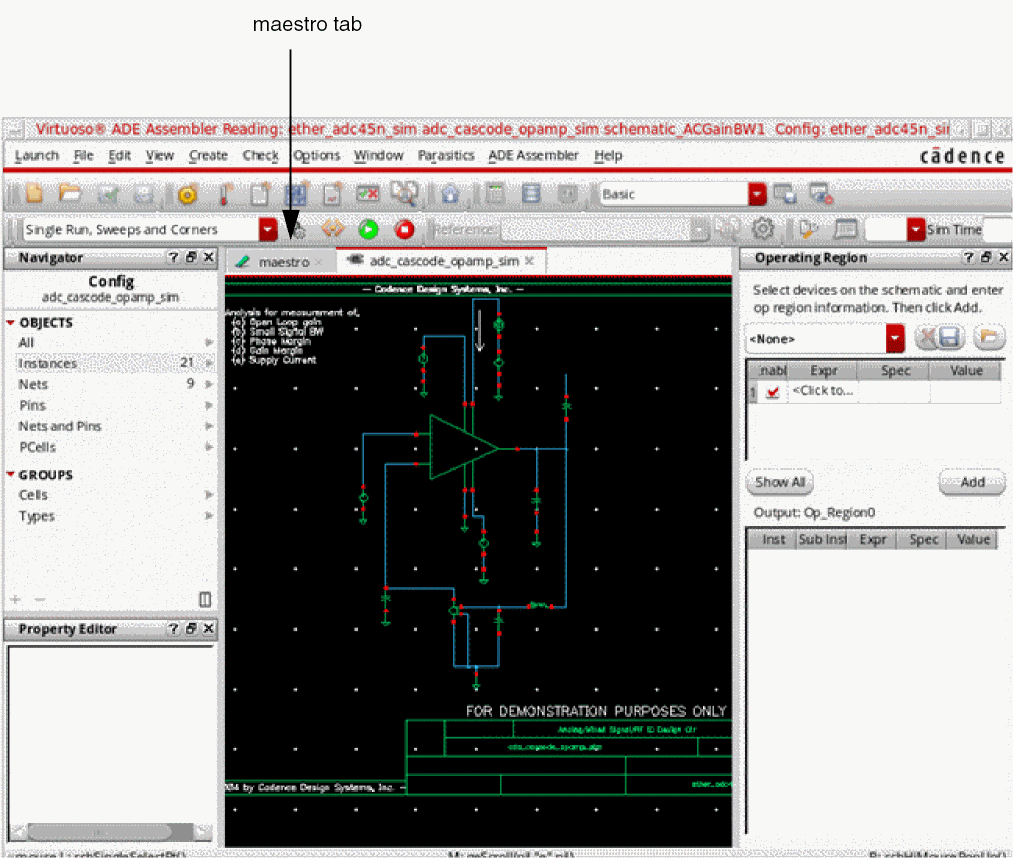

Specifying Operating Region Expressions Using the Operating Region Assistant Pane
To specify operating region expressions using the Operating Region assistant pane, do the following:
-
On the schematic or in the Navigator assistant pane, select the instance for which you want to specify operating region expressions.
You can also select more than one instance of the same type to simultaneously specify operating region expressions for all of them.- To select more than one instance at a time on the schematic, do one of the following:
- To select more than one instance at a time in the Navigator assistant pane, hold down the Shift key (for contiguous selection) or the Ctrl key (for noncontiguous selection) and click the next instance to add it to the selection set.
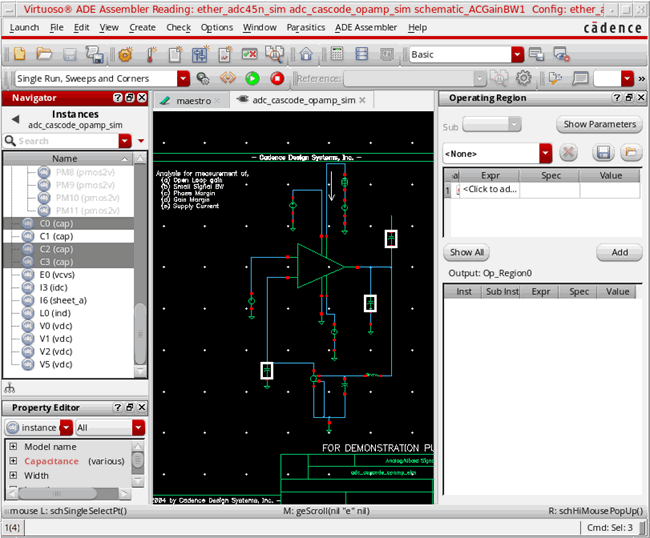
For example, in the following figure, four instances of thenmos2vdevice are selected in the Navigator assistant pane.
-
Specify operating region expressions for the selected instances by doing the following in the Operating Region assistant pane:
- (Optional) If the selected instance has subcircuit instances, select the subcircuit instance for which the operating region expression is to be applied from the SubInst drop-down list.
-
In the Expr column on the Operating Region assistant, click where it says <Click to add> and enter an operating region expression. For example:
vgs - vth
To view the list of operating point parameters that you can use in expressions, click the Show Parameters button on the Operating Region assistant. The operating point parameters for the selected instances are displayed in the Op Point Parameters form.Identify the parameters from this list and create expression in the Expr column of the Operating Region assistant.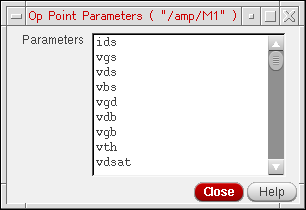
- Click in the Spec column and select the specification for the expression.
-
Click in the Value column and specify the target value for the specification.
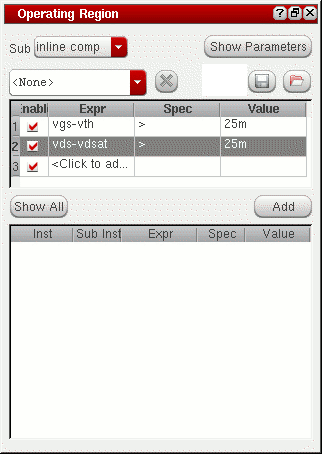
For example, in the following figure, two expressions have been specified for the selected instances.
- By default, the specified expressions are enabled. Ensure that the expressions you want to add for the selected instances are enabled, and the expressions you do not want to add for the selected instances are disabled.
-
Click Add.
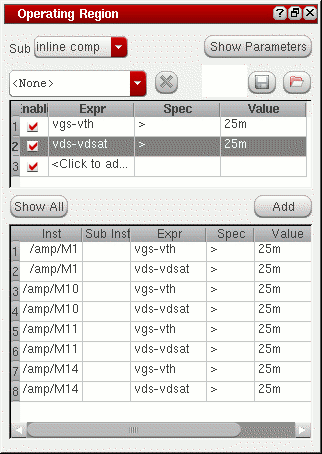
The enabled expressions are added for the selected instances and displayed in the table at the bottom of the Operating Region assistant pane as shown below:
- Saving Operating Region Expressions to a File
- Loading Operating Region Expressions from a File
- Copying and Pasting Operating Region Expressions
- Deleting Operating Region Expressions
Specifying Operating Region Expressions
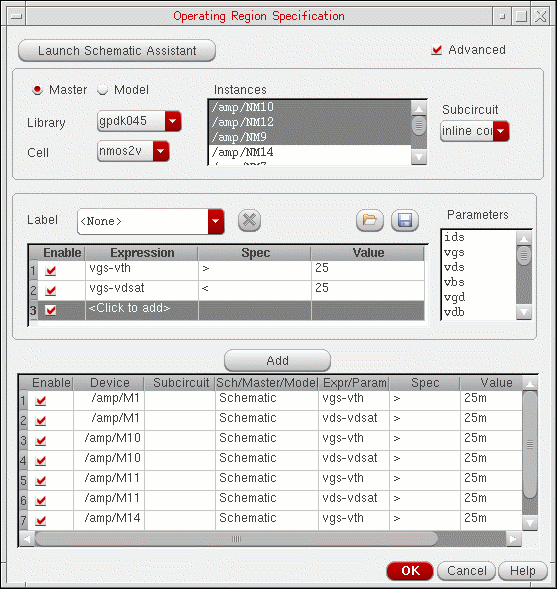
You can use the advanced view of the Operating Region Specification form to specify operating region expressions. To do this:
-
Click Show All on the Operating Region assistant pane.
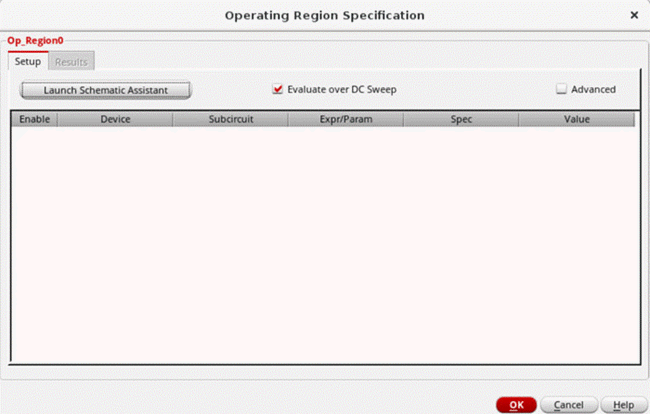
The Operating Region Specification form appears.
-
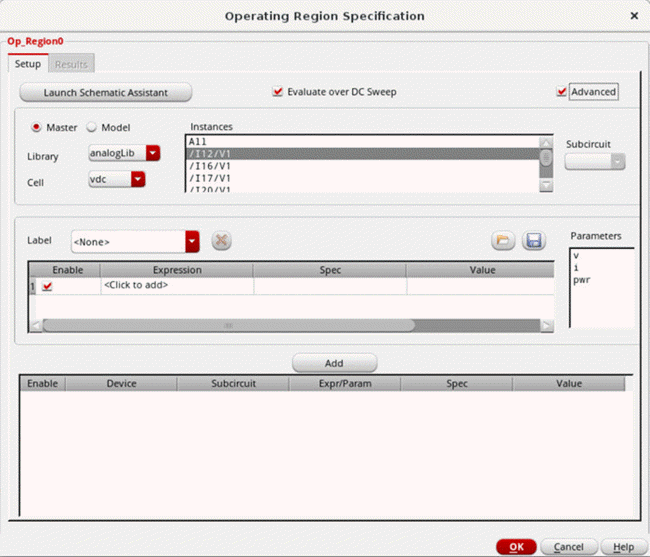
Select Evaluate over DC Sweep to evaluate the specification over the DC sweep specified through the Choosing Analyses form for DC analysis.
Selecting this check box adds the optionenable_dcsweep_op_info=yesto the netlist. -
Select the Advanced check box to display the advanced view of the form.
-
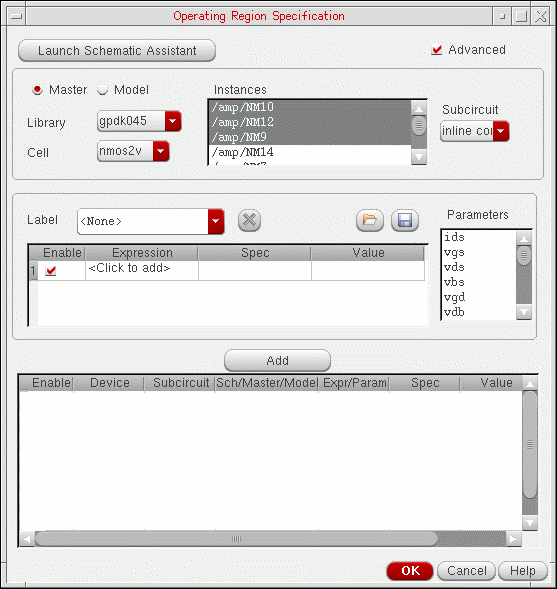
Select the instances for which you want to add operating region expressions by doing one of the following:
-
Specify operating region expressions for the selected instances by doing the following:
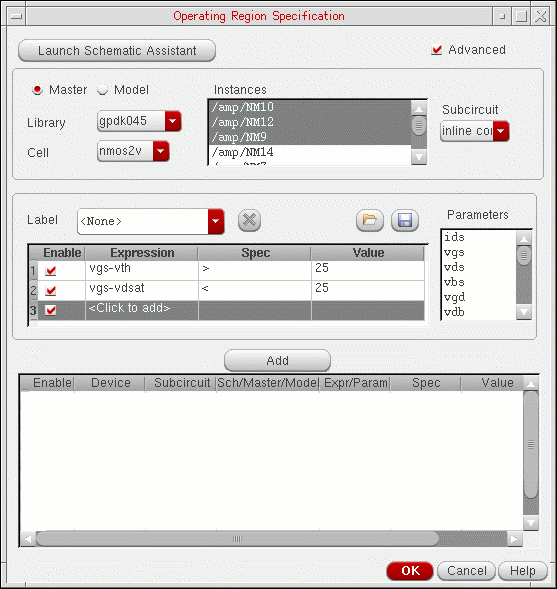
- In the Expression column, click where it says <Click to add> and enter an operating region expression.
- Click in the Spec column and select the specification for the expression.
-
Click in the Value column and specify the target value for the specification.
For example, in the following figure, two expressions have been specified for the selected instances.
- By default, the specified expressions are enabled. Ensure that the expressions you want to add for the selected instances are enabled, and the expressions you don’t want to add for the selected instances are disabled.
-
Click Add.
The enabled expressions are added for the selected instances and displayed in the table at the bottom of the Operating Region Specification form as shown below.
- Saving Operating Region Expressions to a File
- Loading Operating Region Expressions from a File
- Disabling and Enabling Operating Region Expressions
- Copying and Pasting Operating Region Expressions
- Deleting Operating Region Expressions
Modifying Operating Region Specifications
To modify an operating region specification, do the following:
- In the Outputs Setup tab, double-click the Details field in the row for the operating region specification. An ellipse button appears in this field. Click the ellipse button.

The Operating Region Specification form appears displaying the operating region expressions specified for the test.
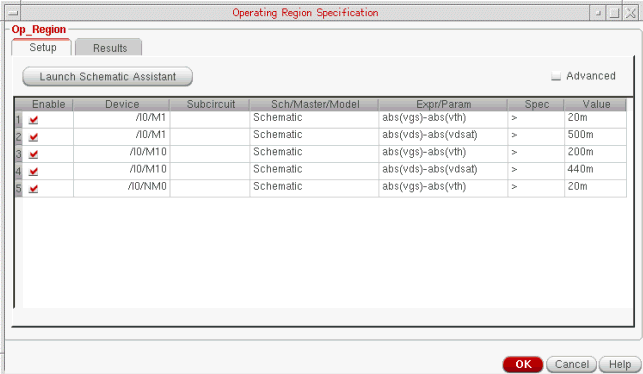
You can use this form to perform the following tasks:
| Task | Description |
|---|---|
|
To modify an expression, double-click in the Expr/Param, Spec or Value columns and make the required changes. If you need to use a common expression for multiple parameters, you can modify expressions for their rows together. For more details, see Modifying Multiple Expressions Together. |
|
|
For more information, see Copying and Pasting Operating Region Expressions |
|
|
For more information, see Deleting Operating Region Expressions |
|
|
For more information, see Disabling and Enabling Operating Region Expressions |
|
|
Click the Launch Schematic Assistant to open the schematic for the test with the Operating Region and Navigator assistant panes docked. You can use the Operating Region assistant pane to quickly add or modify operating region expressions for instances you select on the schematic or in the Navigator assistant pane. |
For more information, see Specifying Operating Region Expressions Using the Operating Region Assistant Pane |
|
Click the Advanced check box to access a detailed user interface for adding or modifying operating region expressions |
For more information, see Specifying Operating Region Expressions |
Modifying Multiple Expressions Together
To modify multiple operating region expressions together, do the following:
- Hold down the Ctrl key and select more than one expressions.
- Right-click and choose Edit Selected Rows.
The Editing Op Region Form Rows form appears.
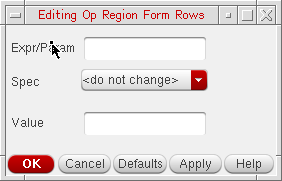
The expression that you specified in this form is updated in the Expr/Param column of all the selected rows in the Operating Region Specifications form.
Copying and Pasting Operating Region Expressions
To copy an operating region expression, do the following:
To paste an operating region expression, do the following:
Disabling and Enabling Operating Region Expressions
The Enable column in the Operating Region Specification form indicates whether an operating region expression is enabled or disabled. By default, the operating region expressions you add are automatically enabled.
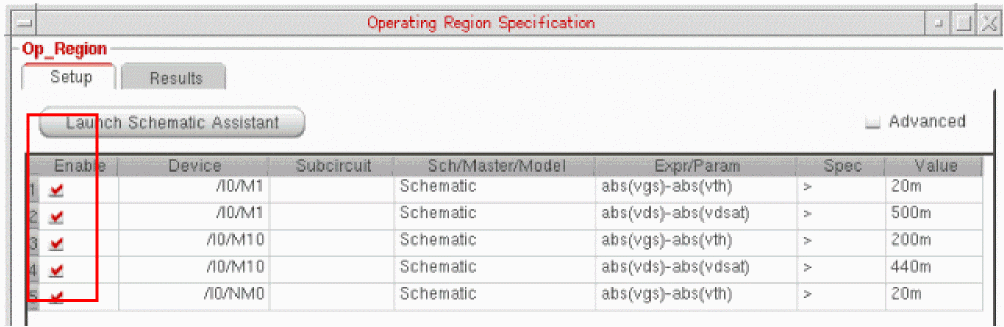
To disable an operating region expression, do the following:
To enable an operating region expression, do the following:
Deleting Operating Region Expressions
To delete an operating region expression, do the following:
Saving Operating Region Expressions to a File
You can save the operating region expressions specified in the Operating Region assistant pane or the detailed view of the Operating Region Specification form to a file. You can then load the file to quickly add operating region expressions. For more information about loading operating region expressions, see Loading Operating Region Expressions from a File.
To save operating region expressions to a file, do the following:
-
On the Operating Region assistant pane or the detailed view of the Operating Region Specification form, in the Label field, type a name for the specified set of operating region expressions.
For example, in the following figure, the two expressions specified in the Operating Region assistant pane will be saved with the namemyOpRegionExpr.
Figure 22-1 Saving Expressions in Operating Region Assistant PaneFigure 22-2 Saving Expressions in Operating Region Specification Form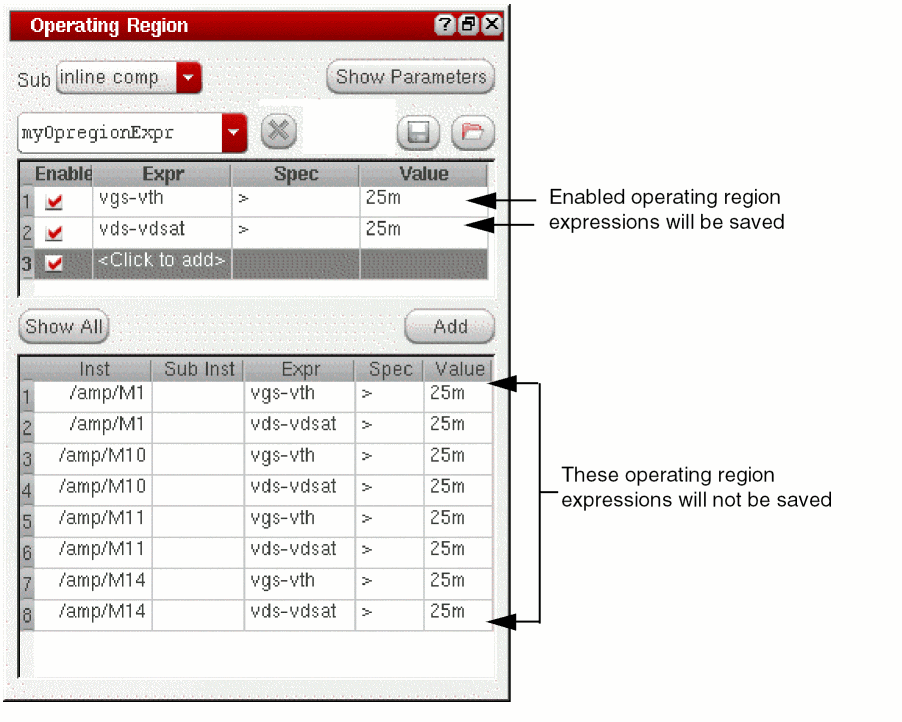
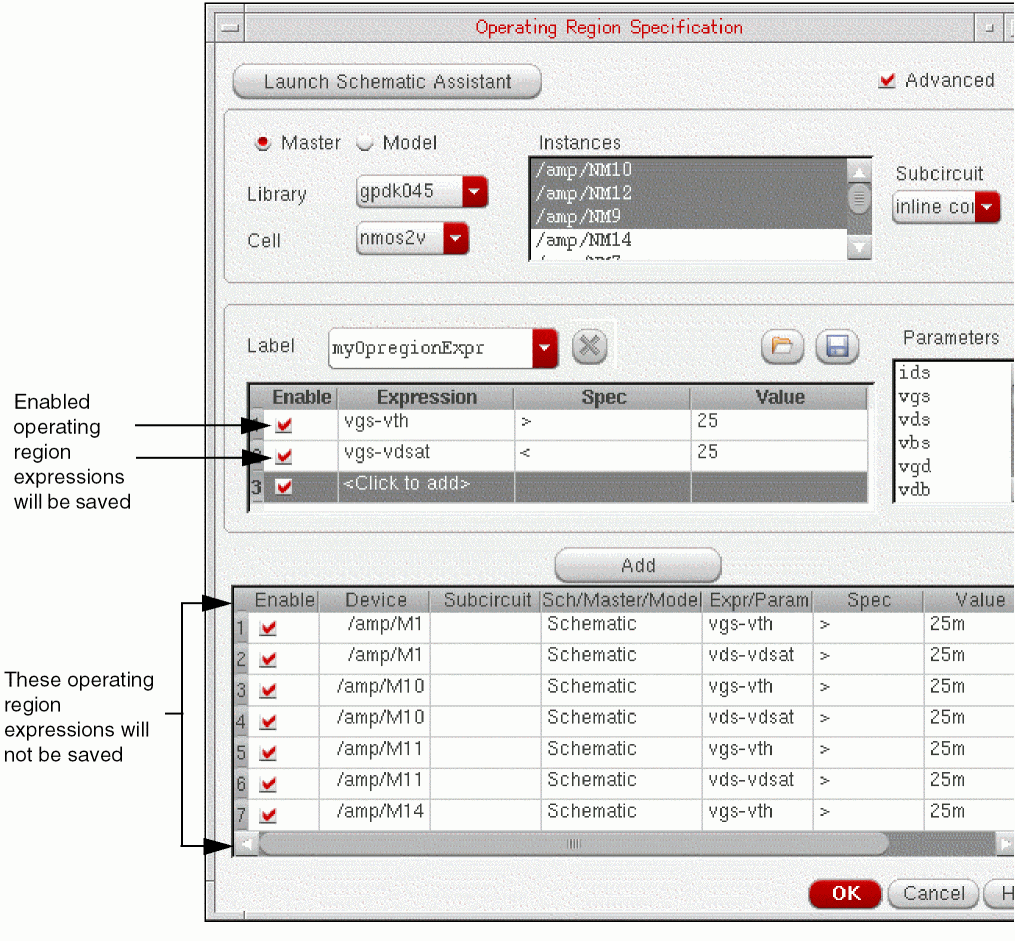
- Ensure that the expressions you want to save are enabled, and the expressions you don’t want to save are disabled.
-
Click the Save button.
The Select Operating Region Expression File form appears. -
Specify the name and location of the file and click Save.
The enabled expressions are saved in the file.
Loading Operating Region Expressions from a File
You can load operating region expressions from a file into the Operating Region assistant pane and the detailed view of the Operating Region Specification form.
To load operating region expressions from a file, do the following:
-
Click the Load button in the Operating Region assistant pane or the detailed view of the Operating Region Specification form.
The Select Operating Region Expression File form appears. -
Select the file and click Open.
The expressions in the file are displayed. The name specified for the set of expressions in the file is also displayed in the Label drop-down list.The names specified for the sets of expressions in the files loaded during the current ADE Assembler session are displayed in the Label drop-down list. Therefore, during the current ADE Assembler session, you can select a name from the Label drop-down list to add expressions, instead of loading the corresponding file again.
Deleting Operating Region Specifications
To delete an existing operating region specification, do the following:
- In the Outputs Setup tab, right-click the row for the operating region specification and choose Delete Output.
- In the Operating Region assistant pane or the detailed view of the Operating Region Specification form, select a label from the Label list and click Delete. All the expressions saved with the selected label name are deleted.
Disabling and Enabling Operating Region Specifications
To disable an operating region specification, do the following:
- In the Plot column on the Outputs Setup tab, deselect the check box next to the specification.
- Right-click an operating region specification and choose Disable Plot.
To enable an operating region specification, do the following:
- In the Plot column on the Outputs Setup tab, select the check box next to the specification.
- Right-click an operating region specification and choose Enable Plot.
Viewing Specification Results in the Results Tab
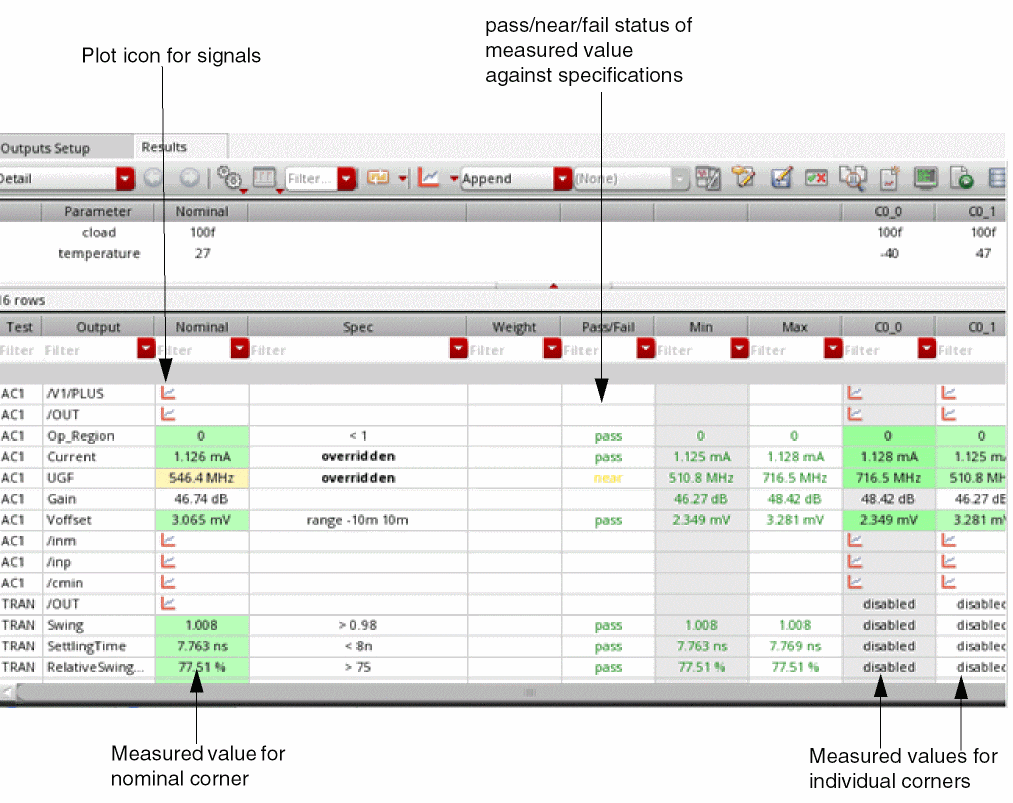
When you run a simulation, the simulation results are displayed in the
Figure 22-3 Display of Simulation Results in the Results Tab
 button on the Results tab to update the results displayed in the Results tab based on the new or modified expressions and specifications. For more information about using the
button, see Re-Evaluation of Expressions and Specifications.
button on the Results tab to update the results displayed in the Results tab based on the new or modified expressions and specifications. For more information about using the
button, see Re-Evaluation of Expressions and Specifications.
The results will also be updated based on the new or modified expressions and specifications if you click the
button on the Results tab to plot across all points. For more information about using the
button, see Refreshing Graphs.
The Results tab displays a plot  icon for the signals that you have selected for plotting or saving on the Outputs Setup tab of the Outputs pane. For more information about selecting signals for plotting or saving, see Specifying Whether a Result Will Be Saved or Plotted.
For measurements defined in the Outputs Setup tab, the program measures the result against the performance specification and displays the following information for each simulation in the Results tab.
- Measured value for the nominal corner in the Nominal column.
- Measured value for each corner in the column for the corner.
- If a specification is specified as an expression, OCEAN script, or SKILL code, the evaluated value of the expression or code is compared with the output value to identify the pass or fail status. To view the evaluated specification value, move the mouse pointer over the Spec column on the Results tab. The evaluated value is displayed in a tooltip.
-
pass, near, fail or error status for the measured value from each simulation in the Pass/Fail column.
-
pass means that all the measured values are within the limits defined by the specification.
For example, in Figure 22-3, the measured value506.7mfor theGain_commonModemeasurement has the pass status because it falls within the target value<550mfor the measurement. -
near means that one or more measured values are no more than 10% outside the target value of the specification.
For example, in Figure 22-3, the measured value94.24for theGain_openLoopmeasurement has the near status because it falls near (within 10% of) the target value>95for the measurement. -
fail means that one or more measured values are greater than 10% outside the target value of the specification.
For example, in Figure 22-3, the measured value118.4for theAC_gain_1KHzmeasurement has the fail status because it falls outside the target value>130for the measurement. -
error means that the expression given in the Spec column for the output failed to evaluate.
In this case, the result value is also displayed with a bright red background To view the error details, move the mouse over the result value in the corner column. The tooltip displays the details of the error, as shown in the figure given below.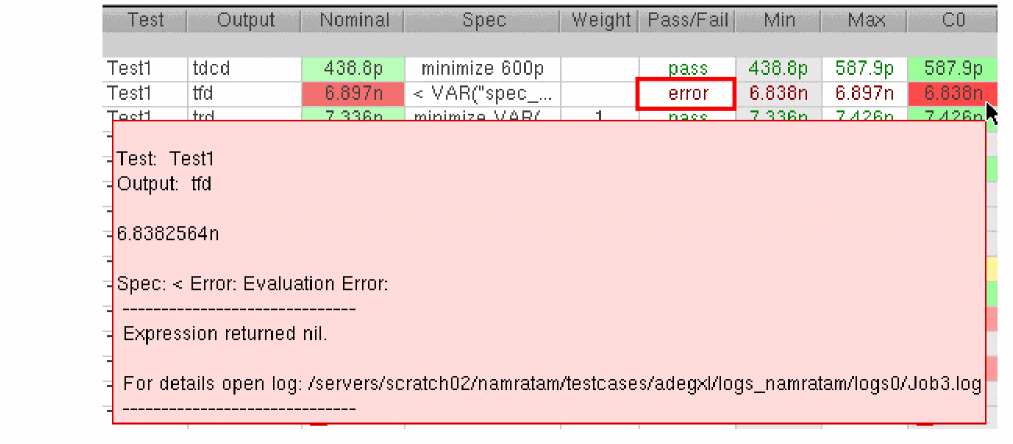
Note the following:-
The Pass/Fail column displays the pass status for a measurement only if the measured values for all the corners for the measurement have a pass status (displayed with a green background). For example, in 22-3, the
Gain_commonModemeasurement has the pass status because the measured values for the nominal corner (displayed in the Nominal column) and the corners C0 and C3 have a pass status. - If the measured value for any corner has a near status (displayed with a yellow background), the Pass/Fail column displays the near status for the measurement.
- If the measured value for any corner has a fail status (displayed with a red background), the Pass/Fail column displays the fail status for the measurement.
-
pass means that all the measured values are within the limits defined by the specification.
-
The text
overriddendisplayed next to a measurement in the Spec column on the Results tab indicates that you have overridden, or disabled for one or more corner specifications for the measurement. For example, in the following figure, the textoverriddennext to theCMRRmeasurement in the Spec column indicates that you have overridden or disabled one or more corner specifications for theCMRRmeasurement.
Do the following to view the specification for the measurement and for each corner: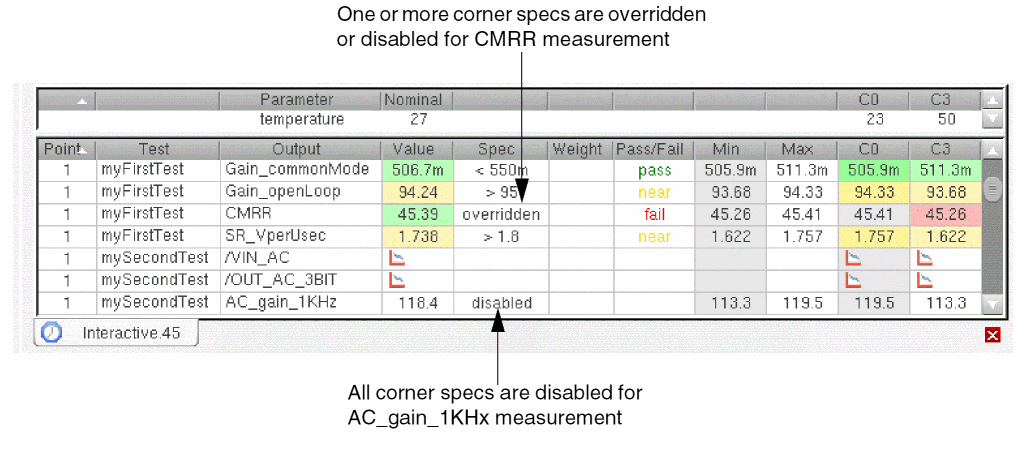
-
To view the specification for the measurement, hover the mouse pointer over the text
overriddenin the Spec column.
The specification for the measurement is displayed in a pop-up, as shown below:
-
To view the specification for the nominal corner, hover the mouse pointer over the measured value for the nominal corner that is displayed next to the measurement in the Nominal column.
To view the specification for a corner, hover the mouse pointer over the measured value for the corner that is displayed next to the measurement in the column for the corner.
The measured value and specification for the corner is displayed in a pop-up, as shown below:If a corner specification is disabled for the measurement, the pop-up displays the measured value and disabled status for the corner as shown below:

-
To view the specification for the measurement, hover the mouse pointer over the text
-
When the showOverriddenValueForSpec environment variable is set to
t, the specification overridden for nominal or specific corners are indicated by one of the following standard texts in the Spec column.
As shown in the figure given below, you can move the mouse over these text values to view details of the global spec and the overridden specs in the tooltip.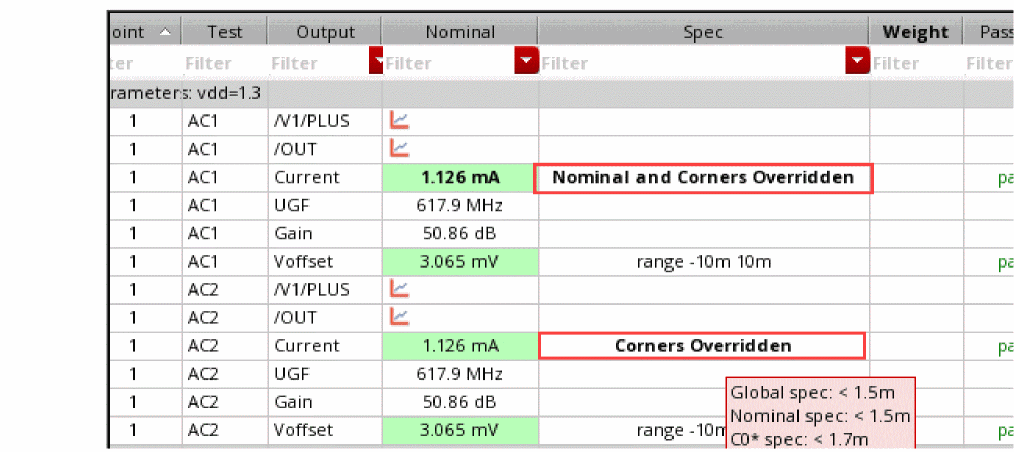
-
The text
disableddisplayed next to a measurement in the Spec column on the Results tab indicates that you have disabled all the corner specifications for the measurement. For example, in the results shown above, the textdisablednext to theAC_gain_1KHzmeasurement in the Spec column indicates that you have disabled all the corner specifications for theAC_gain_1KHzmeasurement.
Viewing Operating Region Violations
When you run a simulation, ADE Assembler combines the individual device expressions in the operating region specification into a single output and calculates the total error. The total error is the sum of all the individual violation margins plus an offset of 1.
An operating region specification is met if the results for all its operating region expressions fall within their corresponding target values. The Results tab displays a value of 0 and a pass status if an operating region specification is met. For example, in the following figure, the operating region specification for the ACGainBW test has a pass status because its value is 0.
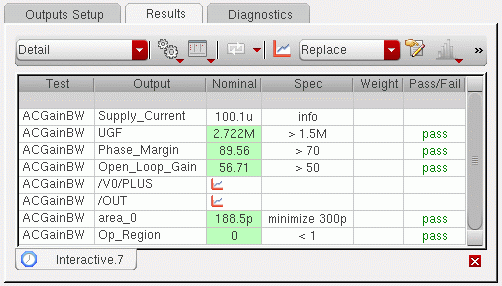
A violation occurs when the result for any operating region expression in the specification falls outside its specified target value. In this case, the Results tab displays a value greater than 0 that is calculated as, shown below:
failed operating region result = 1 + sum of fail margin for failed expressions
A near or fail status depending on the range of deviation from the target spec value. For example, in the following figure, the operating region specification for the AC test, Op_Region, has a near status because its value is slightly greater than 1 whereas the spec requires the value to be less than 1.
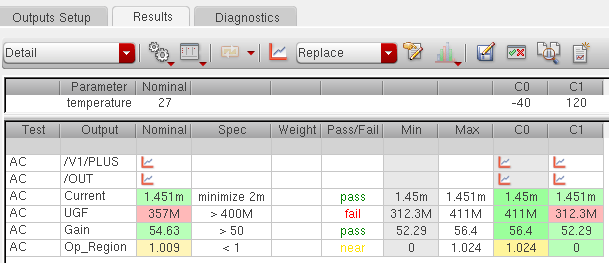
To view operating region violations, do the following:
-
In the Results tab of the Outputs pane, right-click the operating region specification and choose Op. Region Violations.
The Operating Region Specification form is displayed with the Results tab in view. This tab displays the results of all operating region expressions in a tabular format, as shown below:
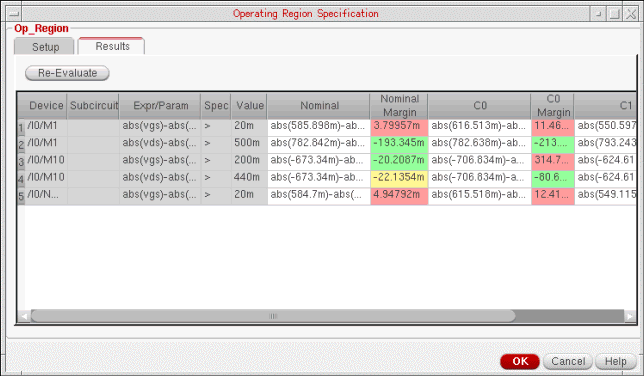
Two columns are shown for each corner—the column with corner name shows the result of expression evaluation for that corner and the Margin column next to it shows the margin by which the result deviates from the spec value. Depending on the difference between the spec and margin values, cells in the Margin column are colored as green, red, and yellow to highlight the pass, fail, or near status, respectively.
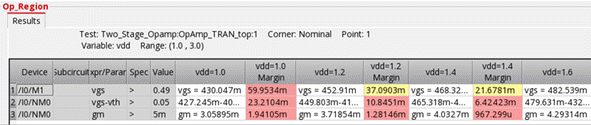
You can right-click the entries in this table and select Expand Sweep to view the DC sweep result values in a separate table.
This table displays the test name, corner name, point value, and the DC sweep variable information.
Related Topics
Re-evaluating Operating Region Expressions
Highlighting Operating Region Violations on the Schematic
Unhighlighting Operating Region Violations on the Schematic
Hiding and Showing a Single Column
Hiding and Showing Multiple Columns
Hiding and Showing Only Expression Columns or Margin Columns
Re-evaluating Operating Region Expressions
If required, you can edit the expressions that do not meet the specifications and re-evaluate results. For this, do the following in the Operating Region Specification form:
- Open the Setup tab and add, edit, or delete expressions, as required.
- Open the Results tab and click Re-evaluate.
The results for all the expressions are re-evaluated for all the corners and updated on the Results tab. If you get the desired results, click OK to save the changes in the operating region specification. Now, to see the result of change in operating region specification on the operating region output, click  on the Results tab of ADE Assembler Outputs pane. All the expressions and operating region outputs are re-evaluated. The operating region output is now the result of new operating region specifications.
Highlighting Operating Region Violations on the Schematic
You can highlight the instance on the schematic for which an operating region expression has failed. This helps you to quickly correct the design or the operating region expression.
To highlight the instance for which an operating region expression has failed, do the following:
- Right-click the row for which an expression has failed.
-
Choose Highlight.
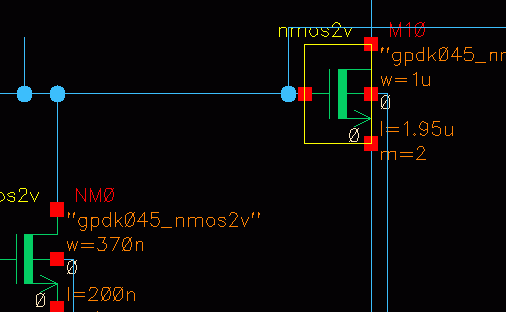
The instance for which the expression failed is highlighted in yellow on the schematic. For example, in the following figure, the instanceM10for which an expression failed is highlighted on the schematic.
Unhighlighting Operating Region Violations on the Schematic
To clear the highlight from all the instances corresponding to the operating region violations on the schematic, do the following:
Hiding and Showing a Single Column
You can hide and show the required columns in the Setup or Results tab of the
To hide a column that is currently displayed, do the following:
A tick mark next to a column name in the context-sensitive menu indicates that the column is currently displayed.
To show a column that is currently not displayed,
- Right-click a column name and choose the name of the column you want to display from the context-sensitive menu.
Hiding and Showing Multiple Columns
You can hide and show the required columns in the Setup or Results tab of the
To hide multiple columns that are currently displayed, do the following:
1. Hold down the Ctrl key and click in any cell in the columns that you want to hide.
2. Right-click in any of the selected cells and choose Hide Columns.
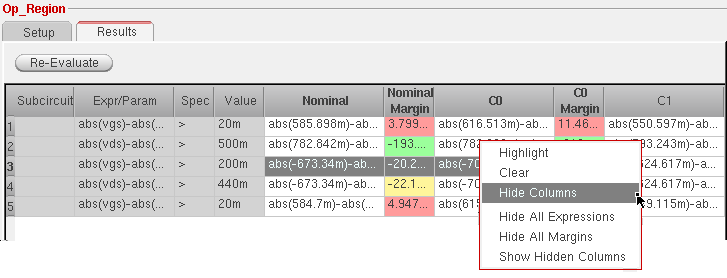
All the selected columns are hidden.
To display all the columns that are currently hidden,
All the hidden columns become visible on the Results tab.
Hiding and Showing Only Expression Columns or Margin Columns
If multiple columns are displayed on the Results tab of the
To hide all expression columns and to show only the margin columns:
-
Right-click in any of the results cells and choose Hide All Expressions. All expression columns are hidden and only the margin columns appear, as shown below.
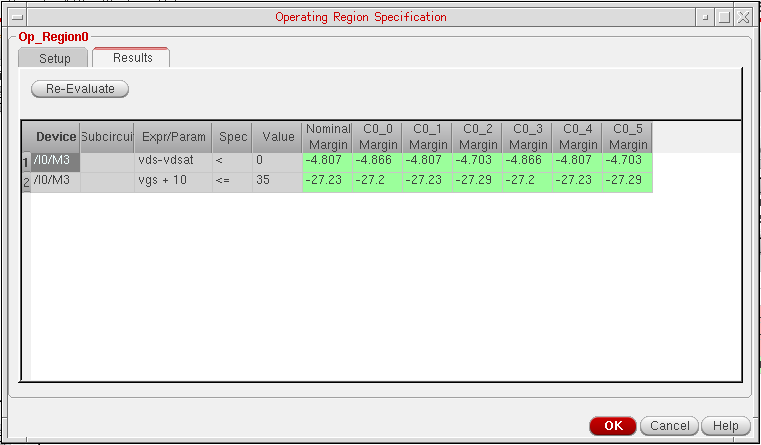
To unhide the hidden margin columns, right-click in any cell and choose Show Hidden Columns.
Working with the Specification Summary
The Spec Summary form provides a mechanism for managing and organizing simulation results for different purposes:
- Create a spec summary for design reviews
- Generate a summary report of pass/fail results for measurements
- Display results for quick inspection of multiple simulation runs
- Verify a design against specifications
- Export the spec summary to HTML or CSV format files for printing purposes.
For more information, see the following topics:
- Viewing the Spec Summary
- Saving a Spec Summary
- Opening a Spec Summary
- Adding a Specification to the Spec Summary
- Deleting a Specification from the Spec Summary
- Changing the History Item from which Results are Displayed
- Updating the Spec Summary with the Latest Results
- Recreating the Spec Summary from the Results in the Active Results Tab
- Viewing the Detailed Results for Specifications
- Plotting the Results for Specifications
- Exporting a Spec Summary to a HTML or CSV File
- Sorting Data in the Spec Summary Form
- Hiding and Showing Columns in the Spec Summary Form
Viewing the Spec Summary
To view the specification (spec) summary, do the following on the
- Do one of the following on the currently active Results tab for a Single Run, Sweeps and Corners or Monte Carlo simulation run:
 toolbar button on the ADE Assembler window.
The spec summary for the results in the currently active Results tab is displayed in the Spec Summary form.
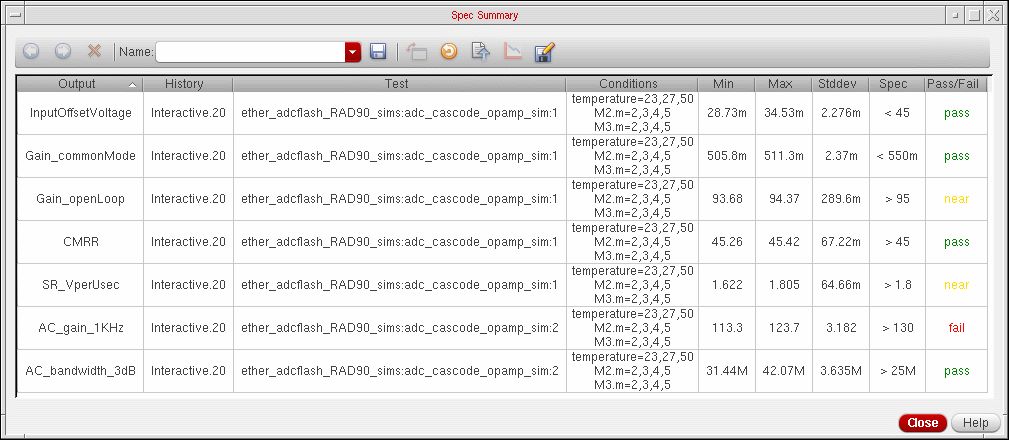
The toolbar in the Spec Summary form is described in the following table:
Table 22-1 Spec Summary Toolbar
| Icon | Name | Description |
|---|---|---|
 |
Switches from the detail view to the summary view. For more information, see Viewing the Detailed Results for Specifications. |
|
 |
Displays the detailed results for the selected specifications in the detail view. For more information, see Viewing the Detailed Results for Specifications. |
|
 |
Deletes the selected specifications. For more information, see Deleting a Specification from the Spec Summary. |
|
 |
For more information, see Saving a Spec Summary. |
|
 |
Displays the results in the detail view in horizontal or vertical format. For more information, see Viewing the Detailed Results for Specifications. |
|
 |
Updates the spec summary with the latest results from the history item selected for each specification. For more information, see Updating the Spec Summary with the Latest Results. |
|
 |
Recreates the spec summary using the results in the active Results tab. For more information, see Recreating the Spec Summary from the Results in the Active Results Tab. |
|
|
|
Plots the results for the selected row. For more information, see Plotting the Results for Specifications. |
|
 |
Exports a spec summary to a HTML or comma-separated values (CSV) file For more information, see Exporting a Spec Summary to a HTML or CSV File. |
The columns in the Spec Summary form are described in the following table:
Table 22-2 Spec Summary Columns
| Column | Description |
|---|---|
|
Displays the names of the outputs for which the specifications are evaluated. |
|
|
Displays the names of the history items from which the results of outputs are displayed. |
|
|
Displays the names of the tests for which the results of outputs are displayed. |
|
|
Displays the values of each swept parameter as a list or range of values.
For example, if a parameter
If a parameter |
|
|
Displays the standard deviation of the measured values for each output. You can hover the mouse pointer over a standard deviation value to view the following information in a pop-up:
Note: For Single Run, Sweeps and Corners, this is the population standard deviation. For other run modes, this is the sample standard deviation. |
|
|
Displays a pass, near or fail status for each specification.
To investigate the measured values further, see Viewing the Detailed Results for Specifications. |
Saving a Spec Summary
To save a spec summary in the Spec Summary form, do the following:
The spec summary is saved to the documents directory of the maestro view and displayed in the Documents tree on the Data View pane. For more information about working with documents, see Chapter 23, “Working with Documents and Datasheets.”
Opening a Spec Summary
To open an existing spec summary, do one of the following:
- In the Name drop-down list on the Spec Summary form, select the spec summary.
- In the Documents tree on the Data View pane, double-click the spec summary.
The spec summary is displayed in the Spec Summary form.
Deleting a Spec Comparison
To delete an existing spec summary, do the following:
-
In the Documents tree on the Data View pane, right-click the spec summary you want to delete and choose Delete.
The spec summary will not be displayed in the Name drop-down list in the Spec Summary form.
Adding a Specification to the Spec Summary
You can add a specification from the results in the active Results tab or from the results of a history item.
To add a specification from the results in the active Results tab for a Single Run, Sweeps and Corners or Monte Carlo simulation run, do the following:
-
Right-click a row in the Results tab of the Outputs pane and choose Add to Spec Summary.
The specification is added to the spec summary.
To add a specification from the results of a history item for a Single Run, Sweeps and Corners or Monte Carlo simulation run, do the following:
- Display the results for the history item. For more information, see Working with History Checkpoints.
-
On the Results tab for the history item, right-click a specification and choose Add to Spec Summary.
Deleting a Specification from the Spec Summary
To delete a specification from the spec summary, do the following.
-
Select the specification and click the
 button.
To delete multiple specifications, hold down the Shift key (for contiguous selection) or the Ctrl key (for noncontiguous selection) and click the button.
Changing the History Item from which Results are Displayed
The History column in the Spec Summary form displays the names of the history items from which the results of the specifications are displayed. You can change the history item for a specification to display the results from that history item.
To change the history item for a single specification, do the following:
-
In the History column, click the name of the history item for the specification.
A button with the name of the history item appears. -
Click the button and select a different history item.
The results for the specification from the selected history item are displayed in the spec summary.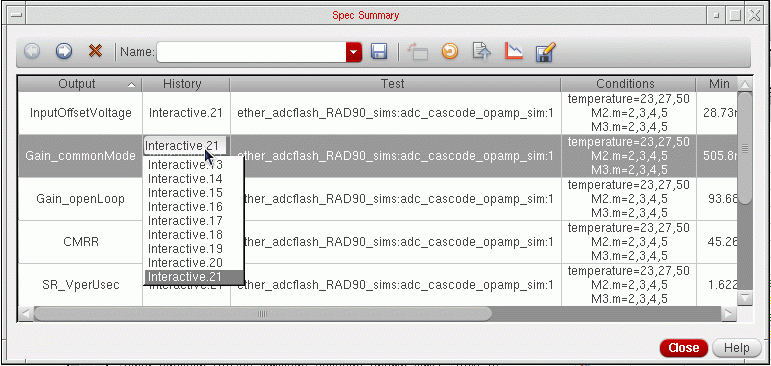
To change the history item for multiple specifications, do the following:
-
Hold down the Shift key (for contiguous selection) or the Ctrl key (for noncontiguous selection) and click the name of a history item for any specification in the selection.
A button with the name of the history item appears. -
Click the button and select a different history item.
The results for the specifications from the selected history item are displayed in the spec summary.
Updating the Spec Summary with the Latest Results
To update the spec summary with the latest results from the history item selected for each specification, do the following:
Recreating the Spec Summary from the Results in the Active Results Tab
To clear the current spec summary view and display all the specifications from the active Results tab, do the following.
Viewing the Detailed Results for Specifications
To view the detailed results for a specification, do the following:
-
Select a specification and click the
button.
To view the detailed results for multiple specifications, hold down the Shift key (for contiguous selection) or the Ctrl key (for noncontiguous selection) and click the
button. Ensure that the specifications you select have the same conditions.
The detailed results are displayed in the detail view. You can click the
button to view the detailed results in horizontal or vertical format.Figure 22-4 Detailed Results in Horizontal Format
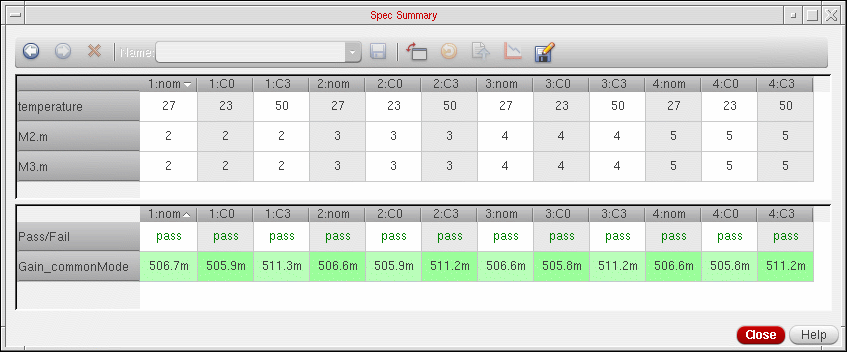
Figure 22-5 Detailed Results in Vertical Format
The detail view displays the following information: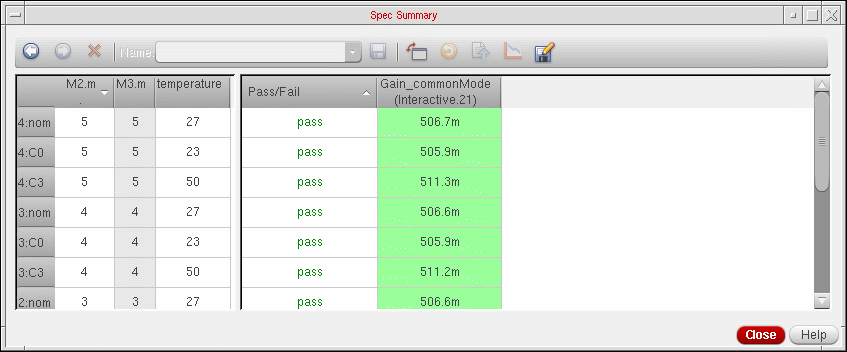
- Values of swept parameters for each simulation.
- pass, near or fail status for each simulation.
-
Measured values from each simulation.
The measured values with a pass status are displayed with a green background, those with a near status appear with a yellow background, and those with a fail status appear with a red background.
To go back to the summary view, do the following:
Plotting the Results for Specifications
To plot the results for the specifications in the summary view, do the following:
-
Select a specification and click the
button.
To plot the results for multiple specifications, hold down the Shift key (for contiguous selection) or the Ctrl key (for noncontiguous selection) and click the
button.
To plot the results in the detail view, do the following:
-
Click the
button to display the results in the detail view in the vertical format.
See Detailed Results in Vertical Format figure for an example of the detail in the vertical format. -
Select a row in the table on the left-hand side and click the
button.
To plot the results for multiple rows, hold down the Shift key (for contiguous selection) or the Ctrl key (for noncontiguous selection) and click the
button.
Exporting a Spec Summary to a HTML or CSV File
To export a spec summary to a HTML or comma-separated values (CSV) file, do the following:
-
Click the
button.
The Export Results form appears. -
In the File name field, type a file name with the
.html,.htmor.csvextension. -
Click Save.
The program exports the results to the file you specified. By default, the file is saved in thedocumentsdirectory of the maestro view and displayed in the Documents tree on the Data View pane. For more information about working with documents, see Chapter 23, “Working with Documents and Datasheets.”
button in the detail view, the resulting HTML or CSV file contains the contents of the detail view and summary view.Sorting Data in the Spec Summary Form
To sort data in the Spec Summary form, do the following:
Hiding and Showing Columns in the Spec Summary Form
To hide a column, do the following:
To display a hidden column, do the following:
Return to top