
Interactive Placement Commands
Select the Context Menu button  in the toolbar of the Auto P&R assistant to display a shortcut menu when you hover over devices and device groups.
Use the following interactive placement commands to refine placement of these devices and device groups.
|
Groups and ungroups the selected devices. The relative positions of the grouped devices are always maintained. Grouped devices can be in the same or different rows. Devices in a group are abutted horizontally. 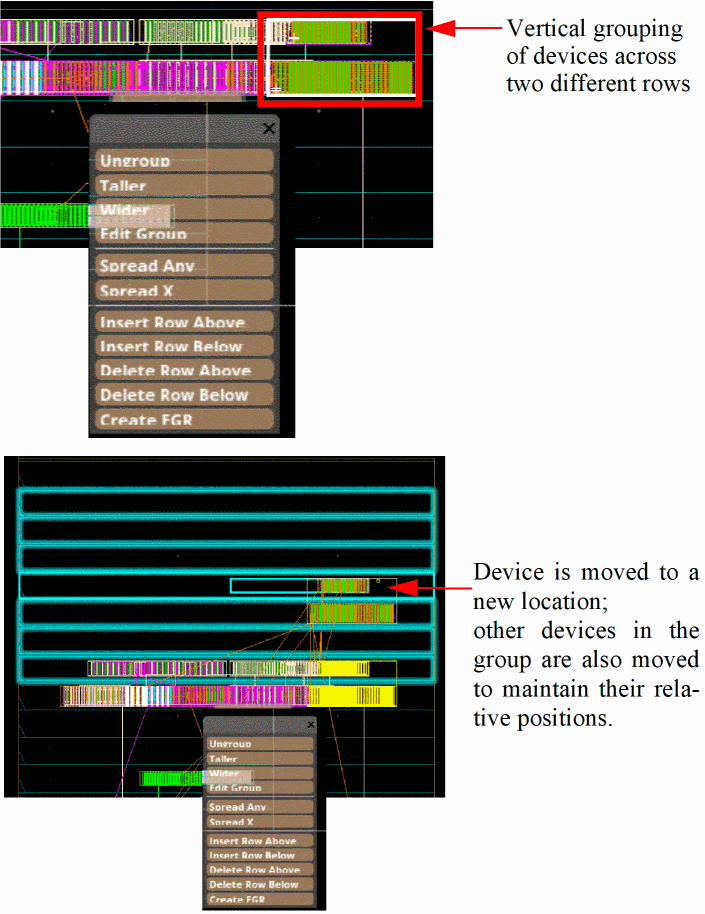 You can merge two or more device groups by selecting the groups and then selecting Group from the context menu. |
|
|
Stacks the selected devices vertically. This option is applicable only to grouped devices. The following example shows the effect of applying Taller to a horizontal group of devices. 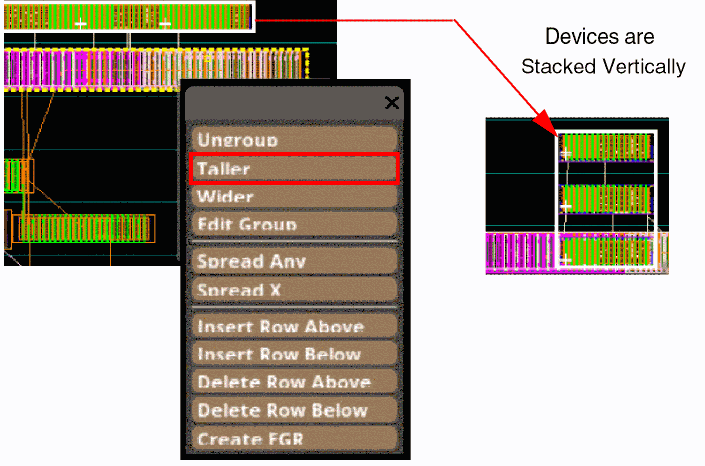 |
|
|
Reshapes the selected devices horizontally to be wider. This option is applicable only to grouped devices. 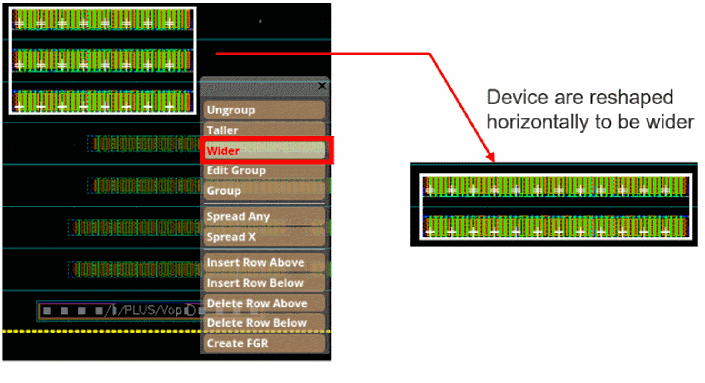 |
|
|
Moves existing devices in any direction to avoid overlaps. This option is applicable when you move a device to a position where there is another (overlapping) device. The device that you moved is placed at the new location, while the existing device is moved to avoid overlap. An arrow indicating the direction of movement is displayed. 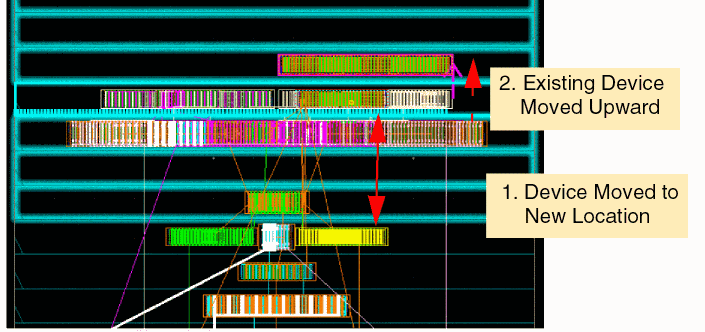 |
|
|
Moves existing devices in the X-direction to avoid overlaps. This option is applicable when you move a device to a position where there is another (overlapping) device. The device that you moved is placed at the new location, while the existing device is moved to avoid overlaps. 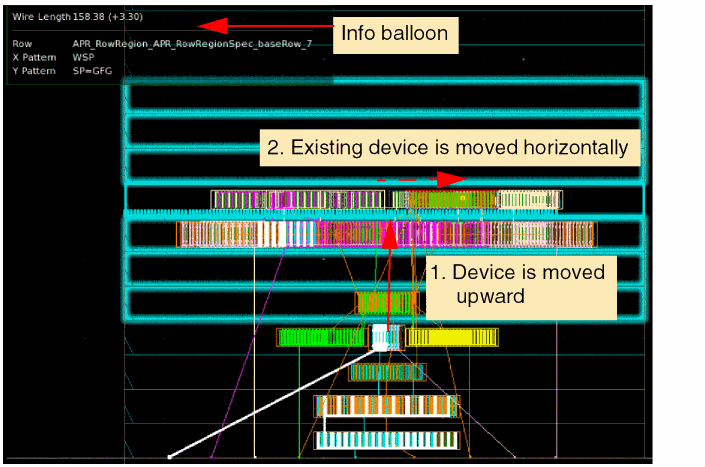 An info balloon that summarizes the following information is displayed: |
|
|
Displays the Array Assistant. Use the options in the form to create and edit Modgens. For more information, see |
|
|
Inserts a blank row above the selection. This option is available only when row regions are generated and not when a diffusion grid is generated. |
|
|
Inserts a blank row below the selection. This option is available only when row regions are generated and not when a diffusion grid is generated. |
|
|
Deletes the row above the selection. The delete row commands do not check whether the rows to be deleted are non-empty rows or whether the deletion would result in any device overlaps. |
|
|
Opens the Create Guard Ring form that lets you create a fluid guard ring (FGR). |
|
|
Opens the Fill and GR form, which lets you add fill and guard rings at the same time. This option is available only in certain advanced node flows. |
An extended outline around grouped devices indicates that the number of open connections have exceeded the given certain threshold, which have resulted in unverified connectivity areas. These open connections are visible in the Annotation Browser. To address this issue, either re-extract the design or extract the unverified area in the Annotation Browser.
Related Topics
Placing Devices Interactively in the Automated Device Placement and Routing Flow
Placing Devices Automatically in the Automated Device Placement and Routing Flow
Base Layer Fill in the Automated Device Placement and Routing Flow
Return to top