
Placing Devices Interactively in the Automated Device Placement and Routing Flow
To run the device-level interactive placer:
-
Open the Place tab of the Auto P&R assistant.
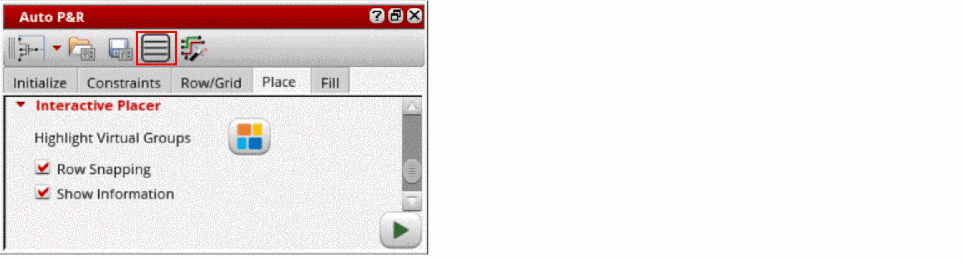
- Select the Context Menu icon in the toolbar to display a shortcut menu whenever one or more devices are selected in the layout canvas. You can perform context-sensitive operations on devices and device groups directly in the layout canvas.
- Select Highlight Virtual Groups to highlight all virtual groups in the layout canvas. The icon automatically changes to Dehighlight Virtual Group, which lets you remove the highlights.
- Select Row Snapping to display row snapping-related details in the Information pane during interactive placement of devices.
- Hover over devices to display a context-sensitive menu that provides interactive placement commands to refine placement of devices and device groups.
- Select the required interactive placement commands.
Related Topics
Interactive Placement Commands
Placing Devices Automatically in the Automated Device Placement and Routing Flow
Placing Multi-Height Devices Using Automatic Device Placer
Return to top