
9
Using the Pin to Trunk Routing
The Pin to Trunk routing style is used to connect an individual pin to a trunk. Only the connections that are within the scope of a trunk are routed. The remaining opens are completed by the Custom / Digital (MST) routing style or manually. The Pin to Trunk routing style is usually used when a spine structure is required.
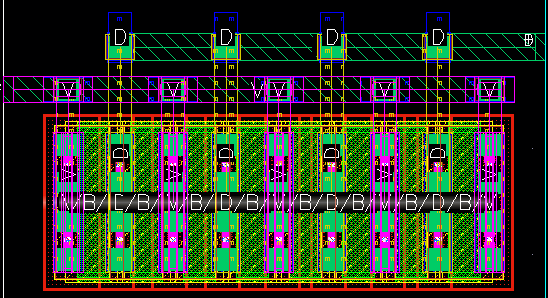
Pin to Trunk routing allows you to add connections from the pins of devices and macro instances to existing trunks. The Pin to Trunk routing is performed after composing trunks. For more information on composing trunks, see the Composing Trunks routing step.
This chapter describes the features and functionality of the Virtuoso Space-based Router Pin to Trunk routing. It covers the Pin to Trunk toolbar and the various options for controlling the behavior of Pin to Trunk routing. To specify the options, use the Pin to Trunk subform. The Pin to Trunk subform is displayed when the Pin to Trunk routing style is selected from the Routing Preferences tree in the Virtuoso Space-based Router Options form.
The following sections are included:
- Pin To Trunk Toolbar
- Behavior of Pin to Trunk Toolbar Icons
- Pin To trunk Routing Options
- Highlighting Trunks
- Using the Finish Trunk Command
Pin To Trunk Toolbar
The Pin To Trunk toolbar consists of a set of icons that provide quick access to commonly used options settings or action selections in Pin to Trunk routing, without having to use the Pin To Trunk subform in the Virtuoso Space-based Router Options form.
The Pin To Trunk toolbar is not available by default in the layout window. To display the toolbar, choose Window – Toolbars – Pin To Trunk. You can use this toolbar to access the options for Pin to Trunk routing shown below.
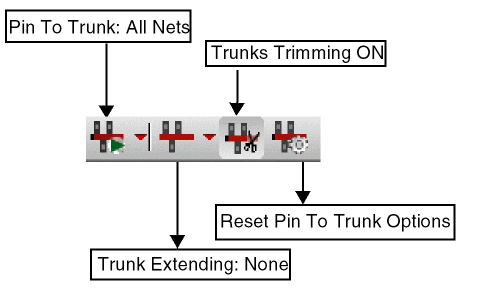
Pin to Trunk: All Nets

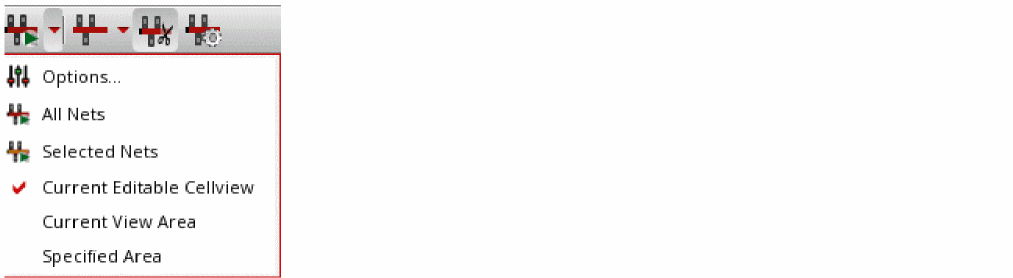
The Pin to Trunk icon lets you set up the routing scope and run the Pin to Trunk command on the specified routing scope either on all the nets or selected nets. Click the arrow next to the icon to view the Pin to Trunk routing scope options available on the drop-down menu associated with the icon.
-
Options
Click Options to view in the Virtuoso Space-based Router Options form all the choices related to the Pin to Trunk routing style that is currently set. You can then select any of the option from the Pin to Trunk tree to set up specific settings. -
All Nets
Lets you run Pin to Trunk routing style on all the nets in the current layout. This functionality is the same as the All button in the Automatic section of the Wire Assistant. -
Selected Nets
Lets you run Pin to Trunk routing style on the selected nets in the current layout. This menu item is enabled only if at least one net or one trunk is selected in the layout. This functionality is the same as the Selected button in the Automatic section of the Wire Assistant. To select one or more nets, use Navigator Assistant. As soon as a net is selected in Navigator Assistant, the Selected Nets menu item is enabled. -
Current Editable Cellview
The functionality of this option is the same as the Current Editable Cellview radio button in the Scope group box of the Pin to Trunk (Default) subform in the Virtuoso Space-based Router Options form. For more information, see Current Editable Cellview. -
Current View Area
The functionality of this option is the same as the Current View Area radio button in the Scope group box of the Pin to Trunk subform in the Virtuoso Space-based Router Options form. For more information, see Current View Area. -
Specified Area
The functionality of this option is the same as the Specified Area radio button in the Scope group box of the Pin to Trunk subform in the Virtuoso Space-based Router Options form. For more information, see Specified Area.
Extend Trunks

The Extend Trunk icon lets you set up the options for the router to automatically extend a trunk. Click the arrow next to the icon to view the trunk extension options available on the drop-down menu associated with the icon.

-
No Trunk Extending
This is the default option. When this option is selected a trunk cannot be extended and the length of the trunks is preserved. -
One Direction Trunk Extending
Click One Direction Trunk Extending to extend the trunk in a single direction until the trunk touches the PR boundary or is at a point that is at the minimum spacing away from an obstruction on the same layer. For Finish Trunk command, it means that the last point of the last trunk created by the Create Wire command is extended further. However, for auto routing, the option selected from the One Direction for Auto Route drop-down list in the Extend Trunk section of the Trunk subform determines which end of a trunk should be extended. For more information, see Extend Trunk. -
Both Directions Trunk Extending
Click Both Directions Trunk Extending to extend the trunk in both the directions until the trunk touches the PR boundary or is at a point that is at the minimum spacing away from an obstruction on the same layer. Both ends of a trunk are extended. The functionality of this option is the same as the Both option selected from the Direction drop-down list in the Extend Trunk section of the Modification group box of the Trunk subform. For more information, see Extend Trunk.
Trunks Trimming

The Trunks Trimming icon turns on or off the Trunk Trimming step in the Pin to Trunk subform. By default, the Trunk Trimming step is ON. The functionality of this icon is the same as the Trunk Trimming step in the Routing Steps group box of the Pin to Trunk subform.
Reset Pin To Trunk Options

Clicking the Reset Pin to Trunk Options icon resets all the Pin to Trunk related DFII environment variables to their default .cdsenv values.
 ) after you click an option of a Pin to Trunk toolbar, it indicates that the value of at least one of the options in the Pin to Trunk subform is no longer matching its default value. The tooltip on the icon is displayed as Option value mismatched. To reset all the Pin to Trunk environment variables to the default values, click the icon button.
Behavior of Pin to Trunk Toolbar Icons
The section covers the behavior of the pin to trunk toolbar icons.
Behavior of the Pin to Trunk Options Preset Scripts Icon
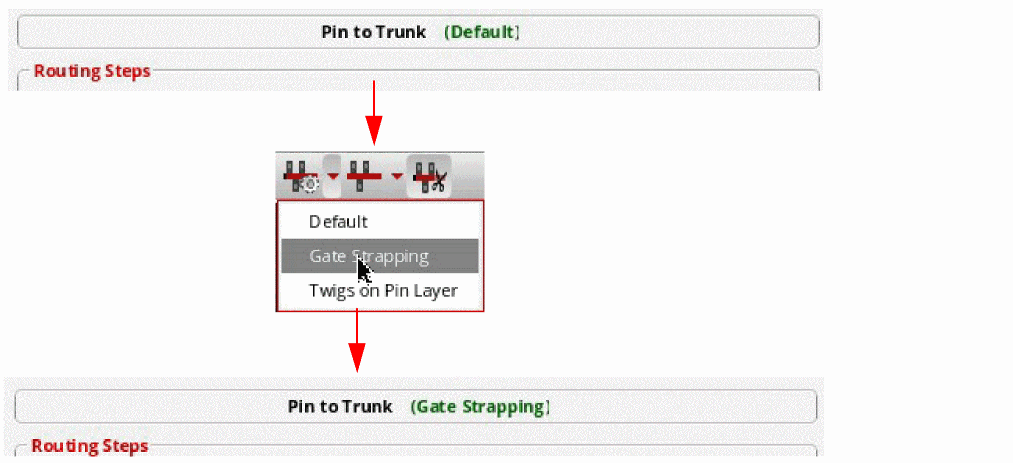
In the Pin To Trunk toolbar, the behavior of the Pin To Trunk Options Preset Scripts icon is based on the last action of either the Default, Gate Strapping, or Twigs on Pin Layer options preset script. By default, the Pin To Trunk toolbar resets all the Pin to Trunk options to their default values and the associated tooltip is displayed on the toolbar. However, after an options preset script is run, the tooltip on the icon automatically changes to the tooltip associated with the executed options preset script. The tooltip on the icon informs you of the last options preset script that was run.
For example, the Pin to Trunk Options Preset Scripts icon in Fig A shows the default action. The Fig B displays the selection of the Gate Strapping options preset script. In Fig C, the tooltip of the icon changes from Pin to Trunk default options to Pin to Trunk Gate Strapping options script.

In addition, after the options preset script is run, the name of the options preset script is displayed along with Pin to Trunk on the Virtuoso Space-based Router Options form, as shown in the following figure.
Behavior of the Extend Trunks Icon
The behavior of the Extend Trunks icon is based on the last action of one of the following: No trunk Extending, One Direction Trunk Extending, or Both Directions Trunk Extending. By default, the trunk extension is set to None and the associated icon is displayed on the toolbar, as shown in Fig A. However, when you click the One Direction Trunk Extending menu item, the selected trunk is extended in one direction and the toolbar icon changes to Extend Trunks: One Direction, as shown in Fig B. Similarly, the toolbar icon changes to Extend Trunks: Both Directions when the Both Directions Trunk Extending menu item is selected, as shown in Fig C. The tooltip on the icon informs you of the last action that was performed for trunk extension.

Pin To trunk Routing Options
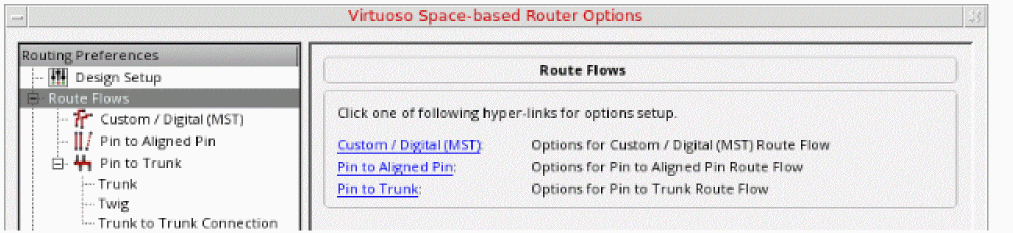
Click Auto Route Styles. This displays the Auto Route Styles subform. The subform consists of the hyperlinks to quickly navigate to the available routing styles, as shown in the following figure.
To specify different options for controlling the behavior of Pin to Trunk routing, click Pin to Trunk in the Auto Route Styles tree. The Pin to Trunk subform is displayed, as shown in the following figure.
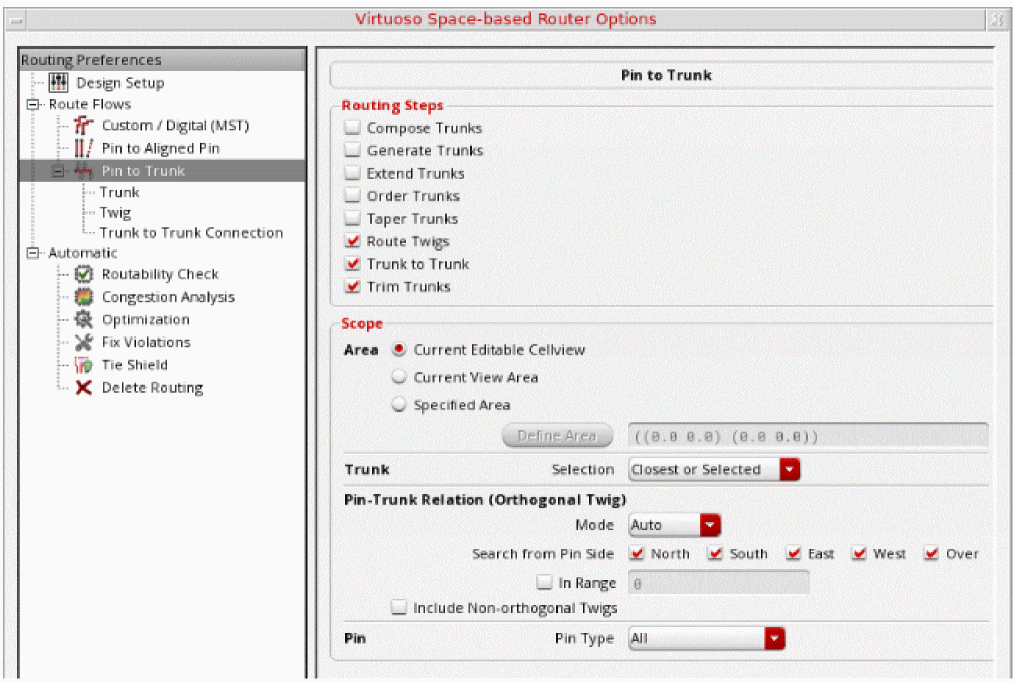
Use the Pin to Trunk subform to specify the Pin to Trunk routing options. You can specify the required options for Pin to Trunk routing that are explained in the following sections:
- Specifying Routing Steps
- Specifying Routing Scope
- Specifying Trunk Options
- Specifying Twig Options
- Specifying Trunk to Trunk Connections
Specifying Routing Steps
From the Routing Steps group box, you can select the routing steps that should be run sequentially. Each step controls the availability of the options on other Pin to Trunk subforms. If an option on a Pin to Trunk subform is disabled, it means that the option is dependent upon one of the routing steps which has been deselected. The tooltip on the disabled option informs you about the routing step that is required in order to enable the option. For example, when the Trunk to Trunk Routing step is deselected, the Mode option in the Trunk to Trunk Connection subform is disabled, as shown in the following figure.
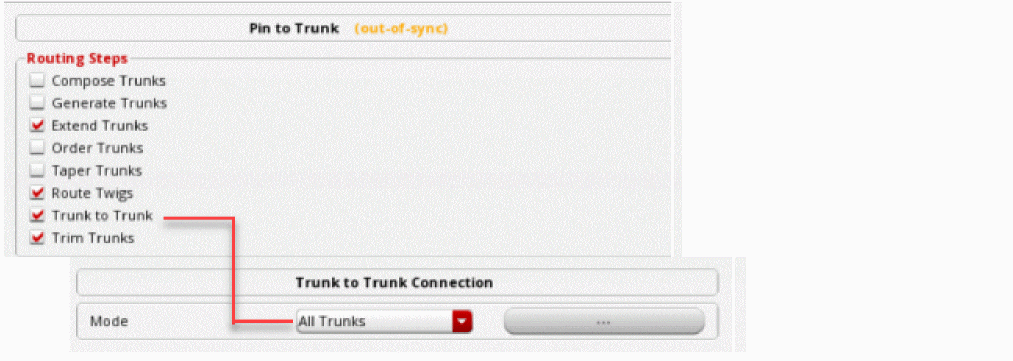
There are eight routing steps. Out of the eight routing steps only four are selected by default. You can select or deselect any one or more of the routing step at a given time. However, ensure at least one step remains selected.
- Composing Trunks
- Generating Trunks
- Extending Trunks
- Ordering Trunks
- Tapering Trunks
- Routing Twigs
- Trunk to Trunk Routing
- Trimming Trunks
Composing Trunks
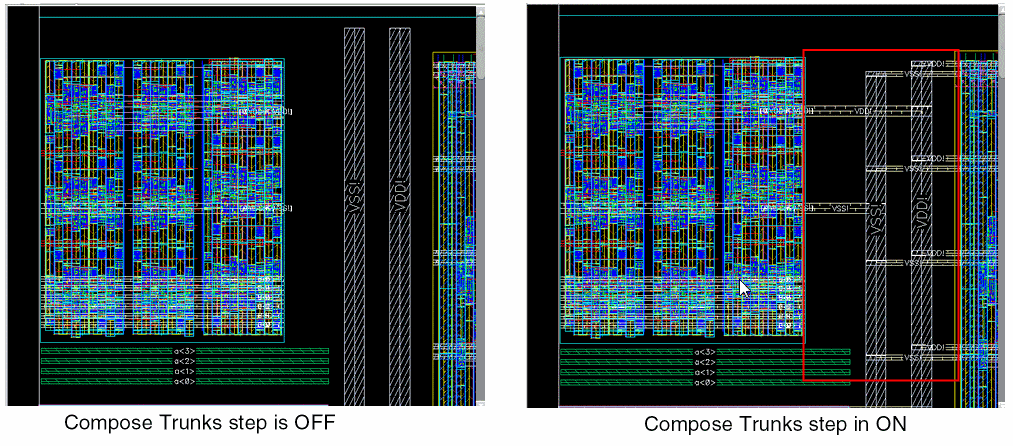
Select the Compose Trunks routing step if you want to convert the selected set of shapes into a trunk object. A message in the CIW summarizes the objects that are converted to form a trunk. This trunk object can then be used to perform Pin to Trunk routing. The Pin to Trunk router is started by default when you run the route command from the Net context-sensitive menu after selecting the trunk net in the Navigator assistant. The Pin to Trunk routing step is performed after composing trunks, as shown in the following figure.
Environment Variable: autoComposeTrunk
Generating Trunks
Select the Generate trunk routing step if you want to generate trunks for the selected or all nets in the design. For more information, see Specifying Trunk Generation Options (ICADVM18.1 EXL Only).
Extending Trunks
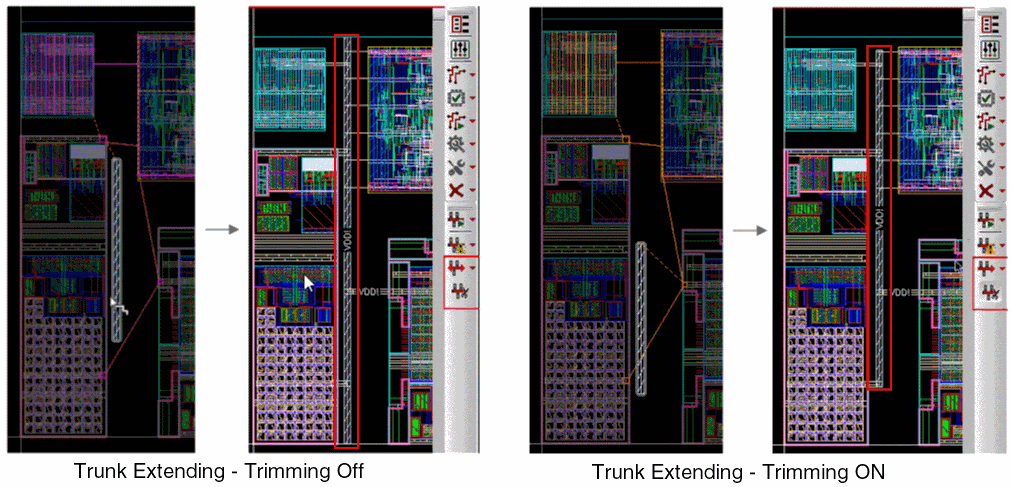
In this routing step, the selected trunk is extended while routing. The trunk extension behavior depends on the options that have been specified in the Extend Trunk section of the Modification group box in the Trunk subform. For more information, see Extend Trunk.
Environment Variable: trunkExtending
Ordering Trunks
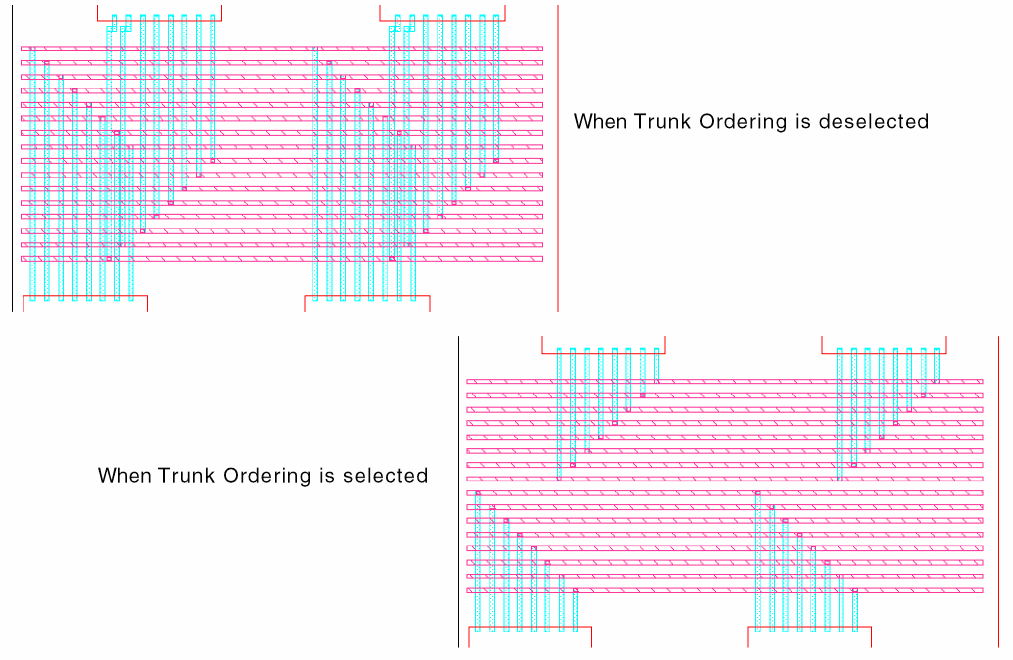
When this routing step is selected, the router optimizes the total routing length by re-ordering trunks not connected to a pin or another trunk. The trunks with more open twigs on the top are placed closer to the top end while the trunks with more open twigs on the bottom are placed closer to the bottom end. The trunks that have different widths retain the original width after their order is modified. The following figure shows the optimized trunk ordering when the Trunk Ordering routing step is deselected as well as selected.
Environment Variable: orderTrunks
Tapering Trunks
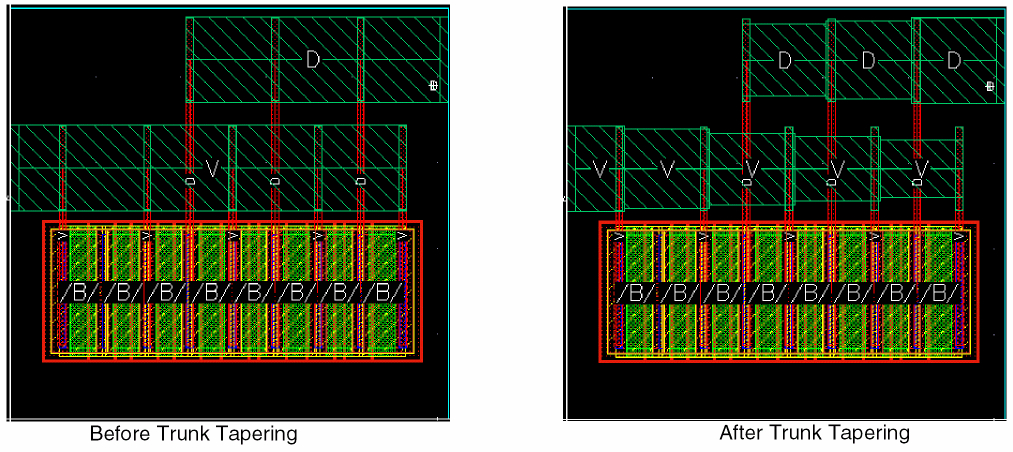
The trunk tapering routing step lets you taper the trunks depending on the options that have been specified in the Taper Trunk Width section of the Modification group box in the Trunk subform. For more information, see Specifying Trunk Options.
Environment Variable: trunkTapering
Routing Twigs
This routing step is selected by default, which ensures connectivity between the pins orthogonal to the trunks, as shown in the figure below.
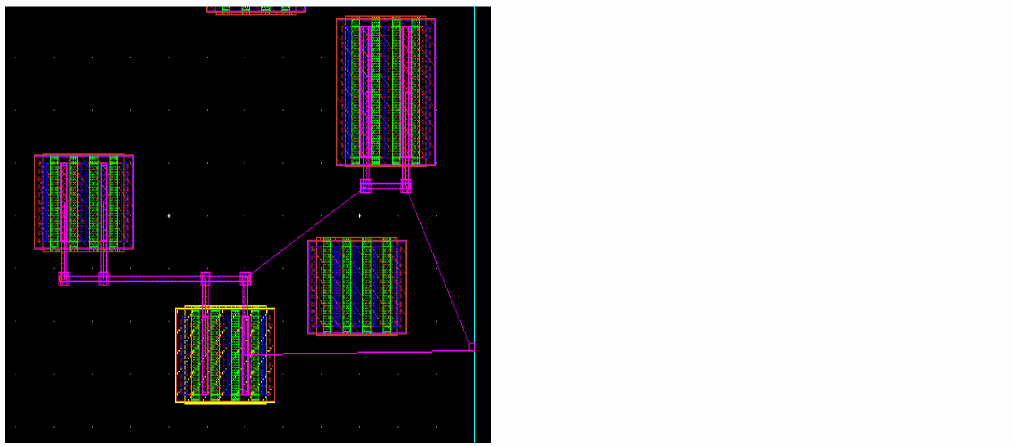
Also, when Pin to Trunk routing starts, the router, by default, completes the routing with a tap partially covering the trunk if complete coverage of the width of the trunk is not possible; ensuring that the number of vias used is not less than the value of the minNumCut constraint.
Environment Variable: pinToTrunk
Trunk to Trunk Routing
When selected, vias are added at the intersections of the trunks. This can also be used together with trimming, as shown in the following figure:
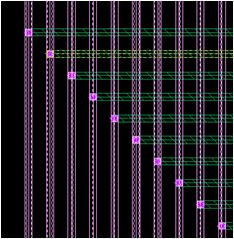
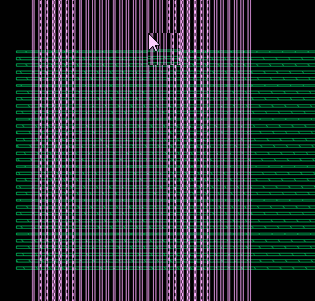
However, when the Trunk to Trunk Routing step is deselected, the trunks are preserved and no vias are added, as shown in the following figure:
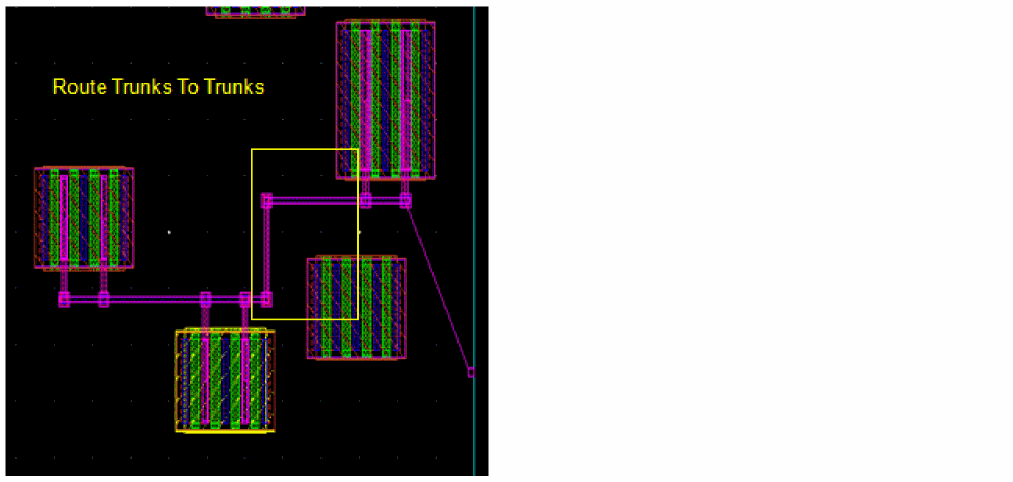
The Trunk to Trunk Routing is selected by default and connects all the trunks, as shown in the figure below.
Environment Variable: trunkToTrunk
Trimming Trunks
In this routing step, both ends of a trunk are trimmed while routing when the Trunk Trimming routing step is enabled. However, when the Trunk Trimming routing step is disabled, the length of the trunks is preserved. By default, the Trunk Trimming routing step is enabled. The following figure shows routing when Trunk Trimming is disabled and when it is enabled.
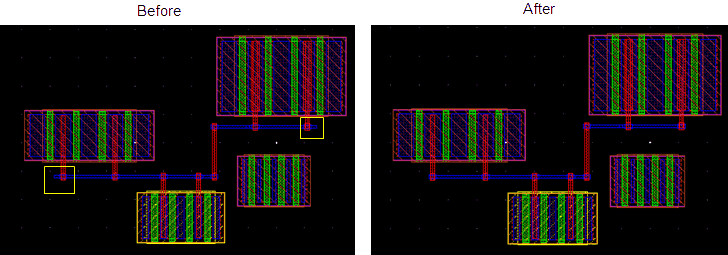
Environment Variable: trunkTrimming
Specifying Routing Scope
The Scope group box allows you to specify the options to control the scope and region of Pin to Trunk routing. In addition, it allows you to specify the trunks that are to be used for Pin to Trunk routing and Pin to Trunk relation.
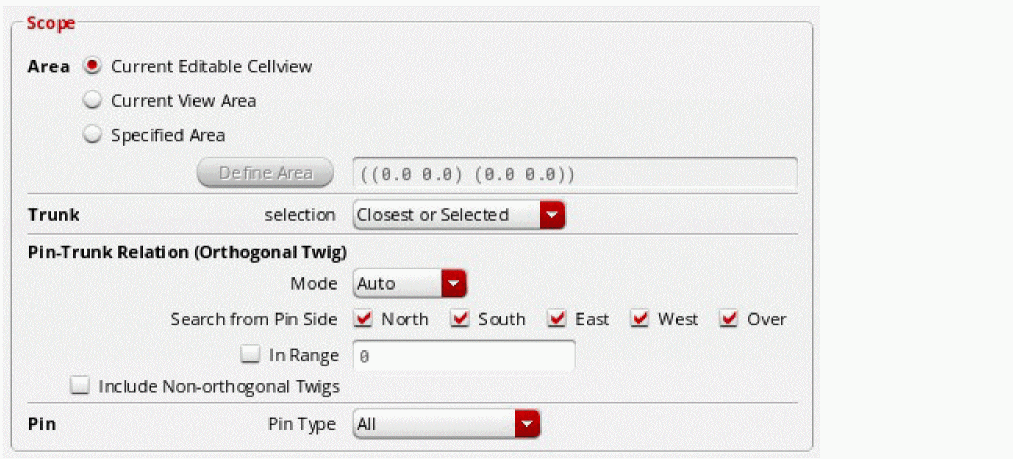
Specify the routing scope for Pin to Trunk routing, as explained in the following sections:
Environment Variable: routingScope
Specifying Range or Area
You can specify the range or area for Pin to Trunk routing. You can further specify the trunk selection and pin selection criteria for the trunks and pins enclosed in the specified range or area.
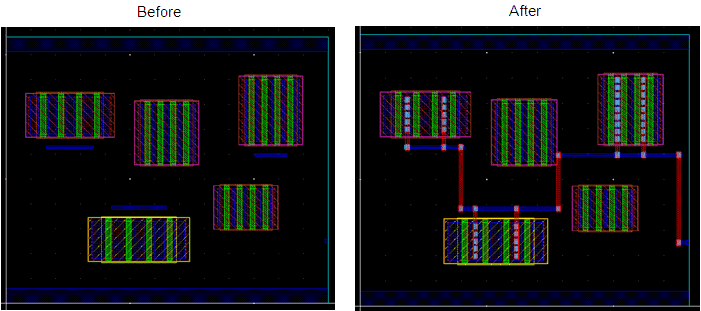
Current Editable Cellview
This is the default option. When selected, only the trunks and pins in the editable cellview are routed, as shown in the following figure.
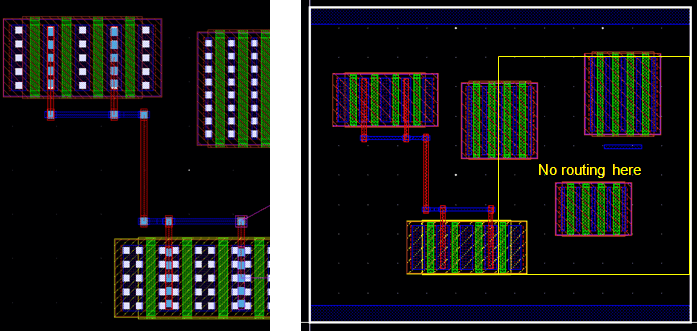
Current View Area
When this option is selected, the trunks and pins partially or fully enclosed in the current viewable area are considered for routing, as shown in the following figure.
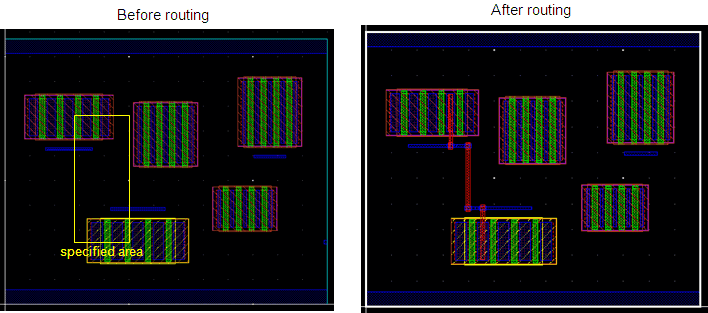
Specified Area
When this option is selected, the Define Area field is enabled. You can specify the area in which the trunks and pins partially or fully enclosed will be considered for routing, as shown in the following figure.
Environment Variable: routingAreaLLx, routingAreaLLy, routingAreaURx, routingAreaURy
Trunk Selection
The selection drop-down list allows you to select the number and the trunks that are to be used by the Pin to Trunk routing engine. The two possible values in the selection drop-down list are Closest or Selected and As Many As Possible.
-
Closest or Selected
This is the default option. When this option is selected, one of the following happens:-
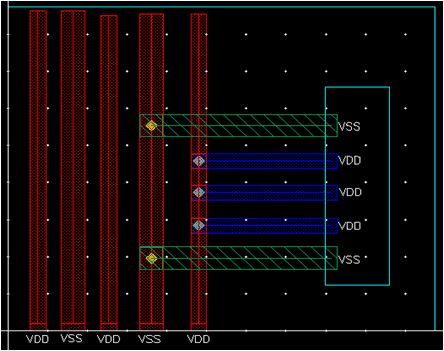
If you have a set of trunks selected in the display canvas, the selected trunks are used for routing and no other trunks are selected.Selected trunks are considered only if you click the Selected button adjacent to Route Net in Wire Assistant or select Route With Default Lookup or Route With WA Overrides from the context-sensitive menu in Navigator Assistant. Selected trunks are ignored if you click the All button adjacent to Route Net in Wire Assistant or select Route All Nets from the context-sensitive menu in Navigator Assistant.
-
If there is no selected trunk set, then the router automatically selects the closest trunk that is orthogonally accessible from the pin for routing.
-
If you have a set of trunks selected in the display canvas, the selected trunks are used for routing and no other trunks are selected.
-
As Many As Possible
When this option is selected, all the trunks that are orthogonally accessible from a pin are selected by the router.
Environment Variable: selectTrunkMode
Pin-Trunk Relation (Orthogonal Twig)
You can select one of the following options from the Pin-Trunk Relation (Orthogonal Twig) section.
Mode
Determines the mode that should be used to route the orthogonal pins to trunks. The possible values are Auto, Channel, Space, and All. By default, Auto is selected.
-
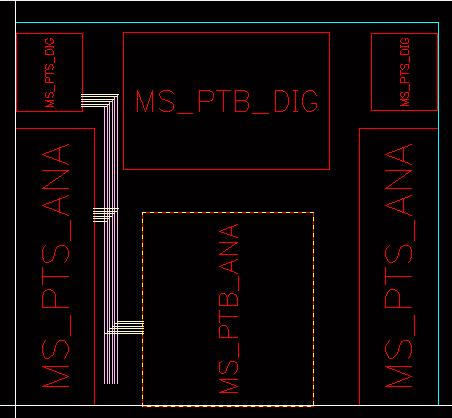
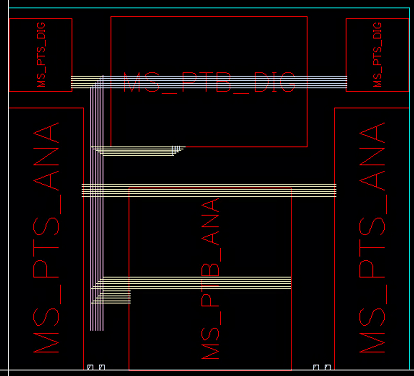
Auto: When selected, the router automatically determines the mode of pin selection for orthogonal pins. For Finish Trunk and chip-level designs, the router uses the Channel mode. For all other designs, the router uses All. The following figure displays the routing of orthogonal pins when the Auto mode is selected from the Mode drop-down list.
-
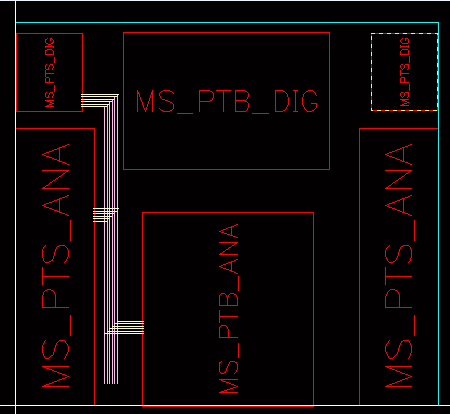
Channel: When selected, the pins orthogonally accessible to a trunk in the same channel are selected. The Channel modes requires the pins to be visible to the trunk. Additionaly, the pin's parent must also be completely visible to the trunk.
-
Space: When selected, the pins orthogonally accessible to a trunk through one or more channels are selected. The Space mode also requires a pin to be visible to the trunk.
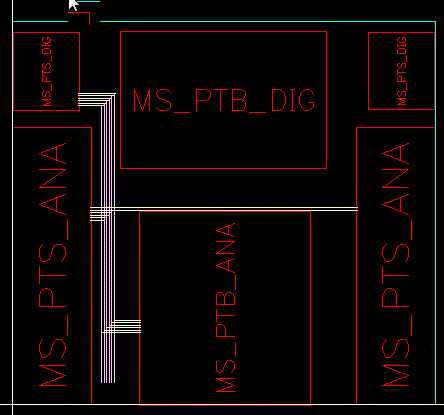 A pin is said to be visible to a trunk if a perpendicular line can be extended from the pin to the trunk without the line crossing part of an instance or obstacle. If the crossed block is the pin's parent, then the line is allowed to cross the access side of the parent perpendicularly, but not running collinear to the access side.
 -
All: When selected, all the pins that are orthogonal to a trunk are selected and routed, regardless of whether the pins are visible from the trunk or not. If you want to route the non-orthogonal pins, select the Include Non-orthogonal Twigs option.
Environment Variable: selectOrthoPinsMode
Search from Pin Side
Specifies a search direction to control which trunks get selected for routing. You can select North, South, East, West, or Over as the search direction for the selected trunk. You can select one or more search directions for a trunk. The default is to search for trunks in all directions. The following figure shows when all search directions are selected.
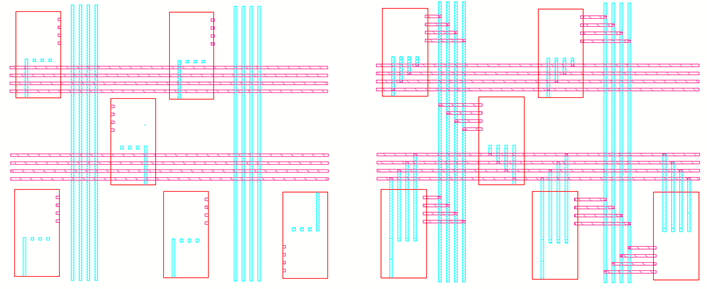
Before specifying the search direction for a trunk, a trunk should be selected and applied. For example, if you select the Specified Area option, and North and South as the search direction, only the trunks on the north or south side of the pins within the given area are used for routing.
Environment Variable: selectNorthTrunk, selectSouthTrunk, selectEastTrunk, selectWestTrunk, selectOverInstTrunk
In Range
By default, the In Range check box is deselected and the adjacent field is disabled. When you select the check box, the field is automatically enabled allowing you to enter a range. The search for trunks is limited to the specified range. The number of trunks selected depends on the option selected from the selection drop-down list.
-
When you select Closest or Selected from the selection drop-down list and specify a value in the In Range field, the trunk closest to a pin or a selected trunk, if there is one within the specified range, is selected.
-
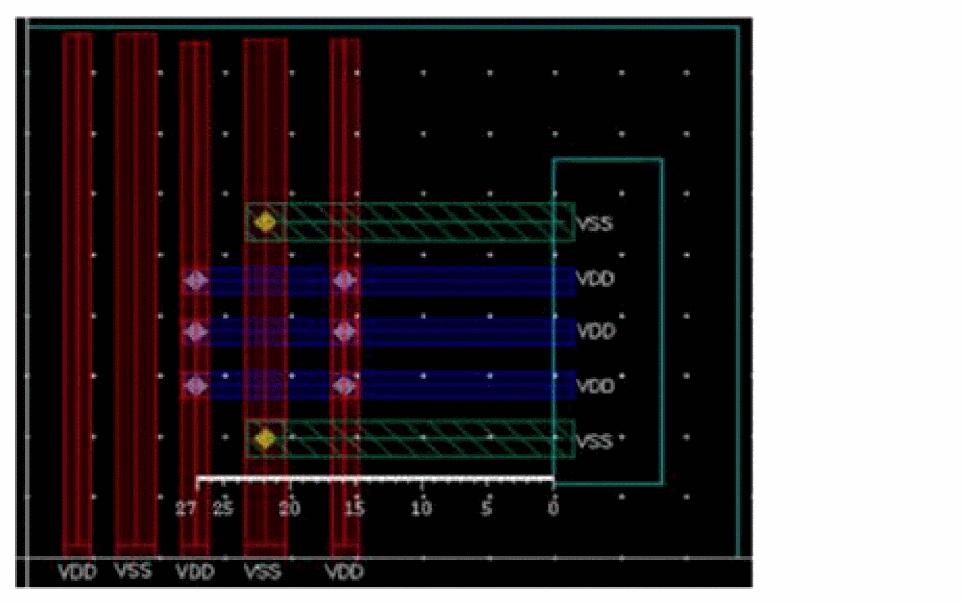
When you select As Many As Possible from the selection drop-down list and specify a value in the In Range field, all trunks within the specified range are selected. The following figure shows a situation where the As Many As Possible option is selected and the In Range check box is selected with a range value of
30specified in the adjacent field.
Environment Variable: selectTrunkRangeValue, selectTrunkWithinRange
Include Non-orthogonal Twigs
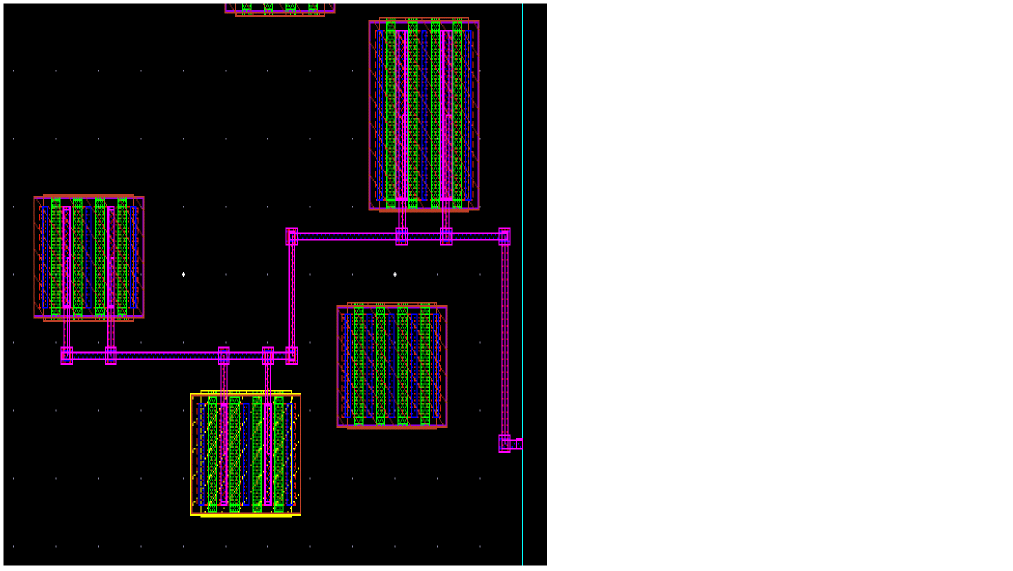
For routing the top-level pins, select the Include Non-orthogonal Twigs check box. The top-level pins are routed as shown in the figure below.
Environment Variable: includeNonOrthogonalTwigs
Pin Selection
The Pin Type drop-down list allows you to select the type of pin that should be used for Pin to Trunk routing. The possible values are All, Gate, and Source And Drain.
-
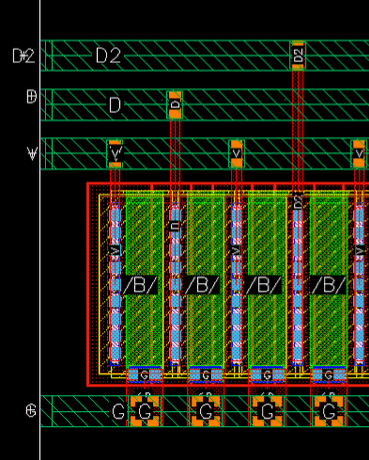
All
When selected, the router connects the trunk to all the existing pins, as shown in the following figure.
-
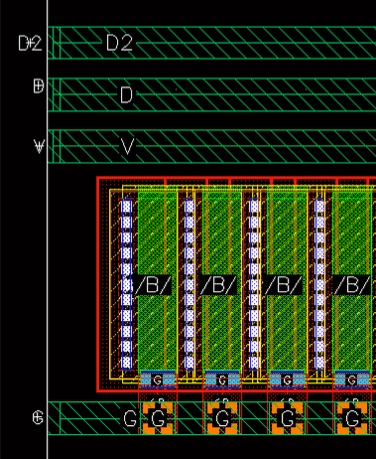
Gate
When selected, the router connects the selected trunk to the gate pins, as shown in the following figure.
-
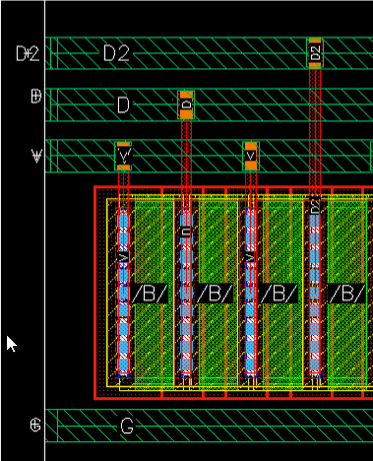
Source And Drain
When selected, the router connects the trunk to the source and drain pins, as shown in the following figure.
Environment Variable: connectPinType
Specifying Trunk Options
The Trunk subform is displayed when you select Trunk from the Pin to Trunk tree in the left pane of the Virtuoso Space-based Router Options form.
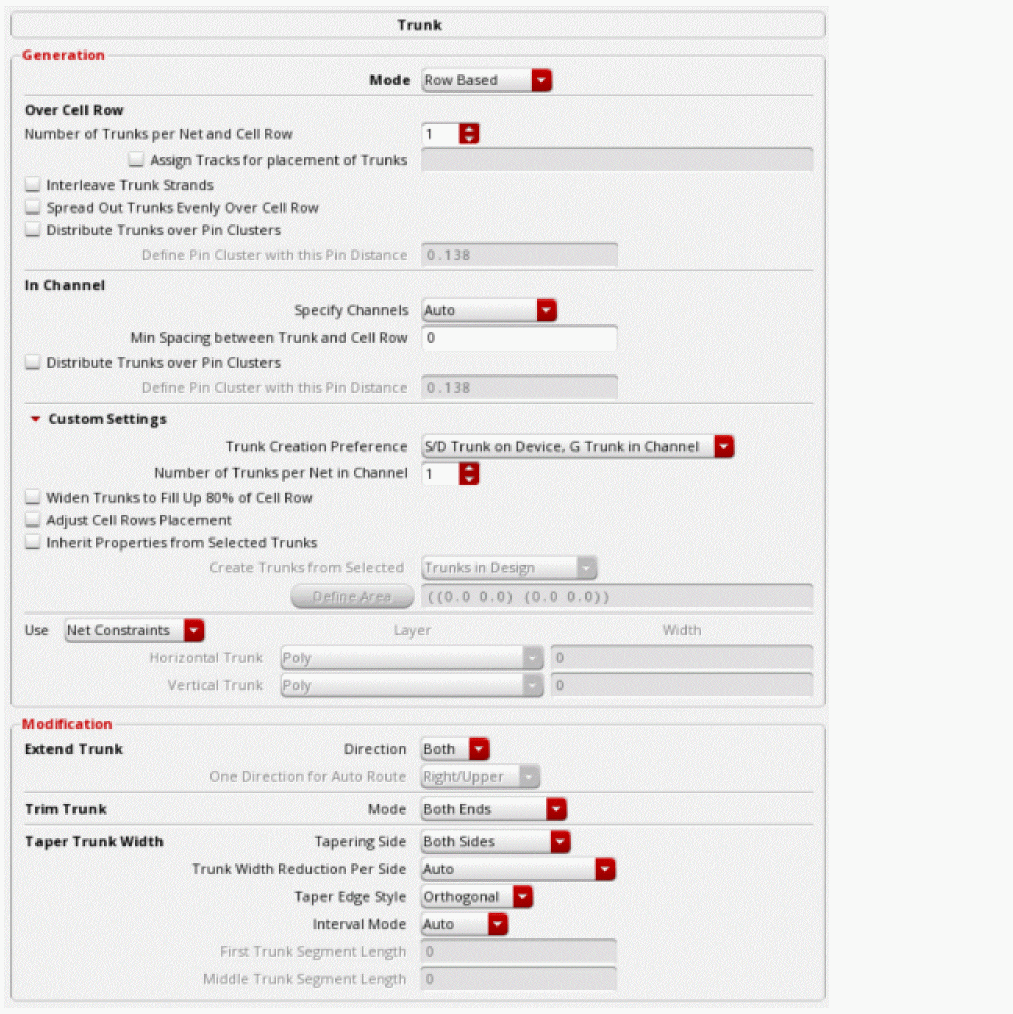
Use this subform to specify the options for creating new trunks and modifying the existing trunks. To enable all the options available in the Trunk subform, you must select the Generate Trunks, Extend Trunks, Taper Trunks, Trunk to Trunk, and Trim Trunks routing steps in the Pin to Trunk subform.
The options in the Trunk subform are categorized into Generation and Modification group boxes. Specify the trunk options as explained in the following sections:
Specifying Trunk Generation Options (ICADVM18.1 EXL Only)
You can specify the options for generating a new trunk in the Generation group box of the Trunk subform. Trunk generation can happen when the Generate Trunks routing step is selected in the Pin to Trunk subform.
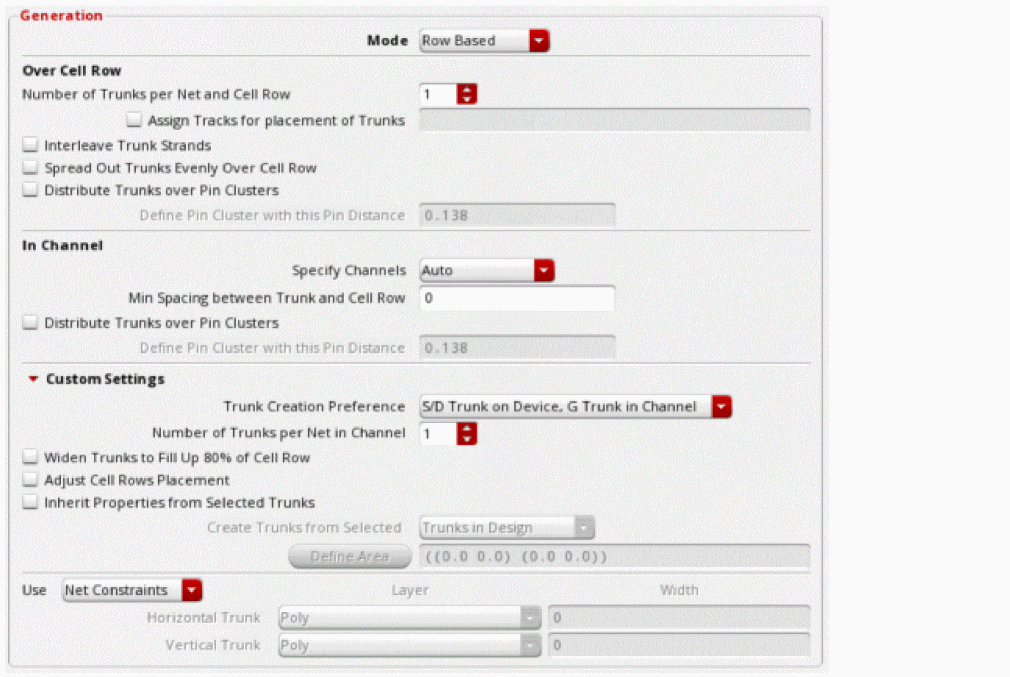
Environment Variable: trunkSetup
You can specify the following trunk generation options in the Generation group box of the Trunk subform:
- Specifying the Trunk Mode
- Specifying Row Based Trunk Generation Options
- Specifying Copy Options for Trunk Generation
Specifying the Trunk Mode
From the Mode drop-down list, select either the Row Based, or the Copy option. By default, Row Based option is selected.
-
Row Based
This mode is used for creating new trunks for row based device level designs. -
Copy
This mode is used to copy existing trunks in a design.
Specifying Row Based Trunk Generation Options
The following sections lets you specify the options for row based trunk generation.
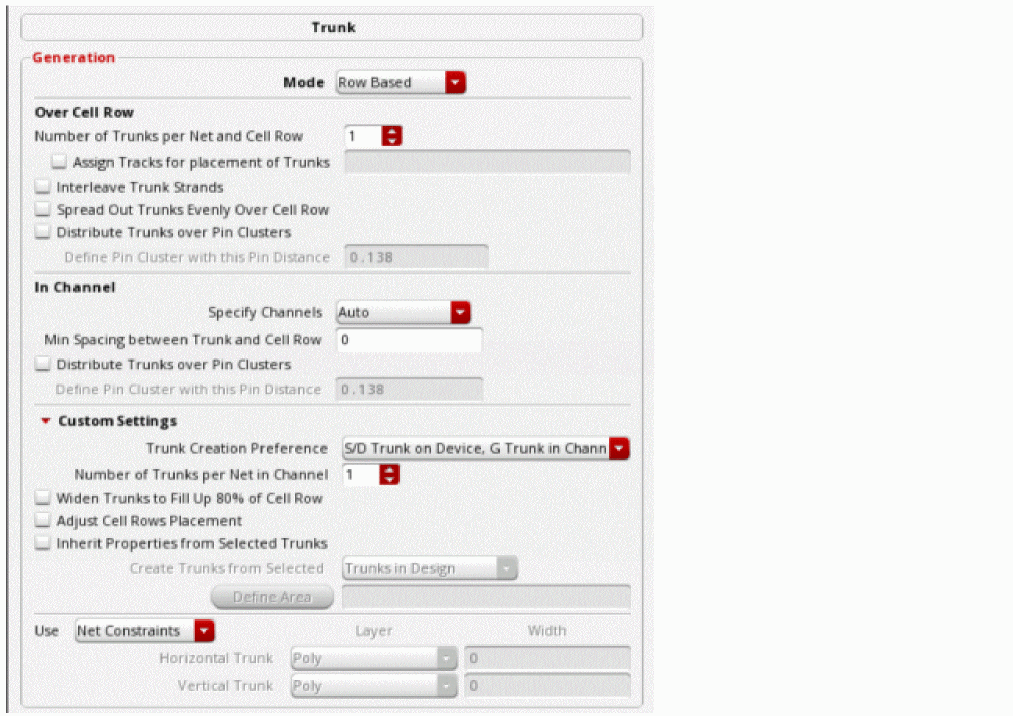
Specifying Over Cell Row Options
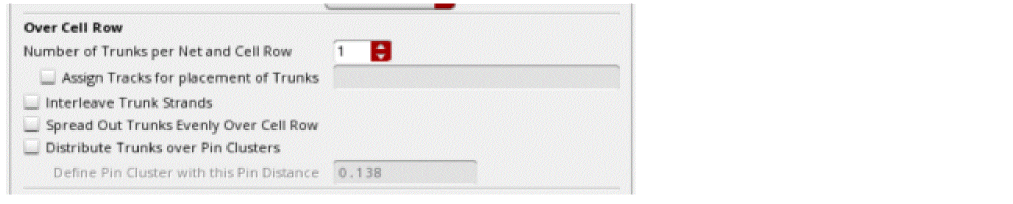
The options grouped below Over Cell Row are only applicable for source and drain pins.
-
Number of Trunks per Net and Cell Row
Lets you specify the number of tracks per net for each cell row. Default is1. -
Interleave Trunk Strands
Interleaves two trunks of different nets. -
Spread Out Trunks Evenly Over Cell Row
Spreads out multiple trunks on the same net evenly over the span of the source and drain pin. -
Distribute Trunks over Pin Clusters
When selected, divides the length of long trunks by pin clusters as defined by the space between the pins of the net.
Specifying In Channel Options
The In Channel options are valid for gate trunks. The gate trunks are the only trunks that are automatically generated in the channel.

-
Specify Channels
Specifies how the trunks are placed in the channel between instances in different rows. -
Min Spacing between Trunk and Cell Row
Specifies the minimum spacing between the trunk and the cell. -
Distribute Trunks over Pin Clusters
When selected. divides the length of long trunks by pin clusters as defined by the space between the pins of the net.
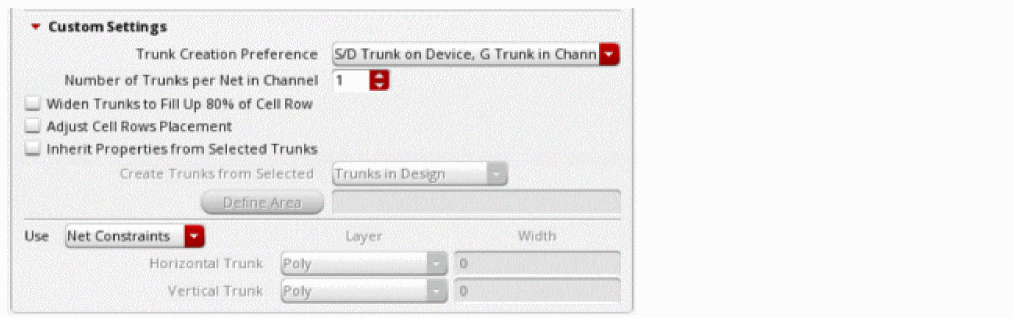
Specifying Custom Settings
-
Trunk Creation Preference
Trunks for source and drain pins are generated on devices and trunks for gate pins are generated in channels. You can specify one of the following preferences to generate trunks.-
S/D Trunk on Device, G Trunk in Channel
The trunks for source and drain nets are generated over the cell rows and the trunks for gate nets are generated in the channels. -
S/D Trunk on Device, Skip G Trunk
Only the trunks for source and drain nets over the cell rows are generated. -
G Trunk in Channel, Skip S/D Trunk
Only the trunks for gate nets in channels are generated. -
All Trunk in Channels
Lets you generate all trunks for all or selected nets in channels.
-
S/D Trunk on Device, G Trunk in Channel
-
Number of Trunks per Net in Channel
Lets you specify the number of tracks per net in each channel. Default is1. -
Widen Trunks to Fill Up 80% of Cell Row
Use this option for relative widening. It is a quick way to widen to relative width of devices. -
Adjust Cell Rows Placement
Adjusts the placement of cell rows to create space for trunks created in the channel between the rows. -
Inherit Properties from Selected Trunks
Lets you generate trunks based on width and layer of the selected trunk. -
Create Trunks from Selected
This field is only enabled when the Inherit Properties from Selected Trunks option is selected. -
Use
You can control the layer and width used for creating a new trunk.From the Use drop-down list, select either the Net Constraints or the Specified option.
Environment Variable: trunkSetup-
Net Constraints
When selected, the constraint lookup method is used to ensure that the layer, direction, and width of the created trunk adheres to the layer and width constraints for the net. -
Specified
When selected, you can specify the layer and the width for creating a horizontal or a vertical trunk.-
Horizontal Trunk
To create a horizontal trunk, select the layer from the Layer drop-down list. The horizontal trunk is created on the selected layer. In the Width field, specify the width of which the horizontal trunk should be created.
Environment Variable: trunkSetupHorTrunkLayer, trunkSetupHorTrunkWidth -
Vertical Trunk
To create a vertical trunk, select the layer from the Layer drop-down list. The vertical trunk is created on the selected layer. In the Width field, specify the width of which the vertical trunk should be created.
Environment Variable: trunkSetupVerTrunkLayer, trunkSetupVerTrunkWidth
-
Horizontal Trunk
-
Net Constraints
-
Use
You can control the layer and width used for creating a new trunk.From the Use drop-down list, select either the Net Constraints or the Specified option.
Environment Variable: trunkSetup-
Net Constraints
When selected, the constraint lookup method is used to ensure that the layer, direction, and width of the created trunk adheres to the layer and width constraints for the net. -
Specified
When selected, you can specify the layer and the width for creating a horizontal or a vertical trunk.-
Horizontal Trunk
To create a horizontal trunk, select the layer from the Layer drop-down list. The horizontal trunk is created on the selected layer. In the Width field, specify the width of which the horizontal trunk should be created.
Environment Variable: trunkSetupHorTrunkLayer, trunkSetupHorTrunkWidth -
Vertical Trunk
To create a vertical trunk, select the layer from the Layer drop-down list. The vertical trunk is created on the selected layer. In the Width field, specify the width of which the vertical trunk should be created.
Environment Variable: trunkSetupVerTrunkLayer, trunkSetupVerTrunkWidth
-
Horizontal Trunk
-
Net Constraints
Specifying Copy Options for Trunk Generation
The Copy mode lets you generate trunks for all pins on a net, based on the properties of existing trunks. The following sections lets you specify the options for Copy mode for trunk generation.
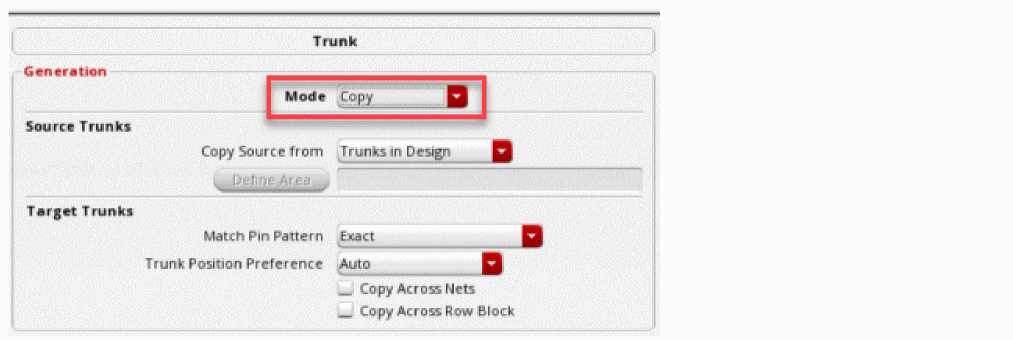
Specifying Source Trunk Options
-
Copy Source from
-
Trunks in Design
Inherits the width and layer from all existing trunks, as a template for copying, in the design. -
Trunks on Same Net
Inherits width and layer from pre-existing trunks on the same net as a template for copying. -
Trunks in Area
Inherits width and layer from pre-existing trunks in the specified area as a template for copying.-
Define Area
This field is enabled only when the Trunks in Area option is selected in the Create Trunks from Selected drop-down list. You can specify the area from which you want to inherit width and layer from pre-existing trunks. For example, you can create some trunks out of prBoundary and specify an area to use it as a template for copying.
-
Define Area
-
Trunks in Design
Specifying Target Trunk Options
-
Match Pin Pattern
Lets you match two flipping or mirroring pin-patterns and accordingly copy trunk over. It lets you choose what pin context detection is allowed. For example, sometimes you might only want to copy when the pin context is exact. You can select one of the following matching pin pattern. -
Trunk Position Preference
Controls how the trunks are copied over to the target pins. It gives preference when multiple copy methods are applicable.
When a target can be matched only to X-symmetric, Y-symmetric, or XY-symmetric, then there is no ambiguity, as the trunk is copied in a corresponding way. However, when the target pattern is exactly the same when flipping across X or Y-axis, you have a choice to copy the trunk in either of the exact, X-symmetric, or Y-symmetric way. You can select one of the following trunk position. -
Copy Across Nets
Lets you use template of one net to copy to other net as long as the pin context matching is noticed. -
Copy Across Row Block
Lets you use row context and row block context to decide whether we should apply X-symmetric, Y-symmetry, none, or both from the source pin pattern to an exact matching pin pattern.
Related Topics
Using Automatic Trunk Generation in Pin to Trunk Route Flow
Specifying Trunk Modification Options
You can specify the following trunk modification options in the Modification group box of the Trunk subform:
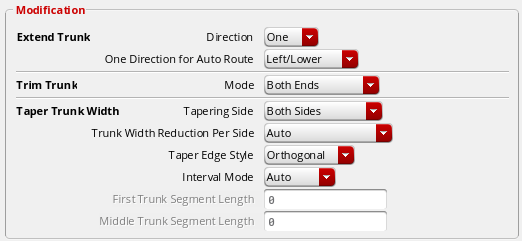
Extend Trunk
The Extend Trunk section is enabled only when the Trunk Extending routing step is selected in the Pin to Trunk (Default) subform. You can extend only those trunks that do not have any connection to a pin or another trunk.
In this section, you can specify how to extend the trunks during pin to trunk routing.
-
Direction
From the Direction drop-down list, you can select the direction in which you want to extend the trunk. You can select the direction either as Both or One. By default, the trunk is extended in both directions.
Environment Variable: extendTrunkDirMode-
Both
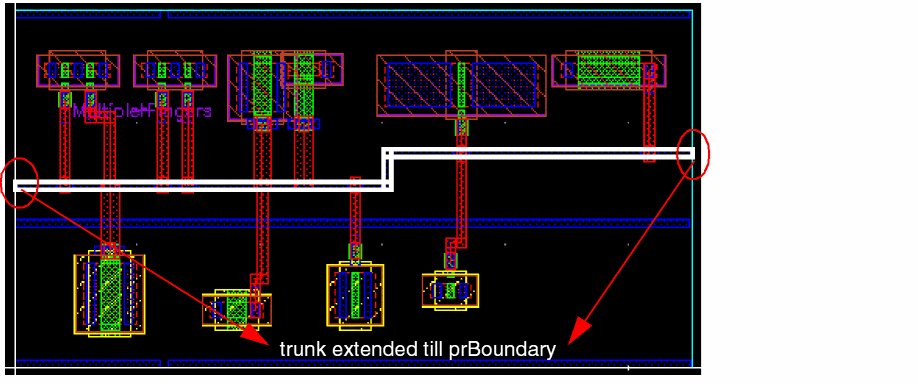
Extends the trunk in both directions up to the last pin when the Trunk Trimming step is selected, as shown in the following figure. This is when you select the Route All or Route Selected command in the Wire Assistant, or Route With command from the Navigator Assistant.However, when you use the Finish Trunk command to complete the trunk extension, the first and the last trunk is extended up to the last pin when the Trunk Trimming step is selected, as shown in the following figure.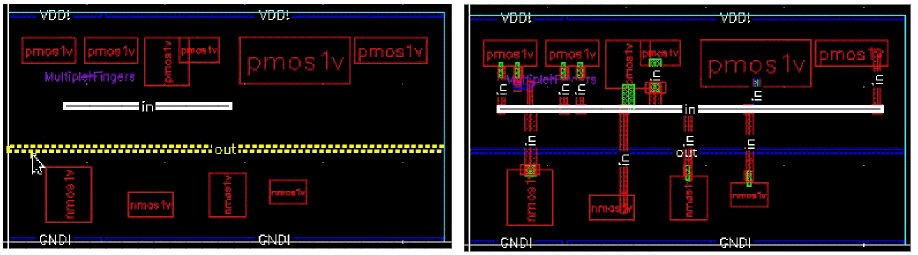 When the Trunk Trimming step is deselected, the trunk is extended up to the prBoundary, as shown in the following figure.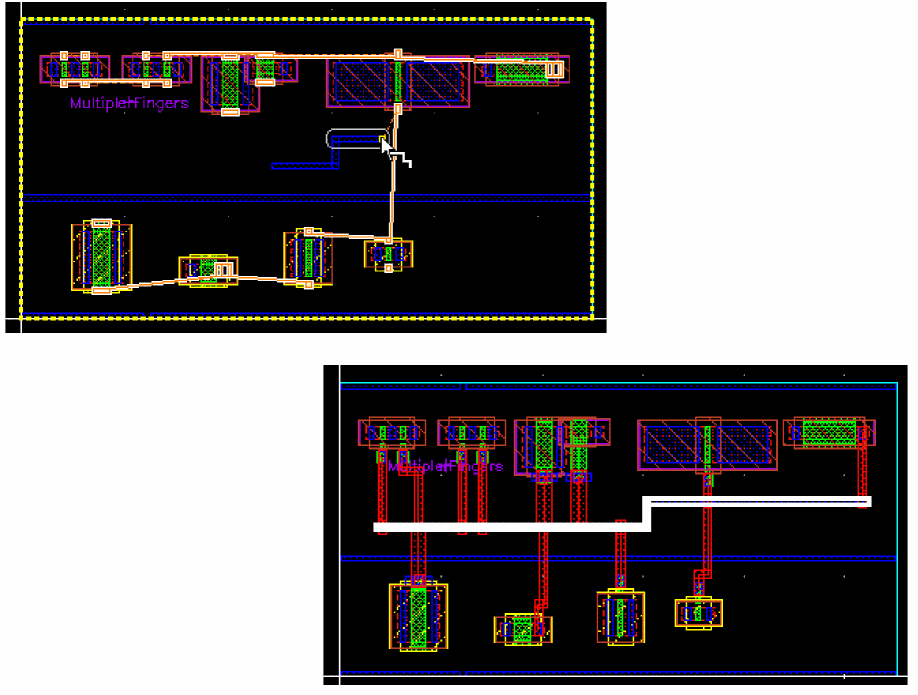
-
One
Extends the trunk in a single direction for Route All or Route Selected command in the Wire Assistant, or for Route With command from the Navigator Assistant. The direction in which the trunk is extended depends on the value that is selected from the One Direction for Auto Route drop-down list. For Finish Trunk command, extending a trunk in one direction means to extend it from the last point of the last segment being created by the preceding Create Wire command.
-
Both
-
One Direction for Auto Route
This field is enabled when you select the direction for extending the trunk as One. You can extend the trunk either in the Right/Upper or Left/Lower direction. By default, the trunk is extended in the Right/Upper direction.
Environment Variable: extendTrunkEndForOneDirMode
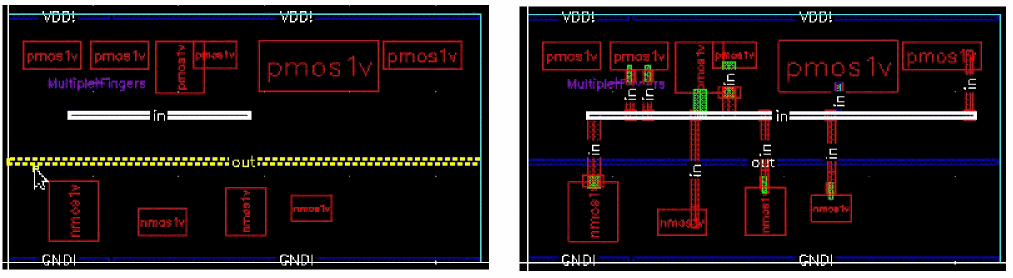
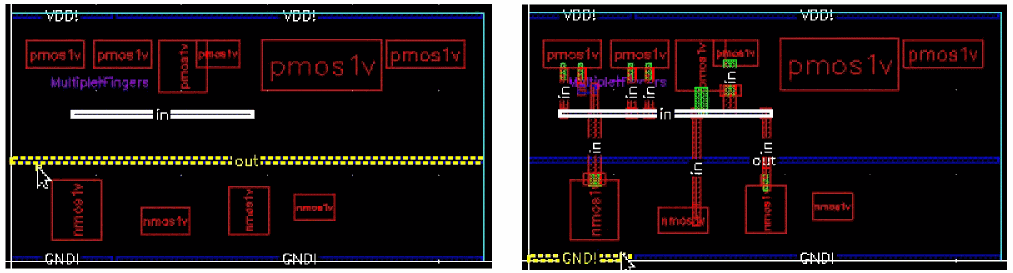
Trim Trunk
The Trim Trunk section is enabled only when the Trunk Trimming routing step is selected. The trunk trimming options are only available for trunks with at least two connections to either a pin or a trunk. It does not remove an entire dangling trunk. Also, if a trunk has one or no connection, trunk trimming does not trim or remove the trunk.
In this section, you can specify how to trim the trunks during Pin to Trunk routing. By default, the Both Ends option is selected. You can trim Both Ends, Left/Lower End, or Right/Upper End of a trunk.
Environment Variable: trimTrunkMode
-
Both Ends
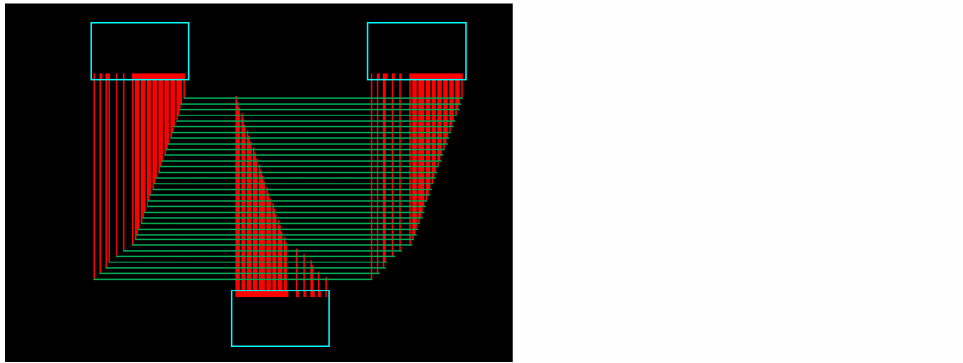
When selected, trims both ends of the trunk, as shown in the figure below.
-
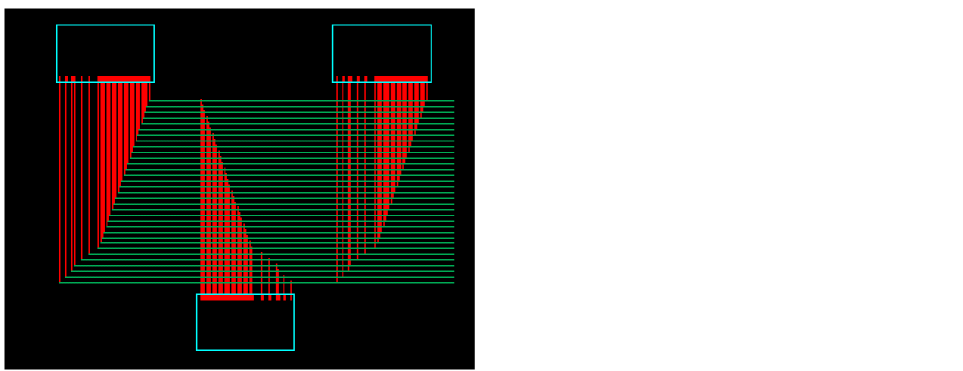
Left/Lower End
When selected, trims the left or lower ends of the trunk, as shown in the figure below.
-
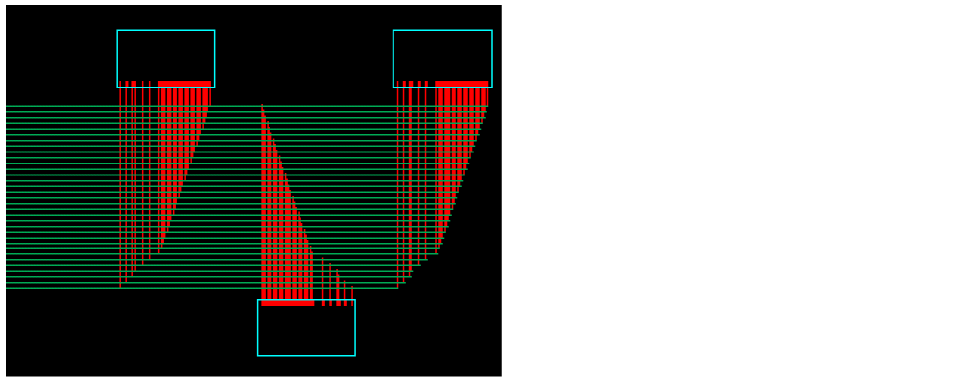
Right/Upper End
When selected, trims the right or upper ends of the trunk, as shown in the figure below.
You can also connect a multipart path guard ring to a trunk by changing the Connectivity attribute of a guard ring from net to pin. The Pin to Trunk routing then treats it as a pin and connects the guard ring to the trunk. For more information on MPP Guard Ring, see
Taper Trunk Width
The Taper Trunk Width section is enabled only when the Trunk Tapering routing step is selected in the Pin to Trunk subform. When a trunk is tapered, the tapered trunk fragments remain connected and form a stair-like structure. By using the trunk tapering options, you can specify the appearance of the stair-like structure. The trunk tapering options are available only for trunks with at least two connections to either a pin or a trunk.
In this section, you can specify the options to taper the trunk widths during Pin to Trunk routing.
-
Tapering Side
You can reduce the width of a trunk from a particular side or from both sides. By default, the trunk is tapered from both sides.
Environment Variable: trunkTaperSideMode-
Both Sides
When selected, tapers both sides of the trunk, as shown in the figure below.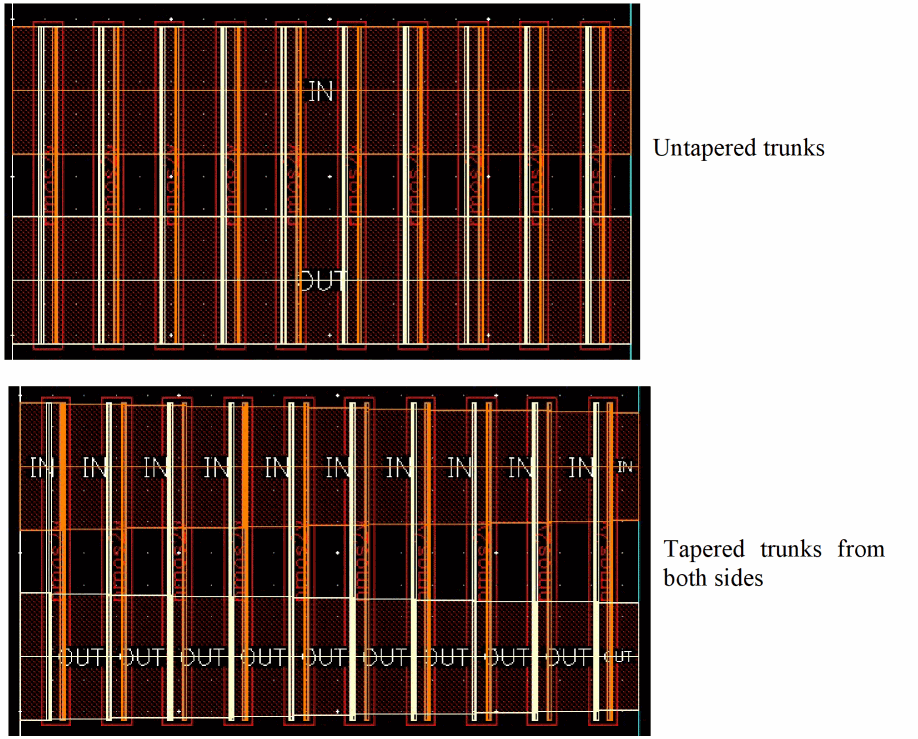
-
Lower/Left Side
When selected, tapers the left or lower ends of the trunk, as shown in the following figure.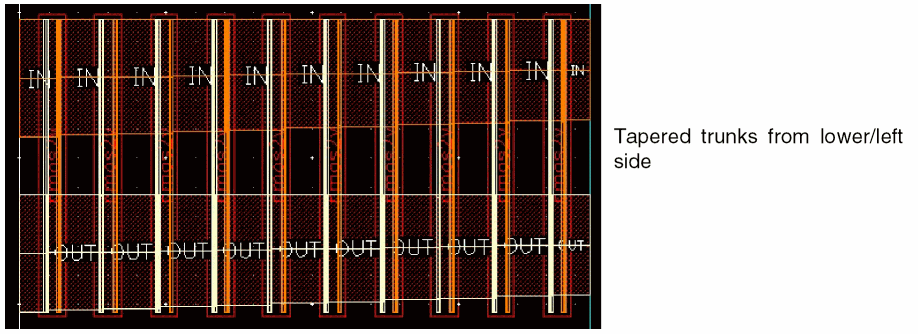
-
Upper/Right Side
When selected, tapers the right or upper ends of the trunk, as shown in the following figure.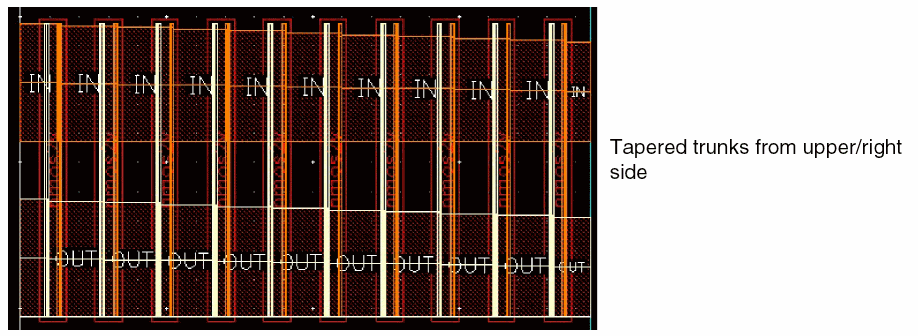
-
Both Sides
-
Trunk Width Reduction Per Side
Use this option to specify the extent of width reduction on each side of a tapered trunk segment.
Environment Variable: trunkTaperReductionMode-
Auto
When both Trunk Width Reduction Per Side and Interval mode are selected as Auto, the width reduction is equal to the width of the previous outgoing twig segment. However, when the Trunk Width Reduction Per Side is Auto and Interval Mode is Custom, the trunk width is reduced by 5% of the original trunk width.
If the tapering side has been selected as Both Sides, the width of the tapered trunk segment is reduced by 2.5 % of the original trunk width on each side. However, if the Right/Upper or Lower/Left option is selected from Tapering Side, the width of the tapered trunk segment is reduced by 5% of the original trunk width on the selected side. -
Specify Percentage
When selected, you can specify the percentage by which you want the width of the tapered trunk segment to be reduced. The reduction per tapered side is a percentage of the original trunk width. The following figure shows trunk tapering from both sides when the percentage is specified as 2.0.Environment Variable: trunkTaperReductionPercent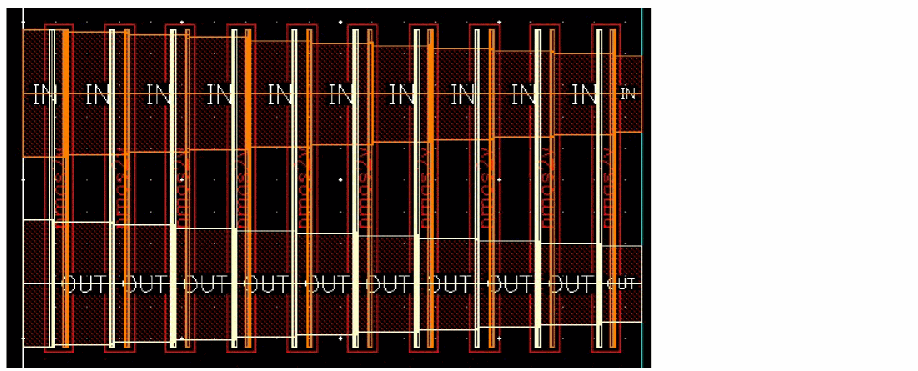
-
Specify Value
When selected, you can specify a value by which the width of the tapered trunk segment is to be reduced. The reduction per tapered side is according to the specified value. The following figure shows trunk tapering from lower/left side when the value is specified as 0.2 micron.Environment Variable: trunkTaperReductionValue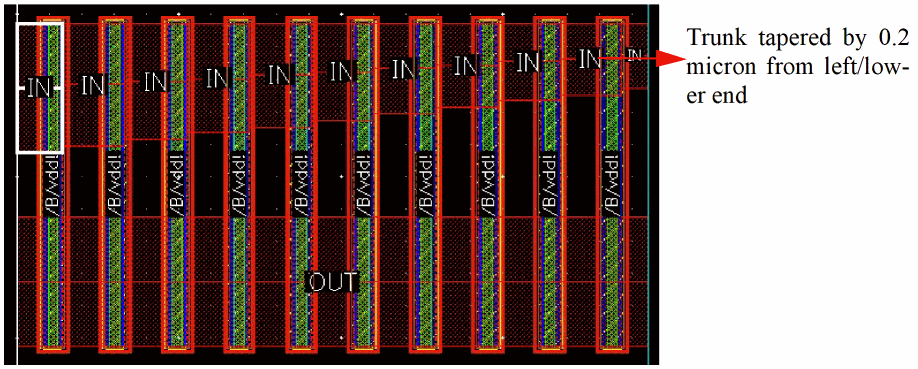
-
Auto
-
Taper Edge Style
Use this option to specify the edge style when the trunk width is tapered.
Environment Variable: trunkTaperEdgeStyle-
Orthogonal
When selected, the edge of the trunk connecting two steps is perpendicular to the steps, as shown in the following figure. This is the default option.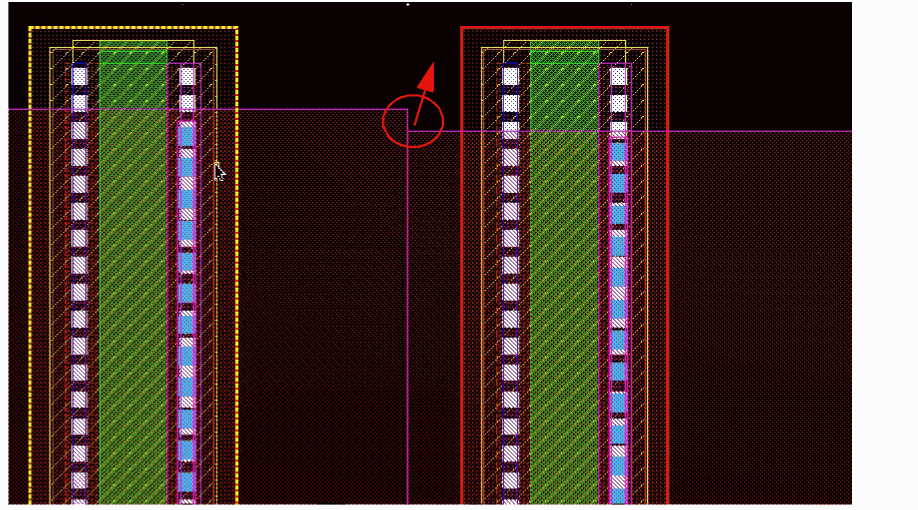
-
Diagonal
When selected, the edge of the trunk connecting two steps is slanted at 45 degrees from previous step to the next step, as shown in the following figure.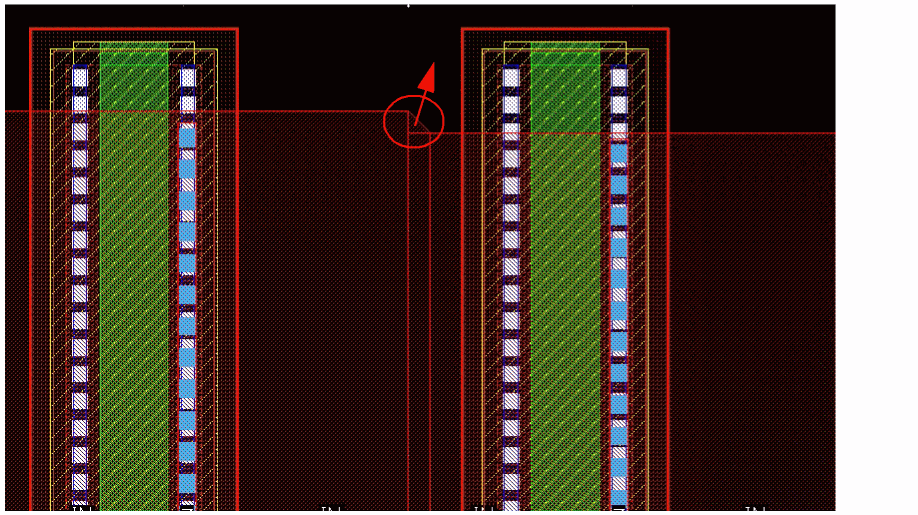
-
Any Angle
When selected, the stair-step appearance degenerates to form a smooth-slanting edge throughout the tapered trunks, as shown in the following figure.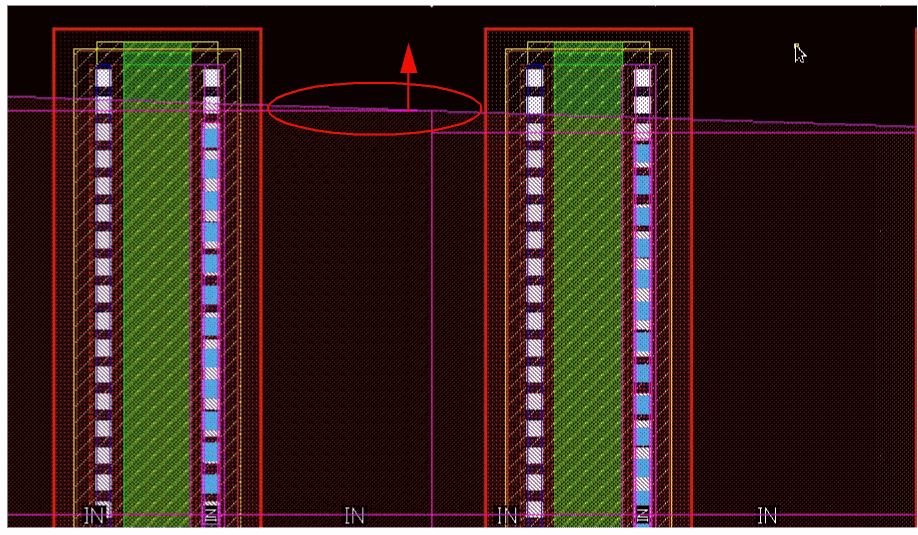
-
Orthogonal
-
Interval Mode
Use this option to specify the frequency of trunk tapering.-
Auto
The trunk tapering happens at each twig connection. This is the default option. -
Custom
The trunk tapering happens at the interval specified by you.
Environment Variable: trunkTaperIntervalMode -
Auto
-
First Trunk Segment Length
In this field, specify the length of first tapered trunk segment.
Environment Variable: trunkTaperFirstIntervalLength -
Middle Trunk Segment Length
In this field, specify the length of all tapered trunk segments excluding the first and the last trunk segment. The following figure shows trunk tapering from both sides when the interval mode is selected as Custom and the length of the first and middle trunk segments are 4 and 3 microns respectively.
Environment Variable: trunkTaperMiddleIntervalLength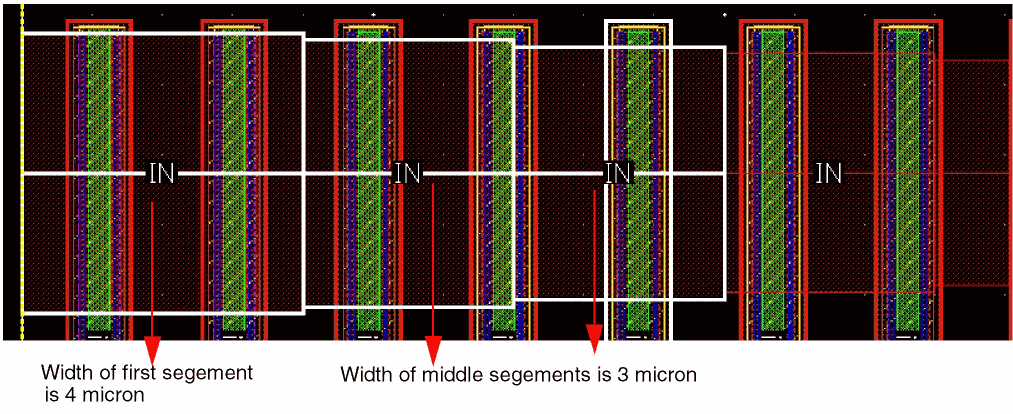
Specifying Twig Options
The Twig subform is displayed when you select Twig from the Pin to Trunk tree in the left pane of the Virtuoso Space-based Router Options form. In the Twig subform, specify the twig options for Pin to Trunk routing as explained in the following sections:
- Specifying General Twig Options
- Specifying Gate Twig and Non-Gate Twig Options
- Specifying Via over Pin Coverage Options
-
Specifying Pin Strapping Options
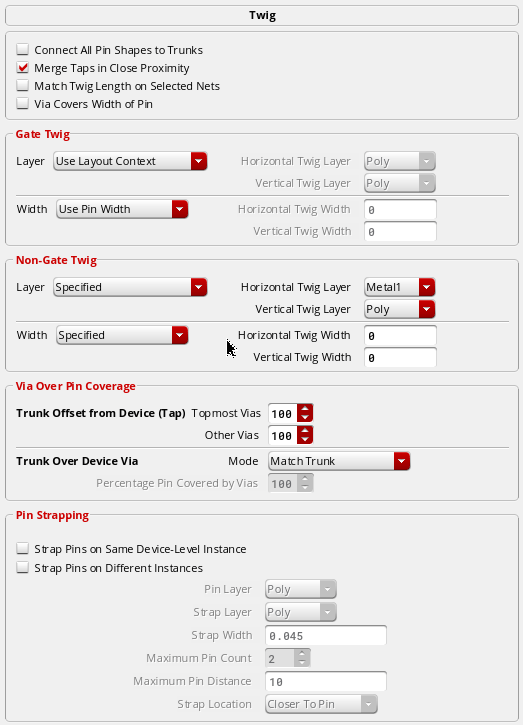
Specifying General Twig Options

In the Twig subform, you can specify the following general options.
- Connect All Pin Shapes to Trunks
- Merge Taps in Close Proximity
- Match Twig Length on Selected Nets
- Via Covers Width of Pin
Connect All Pin Shapes to Trunks
A shape can be a simple shape (for example, rectangle) or a complex shape with multiple sub-shapes (for example, polygon). By default, the router connects to the closest simple shape, or a sub-shape of the closest pin of a terminal. However, if the Connect All Pin Shapes to Trunks check box is selected, the router connects to all the simple shapes and sub-shapes of all the pins of a terminal, as shown in the following figure.
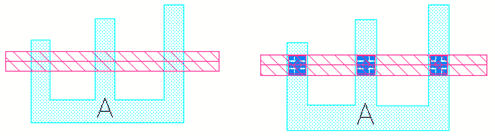
You can also specify a trunk range to control which shapes of a terminal should get connected. The Connect All Pin Shapes to Trunks check box is deselected by default.
Environment Variable: connectMultiPinShapes
Merge Taps in Close Proximity
When selected, the router merges the taps that are close to each other. This means that the router merges adjacent parallel taps if the distance between them is less than the minimum spacing. When this check box is deselected, each tap is connected to the trunk. The Merge Taps in Close Proximity check box is selected by default.
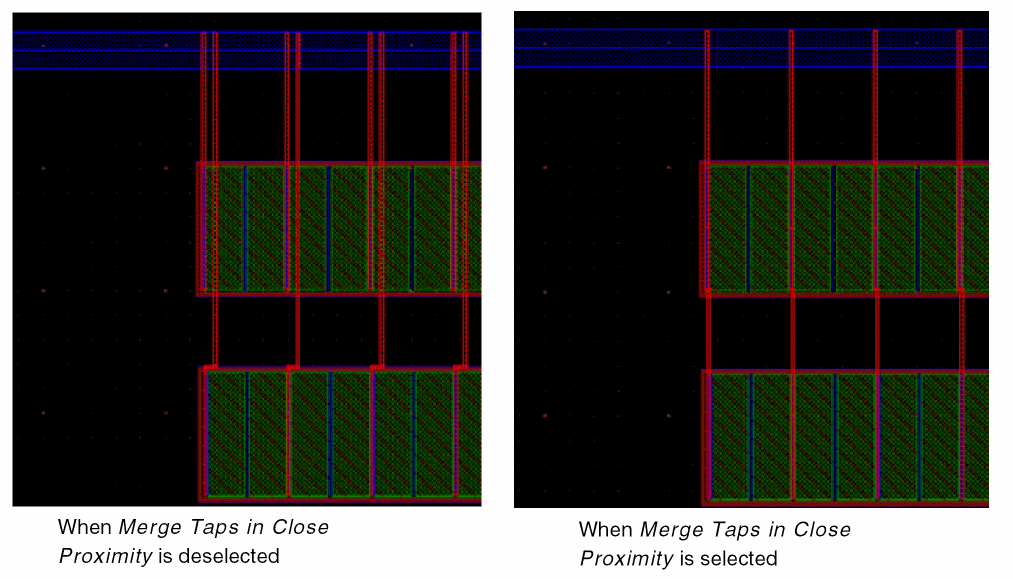
Environment Variable: mergeTapsInCloseProximity
Match Twig Length on Selected Nets
When selected, the shorter twigs are extended so that all twigs on the selected nets have the same length. The twig length is matched to the length of the largest twig irrespective of how far the trunk is placed from the pin, as shown in the following figure.
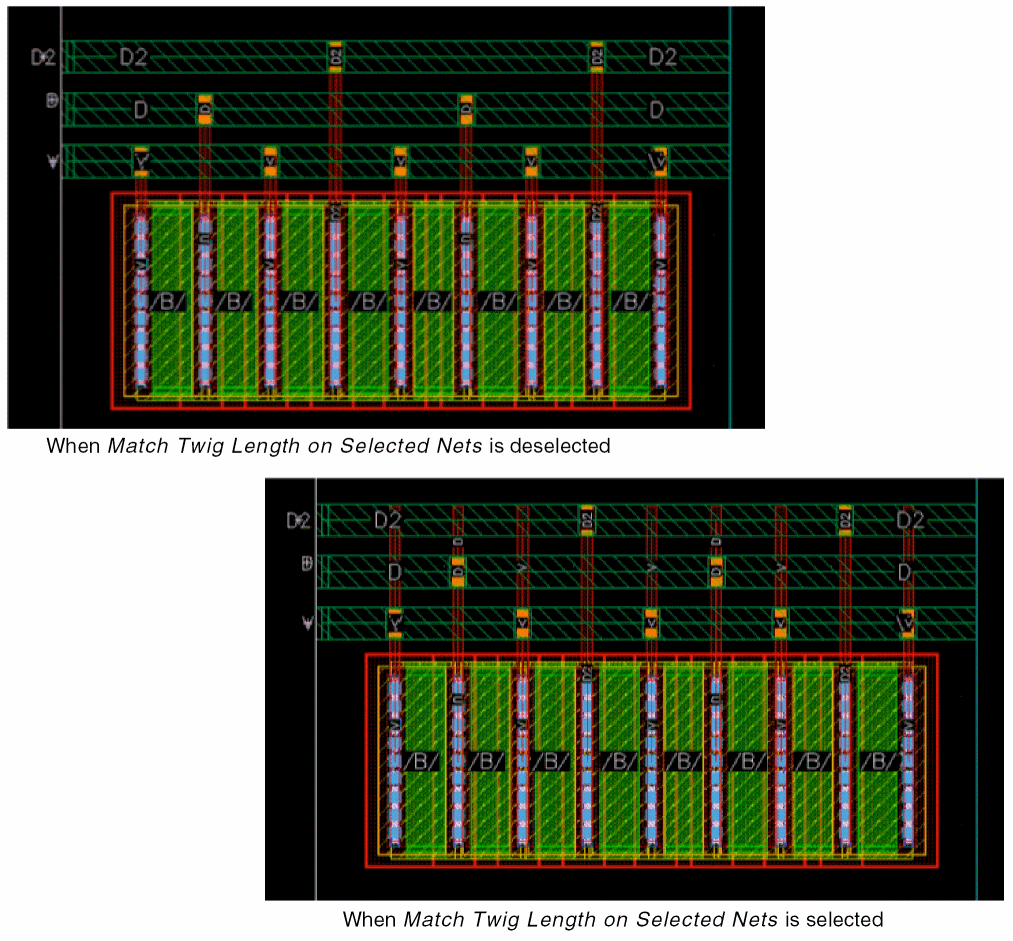
Environment Variable: twigLengthMatching
Via Covers Width of Pin
When selected, covers the entire width of a pin with vias. Otherwise, covers pins using the width of the routed wire. By default, the Via Covers Width of Pin check box is deselected.
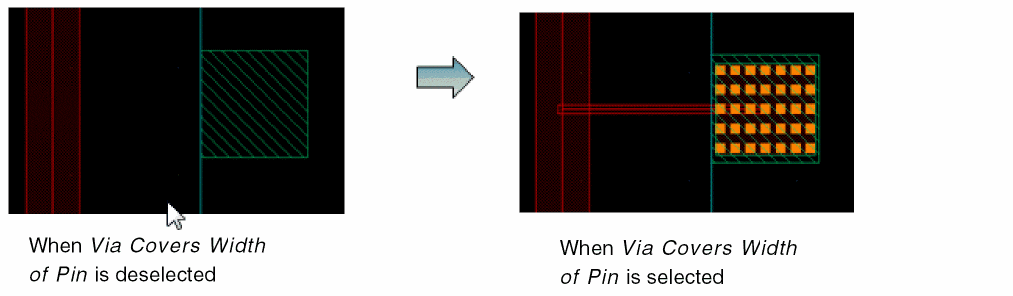
Environment Variable: viaCoverPinWidth
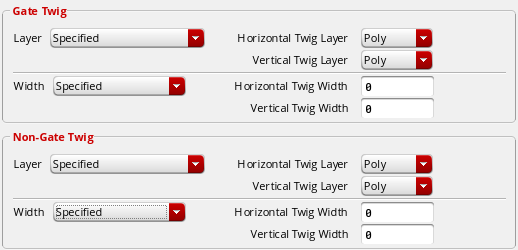
Specifying Gate Twig and Non-Gate Twig Options
In this section of the form, you can specify the options for generating twigs between a trunk and poly (gate) or a trunk and source and drain pins.
-
Layer
Use this option to control how the router selects a layer for generating gate and non-gate twigs.
Environment Variable: gateTwigLayerMode, nonGateTwigLayerMode-
Use Layout Context
The router selects a layer to insert a twig from a set of valid routing layers. -
Prefer Routing Direction
The router considers the preferred routing direction of the layer while creating a twig. If the router is unable to produce a suitable connection using a layer whose preferred routing direction matches the twig direction, it can select a layer whose preferred routing direction does not match with the direction of the twig. -
Prefer Pin Layer
The router selects a layer matching the layer of a pin shape to which the twig is to be connected. The twig is created on the same layer as the pin shape. However, if this causes violations on the pin layer, router selects another layer on which violations are not caused.
The router may not use Prefer Pin Layer to connect the twig if the result violates the Pin Escape mode even though Prefer Pin Layer option is selected. -
Specified
Specify the twig layers to be used by the router for creating horizontal and vertical twigs.-
Horizontal Twig Layer
The router uses the selected layer for creating horizontal twigs.
Environment Variable: horGateTwigLayer, horNonGateTwigLayer -
Vertical Twig Layer
The router uses the selected layer for creating vertical twigs.
Environment Variable: verGateTwigLayer, verNonGateTwigLayer
-
Horizontal Twig Layer
-
Use Layout Context
-
Width
Use this option to control the width that the router uses to route a gate and non-gate twigs. The width can be controlled/specified using the following options:
Environment Variable: gateTwigWidthMode, nonGateTwigWidthMode,-
Use Net Constraints
The twig width is determined by the width constraints specified for the net by using the constraint lookup method. -
Use Pin Width
The router considers the width of the gate and non-gate twigs equal to the width of the pin. -
Specified
You can specify a value for the twig width.-
Horizontal Twig Width
The router uses the specified width value for creating horizontal twigs.
Environment Variable: horGateTwigWidth, horNonGateTwigWidth, -
Vertical Twig Width
The router uses the specified width value for creating vertical twigs.
Environment Variable: verGateTwigWidth, verNonGateTwigWidth
-
Horizontal Twig Width
-
Use Net Constraints
-
Width
Use this option to control the width that the router uses to route a gate and non-gate twigs. The width can be controlled/specified using the following options:
Environment Variable: gateTwigWidthMode, nonGateTwigWidthMode,-
Use Net Constraints
The twig width is determined by the width constraints specified for the net by using the constraint lookup method. -
Use Pin Width
The router considers the width of the gate and non-gate twigs equal to the width of the pin. -
Specified
You can specify a value for the twig width.-
Horizontal Twig Width
The router uses the specified width value for creating horizontal twigs.
Environment Variable: horGateTwigWidth, horNonGateTwigWidth, -
Vertical Twig Width
The router uses the specified width value for creating vertical twigs.
Environment Variable: verGateTwigWidth, verNonGateTwigWidth
-
Horizontal Twig Width
-
Use Net Constraints
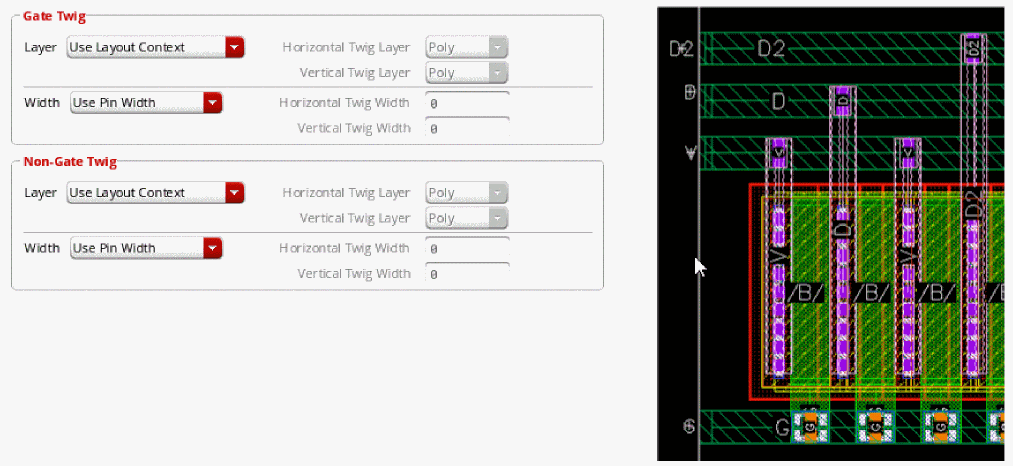
The following examples illustrate how gate and non-gate twigs are created for various options available in the Gate Twig and Non-Gate Twig sections.
Example 1: The following figure shows an example where the twig is created on a valid routing layer and the width of the twig is set equal to the width of the pin.
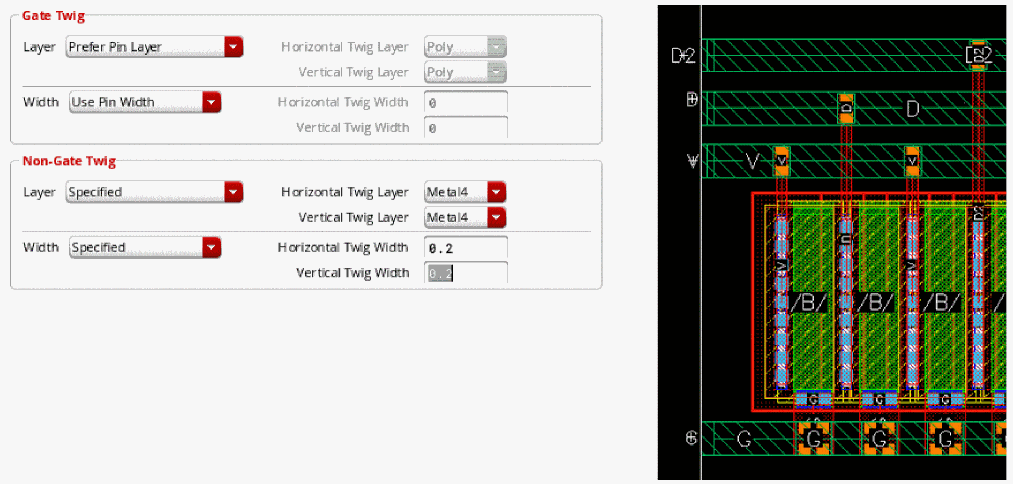
Example 2: The following figure shows an example where the twig is created on the same layer as the pin and the width of the twig is set equal to the width of the pin. For the non-gate twig, the layer is specified as Metal4 and the width is specified as 0.2.
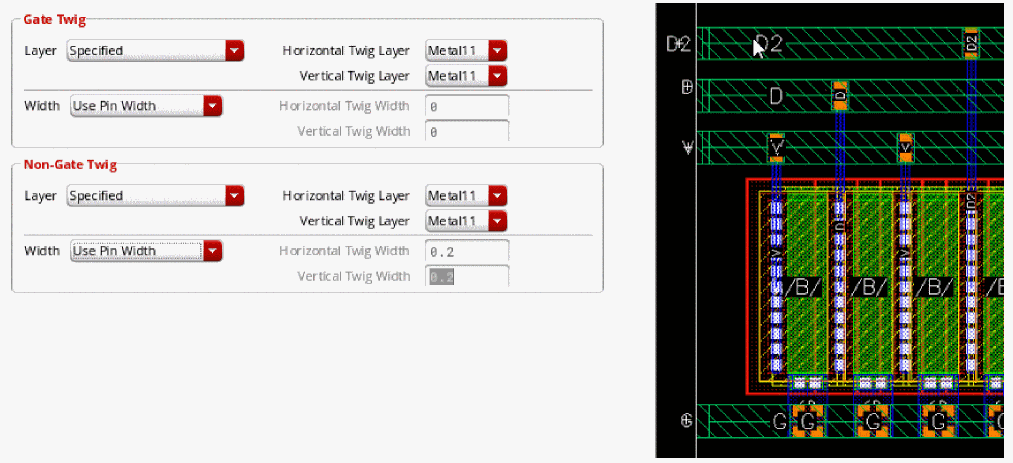
Example 3: The following figure shows an example where the layer for gate and non-gate twigs is selected as Metal1 and the width of the gate and non-gate twigs is set equal to the width of the pin.
Specifying Via over Pin Coverage Options
You can specify the following pin coverage options:
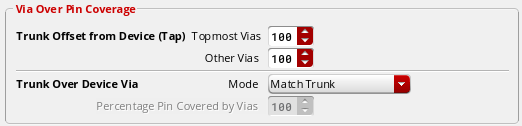
Trunk Offset from Device (Tap)
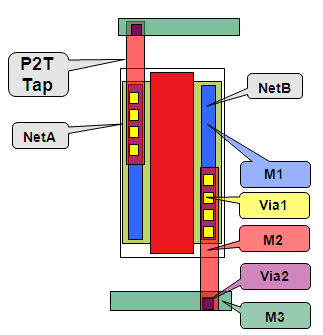
Specifies the percentage of a pin shape to be covered by a trunk tap when a trunk is not over a device. This reduces the parasitic capacitance effect across source and drain pins. In the following example, you can see that net NetB is routed with M2 covering the M1 pin shape and the intersecting area is flooded with vias. The percentage specified to be covered by a trunk tap is (45, 45). The percentage is specified in the Topmost Vias and Other Vias cyclic field.
-
Topmost Vias
Specifies the percentage of a pin shape to be covered by the topmost layer of the tapping vias.
Environment Variable: tapCoverPinPercent -
Other Vias
Specifies the percentage of a pin shape to be covered by the other layers of the tapping vias when the trunk is on a layer that is at least two layers above or below the pin layer.
Environment Variable: tapLowerViasCoverPinPercent
Trunk Over Device Via
Controls the percentage of source and drain pin coverage with via stacks except for the top layer, when the trunk is entirely over the device. In the following example, you can see that net A has the trunk over the device and the selected mode is Match Trunk. Therefore, lower vias cover 100 percent of the trunk width.
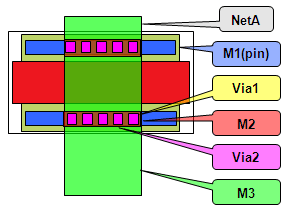
Environment Variable: trunkOverDeviceViaCoverMode
-
Match Trunk
Covers the width of the trunk. This is the default option. -
Match Pin
Covers the width of the pin. -
Match Pin Except Top
Covers the entire trunk on the top via layer and covers the entire pin on the lower via layers. -
Percentage Pin Covered by Vias
Controls the percentage of a trunk or a pin to be covered with vias. This option is enabled only when the Match Pin or Match Pin Except Top option is selected from the Mode drop-down list.
Environment Variable: trunkOverDeviceViaCoverPercent
Specifying Pin Strapping Options
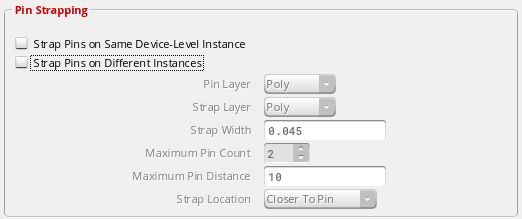
In the Pin Strapping group box, you can specify the following pin strapping options:
-
Strap Pins on Same Device-Level Instance
The router straps the gate, source, and drain pins of the same instance and same net together before making a connection to the trunk.
Environment Variable: strapGateSourceDrainPins -
Strap Pins on Different Instances
This option is applied to a set of pins only if they satisfy the following conditions:- The pins are on the same layer.
- The pins are on the same side of the trunk to which they need to be connected.
- The difference between the trunk-edge to pin-edge distances amongst the pins must not be larger than the width of the strap.
In addition, the edge-to-edge distance between adjacent pins must be within the maximum pin distance before router straps them together.
Environment Variable: pinStrapping
By default, the Strap Pins on Different Instances check box is deselected, which means that the strapping of pins on different instances is off. The following figure shows how routing is done when this check box is deselected.
The following figure displays the routing when the check box is selected.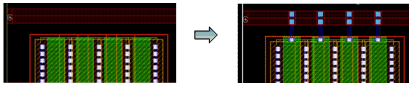
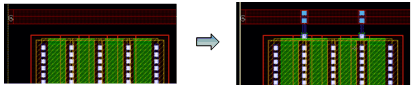
When the Strap Pins on Different Instances check box is selected all the options in the Pin Strapping group box are enabled.
-
Pin Layer
Lets you select the layer on which pins should be strapped.
Environment Variable: pinStrapPinLayer -
Strap Layer
Lets you select the layer on which strapping should take place during Pin to Trunk routing.The layers available in the Strap Layer drop-down list match the routing layers that are available in the Top and Bottom layers drop-down list in the Wire Assistant.Environment Variable: pinStrapLayer -
Strap Width
Specifies the width of the strap that is created during Pin to Trunk routing. The strap width is automatically updated when the strap layer is changed. The strap width is calculated using the minWidth of the strap layer that is selected.
Environment Variable: pinStrapWidth -
Maximum Pin Count
Specifies the maximum number of pins that can be strapped during Pin to Trunk routing.
Environment Variable: pinStrapMaxPinCount -
Max Pin Distance
Specifies the maximum edge-to-edge distance between two adjacent pins to be strapped.
Environment Variable: pinStrapMaxPinDistance -
Strap Location
You can select the location where the strap should be created.-
Closer to Pin
The strap is created closer to the pin than the trunk. This option is selected by default. The following figure shows pin strapping onMetal1layer, with the strap created closer to the pin.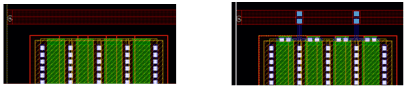
-
Closer to Trunk
The strap is created closer to the trunk than the pin. The following figure shows pin strapping onMetal1layer, with the strap created closer to trunk.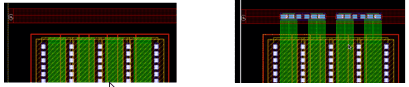
-
Closer to Pin
Specifying Trunk to Trunk Connections
The Trunk to Trunk Connection subform is displayed when you select Trunk to Trunk Connection from the Pin to Trunk tree in the left pane of the Virtuoso Space-based Router Options form.
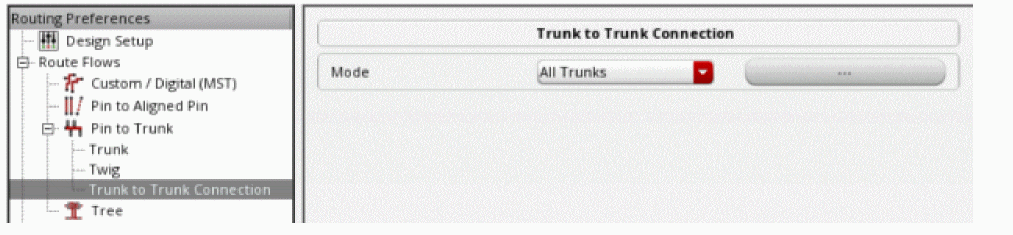
Environment Variable: connectTrunkType
You can specify the following modes for the trunks:
-
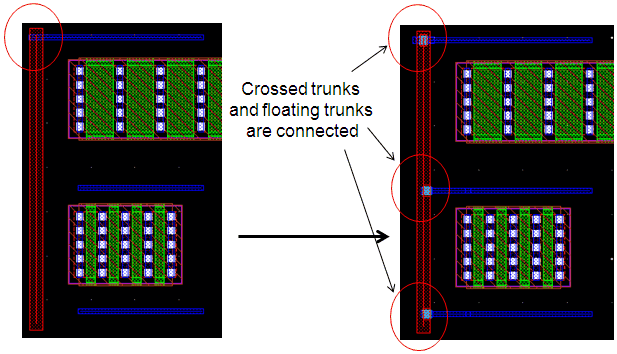
All Trunks
Connects all crossed and floating trunks, as shown in the following figure.
-
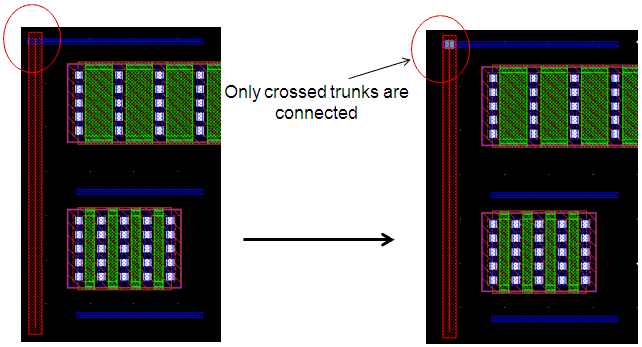
Crossed Trunks Only
Connects only crossed trunks, as shown in the following figure.
-
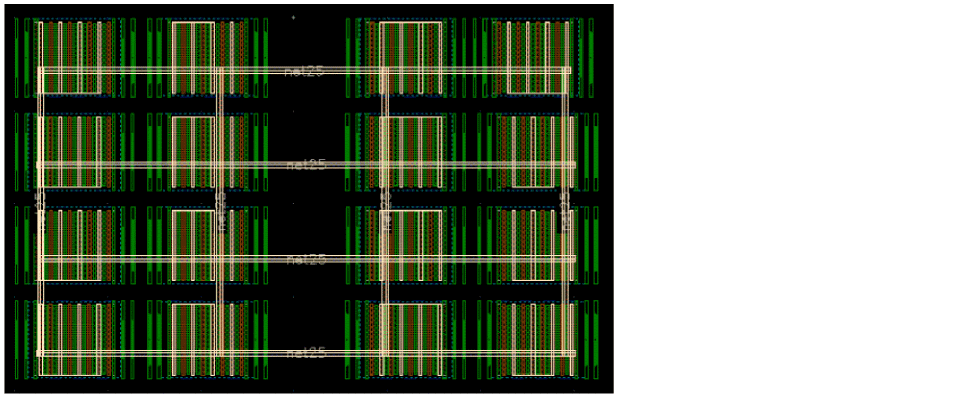
Trunk Mesh Routing (ICADVNM18.1 Only)
Lets you customize the way meshes are routed. When you click the ellipses button next to the Mode field, the Trunk Mesh Routing Configuration form displays. This form displays a table of layer settings and a set of options that you can use to specify the way each layer is to be routed in the mesh. For more information on the options, see Trunk Mesh Routing Configuration Form (ICADVM18.1 EXL Only).
Composing and Decomposing Trunks
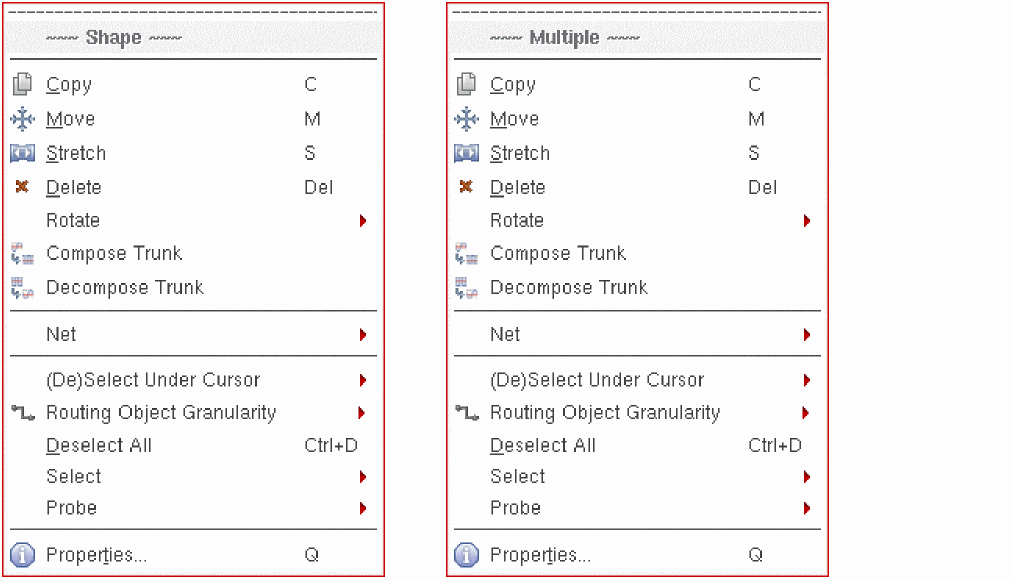
The Compose Trunks and Decompose Trunks commands are available in VLS XL in the Edit – Wiring menu. You can also access these commands from the Shape and Multiple context-sensitive menus that display if you right-click in the design display area after selecting one or more objects.
Alternatively, you can access the Compose Trunks and Decompose Trunks commands from the Navigator context-sensitive menu. The context-sensitive menu is displayed when you right-click the net after selecting it in the Navigator Assistant.
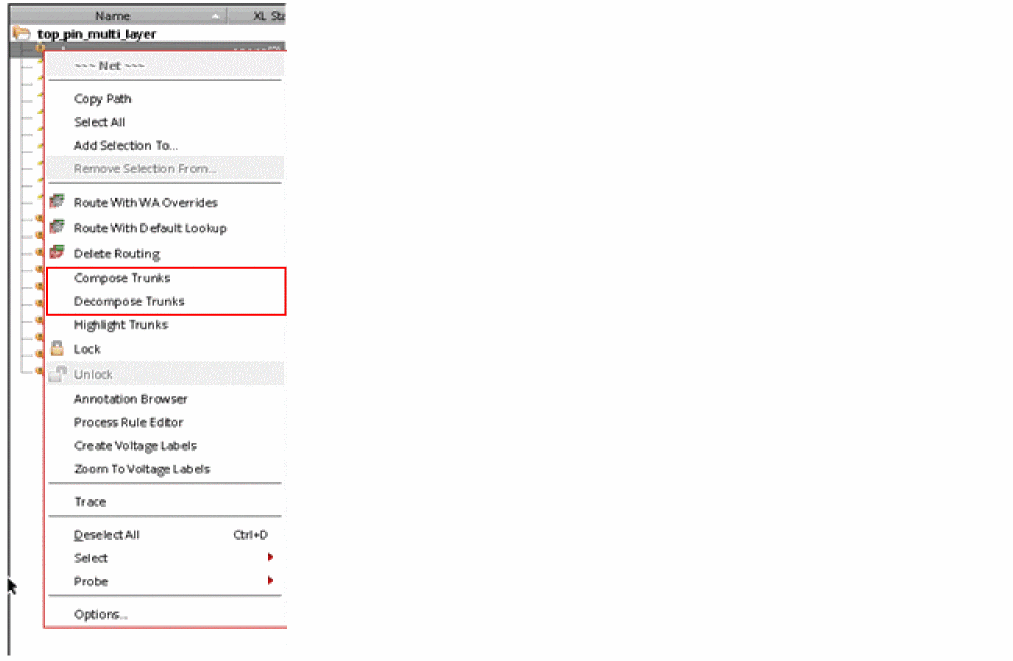
Use the Compose Trunks command to convert the selected set of shapes into a trunk object. Only pathsegs, vias, and rectangles are converted into trunk objects. Other shapes, such as paths and polygons, are not converted. For each object in the selected set that fails to be converted into a trunk object, the command creates an OA marker. This OA marker is visible in the Annotation Browser. A message in the CIW summarizes the objects that are converted to form a trunk. These trunk objects can then be used to perform pin to trunk routing. The pin to trunk router is started by default when you run the route command from the Net context-sensitive menu after selecting the trunk net in the Navigator assistant.
Use the Decompose Trunks command to convert the selected set of trunk, comprising selected set of shapes, to the original shapes from which it was formed. A message in the CIW summarizes the objects that are converted to original shapes. If the selected shapes are not part of a trunk and you run the Decompose Trunks command, the number of converted objects reported in the CIW is 0.
Highlighting Trunks
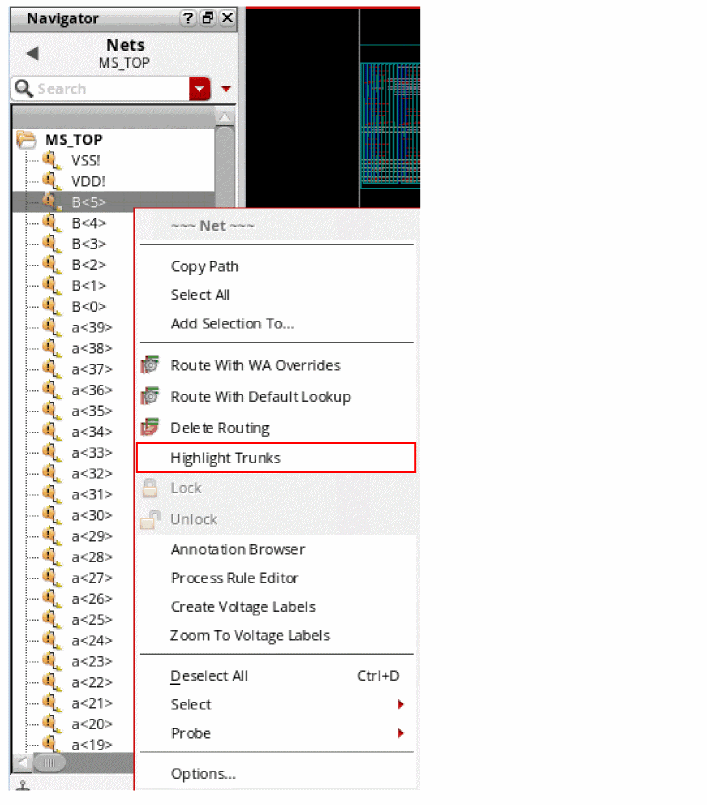
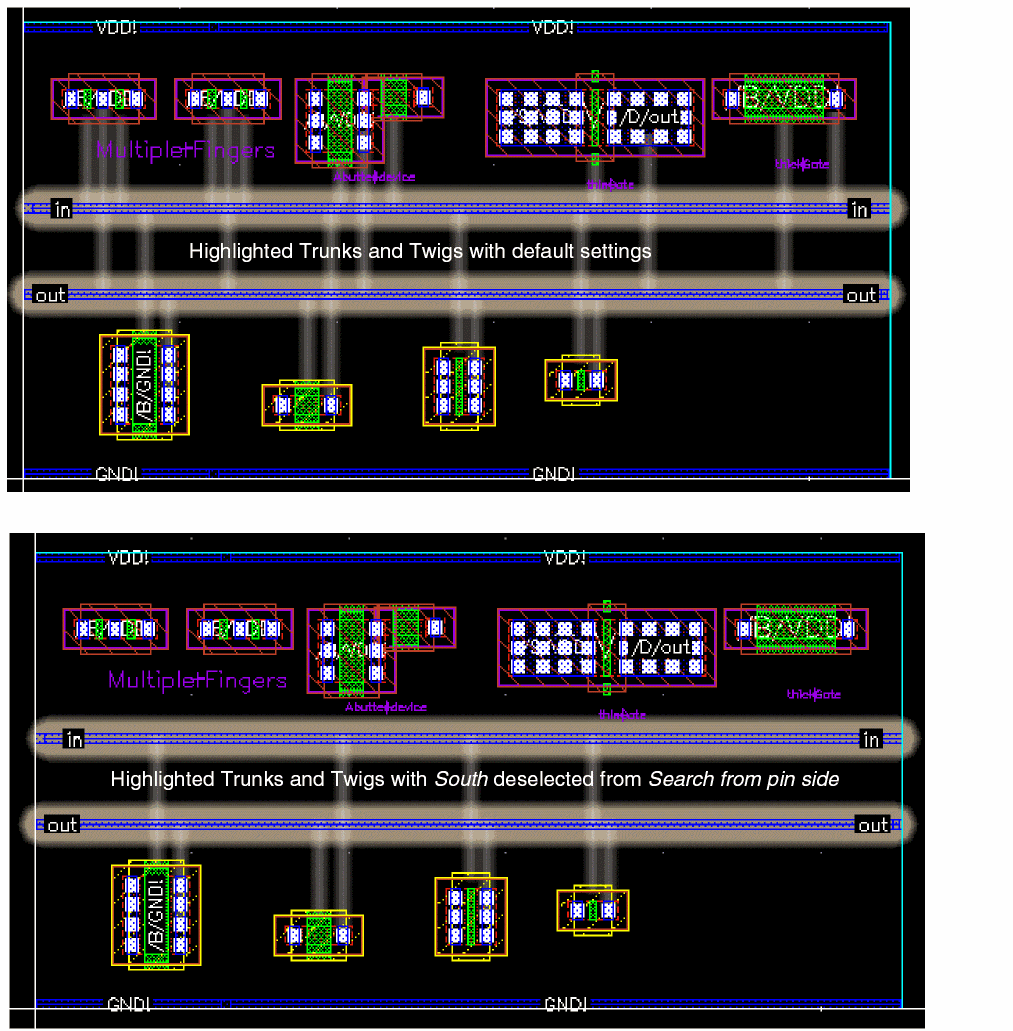
The Highlight Trunks option helps you to identify the trunk for which the twigs will be created. To identify composed trunks of a selected net and to highlight the trunks and twigs in the layout canvas, right-click the net in the Navigator and choose Highlight Trunks from the context-sensitive menu. The twigs are highlighted based on the options in the Scope section of the Pin to Trunk subform. The options that are considered while highlighting the trunks and twigs are as follows:
- Area options: Current Editable Cellview, Current View Area, and Specified Area,
- Pin-Trunk Relation: Pin mode (Channel, Space, All, Auto),
- Pin side (North, South, West, East, Over)
-
In Range: the specified range of the cellview
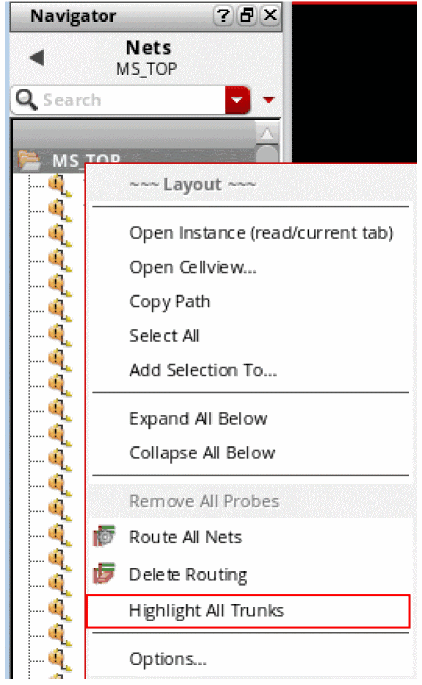
To highlight trunks for all the nets that have a valid composed trunk in a cellview, right-click the cell and choose Highlight All Trunks from the context-sensitive menu.
Trunks and twigs that are legal and can be recognized by the router are highlighted.The following figure shows an example where the trunks and twigs are highlighted when the Current Editable Cellview option is selected and in the Search from Pin Side, South is deselected.
The trunks and twigs remain highlighted—even when you zoom in or out the layout canvas—until you change the selected set either in the Navigator or in the layout canvas.
Environment Variable: highLightTwigType
Using the Finish Trunk Command
The Finish Trunk command on the Create Bus and Create Wire context-sensitive menu automatically converts all the pathSegs except for the first and the last pathSeg into trunks, regardless of whether they are connected to a pin or not. The first and the last pathSeg is considered as a regular pathSeg if it is connected to a pin at one end and to a trunk at the other end. Else, it is converted to a trunk. The default bindkey for running the Finish Trunk command is 2.
The Finish Trunk command enables pin to trunk connections only when Pin to Trunk Routing is selected from the Pin to Trunk options in the Virtuoso Space-based Router Options form. If the Pin to Trunk routing step is deselected, the Finish Trunk command skips pin to trunk routing. In addition, if the Compose Trunks step is selected, then all the wire segments are converted into trunks, regardless of whether they are connected to the pins or not. By default, the Compose Trunks routing step is deselected.
To determine which pins should be connected, the Finish Trunk command uses the value selected in the Mode field in the Pin-Trunk Relation (Orthogonal Twig) section in the Scope group box of the Pin to Trunk (Default) subform.

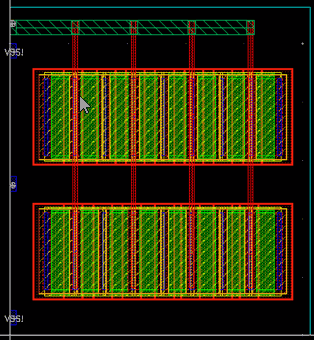
The default value of Mode is Auto, which means that the Finish Trunk command selects only the pins that are in the same channel as the trunks. To allow the Finish Trunk command to connect the pins that are not in the same channel as the trunk, select either the Space or All option from the Mode drop-down list. The following figure shows a layout design on which the Finish Trunk command was run successfully with Mode set to All.
Return to top