
10
Using the Tree Route Flow (ICADVM20.1 EXL Only)
The license required for Tree Route flow to run on ICADVM20.1 is 95800 Virtuoso_Layout_Suite_EXL. In addition, it checks out a 12 GXL tokens.
This chapter includes the following topics.
- About Tree Route
- Displaying the Tree Routing Options
- Specifying the Tree Route Options
- Using Auto Device Routing Preset
- Running Tree Routing
About Tree Route
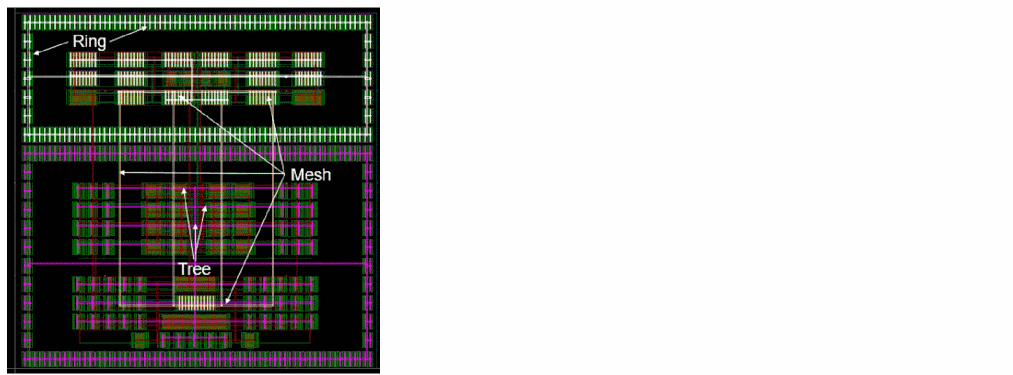
The Tree Route is a new routing flow that helps you increase layout productivity through - automation. This routing flow lets you to automatically route advanced node device-level, row-based designs with a minimum set of options. The Tree router lets you quickly connect device pins in a structured topology. It automatically identifies and routes mesh, ring (tap cell rings), and tree structures in the design.
Pre-requisites for Tree Router
The two main requirements to run the Tree router are as follows:
- You should be using Layout EXL.
- The technology file must be available to run the Pin to Trunk router.
-
Ensure that Design Style in the Wire Assistant is selected as Device Level.
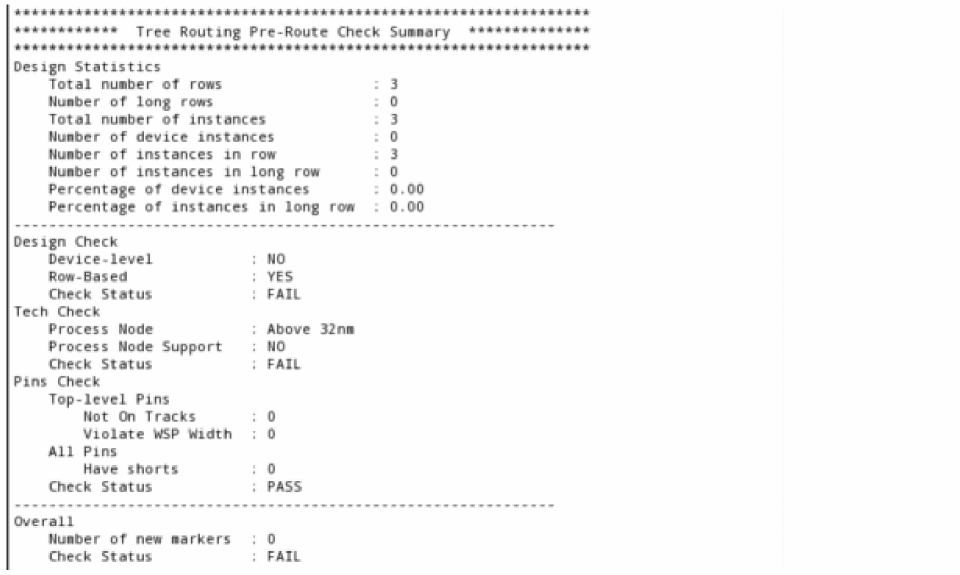
In case, tree route is run on a layout with stdcells, a message box is displayed stating that the Tree route flow supports only advanced node device-level designs. Do you want to proceed even if the results may not be optimal? This message is also displayed when the design style in Wire Assistant is set to ASIC or Chip Assembly.
Clicking the Yes button in the message box, runs the Tree route flow and a pre-route check summary is displayed in CIW, as shown in the following figure.
Analyzing the Tree Route Structure
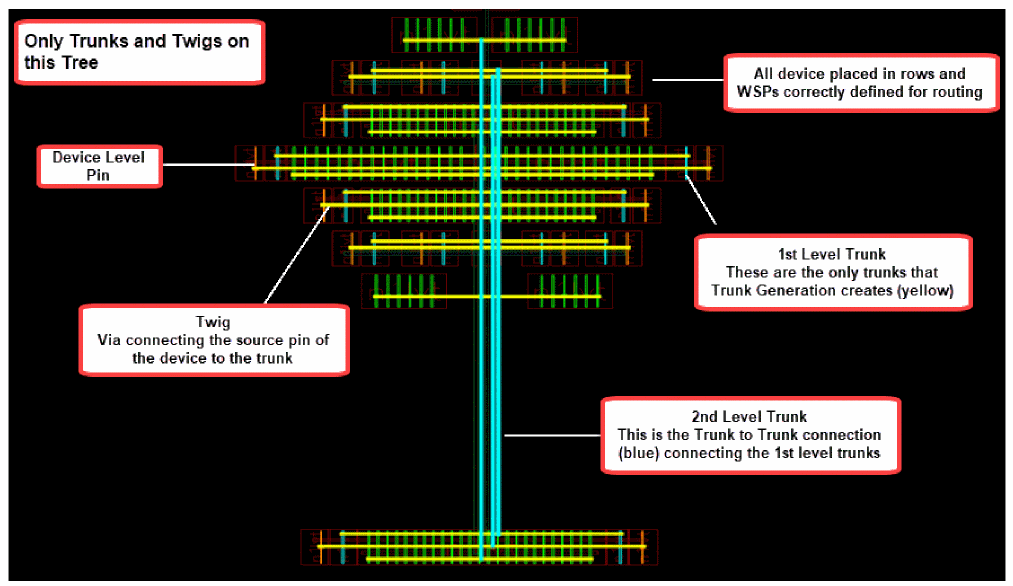
When you highlight trunks after running the Tree router, the tree design displays different level of trunks in different colors. The level-1 trunks are highlighted in Yellow and the level-2 trunks are highlighted in Cyan. The following figure explains the structure and composition of Tree Route.
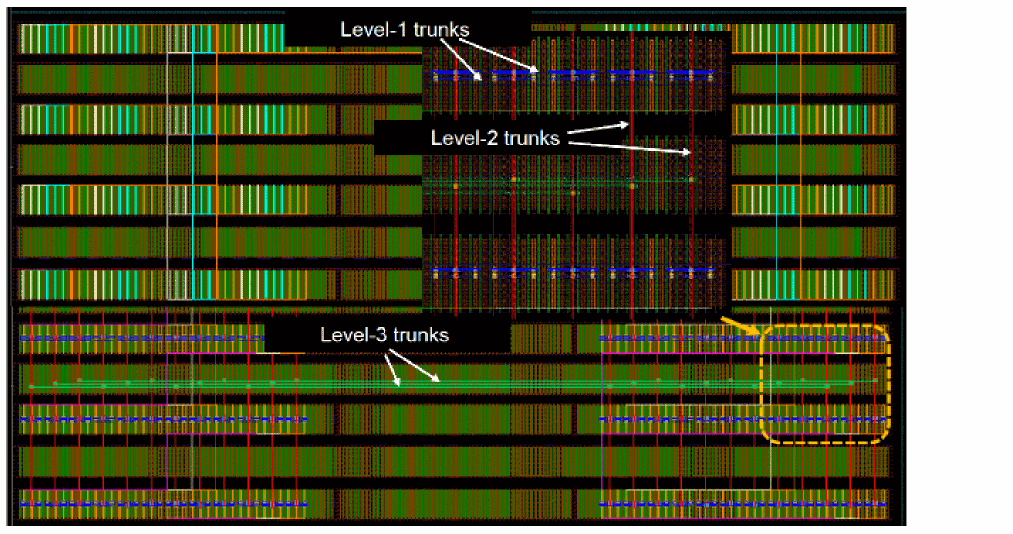
In addition, the Tree router automatically creates and connects all levels of trunks.
Displaying the Tree Routing Options
To display the Tree routing options, perform the following steps:
- Choose Window – Assistants – Wire Assistant.
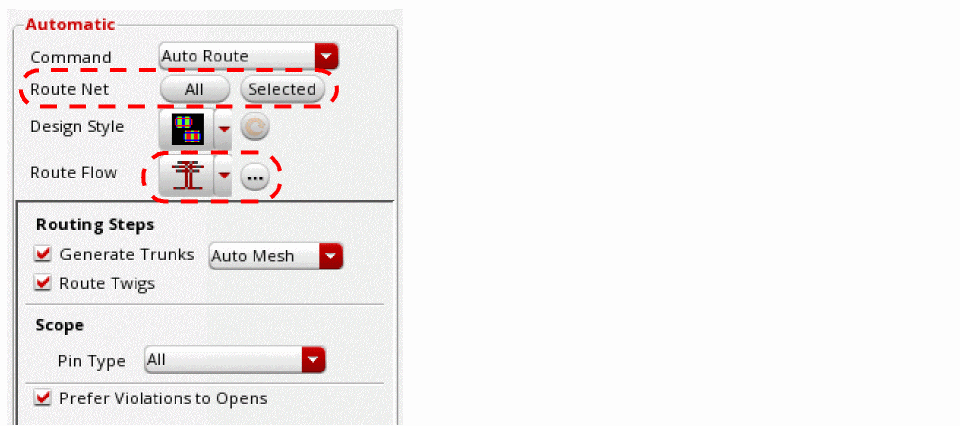
- In the Wire Assistant, select Auto Route from the Command drop-down list in the Automatic section.
-
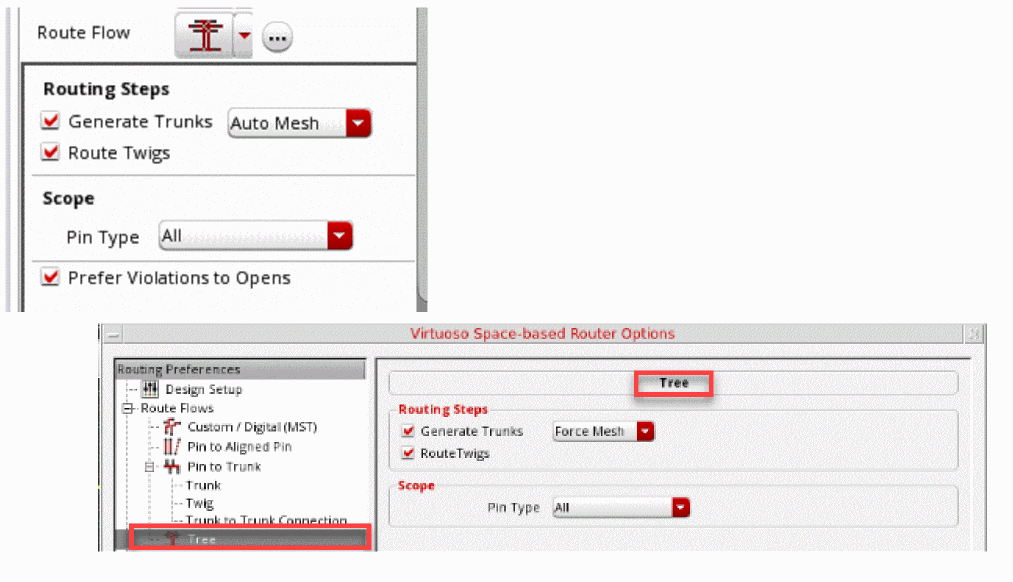
Select Tree from the Route Flow drop-down list. The Tree routing options are displayed in a group box just below the Route Flow field.
Alternatively, select Tree from the Route Flow drop-down list and click the ellipses button next to it. The Tree routing options are displayed in the Tree subform of the Virtuoso Space-based Router Options form.
Specifying the Tree Route Options
You can specify the Tree Route options either in the Wire Assistant or in the Tree subform of the Virtuoso Space-based Router Options form.
-
Generate Trunks
Generates all level of trunks. If you want to use more options by using the Pin to Trunk routing for twig routing layer or if you want to move or add trunks before routing twigs, you can run Generate Trunks as a separate step.
Generate Trunks has the following three options:-
Auto Mesh
Enables the router to automatically identify the regions for mesh routing. You can also force it on or off. -
No Mesh
Lets the router to perform routing without creating any mesh. This is the default option. - Force Mesh
- Forces mesh routing when Auto Mesh results in no mesh based on the properties of the net.
-
Auto Mesh
-
Route Twigs
Routes twigs, which are the connections between the pins of devices and the 1st level trunks.
-
Scope
Defines the scope of tree routing -
Pin Type
Lets you specify the type of pins to connect to. Pin Type has three options: All, Gate, and Source And Drain. You select either one of the option to connect to all gate and source and drain pins, only gate pins, or only source and drain pins.
Using Auto Device Routing Preset
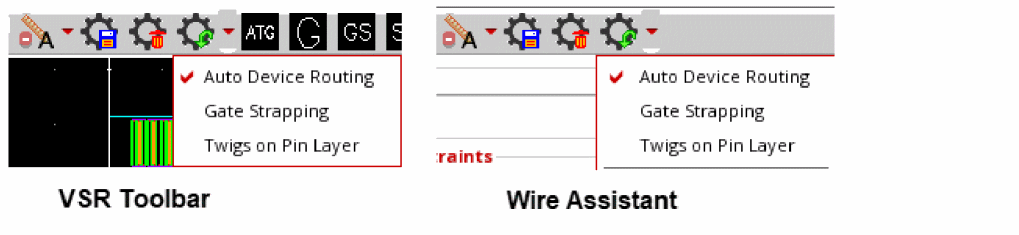
The Auto Device Routing preset option is available in the VSR Load Preset drop-down menu. It lets you automatically load the device routing option settings and enable the Tree Route flow in the Wire Assistant.
Running Tree Routing
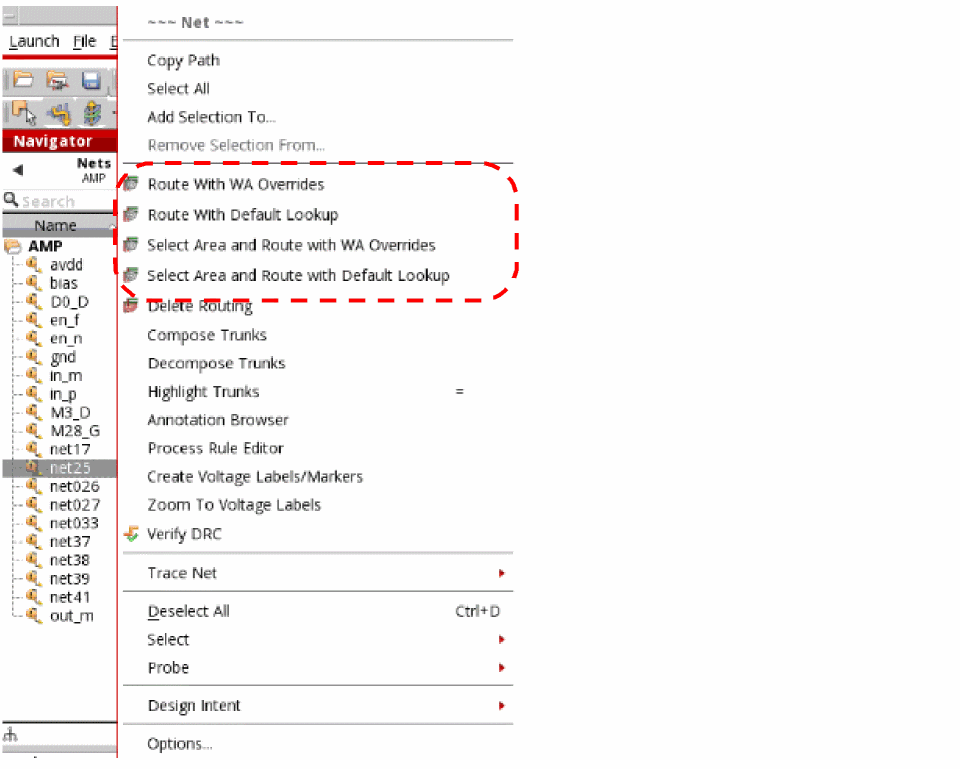
When using Layout EXL, you can run Tree routing, using one of the following methods.
-
Use the Automatic Routing icon on the Virtuoso Space-based Router toolbar.

- Using Wire Assistant
- Using Navigator Assistant
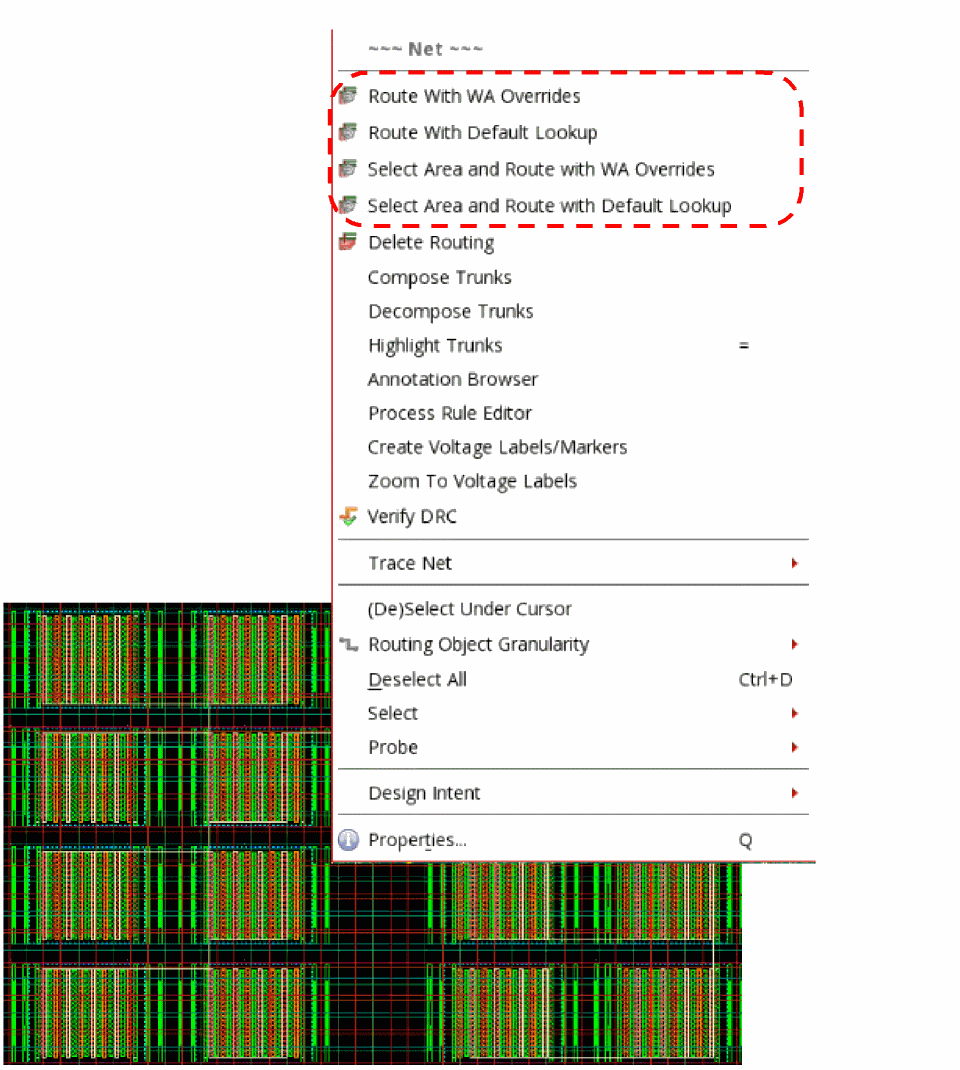
- Using context-sensitive menu in layout
Related Topics
Return to top