
Doc Assistant lets you bookmark a topic so that you can visit it again later.
To bookmark a topic:
- Click the Bookmark icon on the top of the Topic Viewer. Alternatively, right-click anywhere in the topic viewer and choose Add to Bookmarks from the shortcut menu.
The Add Bookmark dialog box is displayed.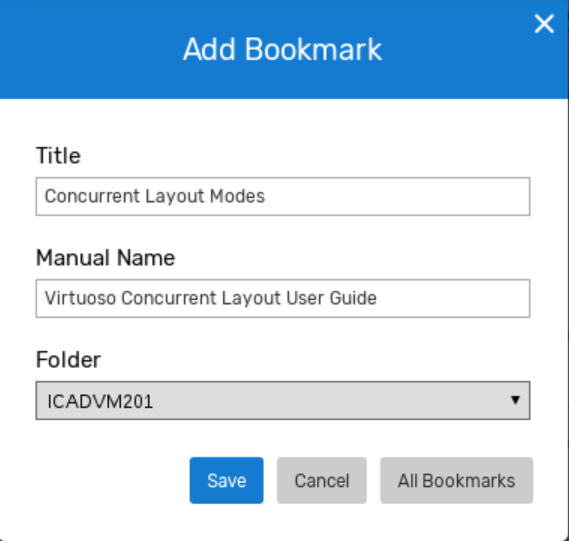
- The Title and Manual Name fields are already populated with the title and manual name of the topic.
- Select a folder from the Folder drop-down list in which you want to store the bookmark.
- Click Save.
The bookmark is saved.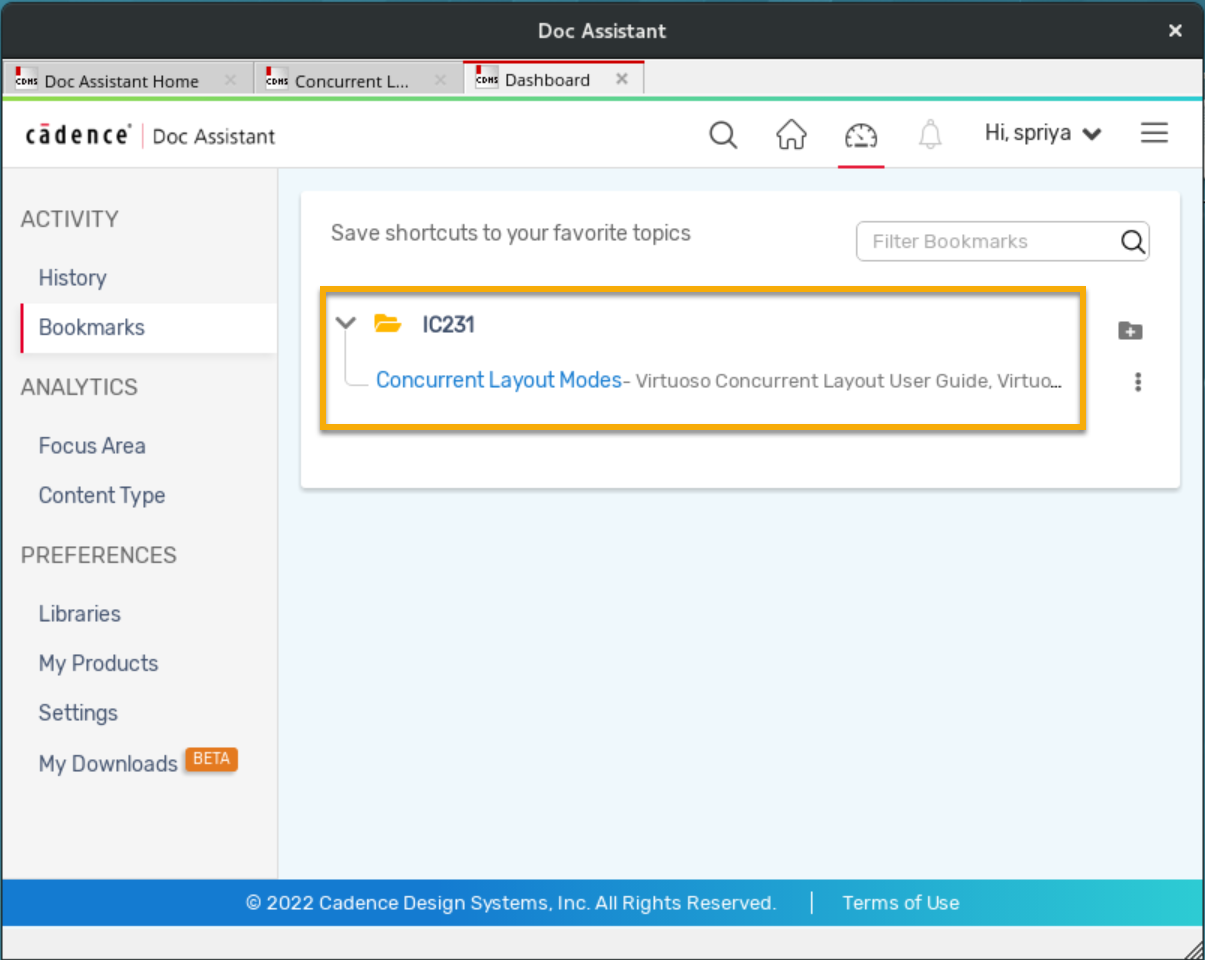
Clicking All Bookmarks displays a list of bookmarks that you have added for all your releases.
When you bookmark a page, the Bookmark icon on the page automatically changes to blue, indicating that the page is already bookmarked. You cannot bookmark this page again unless you delete the bookmark.

To import Cadence Help bookmarks into Doc Assistant, refer to Importing Cadence Help History and Bookmarks.