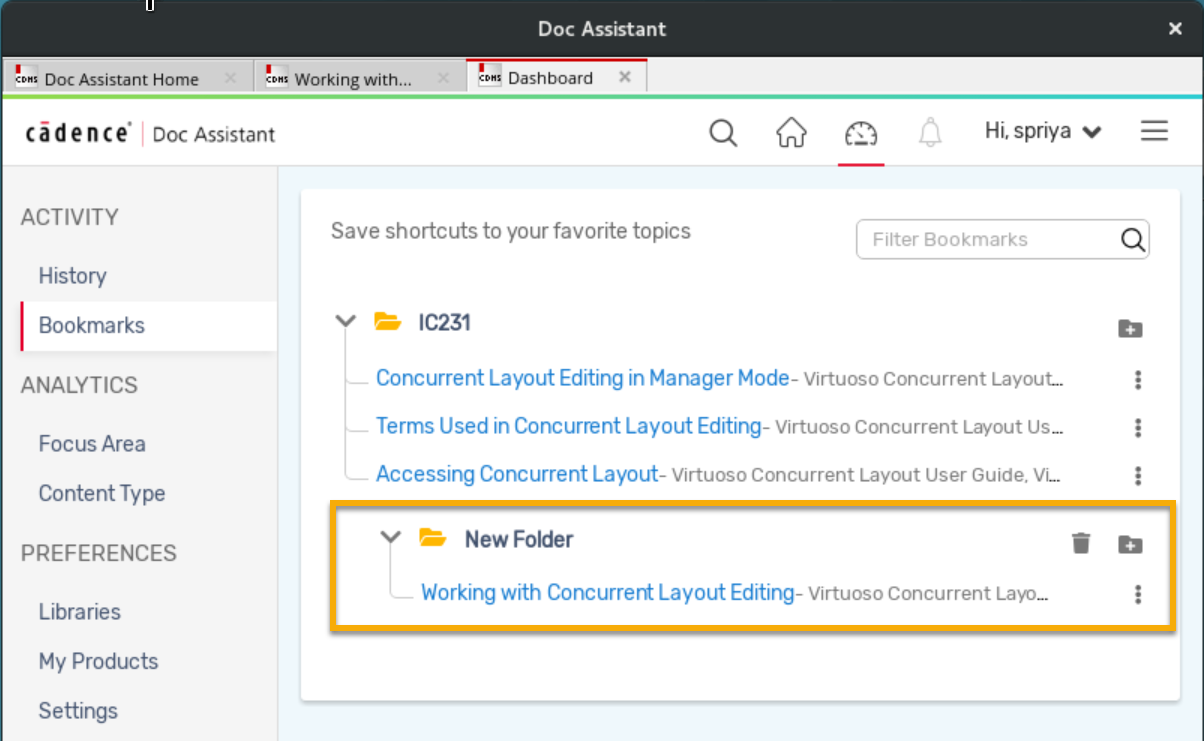
In Doc Assistant, you can easily delete or move a bookmark to a new folder.
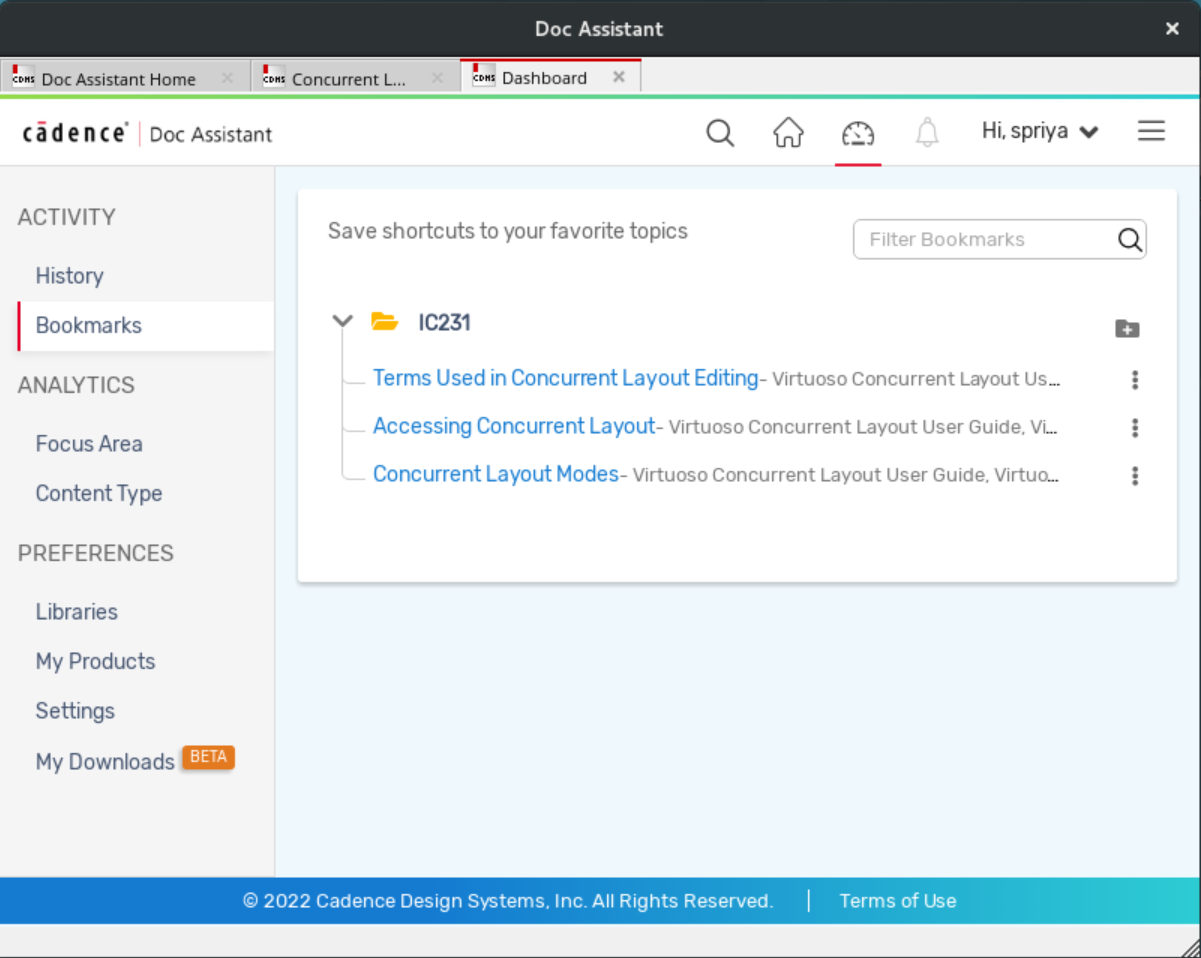
Deleting Bookmarks
To delete a bookmark:
- Click
 corresponding to the bookmark you want to delete
 - Select Delete.
A confirmation message is displayed. - Click Delete on the confirmation message.
The bookmark is deleted.
Editing Bookmarks
You can edit bookmark details from the bookmarks list.
To edit a bookmark:
- Click corresponding to the bookmark you want to edit.
- Select Edit.
The Add Bookmark dialog box is displayed. - Edit the title or name of the manual in the Title or Manual Name fields.
- Click Save.
The bookmark is saved.
Moving Bookmarks into a Folder
You can create a new subfolder in the release folder of the bookmarks list and move your bookmarks to the subfolder.
To move a bookmark into a subfolder:
- Click the
 button corresponding to the release folder where you want to create a subfolder.
A subfolder with the name New Folder is created. To rename the folder, double-click New Folder. - Type the new name.
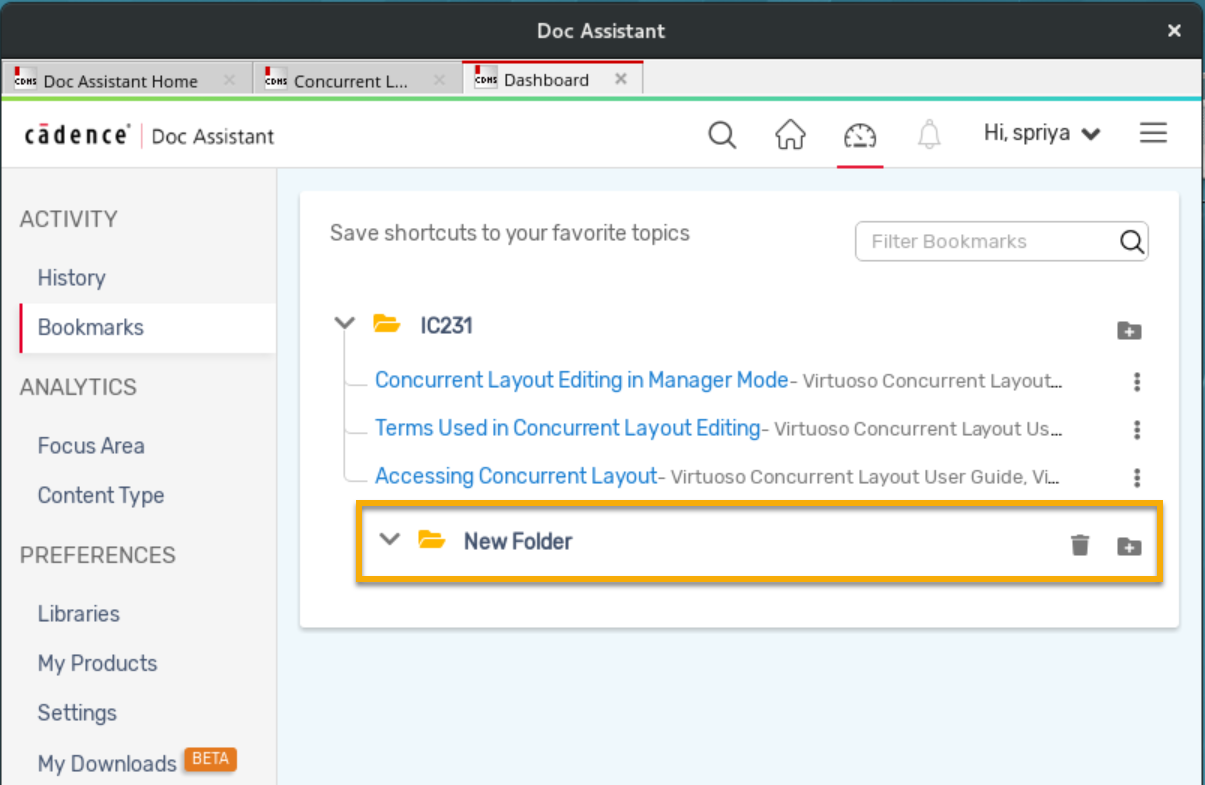
- Click corresponding to the bookmark you want to move.
- Select Edit.
The Add Bookmark dialog box is displayed. - Select a folder from the Folder drop-down list.
- Click Save.
The bookmark is moved to the subfolder.