
The Doc Assistant user interface is simple. Documents are categorized based on their types, as shown below.
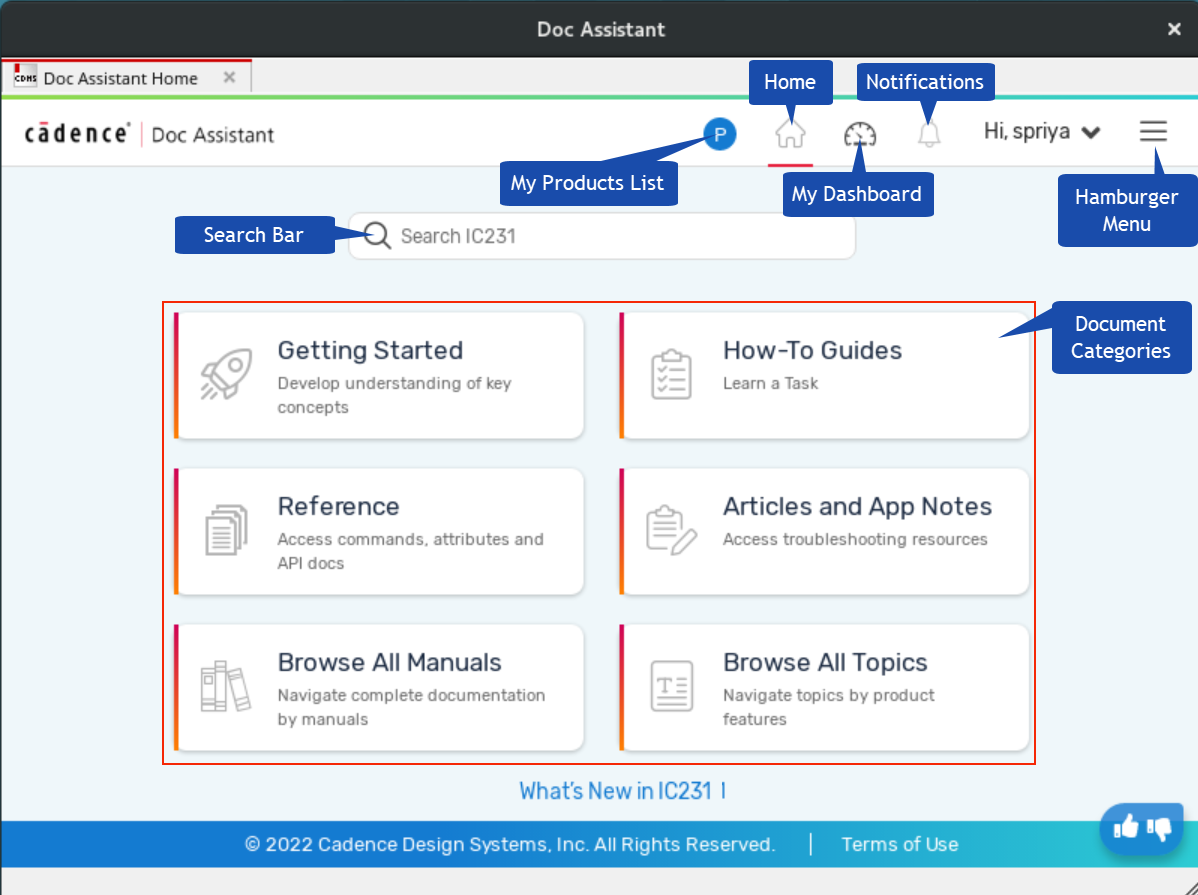
Search Bar
Lets you search for documentation in both, online and offline modes. See Searching Through Content.
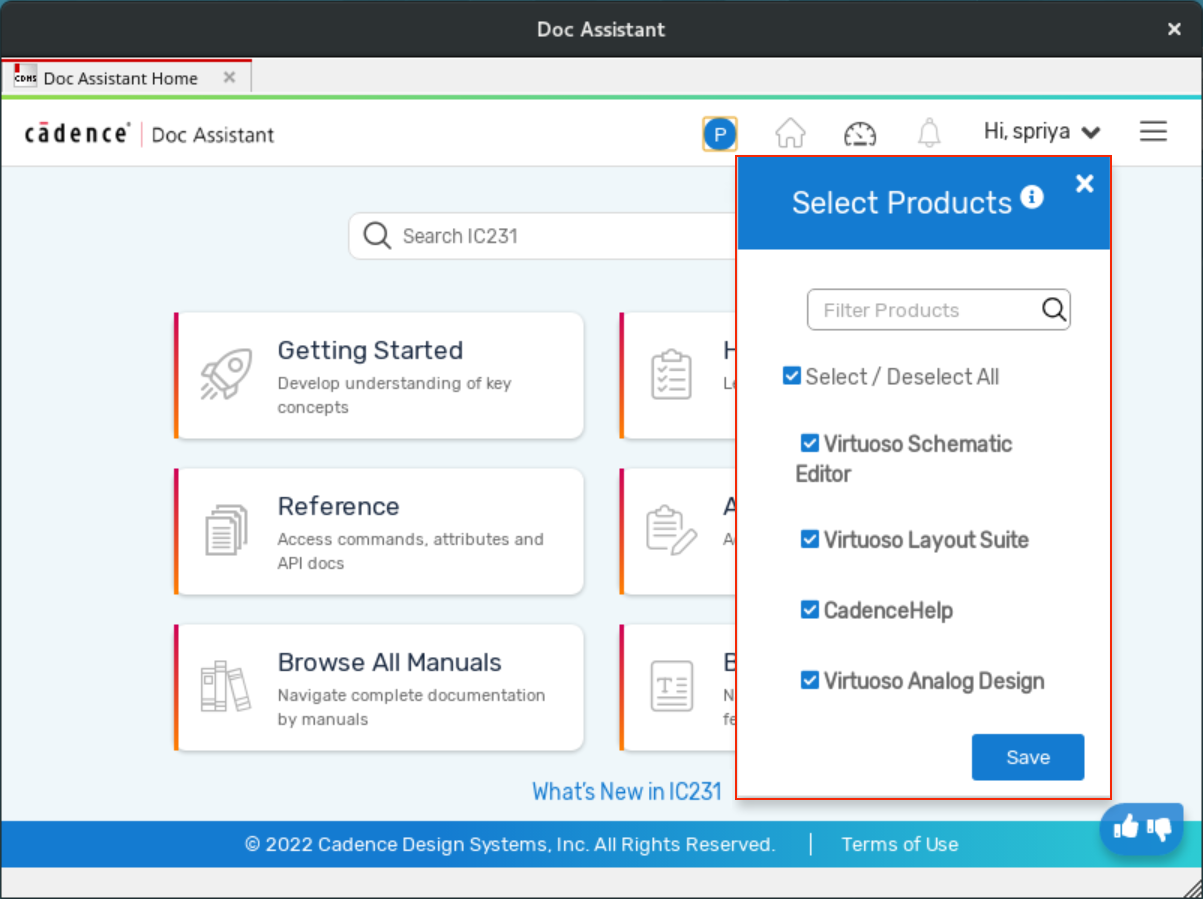
My Products List
Displays a list of products installed on your machine. Selecting or deselecting products from this list will change the order in which content appears on the welcome page. See My Products.
Home 
Takes you to the welcome page, where you can search or view documents for products installed on your machine.
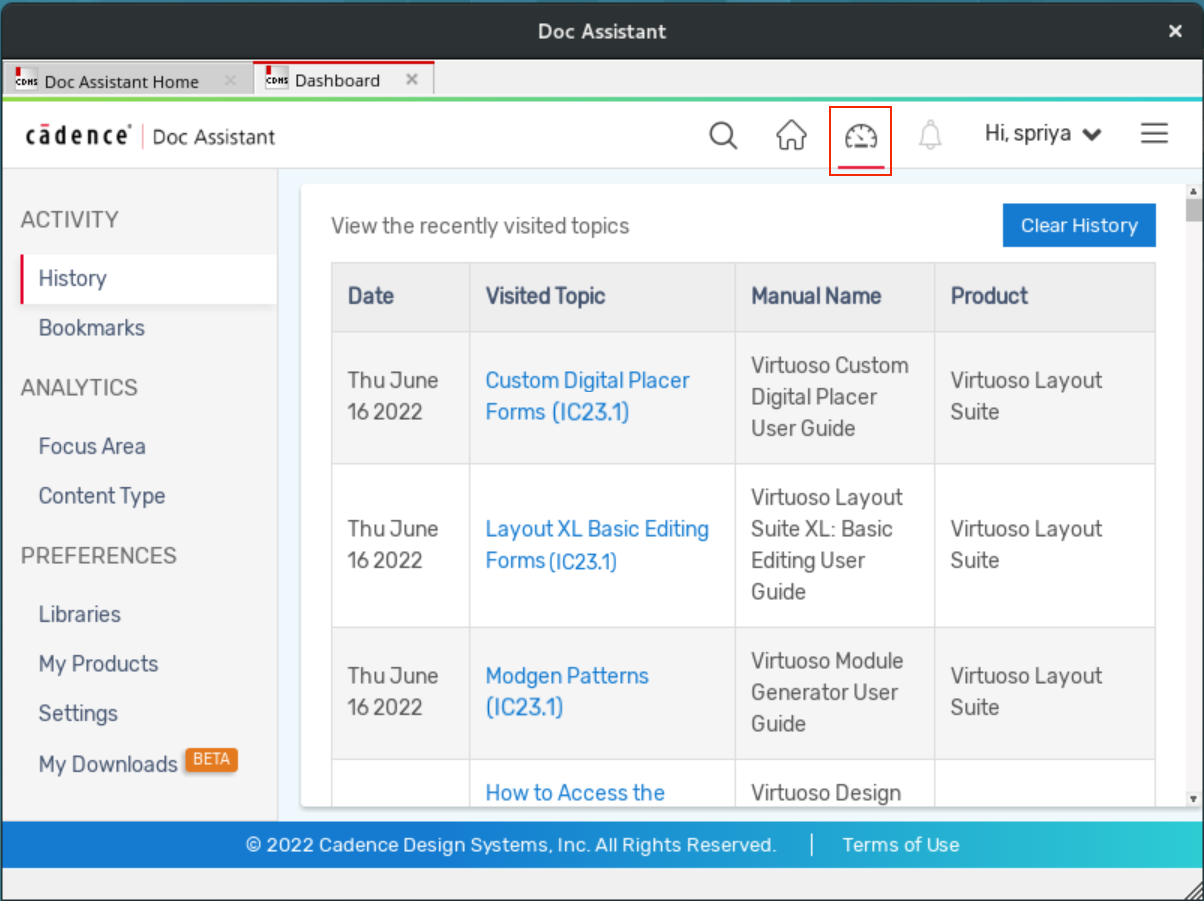
My Dashboard
Lets you access recently visited topics and bookmarked page. You can also add more document libraries, change the Doc Assistant settings, and install the latest product documents from this page. See My Dashboard.
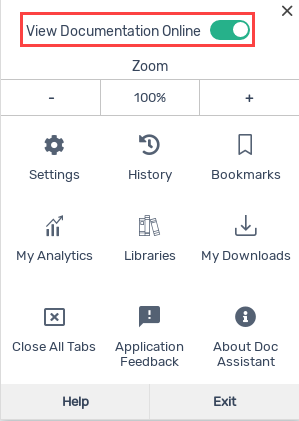
Hamburger Menu 
Allows you to switch between Doc Assistant modes, change settings, close all tabs, and do much more.
Help 
Opens the Doc Assistant Help documentation.
Notifications 
Displays notifications about important occurrences, including errors, warnings, information, and success messages.
Document Categories
The Doc Assistant home page lists multiple tiles that indicate various topic types or document categories, for example conceptual topics, task-based topics, and reference topics. You can click a tile to display a list of topics. In the following example, all task-based topics (How-To Guides) is listed:
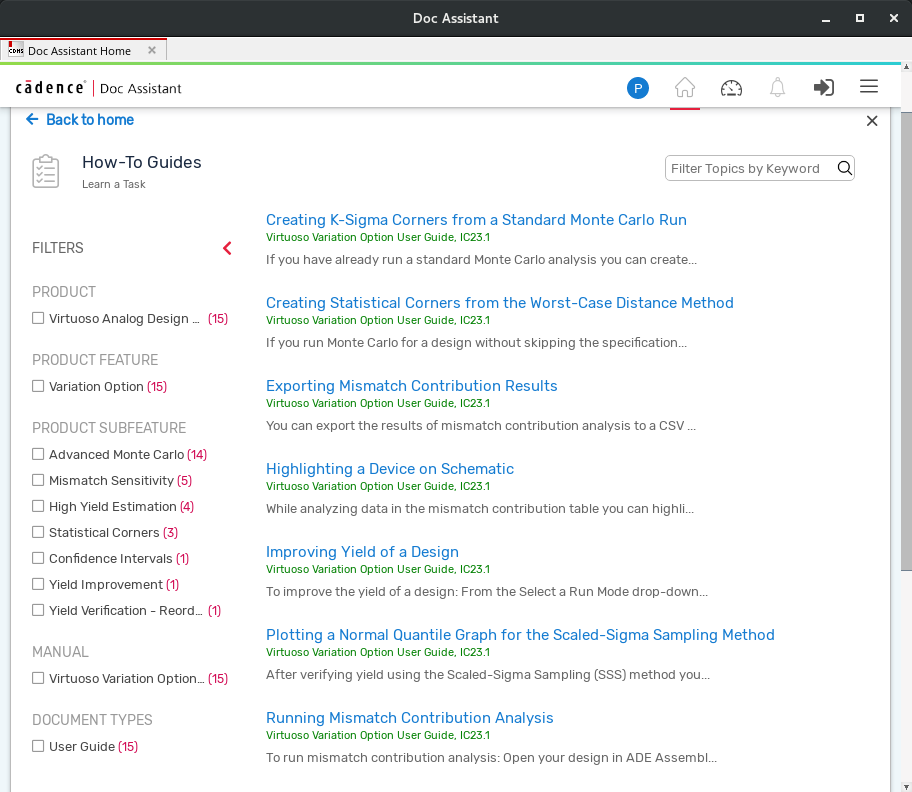
You can narrow down the list by:
- Selecting the required content filters from the left panel. For example, select a PRODUCT filter to list all topics related to the product.
- Typing a keyword in the Filter Topic by Keyword box. Only the topics containing the keyword are listed below.