
Doc Assistant operates in two modes, Online and Offline.
When Doc Assistant is launched, Online mode is enabled by default. All the online documents related to the products installed on your system are displayed.
You can switch to Offline mode using the toggle button in the hamburger  menu. Offline mode displays all the product documentation available on your machine.
Launching Doc Assistant
You can launch Doc Assistant in one of the following ways:
- Windows systems: Choose Doc Assistant from the Start menu.
- Linux systems: Enter the
CDAcommand in the terminal. - Product's Help menu
- Product's Help buttons
When you launch Doc Assistant in standalone mode, a message box is displayed that lists all products for which documents are configured to be displayed on your machine.
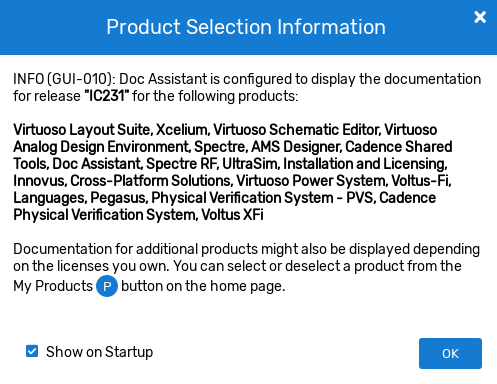
To customize this list, see My Products. To turn off this notification either clear the Show on Startup check box in the above message box or clear the Show Product Selection Information on Startup checkbox in the Doc Assistant Settings page.
On closing the above message box, the Doc Assistant Home page is displayed. This page allows you to start searching from the search bar or access content for the products installed on your machine from the various tiles.
To make Doc Assistant the default documentation tool for all help calls, set the value of the CDA_ENABLE environment variable to true. This is useful when both Cadence Help and Doc Assistant are installed and Cadence Help is the default help viewer.
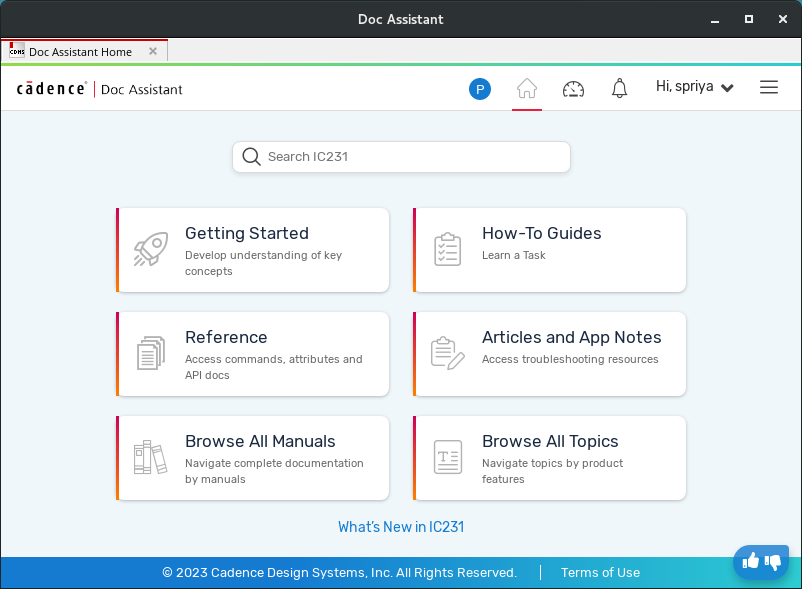
In case your tool's installation and Doc Assistant installation are in different directories, set the CDA_EXE_CUSTOM_PATH environment variable to point to the directory where Doc Assistant is installed.
Doc Assistant on Windows Machines - Launching from a Network Drive
On Windows machines, due to security reasons, Doc Assistant does not launch from network drives. However, you can set the environment variable QTWEBENGINE_DISABLE_SANDBOX=1 to launch Doc Assistant from a network drive.
Signing In To Doc Assistant
When in Online Documentation mode, you can sign in to Doc Assistant using your email ID. This helps you to personalize Doc Assistant settings.
To sign in to Doc Assistant:
- Click the Sign In (
 ) icon on the top of the menu bar.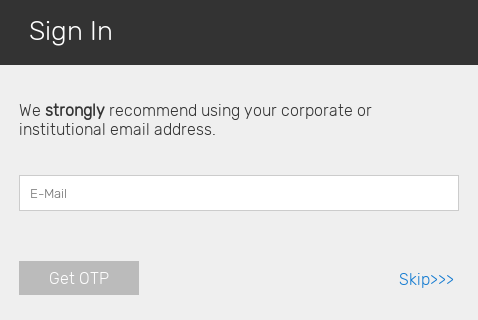
- Type your email address in the E-Mail field.
- Click Get OTP.
An OTP is sent on your Email ID.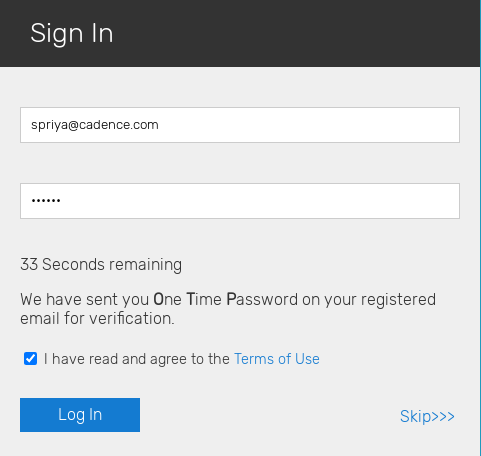
- Enter the OTP that you receive on your email ID in the OTP field within 60 seconds. In case of any delay, click Skip to return to the home page and wait for 60 seconds before signing in.
- Select the I have read and agree to the Terms of Use check box and click Log In.
You are signed into Doc Assisant.