
Cell Bindings Table in the Table View Tab
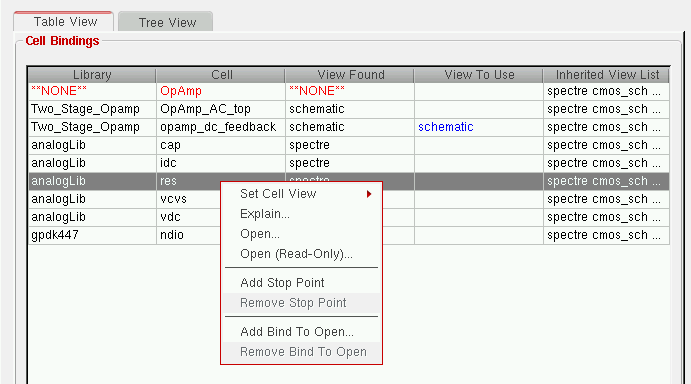
The Cell Bindings table displays the library and view bindings of cells.
You can sort the cells in the Cell Bindings table by clicking on any of the column headings. You can also move the columns by clicking-and-dragging the column heading.
Mark As External HDL Text (AMS UNL only)
This option is used to bind a cellview to an external text view and is applicable only in AMS UNL flow.
This option has been added as another HED cellview binding property selection for use in the AMS UNL flow that can be used to bind a cellview to an external text file, which can be accessed or passed through -v/-y/-f/-reflib on the xrun argument.
The irun argument is also valid but will be removed in the future releases.
For more information on the AMS UNL flow, refer to
Cell Bindings Table Context-Sensitive Menu
Right-clicking over the contents of the Cell Bindings table displays a context menu that contains options specific for use with the cell bindings listed.
Multiple Selection and Action
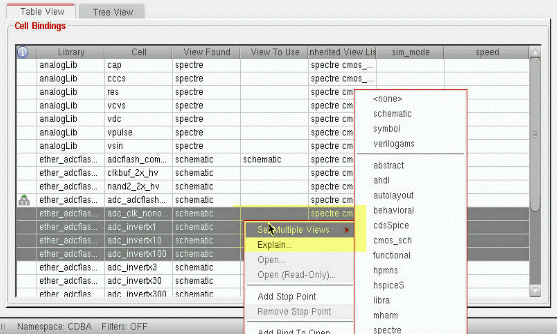
You can select multiple items in the Cell Bindings table, and apply specific operations to all of them, such as setting a binding, applying property values, setting a view list, setting stop points, and so on, using the context-sensitive menu.
The Hierarchy Editor only applies the selected operation on those items where it makes sense to do so. For example, if an item is not editable it would be skipped.
Related Topics
Performing Multiple Selection Using Cell Bindings Table
Instance Bindings Table in the Table View Tab
Displaying the Tree View in Hierarchy Editor
Virtuoso Hierarchy Editor Editing Form
Return to top