
Displaying Properties in Hierarchy Editor
The Hierarchy Editor displays properties in property columns. These columns are not displayed by default.
-
Choose View – Properties.
The Hierarchy Editor displays one column for each property that is in the property dictionary. It also displays any property columns that you added in a previous session for properties that are not in the property dictionary.
Property columns are displayed in both the table view and the tree view. Properties that are set directly on an object are displayed in blue (the default color for user-defined values); inherited properties are displayed in black.The View – Properties command is not available if the your_install_dir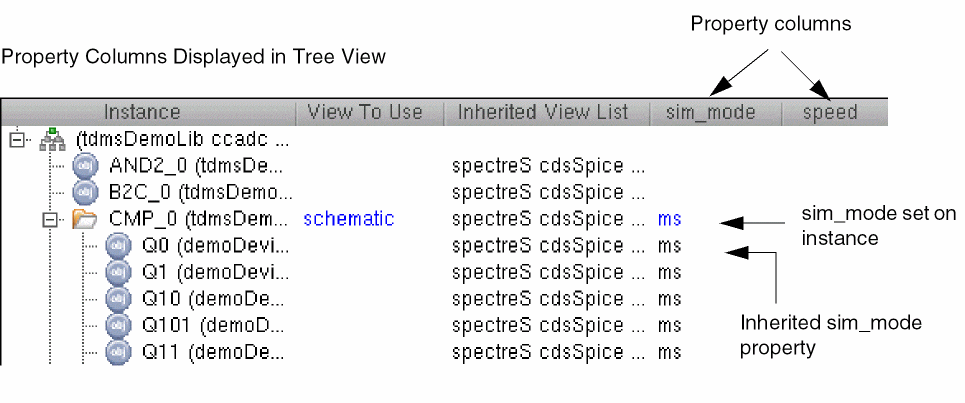
/share/cdssetup/registry/props/directory or the your_install_dir/share/cdssetup/amsdirectory does not exist in your Cadence tools installation.
You can edit any of the property columns to set properties on your design configuration.
To display property columns by default whenever the Hierarchy Editor is started,
- Choose View – Properties.
- Choose File – Save Defaults.
- In the Save Defaults dialog box, specify the directory in which to save your default settings, then click OK.
To hide or display individual property columns,
-
Right-click the property column heading.
A pop-up menu, listing all the columns that can be displayed, appears. The columns that are currently displayed have a check-mark next to them.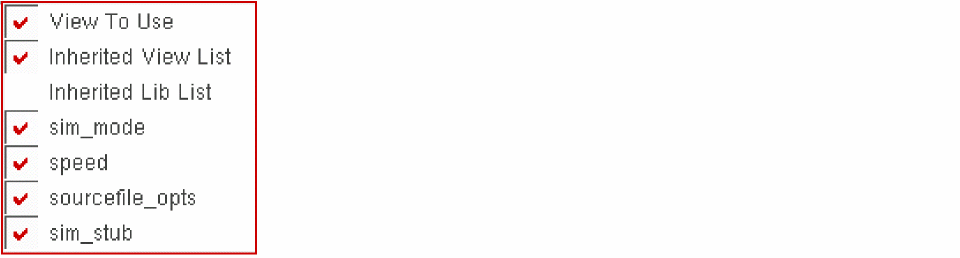
-
Select the property columns that you want to display and deselect the ones that you want to hide.
The tree view or table view display is updated to reflect your choices. These settings remain in effect for the session only and are not saved in thehed.envfile when you save your defaults.
To sort the cells in the Cell Bindings or Instance Bindings table by property,
To display a description of the property,
-
Place your cursor over the property column heading.
A description of the property is displayed. If the property column has a drop-down list of value choices, you can also place your cursor over each value to see its description. A description of the property and its values is displayed only if it was provided as part of the property definition.
Related Topics
Properties Setting on the Design
Return to top