
C
Text-to-Symbol Generator
The text-to-symbol generator (TSG) is a Cadence® application program that automatically generates symbol cellviews for the Virtuoso® Schematic Editor and subsequent simulation processes. TSG provides a quick way to generate a symbol from a list of pins in a TSG file.
This appendix describes the TSG file syntax and illustrates the use of various TSG constructs.
- Symbol Shape Generated by TSG
- TSG Symbol Description File
- TSG Template File
- Clock and Negation Indicators
- Backannotation
- Simple File Example
- Complex File Example
- Extended File Example
- TSG Symbol Description File Structure
- Executing TSG
Symbol Shape Generated by TSG
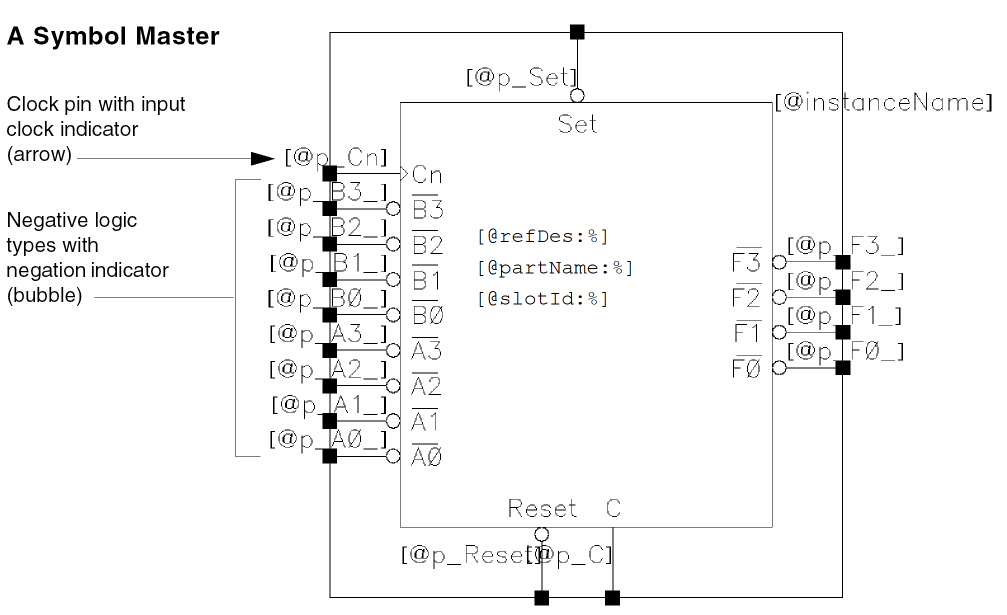
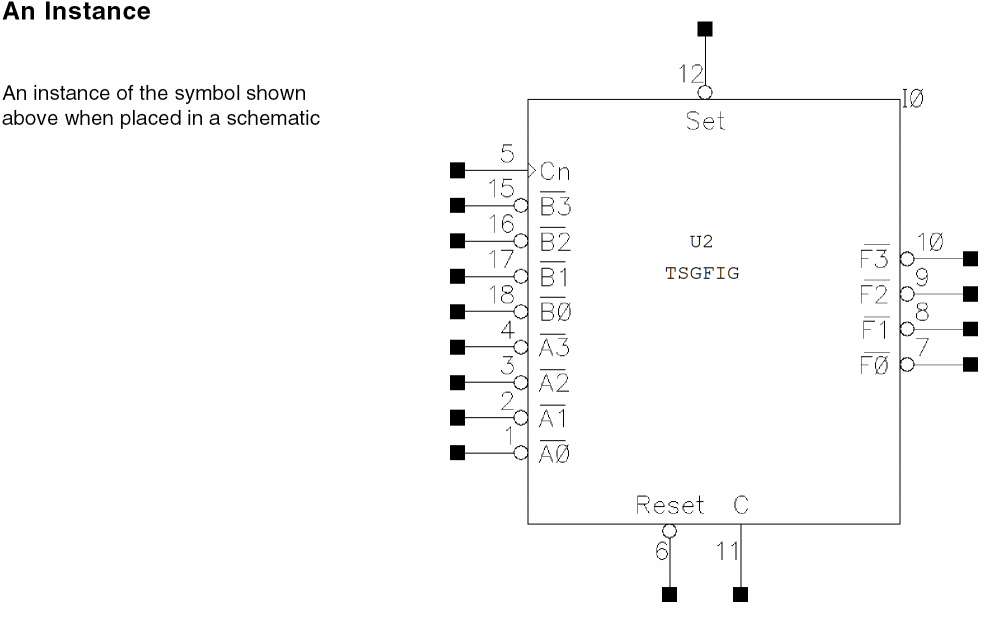
All symbols generated by TSG are rectangular in shape. The default origin of a symbol is located at the upper left pin terminal. The following symbol was created by TSG.
TSG Symbol Description File
The TSG symbol description file is the primary input file that controls the symbol to be generated by TSG. This ASCII file is built using the constructs detailed in this appendix. You can create a simple file containing only the cell name and the pin names, or you can add constructs to enhance the symbol description.
Defaults and error checking are built-in features of TSG. TSG has extensive error-checking and error-handling capabilities. It checks for syntax, variable-type, and logical errors in the TSG symbol description file. Depending on the severity of a detected error, TSG either exits the generation of the current symbol or displays an error message and continues processing.
TSG Template File
The TSG template file is a secondary input file that specifies default controls for symbols to be generated by TSG. The TSG template file uses the same format as the TSG symbol description file. Within this file, you can configure symbol labels, properties, and characteristics such as pin spacing, stub length, and origin placement.
A template file helps avoid unnecessarily large TSG description files. You can specify TSG constructs shared by a large group of symbols within a single template file. This allows you to create TSG symbol description files that contain only constructs specific to a particular symbol.
The first time you use TSG during a schematic editor session, a default template file is automatically loaded. This default template file is always used unless you specify an optional template file argument in the call to execute TSG, as described later.
Settings specified within the currently active template file will apply to all symbols generated by TSG unless overridden by constructs specified within the TSG symbol description file. You can find available template filenames within the tsgTemplateMasters list, which is defined in the schConfig.il file. The default template file that is chosen depends on the initial setting of the tsgTemplateType environment variable.
Clock and Negation Indicators
To alter the appearance of certain pins, you can specify special pin graphics: for example,
- To identify a clock pin, you can draw a clock indicator (a small triangle) at the beginning of the pin wire
- For a negative logic pin, you can draw a negation indicator (a bubble) at the beginning of the pin wire
The example TSG files and associated figures illustrate some of these capabilities. Refer to the PinGraphicSpec construct and the wireLength and pinConnector symbol parameters.
Backannotation
After laying out parts for printed circuit boards (PCB), you often need to backannotate to schematics or PCB maps parameters, such as pin numbers and reference designators of symbol instances.
You can include constructs in the TSG symbol description file that specify the properties and parameters required to support the backannotation operation.
Simple File Example
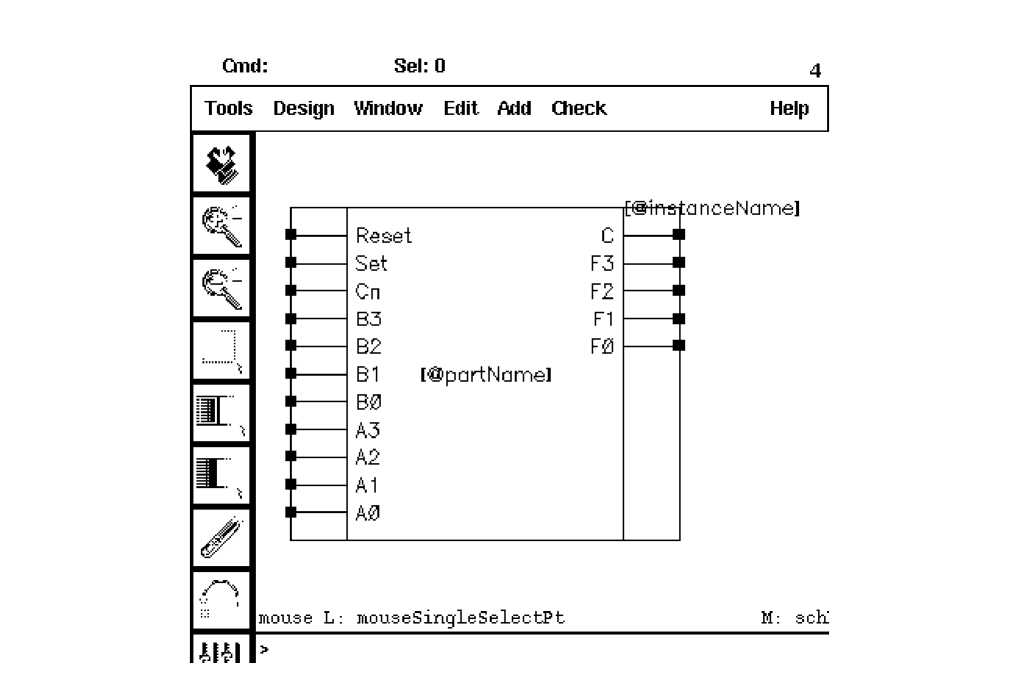
The simplest TSG symbol description for an SN74LS181 symbol has the following format:
defcell("tsgfig1"
    input(A0 A1 A2 A3 B0 B1 B2 B3 Cn Set Reset)
    output(F0 F1 F2 F3 C)
    defsymbol(symbolProps( partName = "TSGFIG1"))
)
The following example shows a symbol generated from the TSG symbol description file shown above.
Complex File Example
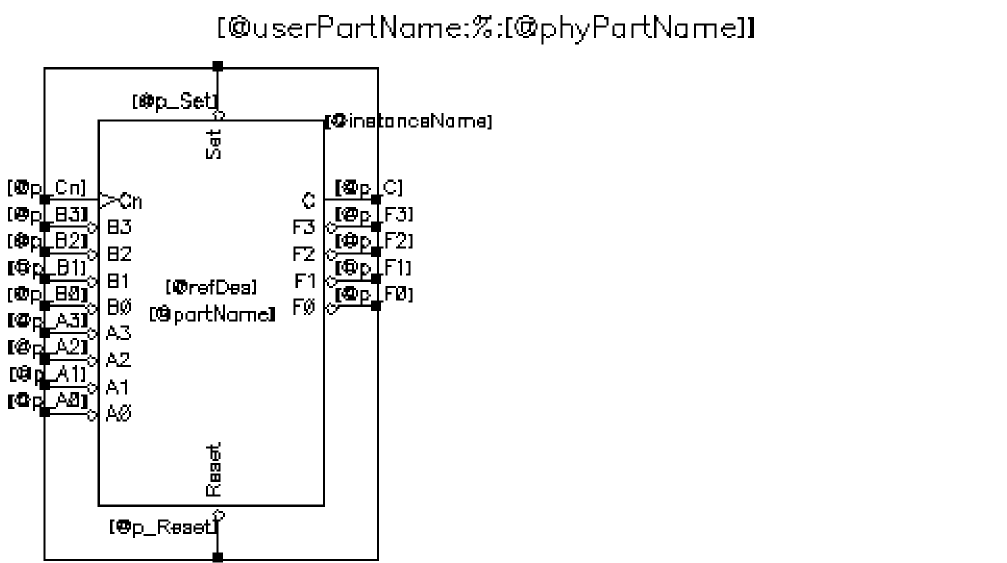
A more elaborate version of a TSG symbol description file for an SN74LS181 symbol has the following format. This symbol was generated using the PCB package.tsg template file as an argument to the tsg command:
tsg( "exampleLib" "~/tsgFiles/fig2.tsg"
    prependInstallPath("samples/symbolGen/package.tsg") )
defcell("tsgfig2"
    input( A0 A1 A2 A3 B0 B1 B2 B3 Cn Set Reset)
    output( F0 F1 F2 F3 C)
    defsymbol(
        symbolProps(
            vendorName = DEMO
            partName = "TSGFIG2"
            refDes = U2 )
        pinNumSpec(
            A0:1   A1:2    A2:3    A3:4
            B0:18  B1:17   B2:16   F0:7
            F1:8   F2:9     F3:10   C:11 )
        pinLocSpec(
            topPins( Set)
            bottomPins( Reset) )
        pinGraphicSpec(
            A0:actLo   A1:actLo   A2:actLo        A3:actLo
            B0:actLo   B1:actLo   B2:actLo        B3:actLo
            Cn:clock   Set:actLo  Reset:actLo     F0:actLo
            F1:actLo    F2:actLo   F3:actLo        C:actHi  )
)
)
The following example shows a symbol generated from the TSG symbol description file shown above.
Extended File Example
The following example demonstrates many of the available TSG constructs.
defcell("count4"
    input("clock" "reset")
    output("a0" "a1" "a2" "a3")
    defsymbol(
       symbolProps(
          partName = "count4" ; cellview prop with valueType=string
          pinNum   = (4 (0 24))
          timeVal  = time("Jan 1 12:00:00 1993")
          color    = ("red" ("red" "green" "blue"))
          defTermProp(
              input Iih = 1.24 ) ; all input pins get property "Iih".
          defTermProp(
              all b=6 )       ; all pins get property "b".
       symbolParam(
          wireSpacing  = 0.125000
          wireLength   = 0.250000
          vSideLength  = 0.000000
          hSideLength  = 0.000000
          origin       = topLeftPin
          pinConnector = "block"
       )
       symbolLabels(
          defLabel( name("[@partName]")
              location( "(xleft + xright)/2:(ytop + ybottom)*3/4")
              labelType(NLPLabel)
              layer(device)
              purpose(label)
           )
           defLabel( name("[@instanceName]")
              location( "xleft:(ytop + ybottom)/2")
              labelType(NLPLabel)
              justification(upperLeft)
              layer(instance)
              purpose(label)
              apply(cellview)
              fontHeight(0.1)
           )
           defLabel( name("{pinName}")
              location( "1.15*stubLength:0")
              justification(centerLeft)
              apply(left)
           )
           defLabel( name("[@p_{pinName}]")
              location( "-stubLength/2:0.03125")
              labelType(NLPLabel)
              layer(pin)
              purpose(annotate)
              apply(right)
           )
       )
       pinNumSpec( "a0":16  "a1":17  "a2":18 )
       pinGraphicSpec( "reset":ieeeActLo  "clock":clock )
    )
)
The following example shows a symbol generated from the TSG symbol description file shown above.
TSG Symbol Description File Structure
Basic File Structure
A TSG file is an ASCII file used as input to TSG for generating symbol cellviews. To create the file, you must use a special format that includes several constructs and keywords. All constructs have one of the following forms (CF = construct format):
|
=keyword( [variable] ... [variable] [construct] ... [construct] ) |
|
|
=keyword( [keyword = value] ... [keyword = value] [construct] [construct] ) |
|
Some constructs can appear only inside certain other constructs. Some keywords can appear only once within a construct.
To define more than one symbol in a TSG file, you can use multiple defcell constructs. Unless otherwise specified, draw input pins on the left side, output pins on the right side, and I/O pins along the top.
To add comments to a TSG file, use the Cadence SKILL language comment characters ; or /* */ .
An illustration of the structure of the defcell construct, which is the only top-level construct allowed in a TSG file, follows.
Syntax
defcell(t_cellName[t_pinType(t_pinName… ) ] [ defsymbol( [t_viewName] [ symbolProps(t_propName=g_propValue… [ defTermProp(t_defPinName t_propName=g_propValue) ] … [ defVisibleProp(t_propName=g_propValue[labelAttr] ] … ) ] [ symbolParam( [ wireSpacing =f_spacing ] [ wireLength =f_length ] [ vSideLength =f_vLength ] [ hSideLength =f_hLength ] [ pinConnector =t_connector] [ origin =t_origin] ) ] [ symbolLabels( defLabel( name(t_labelText)labelAttr… ) ] [ controlParam( [ queryMode =b_boolean] ) ] [ pinNumSpec( [t_pinName:x_pinNumber] … ) ] [ pinLocSpec( [ leftPins(t_leftPinName…) ] [ rightPins(t_rightPinName…) ] [ topPins(t_topPinName…) ] [ bottomPins(t_bottomPinName…) ] ) ] [ pinGraphicSpec( [t_pinName:t_pinGraph] … ) ] [ pinLogicSpec( [ positive(t_posPin… ) ] [ negative(t_negPin… ) ] ) ] [ clockPins(t_clockPin… ) ] ) ] )
Arguments
Executing TSG
TSG runs as a separate SKILL program in the Cadence environment to generate symbols that you can place as instances in schematics.
Running TSG from SKILL requires a library name, an input filename, and optionally a template filename. TSG first reads the input parameters from the TSG file, then uses any symbol parameters contained in the template file that are not specified in the input file. This allows you to have one large template file that specifies most of the symbol parameters and smaller TSG files that contain only pin specifications. The resulting cellview is saved to the library identified in the command.
- Start the Cadence design environment.
-
In the CIW, type the SKILL function call
tsg(
libName is the name of a preexisting library.libNametsgFile[tsgTemplateFile] ) )
tsgFile is the name of the TSG symbol description text file. If the TSG file is not in the current directory, include the full path to the file.
tsgTemplateFile is the name of an optional TSG template file. If the template file is not in the current directory, include the full path to the file.
Example:tsg("myLib" "pathToTSGFile")
TSG Processing Order
When you run TSG, the following sequence of steps is performed.
-
TSG fetches the first unprocessed
defcellfrom thetsgFileNamefile and parses it to extract the symbol information.
Any syntax error messages are displayed in the CIW and the program continues. - If the symbol does not exist in the specified library, TSG goes to step 6.
-
If you set the
queryModeparameter tot(true), TSG warns you of the existence of the symbol view and asks whether to overwrite the existing symbol with one that it is going to generate.
If you respondyes, TSG goes to step 6. If you respondno, TSG goes to step 4. If you setqueryModetonil(not true), TSG goes to step 6. -
TSG asks whether you want to save the symbol under a different cell name.
If you respondyes, TSG continues. If you respondno, the symbol is not saved and TSG goes to step 7. - TSG asks you to specify a new cell name for the symbol.
- TSG generates and saves the symbol in the specified library.
-
TSG checks for an unprocessed
defcellin thetsgFileNamefile. - If such constructs exist, TSG returns to step 1. If not, it stops execution and passes control to the Cadence design system.
After program execution, you can find any error messages printed by TSG in the Command Interpreter Window (CIW).
Creating Symbols Automatically from a Schematic
A convenient feature available from the schematic editor allows you to create a symbol with the same pins that are found within an existing schematic, Verilog, or other cellview.
The TSG symbol generator is automatically invoked whenever you create symbols using Create – Cellview – From Cellview or Create – Cellview – From Pin List, which are available from the schematic and symbol windows. You can use the Symbol Generation Options form to override defaults or to help create new TSG template files.
The Symbol Generation Options form can be accessed by turning on the Edit Options button on the Cellview From Cellview or Cellview From Pin List form.
Return to top