
13
Customizing the Virtuoso Schematic Editor
The Virtuoso® Schematic Editor is an open application that you can customize. You can change its appearance and behavior. In general, you can choose a preference or customization once you are in a session. When you find a desired behavior or customization, you can make it the default for the product. For further details on file setup, see
This chapter provides information about the following:
- Setting Default Schematic Application
- Customizing Pull-Down and Pop-Up Menus
- Customizing Object-Sensitive Menus
- Understanding Initialization and Setup Files
- Customizing Global Editor Variables for Form Fields
- Customizing the Plot Configuration
-
Customizing Schematic Object AttributesFor information on customizing and creating your own workspace configurations in Virtuoso® Schematic Editor see Working With Workspaces in the Virtuoso Design Environment User Guide.
Setting Default Schematic Application
You can set the default application to be invoked when viewing a particular cellview by selecting File – Set Default Application.
For example, you can choose to always display Schematics L or Schematics XL when viewing a schematic.
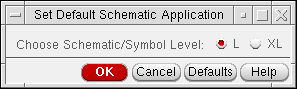
For more information see
Customizing Pull-Down and Pop-Up Menus
You interact with the schematic editor through pull-down menus, pop-up menus, the icon bar, and bindkeys. You can customize all schematic editor menus. In general, you copy files and edit them using a text editor.
For general information about customizing menus, see the file
your_install_dir/tools/dfII/etc/tools/menus/README
For an example of how to customize schematic editor menus, see the file
your_install_dir/tools/dfII/etc/tools/schematic/README_menus.txt
The menu files make enable you to define each menu item (for example, the menu itemSymbol, its menu text, and the callBack function) and to organize these definitions into the respective pull-down and pop-up menus. You can change menu definitions without having to rebuild the Cadence® SKILL language context to see the change.
You or your technical administrator can customize the menus. The menu file definitions are easier to maintain from one release to the next because they are independent of the code that implements the menus. You do not need to know the SKILL symbol name of a menu item to change its text. Instead, you modify the definition in the menu file.
Default Menu Definitions
The default menu definitions are in
your_install_dir/tools/dfII/etc/tools/menus/schematic.menus
For information regarding the customization of these menu items, refer to
your_install_dir/tools/dfII/etc/tools/schematic/menus.sample
Sample Menu File
You can use the sample customization file as a starting point for the schematic editor. It redefines the banner menu’s order and labels.
For site customization, make your changes and copy the file or files into
your_install_dir/local/menus/schematic.menus
your_install_dir/local/menus/schView.menus
It is more likely that you will customize only the schematic.menus file mentioned above showing default menu definitions, but schView.menus is listed for completeness.
You can also customize menus for different projects or work areas. Copy the customization files to
your_install_dir/local/workOrProjectDir/menus/schematic.menus
your_install_dir/local/workOrProjectDir/menus/schView.menus
For personal customization, copy the files to
~/menus/schematic.menus
~/menus/schView.menus
The definitions in the menus files are prefixed with schc; for example, schcSaveItem. Change the contents of the definitions rather than changing the variables holding the definitions because some of the schematics menu code processes specific definitions.
Customizing Object-Sensitive Menus
You can customize object-sensitive menus (OSMs) in the following ways:
-
Reassigning the OSM to a different mouse button
The default bindkey file assigns OSMs to the middle mouse button. - Registering a custom menu with the pop-up manager
-
Issuing a Cadence SKILL command to register a
menuHandlefor a specificcategory
This procedure customizes which menu pops up when you place the cursor over specific objects.
You can type the SKILL functions in the Command Interpreter Window (CIW), in which case they remain active for the session only. Or you can type the SKILL functions in your .cdsinit file, in which case they become active whenever you start the schematic editor.
Example of Customizing the Instance Object-Sensitive Menu
Use the following procedure to customize an Instance OSM to display these commands: Stretch, Copy, Edit Properties, Descend Read, and Fit.
-
Define each command in the new menu.
; newMenuItem = hiCreateMenuItem(
; define new variable
;   ?name ’newMenuItem
; use same variable name
;   ?itemText "Menu String"
; text displayed on menu
;   ?callback "MenuCommand()"
; skill command to be executed
; )
newPopUpStretch = hiCreateMenuItem(
 ?name       ’newPopUpStretch
 ?itemText   "Stretch"
 ?callback   "schHiStretch()"
)
newPopUpCopy = hiCreateMenuItem(
 ?name        ’newPopUpCopy
 ?itemText    "Copy"
 ?callback    "schHiCopy()"
)
newPopUpEditInstance = hiCreateMenuItem(
 ?name        ’newPopUpEditInstance
 ?itemText    "EditInstance"
 ?callback    "schHiObjectProperty()"
)
newPopUpDescendRead = hiCreateMenuItem(
 ?name        ’newPopUpDescendRead
 ?itemText    "DescendRead"
 ?callback    "schHiDescendRead()"
)
newPopUpFitPlus = hiCreateMenuItem(
 ?name       ’newPopUpFitPlus
 ?itemText   "Fit"
 ?callback   "hiZoomAbsoluteScale(getCurrentWindow() 0.9)"
)
-
Put the following menu items into a single menu.
; newMenu = hiCreateMenu(
; create new menu ’newMenu
; use same variable name "Title String"
; text displayed at top edge of menu
; list(
;     menuItem1    : list of menus as
;     menuItem2
; defined by . . .
; hiCreateMenuItem
;    )
; ""
; )
newInstPopUpMenu = hiCreateMenu(
  ’newInstPopUpMenu
  "Instance"
  list(
      newPopUpStretch
      newPopUpCopy
      newPopUpEditInstance
      newPopUpDescendRead
      newPopUpFitPlus
      )
  ""
)
-
Register the new menu with the schematic pop-up manager.
; schRegisterPopUpMenu( "objectType" menuName)
schRegisterPopUpMenu("instance" newInstPopUpMenu)
Understanding Initialization and Setup Files
You can customize elements of the user interface by modifying these files.
Converting a Schematic from a 0.125 Grid to a 0.1 Grid
Setting a new grid spacing can cause some of your existing symbols, pins, and wires to go off grid. The best way to convert a schematic from a 0.125 grid to a 0.1 grid, is to change the values in the .cdsenv file by doing the following:
.cdsenv file to set the default for every library. It is not advisable to set up different grids or different snap spacing for different libraries.-
In your
.cdsenvfile, changeschematic symGridSpacing float 0.125000 nil schematic schGridSpacing float 0.125000 nil
toschematic symGridSpacing float 0.100000 nil schematic schGridSpacing float 0.100000 nil
-
To change the snap spacing, set
schematic symSnapSpacing float 0.050000 nil
schematic schSnapSpacing float 0.050000 nil
Customizing Global Editor Variables for Form Fields
These IL variables describe the “indirection map” used by the schematic editor. You can customize these public global SKILL variables, which relate directly to the form field settings. These variables are stored in the schConfig.il file.
To edit these variables, you need to open the configuration file.
The following tables describe variables for customizing form fields.
Schematic Editor Variables
| Schematic Form Field Description | Variable Name |
|---|---|
Symbol Editor Variables
| Symbol Form Field Description | Variable Name |
Symbol Generation (tsg) Variables
The following IL variables describe the “indirection map” used by the schematic editor user interface. You can customize these public global SKILL variables used on command forms. These variables are stored in the schConfig.il file.
| Symbol Form Field Description | Variable Name |
To edit these variables, you need to open the configuration file.
HDL (Verilog and Verilog-A) Variables
Use the following variables for customizing form fields for HDL.
AMS Netlisting Variables
You can set severities for the following AMS checks:
| Form Field Description | Variable Name |
schBlockPinAttrs
schBlockPinAttrs = list(pinTypelist(edgeDirectionterminalDirection) … )
Description
Sets the pin direction implied by connecting to a specific edge of a block. This IL structure describes the mapping of the block edge to pin type and direction. This map is used by the schematic user interface to provide a simplified approach for selecting the pin direction implied by connecting a wire to a specific edge of a block.
To edit this variable, you need to
Arguments
pinType and terminaldirection uniquely identify a pin master in the schSymbolPinMasters map.
Example
schBlockPinAttrs = list(
    "block"
     list("left"   "input")
     list("right"  "output")
     list("bottom" "inputOutput")
     list("top"    "inputOutput")
)
schBlockTemplate
schBlockTemplate = list( list(blockName blockSizelist(label label… ) ) )
Description
Sets the block sample sizes during top-down block creation. See Add Custom Pin.
To edit this variable, you need to
Put choices here for the block sample names, sizes, and labels that are used during block creation.
Arguments
Example
schBlockTemplate = list(
    list("freeform"
        list(0:0 0:0)
        list(
            list("[@instanceName]" "instance label" .08125
                 "stick" "NLPLabel")
        list("[@cellName]" "logical label" .08125
                 "stick" "NLPLabel")))
    list("small"
        list(0.0:0.0 1.0:1.0)
        list(
            list("[@instanceName]" "instance label" .075
                 "stick" "NLPLabel")
            list("[@cellName]" "logical label" .075
                 "stick" "NLPLabel")))
    ...
)
schCycleViewNameExclusionList
schCycleViewNameExclusionList = list(
excludedView …
)
Description
Sets the exclusion for views in the list from being displayed on the Add Instance form.
To edit this variable, you need to
Arguments
schHdlEditAfterError
schHdlEditAfterError = { t | nil }
Description
Edits Verilog®-A or Verilog simulator descriptions again if a syntax error is found (t).
Example
schHdlEditAfterError = nil
schHdlCrossViewCheck
schHdlCrossViewCheck = { t | nil }
Description
Enables (t) or disables cross-view checking after editing Verilog or Spectre® HDL. If turned on, cross-view checks are performed after editing Verilog or Spectre HDL.
schHdlCrossViewString
schHdlCrossViewString = checkView
Description
Specifies a particular set of views to check against the edited view.
Arguments
|
The particular view to check; must be enclosed in quotation marks. Setting checkView to |
Example
schHdlCrossViewString = "schematic symbol"
schHdlPrintCommand
schHdlPrintCommand = command
Description
The UNIX command used by the File – Print command in the Verilog or Spectre HDL view window.
Arguments
Example
schHdlPrintCommand = "lw -Plw1"
schHdlUpdateSymbolAfterEdit
schHdlUpdateSymbolAfterEdit = flag
Description
After you edit Verilog or Verilog-A text, the symbol associated with the cell is conditionally updated to match the pinout of the Verilog module.
Arguments
|
Controls the updating of the symbol. |
Example
updatedschHdlUpdateSymbolAfterEdit = "query"
schPinMasters
schPinMasters = list( list(pinUsage… list(pinDirectionterminalDirection pinMaster… ) ) )
Description
Sets the pin masters choices that are used when creating a pin. Pin masters are selected based on their usage and their pin and terminal directions. Sample pin masters are in the basic library.
To edit this variable, you need to
You can list as many choices as you want; for example, schematic, input, offsheet, and iopin.
Use offsheet only when you are going to connect the added pins to another sheet in a multisheet schematic.
Arguments
Example
schPinMasters = list(
    list(list("schematic" nil)  list("offSheet" t))
    list("input" "input"
        list("basic" "ipin"   "symbol")
        list("basic" "ipin"   "symbolrOff"))
    list("output" "output"
        list("basic" "opin"   "symbol")
        list("basic" "opin"   "symbollOff"))
    list("inputOutput" "inputOutput"
        list("basic" "iopin"  "symbolr")
        list("basic" "iopin"  "symbolrOff"))
    list("switch" "switch"
        list("basic" "iopin"  "symbolr")
        list("basic" "iopin"  "symbolrOff"))
)
schPinNetExprPlacement
schPinNetExprPlacement = list(
list (position justify xoffset yoffset)
...
)
Description
Stores label settings that determine pin net expression placement. It holds an association list with pin directions as keys, and disembodied property lists (DPLs) as values. The fields of each DPL stores the position, xOffset, yOffset, and justify values required for the associated pin direction. Position and justification are stored as strings, while offsets are specified in user units.
schPinNetExprPlacement variable can be set in install_dir/tools/dfII/samples/local/schConfig.il.Arguments
Example
schPinNetExprPlacement = ‘ (
("input" (nil
position "upperLeft"
xOffset 0.0
yOffset 0.0
justify "lowerRight"))
("output (nil
position "lowerRight"
xOffset 0.0
yOffset 0.0
justify "lowerLeft"))
("inputOutput" (nil
position "upperCenter"
xOffset 0.0
yOffset 0.03125 / * for example */
justify "lowerCenter"))
)
schPinNetExprGenFunc
schPinNetExprGenFunc = list(
list( termName)
...
)
Description
Returns, from a terminal name, a list consisting of the generated net expression property and the default global net name.
The schPinNetExprGenFunc global variable can be set in install_dir/tools/dfII/samples/local/schConfig.il.
The default schConfig.il points schPinNetExprGenFinc to a default function. Given a terminal name, this function returns the same value as a property name, and depends upon a “!” character for the default net name (see the example below).
Arguments
|
The terminal name whose net expression property and default global net name you want to return. |
schPinNetExprGenFunc = list(
list(termName strcat (termName "!"))
)
schPlotTemplate
schPlotTemplate = filename
Description
This IL variable describes the default schematic plot template file that is loaded when the Plot command is started for the first time.
To edit this variable, you need to
Arguments
Example
schPlotTemplate = "~/plot.tf"
schPropertiesFilter
schPropertiesFilter = list( list(objectlist(propName… ) ) … )
Description
Filters out the parameter property values on the Edit Properties form. Using the following nested list format, you can list the property names you want the Edit Properties command to skip over.
Arguments
schSelPropertyNameList
schSelPropertyNameList = list( list(viewNamelist( list(aliasNamerealName[attrList] ) … ) … ) … )
Description
Sets the property names for the Select By Property and the Replace and Find commands.
To edit this variable, you need to
Arguments
Example
schSelPropertyNameList = list(
list("schematic"
    list(
    list("instName" "name"
        list(’("objType" "inst") ’("purpose" "cell")))
list("netName" "name" list(’("objType" "net")))
    list("pinName" "name" list(’("objType" "term")))
    list("master" "master")
    list("libName" "libName")
    list("cellName" "cellName")
    list("fontStyle" "font")
    list("fontHeight" "height")
    list("orient" "orient")
    list("partName" "partName")
    list("phyPartName" "phyPartName")
    list("power" "power")
    list("refDes" "refDes")
    list("technology" "technology")
    list("simMonitor" "schSimSignalName" list(’("objType" "inst")))
    )
)
)
schSheetMasters
schSheetMasters = list( list(sheetChoice… ) list(sizeNamesheetMaster… ) …
Description
Sets the choices for sheet border sizes and types on the Create Schematic Sheet form that used for a new sheet.
To edit this variable, you need to
Arguments
Example
schSheetMasters = list(
list("basic" "continue")
list("A"
    list("US_8ths" "Asize"   "symbol")
    list("US_8ths" "Asize_c" "symbol"))
list("B"
    list("US_8ths" "Bsize"   "symbol")
    list("US_8ths" "Bsize_c" "symbol"))
)
schSimProbeMasters
schSimProbeMasters = list( list(probeFormatprobeMaster) … )
Description
Sets the simulation probe (schematic monitors) to be used for a specified format.
To edit this variable, you need to
Arguments
Example
schSimProbeMasters = list(
list("<state>"         list("basic" "simState" "symbol"))
list("<time>:<state>"  list("basic" "simState" "symbol"))
list("<name>=<state>"  list("basic" "simState" "symbol"))
list("<name>=<time>:<state>" list("basic" "simState" "symbol"))
)
schSRCPackagedChecks
schSRCPackagedChecks = list( list(valuelist(checkTypeseverity) … ) )
Description
Sets the severities and values for the various SRC checks. Added offsheetConnCheck to Normal, Logical Only, and Physical Only package groups.
To edit this variable, you need to
Arguments
Example
schSRCPackagedChecks = list(
list("Normal"
    list("floatingNets"      "warning")
    list("floatingInput"     "warning")
    list("floatingOutput"    "warning")
    list("floatingIO"        "warning")
    list("floatingSwitch"    "warning")
    list("shortedOutputs"    "warning")
    list("offsheetConnCheck" "ignored")
    list("unconnectedWires"  "ignored")
    …
)
schSymbolLabelChoices
schSymbolLabelChoices = list( list(choicelist(texttypelayerName purpose) ) … )
Description
Sets the symbol label attributes on the Add aSymbol Label form.
Arguments
Example
list("instance label"
list("[@instanceName]" "NLPLabel" "instance" "label"))
list("device annotate"
list("[@refDes]" "NLPLabel" "device" "annotate"))
list("logical label"
list("[@partName]" "NLPLabel" "device" "label"))
list("physical label"
list("[@userPartName:%:[@phyPartName]]" "NLPLabel" "annotate" "drawing2"))
list("pin name"
list("{pinName}" "normalLabel" "pin" "label"))
list("pin annotate"
list("[@p_{pinName}]" "NLPLabel" "pin" "annotate"))
list( "art instance label"
list( "cdsName()" "ILLabel" "annotate" "drawing7" ))
list( "art pin annotate"
list( "cdsTerm(\"{pinName}\")" "ILLabel" "annotate" "drawing8" ))
list( "art device annotate"
list( "cdsParam(1)" "ILLabel" "annotate" "drawing" ))
)
schSymbolPinMasters
schSymbolPinMasters = list( list(offsetIncrementmaxIncrementCount) list(pinTypelist(terminalDirectionpinMaster) … ) … )
Description
Sets the direction and type of pin masters on the Create Pin form for creating a symbol pin.
The first element in the schConfig.il file lists only one entry for the number of increments and size.
To set the default Type to square, refer to the schSymbolPinUsage environment variable.
Arguments
Example
schSymbolPinMasters = list(
list(0.03125 32)
list("square"
    list("input"       list("basic" "sympin" "symbolNN"))
    list("output"      list("basic" "sympin" "symbolNN"))
    list("inputOutput" list("basic" "sympin" "symbolNN"))
    list("switch"      list("basic" "sympin" "symbolNN")))
list("round"
    list("input"       list("basic" "circle" "symbol"))
    list("output"      list("basic" "circle" "symbol"))
    list("inputOutput" list("basic" "circle" "symbol"))
    list("switch"      list("basic" "circle" "symbol")))
)
schViewMasters
schViewMasters = list( list(viewNametranslateTotranslateFrom) … )
Description
Sets the default view used for translation on all Cellview From… forms.
To edit this variable, you need to
Arguments
|
The name of the SKILL function for translating from this view to a pin list. |
|
|
The name of the SKILL function for translating from a pin list to this view. |
If a translation routine is nil, translation in that direction is undefined.
Synopsis of Translation Function
View to pinlist: funcName(t_libName t_cellName t_viewName) => l_pinList
Pinlist to view: funcName(t_libName t_cellName t_viewName l_pinList) => t/nil
t_libName, t_cellName, t_viewName: Defining the library, cell, and view names.
l_pinList: A DPL list describing the cellview ports, cellview properties, and port properties in the following format:
<l_pinList> := ( nil ports <portList> [props <propList>] )
<portList>  := ( <port> [ <portList> ] )
<port>      := ( nil name "termName" direction "termDir"
                 [prop <propList>] [pins <pinList>] )
<propList>  := ( <prop> [ <propList> ] )
<prop>      := ( nil s_propName t_propValue s_propName
                 t_propValue )
<pinList>   := ( <pin> [ <pinList> ] )
<pin>       := ( nil name "pinName" accessDir "pinAccessDir"
                 [prop <propList>] )
Example
schViewMasters = '(
    ("schematic"  "schSchemToPinList"    "schPinListToSchemGen")
    ("symbol"     "schSymbolToPinList"   "schPinListToSymbolGen")
    ("functional" "schVerilogToPinList"  "schPinListToVerilog")
    ("behavioral" "schVerilogToPinList"  "schPinListToVerilog")
    ("system"     "schVerilogToPinList"  "schPinListToVerilog")
    ("veriloga"   "schVerilogAToPinList" "schPinListToVerilogA");
    ("layout"     "schLayoutToPinList"   nil)
)
schViewMastersOptionFunc
schViewMastersOptionFunc = list( list(viewNameoptionsFunc) … )
Description
The text-to-symbol generator (TSG) uses this variable to determine whether the creation function of a particular destination cellview (in this case, symbol) has an options form.
For example, when you choose Edit Options on the Cellview From Cellview form and you want to create a symbol cellview, the Symbol Generation Options form appears.
To edit the schViewMastersOptionFunc variable, you need to
Example
if( isCallable(‘schPinListToVerilog) then
schViewMastersOptionFunc = list(
    list("schematic"    nil)
    list("symbol"       "schDisplaySymbolTemplateForm")
    list("functional"   nil)
    list("behavioral"   nil)
    list("system"       nil)
    list("veriloga"     nil)
    list("abel"         nil)
)
else
    schViewMastersOptionFunc = list(
        list("schematic"    nil)
        list("symbol"       "schDisplaySymbolTemplateForm")
        list("abel"         nil)
        )
    )
schZoneFormatString
schZoneFormatString =
Description
Specifies the format of the pin cross-reference information, which specifies pin locations by sheet numbers, X and Y zones. schZoneFormatString is used when creating pin cross-references by the Sheet – Cross Reference command and when parsing pin cross-references by the Sheet – Go To Pin command.
To edit this variable,
schZoneFormatString specifies the formatting information for the sheet number, Y zone, and X zone. schZoneFormatValue specifies the order of the sheet number, Y zone, and X zone in the schZoneFormatString formatting string. For example, the 3B2 pin cross-reference specifies a reference to a pin located in zone B2 in sheet 3.
Example
schZoneFormatString = "%d%[?ABCDEFGHIJKLMNOPQRSTUVWXYZ]%d"
schZoneFormatValue
schZoneFormatValue =
Description
Specifies the format of the pin cross-reference information, which specifies pin locations by sheet numbers, X and Y zones. schZoneFormatValue is used when creating pin cross-references by the Sheet – Cross Reference command and when parsing pin cross-references by the Sheet – Go To Pin command.
To edit this variable,
schZoneFormatString specifies the formatting information for the sheet number, Y zone, and X zone. schZoneFormatValue specifies the order of the sheet number, Y zone, and X zone in the schZoneFormatString formatting string. For example, the 3B2 pin cross-reference specifies a reference to a pin located in zone B2 in sheet 3.
Example
schZoneFormatValue = list(nil ’sheet 1 ’yZone 2 ’xZone 3)
tsgConnectorMasters
tsgConnectorMasters = list( list(pinTypelist(terminalDirectionpinMaster) … ) … )
Description
This IL structure describes the “indirection map” used by tsg to provide a simplified approach for selecting the pin connectors to be used during symbol generation.
Each entry contains a pin connector name followed by a cellview specification for each direction. The pin connector name is used on the Symbol Generation Options form. The cellview should contain the graphics for just the pin connector, not the pin stub or the clock and negative indicators.
Arguments
Example
tsgConnectorMasters = list(
    list("square"
        list("input"
            list("basic" "sympin" "symbolNN")
            list("opticalLib" "optPinIn" "symbol" list("optical"
                 "singleModeOptical" "multiModeOptical"))
            list("basic" "other" "symbol" ("power")
            )
        list("output"
            list("basic" "sympin" "symbolNN")
            )
        list("inputOutput"
            list("basic" "sympin" "symbolNN")
            )
        list("switch"
            list("basic" "sympin" "symbolNN")
            )
        )
    list("circle"
        list("input"
            list("basic" "circle"   "symbol")
            )
        list("output"
            list("basic" "circle"   "symbol")
            )
        list("inputOutput"
            list("basic" "circle"   "symbol")
            )
        list("switch"
            list("basic" "circle"   "symbol")
            )
        )
)
tsgPinGraphicMasters
tsgPinGraphicMasters = list( list(pinTypelist(terminalDirectionpinGraphic) … ) … )
Description
This IL structure describes the “indirection map” used by TSG to provide a simplified approach for selecting the pin graphics to be used during symbol generation.
If you use tsgPinGraphicMasters, other than with actHi, it adds an additional pin shape to the symbol for display purposes only. This information is not used by any other tool.
The actHi value (the type name for the pin) will match an entry in schConfig.il that maps to a corresponding cellview containing the pin graphics.
tsgPinGraphicMasters variable using the appropriate Attributes - List option in the Symbol Generation Options form.Arguments
Example
tsgPinGraphicMasters = list(
list("actHi"
    list("input"        nil)
    list("output"       nil)
    list("inputOutput"  nil)
    list("switch"       nil))
list("actLo"
    list("input"        list("basic" "tsgActLo"   "symbol"))
    list("output"       list("basic" "tsgActLo"   "symbol"))
tsgTemplateMasters
tsgTemplateMasters = list( list(tempMasterType(prependInstallPathinstallPath.tsg)) … )
Description
This IL structure contains a list of tsgType/tsgTemplateFile pairs. Each tsgTemplateFile contains a different set of defaults for use by TSG when creating symbols. The environment variable tsgTemplateType is associated with the initialization of the default tsgType.
You can customize the four default TSG template masters in the schConfig.il file, or you can create a new TSG template file that contains the current settings within the Symbol Generation Options form.
Arguments
Example
tsgTemplateMasters = list(
    list("digital" (prependInstallPath "samples/symbolGen/default.tsg"))
    list("analog"  (prependInstallPath "samples/symbolGen/artist.tsg"))
    list("PCB"     (prependInstallPath "samples/symbolGen/package.tsg"))
    list("metric"  (prependInstallPath "samples/symbolGen/metric.tsg"))
)
Customizing the Plot Configuration
Most of the choices for the cyclic fields on the Plot Options form are set in the display resource file (the .cdsplotinit file), which you can edit. This file is the foundation plotter model data base for Cadence Design Systems plot software. This file builds site specific .cdsplotinit files.
A read-only version of the .cdsplotinit file is located in your_install_dir/tools/plot/etc/cdsplotinit. You can copy this file to your working directory or your home directory and then edit it. A sample .cdsplotinit file is available in your_install_dir/tools/plot/samples/cdsplotinit.sample.
You can edit the following specifications:
Customizing Schematic Object Attributes
However, if you want to change settings in the display resource file, or the associated setting in virtual memory, there is a facility to do so.
To change the color, and other object attributes, you have to make amendments to packet groups. Each LPP has an associated packet that, in turn, has an associated color. You will need to change the packet color, of the relevant packet, associated with the LPP.
For more information on how to do this, see
Schematic Objects and LPPs
The table below details the various schematic objects and their associated LPPs:
| Object | LPPs |
|
|
|
|
|
|
The following table lists the various schematic objects and their corresponding LPPs which are located in the Display Resource Editor, along with details of where the exact packet can be located (in the Display Resource Editor).
| Object | LPPs | Packet |
|---|---|---|
Return to top