
2
DRC Commands
This chapter discusses the DRC Menu.
DRC Menu
The DRC menu lets you view DRC errors, including HDRC errors. The menu contains the following commands:
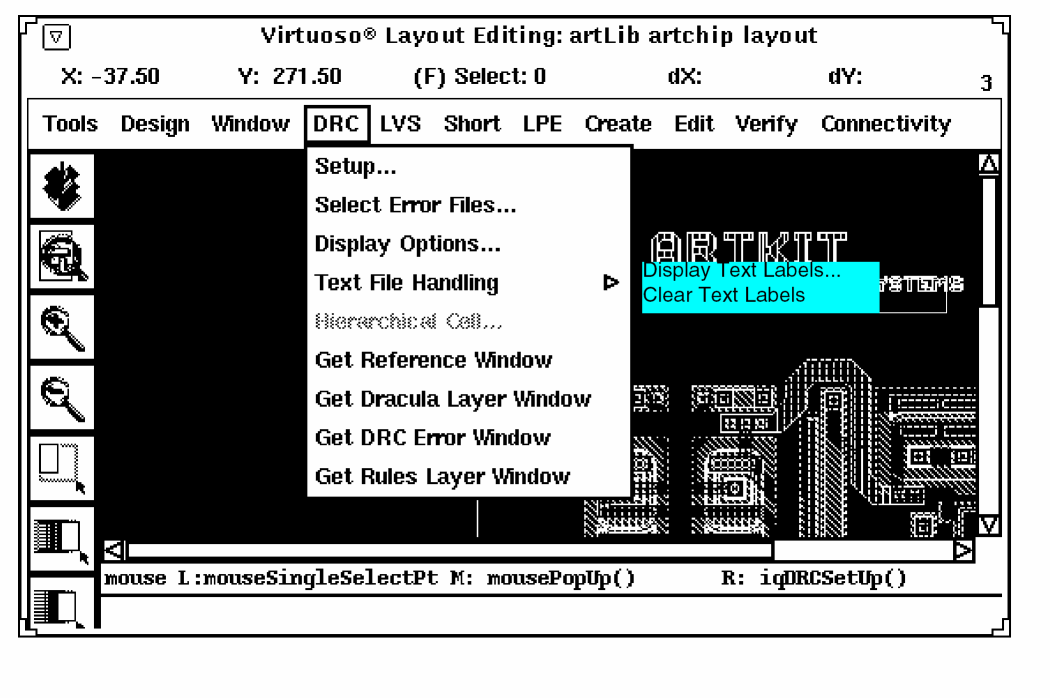
Setup defines a Dracula directory and restores a previous run.
Select Error Files lets you select the error files you want to display.
Display Options controls how to display DRC errors.
Text File Handling lets you display text layers.
Hierarchical Cell lets you choose which Hcells to display and how to display them.
Get Reference Window displays the reference window.
Get Dracula Layer Window displays the DLW.
Get DRC Error Window displays the View DRC Error window.
Get Rules Layer Window displays the Rules Layer Window.
Setup

Lets you define the path to the Dracula directory containing the data you want to see. You must specify a directory before you can use any of the Dracula graphical user interface’s DRC commands. This command also lets you restore the viewed and unviewed DRC error status from a previous Dracula graphical user interface analysis.
DRC Setup Form
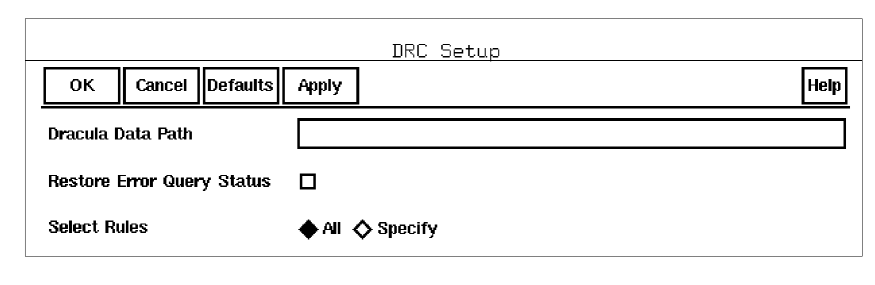
Dracula Data Path is the path to the directory that contains the Dracula error files that you want to display. You can enter either a path relative to the current directory or a full path. The default is the current directory.
Restore Error Query Status restores the error status from a previous interactive debugging run.
When you save the error status using the Error Status command under the Commands menu of the View DRC Error window, the Dracula graphical user interface stores the following information in the iqDRC.Status file.
- Which display options you selected
- Which Dracula error files you displayed
- Which errors you displayed in each error file
- Which errors you marked as fixed
If you want to save more than one interactive debugging run, you can rename iqDRC.Status before doing each new save. When you restore a run, the graphical user interface looks for the iqDRC.Status file. Therefore, if you have changed the file name, you must rename it iqDRC.Status before you restore that specific Dracula interactive debugging run.
Select Rules controls which Dracula error data is displayed in the graphical user interface window and the RLW.
|
Specify displays the Select Error Files form to let you choose which Dracula error files you want to display. |


Using DRC Setup
To set up your Dracula data and display it in the graphical user interface, follow these steps.
-
Select Setup from the DRC menu.
The DRC Setup form appears. - Type in the path to the Dracula directory.
- To restore the error status of a previous run, click on Restore Error Query Status.
- To specify which Dracula errors to display, set Select Rules to All (the default) or Specify.
- Click on OK
Select Error Files

Lets you select the DRC error files you want to display.
Prerequisites
You must specify the Dracula directory with the Setup command.
Select DRC Error Files Form
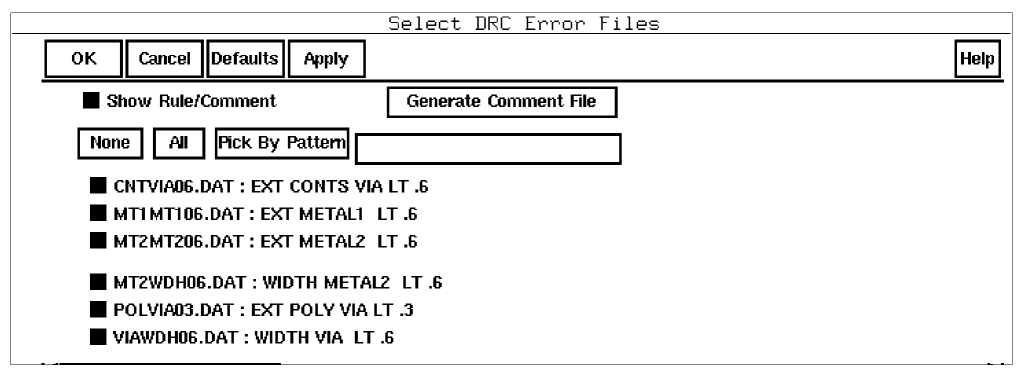

Generate Comment File
creates a new drc.comment file in the Dracula directory and overwrites the existing drc.comment file. To add comments to the drc.comment file, read the file in a text editor and add the comments that you want to appear in the Select DRC Error Files form. Click the Show Rule/Comment option off and then on again to display the new comments in the form.
Following are a few examples of entries found in a drc.comment file.
D52110 : 5.2.1 N-well width <3.0u
D52211 : 5.2.2 N-well spacing <5.2u
D52312 : 5.2.3 P-well implant blk width <2.0u
D52413 : 5.2.4 P-well implant blk spacing <2u
The rule file might also need editing to work with the following conventions.
- Comments for a rule must start on the same line as the rule and can continue for consecutive lines after the rule.
- Two consecutive semicolons in the beginning of a line specify that the line is a continuation of the comment in the previous line.
EXT[T] PINN NOUT LT 6.2 OUT D5311A 26      ;1.1.1 P+ inside
   ;;N-well TO N+
   ;;outside N-well
   ;;<6.2u
NOT XPSUB SPTAP UPSUB OUT D5316 34   ;2.2.2 P tap density
   ;;>500u
AND CONTACT GATP12 E0710 OUT D5710 85   ;3.3.3 contact
   ;;crosses/overlaps
   ;;poly gates also
   ;;checked by 7.5/7.6
None deselects all Dracula error files listed in the form.
All selects all the Dracula error files listed in the form.
Pick By Pattern selects all the Dracula error files with file names containing the alphanumeric and wildcard text you type in the Pattern field.
|
file_name lists the Dracula error files in the Dracula Path you specified when you ran DRC – Setup. |

Using Select Error Files
To select error files to display in the graphical user interface’s design window, follow these steps.
-
Choose Select Error Files from the DRC menu.
The Select DRC Error Files form appears and gives you four choices. - Click on OK
Display Options

Lets you control how to display DRC errors in the graphical user interface design window.
Prerequisites
Before you can use this command, you must use Select Error Files to select the error files you want to view.
DRC Options Form
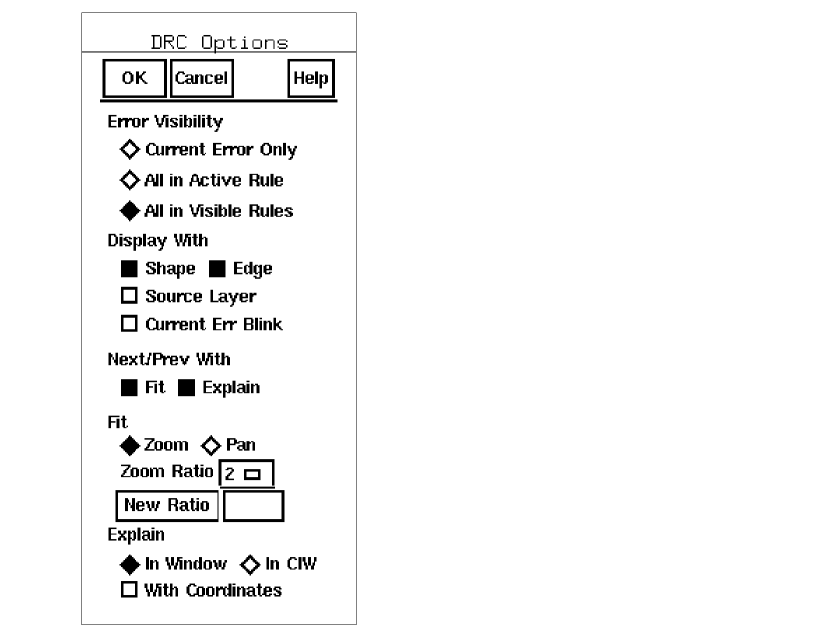
Error Visibility specifies which errors to display.
|
All in Active Rule displays all the errors in the current active file. |
|
|
All in Visible Rules displays all the errors in all the visible files you selected. |


Display With determines how errors are highlighted.


Next/Prev With controls how to display the next and previous error you specify with the Next and Prev buttons in the View DRC Error window.
|
Fit fits the next or previous error in the graphical user interface design window. |
|
|
Explain updates the text in the Explain window when you select the next or previous error. |


Fit controls the window display size relative to the next or previous error.


Explain determines how the information about a DRC violation is displayed.


Using Display Options
Many of the DRC options take effect as soon as you click on them. To control how errors appear in the graphical user interface design window, you can leave the DRC Options form on your screen and experiment with the different options.
- Select Display Options... from the DRC menu.
- Select the display options you want to set.
- Click on OK or Cancel to remove the DRC Options form
Display Text Labels

Displays text labels associated with the cellview. This command is also available on the LVS and LPE menus.
Display Text Form
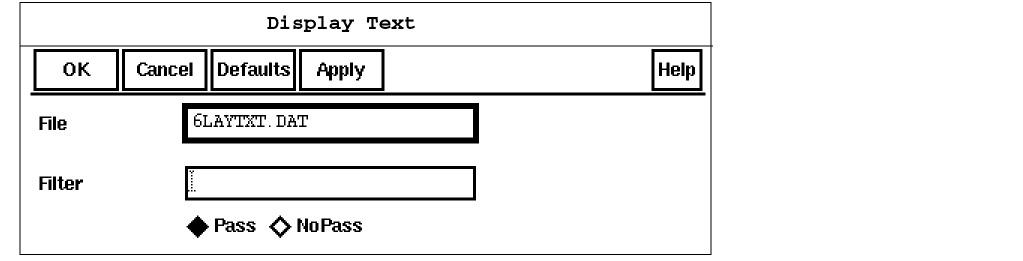
File specifies the name of the Dracula text label file. For cell mode data, the default is 6LAYTXT.CEL. For composite mode data, the default is 6LAYTXT.DAT.
Filter lets you choose which text labels you want to display by specifying one or more text strings. Separate the text strings with a space. If you leave this field blank, all text labels in the Dracula text label file are displayed.
|
Pass displays only text labels that contain the text strings specified for Filter. |
|
|
NoPass displays only text labels that do not contain the text strings specified for Filter. |


Using Display Text Labels
To display text labels, follow these steps.
- From the DRC menu, select Text File Handling – Display Text Labels.
- Type the Dracula text label file name.
- To display text labels, use one of the following methods:
- Click on OK.
Clear Text Labels

Removes the text labels from the current window.
Hierarchical Cell

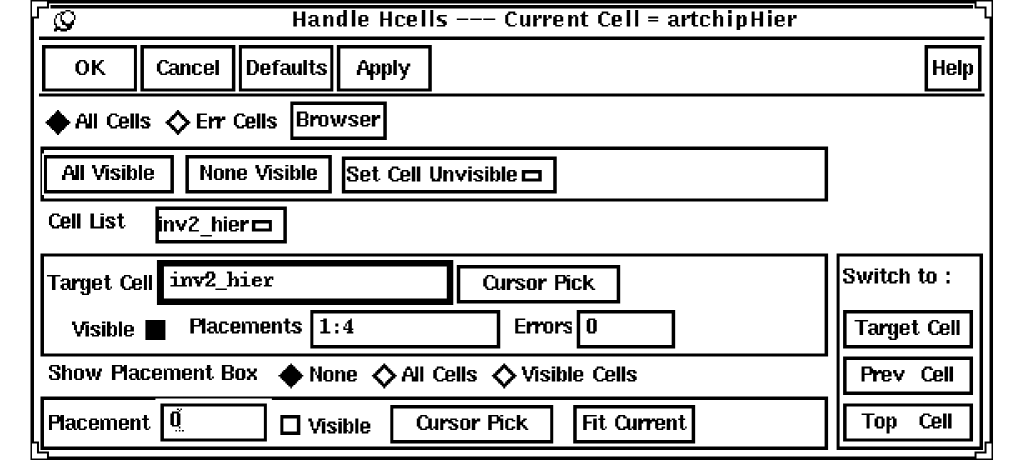
Lets you control which Hcells to display in the Dracula graphical user interface design window. This command is also available in the LVS and LPE menus.
Handle Hcells Form
|
All Cells lists all of the Hcells in the Cell List cyclic field. |
|
|
Err Cells lists only the Hcells with errors in the Cell List cyclic field. |


Browser displays a hierarchical cell browser that you can use to display Hcells and information in the Handle Hcells form. The following figure shows a sample Browser window.
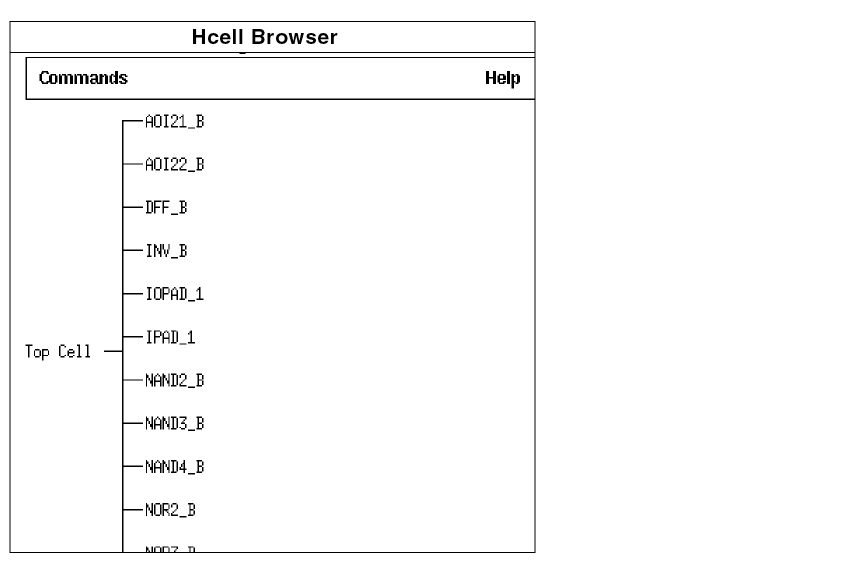
The graphical user interface’s Hcell Browser lets you do the following:
- To expand the Hcell hierarchy display, click on a cell name.
- To display the Hcell in the graphical user interface window, hold down the middle mouse button and select Switch to.
- To unselect the Select option below the Target Cell field, hold down the middle mouse button and select Unselect.
- To activate the Select option below the Target Cell field, hold down the middle mouse button and choose Select.
- To update the Target Cell, Placements, and Errors fields in the Handle Hcells form, hold down the middle mouse button and select Show Attributes.
To close the graphical user interface’s Hcell Browser window, select
Commands – Close HcBrowser.
All Visible displays all of the Hcells in the Cell List cyclic field.
None Visible turns off the displayed Hcells in the Cell List cyclic field.
Switch to lets you choose which cell to switch to in the graphical user interface window.
Target Cell switches to the target Hcell listed in the Target Cell field.
Prev Cell switches to the previous Hcell you displayed.
Top Cell switches to the top level cell.
Cell List lists the Hcells that you can display in the graphical user interface window.
Set Cell Unvisible lets you remove a cell from the Cell List cyclic field.
Target Cell is the name of the cell to switch to when you use the Target Cell button.
Cursor Pick lets you point to an Hcell and select the Hcell name in the Target Cell field.
Visible displays or turns off the display of the cell you specified in the Target Cell field.
Placements displays the Hcell placement numbers of the Hcell in the Target Cell field.
Errors displays the number of errors in the Hcell in the Target Cell field.
Show Placement Box controls the display of the Hcell bounding boxes.
|
Visible Cells displays the bounding boxes of displayed Hcell. |


Placement lets you specify an Hcell placement number. This option is useful if you want to display a specific Hcell instance. You can type in a placement number or use the Cursor Pick button to fill in the Placement field.
|
Visible controls whether the placement is displayed. If selected, the Hcell that corresponds to the Hcell placement number in the Placement field is displayed. |

Cursor Pick lets you point to an Hcell and fill in the Hcell placement number in the Placement field.
Fit Current fits the Hcell that corresponds to the Hcell placement number in the Placement field in the graphical user interface design window.
See the Dracula Graphical User Interface Tutorial for more information about how to use the Hierarchical Cells command.
Get Reference Window

Displays the Reference window.
View DRC Error Window Commands Menu
The View DRC Error Window commands let you control how to display DRC errors in the graphical user interface design window. The menu contains the following commands.
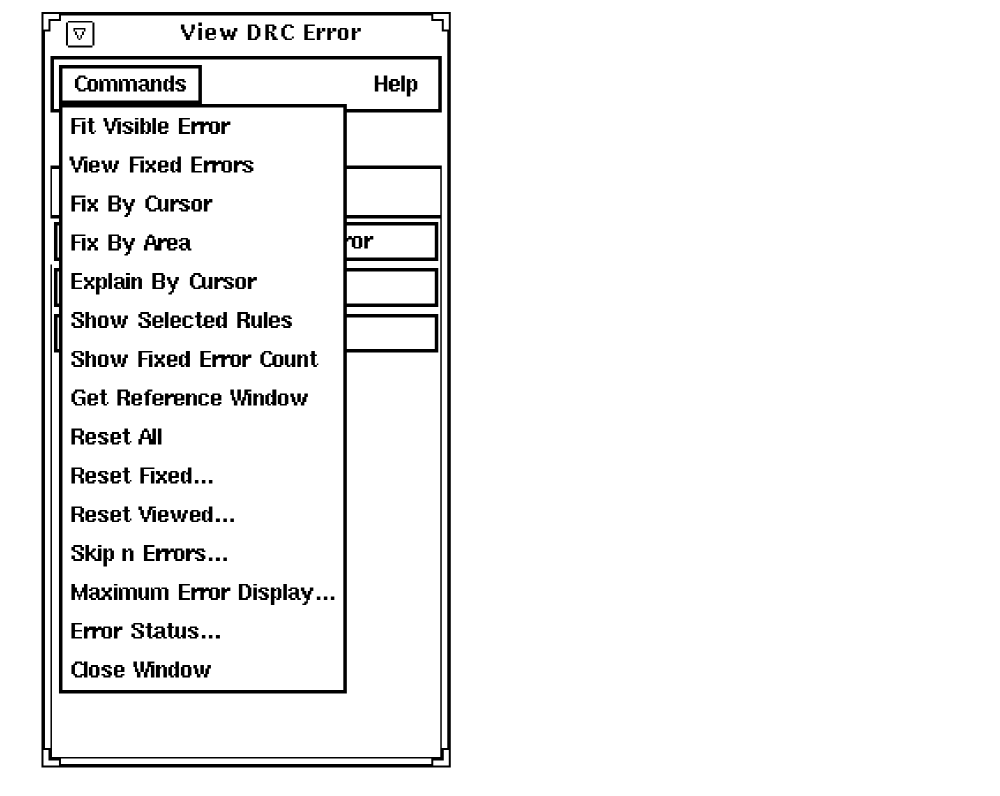
For information about the buttons on the View DRC Error window, see the Using the View DRC Error Window in chapter 1 of this manual.
Fit Visible Error zooms the graphical user interface design window to display all visible errors.
View Fixed Errors displays the DRC errors you marked as fixed in the graphical user interface design window.
View UnFixed Errors appears in the Commands menu after you select View Fixed Errors. View UnFixed Errors displays the DRC errors you marked as unfixed in the graphical user interface design window.
Fix By Cursor lets you point to a DRC error in the graphical user interface design window and mark it as fixed.
Fix By Area allows users to mark the DRC errors as fixed in a certain area.
Explain by Cursor lets you point to a DRC error and get information about that error.
Show Selected Rules displays the RLW.
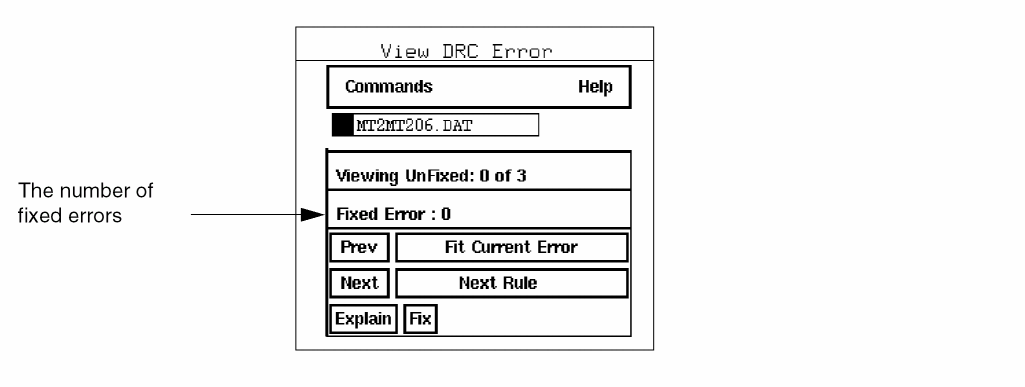
Show Fixed Error Count displays the number of errors you marked as fixed.
Get Reference Window displays the reference window.
Reset All resets all DRC error files to unviewed.
Reset Fixed changes the status of DRC errors in the Dracula error files from fixed to unfixed.
Reset Viewed changes the status of DRC errors in the Dracula error files from viewed to unviewed.
Skip n Errors is the increment to skip errors when you display them in the graphical user interface design window.
Maximum Error Display is the maximum number of errors to display in all DRC error files.
Error Status lets you query, save, or restore the error status.
Close Window lets you close the View DRC Error window.
Fit Visible Error

Zooms the graphical user interface design window to display all visible errors.
View Fixed Errors

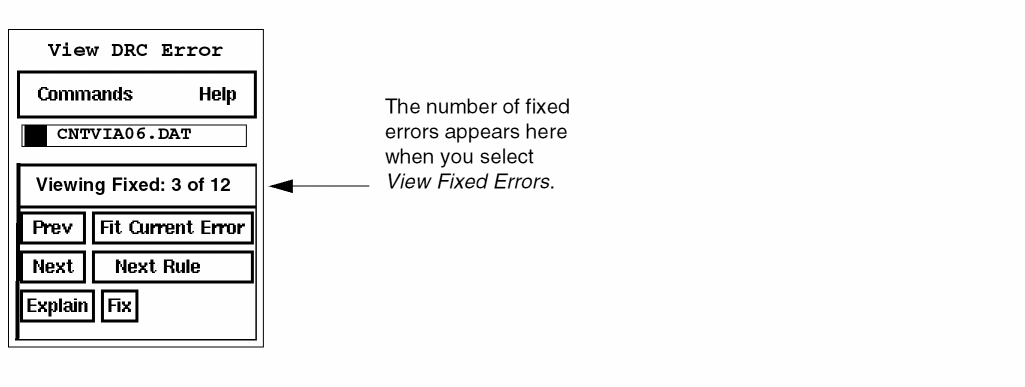
This is the default in the Commands menu of the View DRC Error window. View Fixed Errors displays the DRC errors you marked as fixed in the graphical user interface design window. The View DRC Error window shows the number of fixed errors that you are viewing. See the following example.
View UnFixed Errors

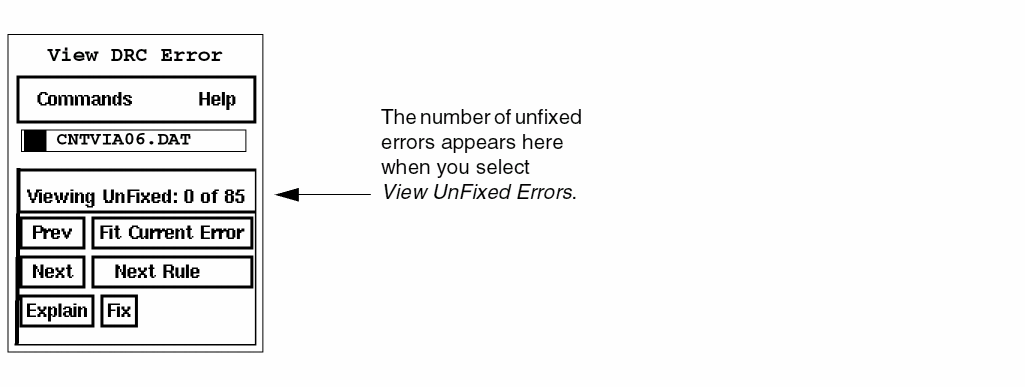
Appears in the Commands menu after you select View Fixed Errors. View UnFixed Errors displays the DRC errors you marked as unfixed in the graphical user interface design window. The View DRC Error window shows the number of unfixed errors that you are viewing. See the following example.
Fix by Cursor

Lets you point to a DRC error in the graphical user interface design window and mark it as fixed. Fixed errors do not appear in the graphical user interface design window after you fix them.
UnFix by Cursor

Appears in the Commands menu after you select View Fixed Errors. UnFix By Cursor lets you point to a DRC error in the graphical user interface design window and mark it as unfixed. Unfixed errors are displayed in the graphical user interface design window.
Explain by Cursor

Lets you point to a DRC error and get information about that error in the Explain window or in the CIW, depending on the option you selected with the Display Options command.
Fix By Area

Allows users to mark the DRC errors as fixed in a certain area.
To use this function, follow these steps:
- View Fixed Errors --------> View Unfixed Errors
Fix By Cursor ----------> UnFix By Cursor
Fix By Area ----------> UnFix By Area
Show Selected Rules

Show Fixed Error Count

Displays the number of errors you marked as fixed with the Fix button with the Fix by Cursor or Fix by Area commands. See the following example.
Hide Fixed Error Count

Removes the display of the number of errors you marked as fixed with the Fix button with the Fix by Cursor or Fix by Area commands.
Get Reference Window

Displays the reference window.
Reset All

Resets all DRC error files to unviewed.
Reset Fixed

Resets the status of DRC errors in the Dracula error files.
Unfix Errors Form
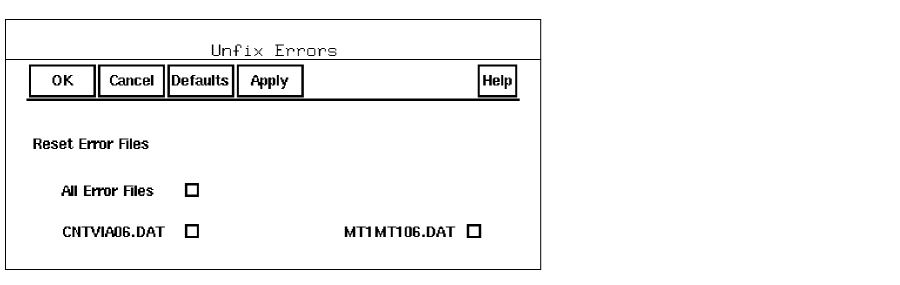
Reset Error Files lets you reset the status of DRC errors in the Dracula error files. Click on OK or Apply after you choose the following options.
All Error Files chooses all of the error files listed in the form.
file_name lets you choose the status of DRC errors in the Dracula error files you want to change from fixed to unfixed.
Reset Viewed

Lets you reset the status of DRC errors in the Dracula error files.
Reset Viewed Errors Form
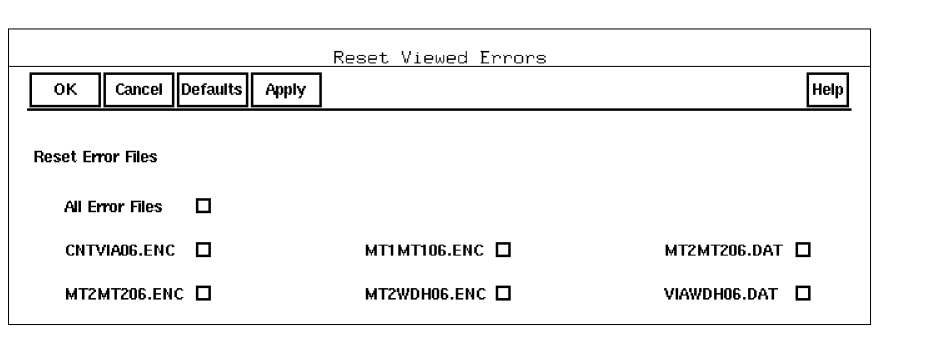
Reset Error Files lets you reset the status of DRC errors in the Dracula error files. Click on OK or Apply after you choose the following options.
All Error Files chooses all of the error files listed in the form.
file_name lets you choose the status of DRC errors files you want to change from viewed to unviewed.
Skip n Errors/Maximum Error Display


Aux Command 1 Form
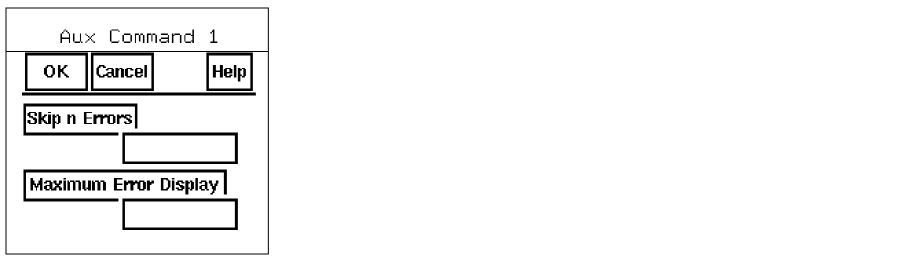
Skip n Errors is the increment to skip errors when you display them in the graphical user interface design window. Suppose that the View DRC Errors window indicates that you displayed 1 of 10 errors. If you type 3 in the field and click on the Skip n Errors button, error 4 of 10 is displayed in the graphical user interface design window. If you click on the Skip n Errors button again, error 7 of 10 is displayed in the graphical user interface design window. You can type a positive or negative value in the field.
Maximum Error Display is the maximum number of errors to display in all DRC error files. Suppose that your design has 100 total errors. If you type 25 in the field and click on the Maximum Error Display button, you can only cycle through the first 25 errors. The default is 1000.
Error Status

Lets you query, save, or restore the error status.
DRC Error Query Status Form
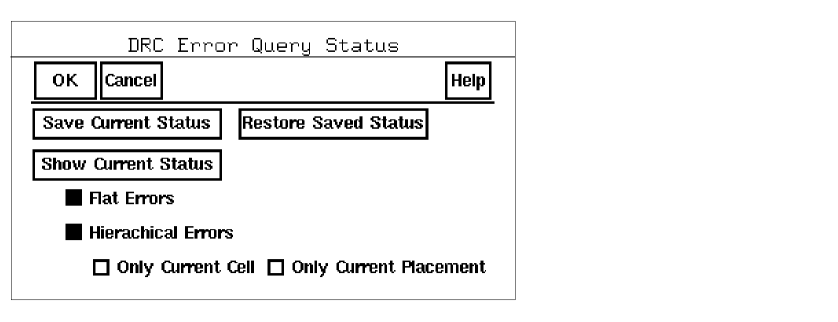
Save Current Status
saves the current DRC error viewing status in a file named iqDRC.Status in the working directory. If a status file already exists, this graphical user interface overwrites it.
Restore Saved Status restores the DRC viewing status. The option is useful if you want to resume the error-viewing status from the previous graphical user interface run.
Show Current Status displays the number of errors currently loaded, the number viewed so far, and the number not yet viewed for each file that has been active during this session.


Using Error Status
To use Error Status, follow these steps.
-
Select Error Status from the View DRC Error window.
The Error Status form appears. -
To see the current error status, click on the Show Current Status button.
A new window appears, listing the DRC Output Error Summary, DRC Error Display Options, and DRC Error Files Without Errors. - To save the status of the viewed and unviewed errors, click on the Save Current Status button.
-
To restore a saved error status, click on the Restore Saved Status button.
After restoring the status, you can use Fit Next Error to display the next unviewed error in the file that was the active file when you saved the status. -
Click on OK
.
Close Window

Lets you close the View DRC Error window.
Return to top