
5
Short Locator
This chapter will focus on the use of the Short Locator and how it works, as well as the Short Locator form for the Dracula graphical user interface.
Locating Shorts
The Short locator lets you locate shorts in a layout following an Extract run. If you want to spread the work over several sessions, you can save and restore partial runs. To help you identify the short location, you can add labels or zoom in.
Prerequisites
Before you can locate a short, you must do the following:
- Identify the net in which the short exists. The short location program handles only one shorted net at a time, although that net might be the result of many intended nets shorted together.
- Make sure all connect layers are available. Exception: If a layer is attached to a net at only one point, as in the case of a tub or well, the absence of the layer does not affect the connectivity of the rest of the net. In this case, all shorts can still be isolated.
How Short Location Works
A shorted net results from a mistake in labeling nets or from two nets placed so close together that they touch a misplaced contact. The Short Locator analyzes the shorted net using all labels, interconnect polygons, and contacts associated with the net. In its simplest mode, the Short Locator attempts to isolate each short to a single polygon. It assumes that the section of the shorted net under the label is part of the net defined by that label. Using the labels in the graphics data, the Short Locator determines which parts of the shorted net belong to one net, and which belong to another. Any part of the net that appears to belong to more than one label is identified as a short.
If these labels do not isolate the short to a small enough section of the net, you can add more labels or delete misleading labels. When you do this, you do not change the original graphics data. You change only the Short Locator database.
Placing Labels
To place a label properly, you must know which part of the shorted net is really part of the intended nets. Pads are obvious places to put labels. Also, if you know the circuit well, you can label the part of a net with long runs.
You must also consider how much to separate labels. The farther apart the labels, the more information they supply. This separation is not a measurement of physical distance across a circuit, but of logical distance along the net. You can place labels physically next to each other providing they are at opposite ends of the shorted net.
You do not have to place labels on the part of the net that contains the short. You can place them anywhere on the net. In most cases, it is better to place the labels on a part of the net that does not contain the short.
Consider the following example:
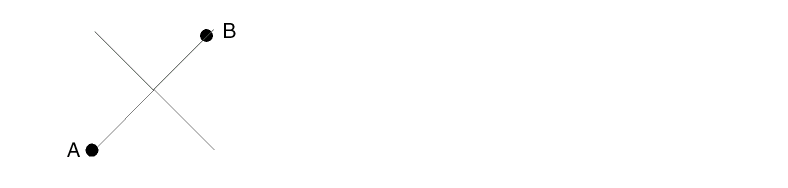
The labels A and B on the two shorted nets let the Short Locator isolate the short to the path between A and B as follows.
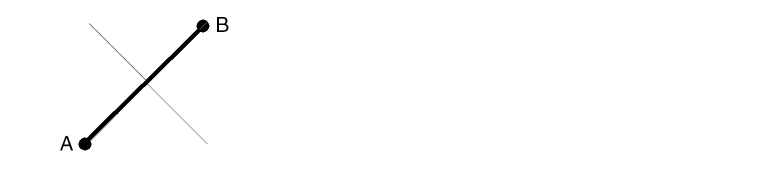
Additional labels on the path help only if they are very close to the short. If instead you put more labels on the part of the net that does not contain the short, the isolation becomes precise.
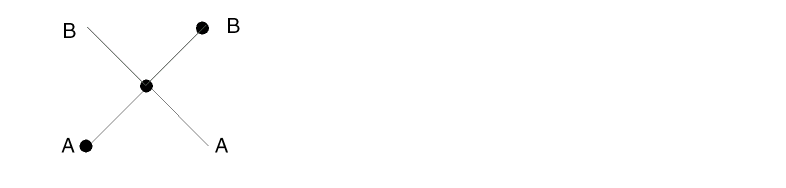
Defining Active Layers
Active layers are the layers that you can label. You can define which of the interconnect layers are active. The differences between active and inactive layers are as follows:
- You can add labels to active layers. You cannot add labels to inactive layers. It is best to set global layers such as tub and substrate to be inactive so you can add labels to shapes on layers over them without chance of confusion.
- Active and inactive layers are displayed in different colors and fill patterns. If you set global layers to be inactive, you can choose to display the layers with more muted colors than other interconnect layers. Setting colors this way lets you see interconnect layers that would otherwise be hidden by tub and substrate.
Displaying Information
Information about the shorted net appears on top of any existing display in all windows containing the layout view of the cell you are processing.
The Short Locator uses the same fill colors and fill patterns as the predefined system layers. You can change the color and fill patterns by changing the system layers using the Layer menu in the CIW.
The five layers and their uses are as follows:
For active layers, displays the part of the net that contains the short.
For active layers, displays the intended net. All shapes forming the net, regardless of the layer from which they came, are displayed in the same color.
For inactive layers, displays the part of the net that contains the short.
For inactive layers, displays the original net. All shapes forming the net, regardless of the layer from which they came, are displayed in the same color.
Usually, you set your display as follows:
- Turn off the inactive layers or set them to more muted colors and lighter fill patterns than the active layers.
- Set the shorted part of the net to a higher intensity color and a more solid fill pattern than the full net.
- Set the text label color to show above everything else.
Saving and Restoring a Short Locator Run
Because the isolation of a short is an iterative process, you might need to stop before you are satisfied with the result and complete your work later. For this purpose, you can save and restore a run.
When you save the run, you define the file name and location. When you restore a run, you can open any file name you have saved. The contents of the file are in text format. Although you can edit the file using a conventional text editor, the integrity of the restored run cannot be guaranteed once you edit the file.
The saved information does not contain the entire status of the run, but includes enough data to return to that status with one iteration of the Short Locator. That iteration is performed automatically when you restore the run.
Short Locator Form
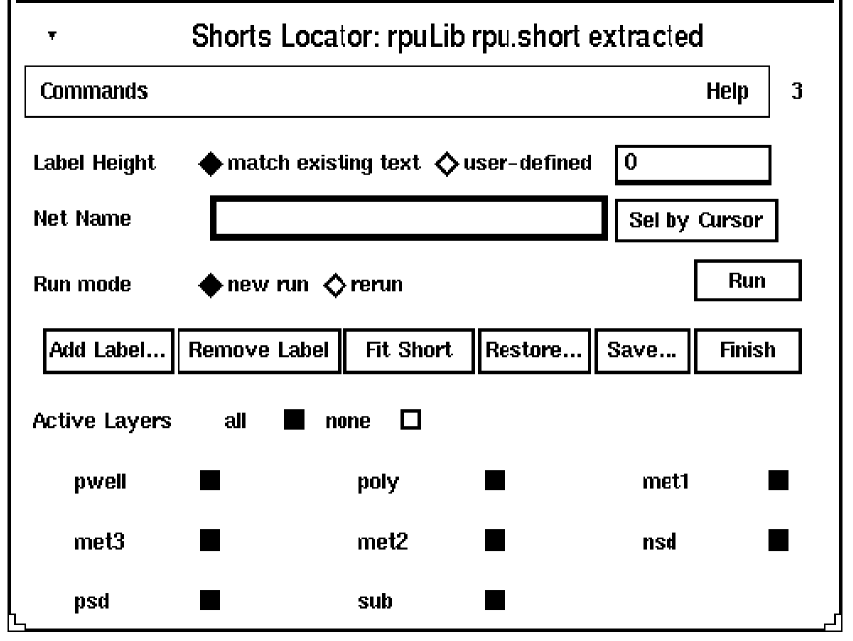
Label Height defines the height of the characters for the label text you enter. You can either accept the default height or type a height.
Net Name specifies the name of the net you want to analyze. You can type the name or browse a list of names by clicking Select by Cursor.
Select by Cursor lets you browse each net. If more than one net is under the cursor, a list box listing all nets appears. The Short Locator enters the name of the net you select in the name field.
Run Mode lets you select whether you wish to continue work on a previous Short Locator run or start work on a new run or.
Add Label adds a label to the net being analyzed.
Remove Label removes an existing label from the net being analyzed.
Fit Short zooms in on the bounding box surrounding the identified short.
Restore retrieves and lets you work from previously saved Short Locator data.
Save lets you save current data.
Finish cleans up memory and gets rid of old data so you can start work on a new run.
Active Layers lists circuit layers that are part of the interconnect. You can choose whether layers are active or inactive. Making a layer inactive turns off the highlighting of that layer. This is useful for layers such as a substrate, which otherwise highlights the entire circuit and interferes with selecting the net with a mouse. Inactive layers are included in the short analysis.
Using the Short Locator
-
Choose Short – Start New Run.
The Short Locator form appears. - Accept the default label height or type the height you want.
- To make layers active or inactive, click on the layers to turn them on or off.
-
Specify the net name in one of the following ways:
- Type the name in the field.
-
Click Select by Cursor.
The CIW prompts you to click on the net you want.
If more than one net appears under the cursor, a list box appears listing all of the nets. -
In the list box, click on the net you want and click OK.
The name of the net you selected appears in the Net Name field.
-
To locate the short, click on OK.
- To refine the location of the short, select Short – Add Label.
-
End the run. To keep your changes, choose Short – Save and Finish.
To discard your changes, choose Short – Finish without Saving.
Return to top