
4
LPE commands
This chapter discusses the LPE Menu.
LPE Menu
The LPE menu lets you display resistance and capacitance parasitics on nets. You must have parasitic data from a Dracula LPE/PRE run to display these nets. You can also display layout versus schematic errors.
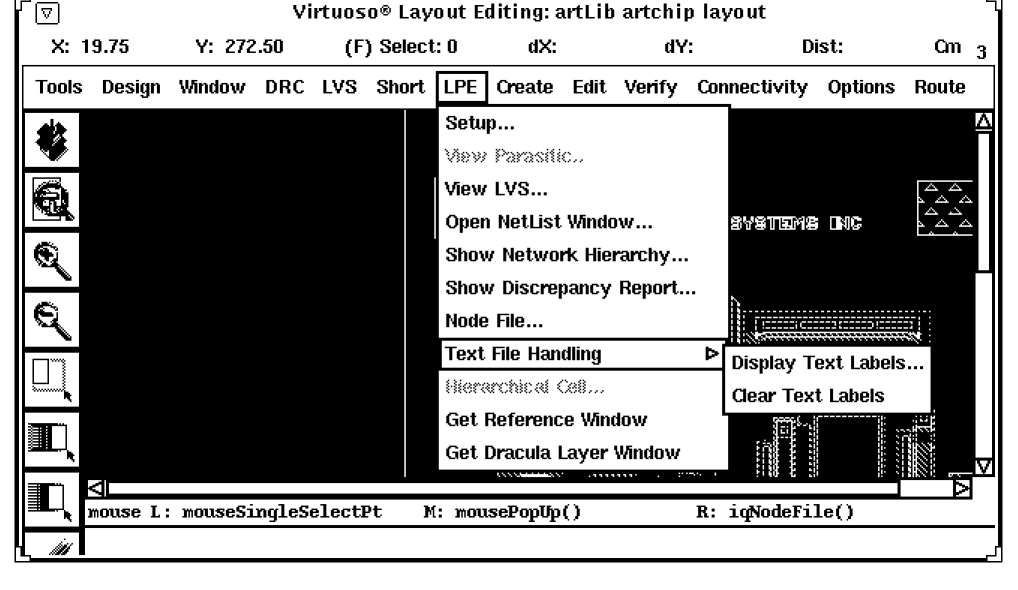
Setup defines a Dracula directory and sets parameters.
View Parasitic lets you specify which parasitic resistance and capacitance elements to view.
View LVS lets you set display options and get information about nets, devices, and errors.
Open Netlist Window opens a new window containing netlist information.
Show Network Hierarchy displays the circuit hierarchy.
Show Discrepancy Report displays the LVS discrepancy report.
Text File Handling lets you display text layers.
Hierarchical Cell lets you choose which Hcells to display and how to display them.
Get Reference Window displays the reference window.
Setup

Lets you define the path to the Dracula directory containing the data you want to query. Setup also lets you select display options for the analysis.
LPE Setup Form
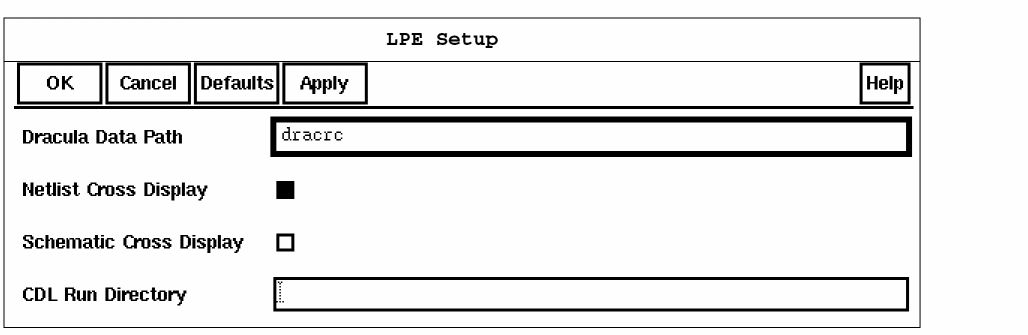
Dracula Data Path specifies the path to the directory containing Dracula data. You can enter a relative path or a full path.
Default: current directory
Netlist Cross Display allows corresponding nets or devices in the netlist window to be highlighted when you highlight nets or devices in the layout window. When you highlight nets or devices in the netlist window, the Dracula graphical user interface highlights the corresponding nets or devices in the layout window.
Schematic Cross Display allows corresponding devices or nets in the Cadence Composer schematic window to be highlighted when you highlight nets or devices in the layout window. When you highlight nets or devices in the schematic window, the graphical user interface highlights corresponding nets or devices in the layout window.
CDL Run Directory specifies the run directory used in a previous CDLOUT translator run to generate a netlist from a Cadence schematic. This directory contains cross-reference information and other data needed to cross-probe between the graphical user interface and the Cadence environment. Specify a CDL run directory only if you used CDLOUT to generate the netlist for LVS and you want to perform schematic cross-probing.
Using LPE Setup
You can change the setup options any time while you are running the Dracula graphical user interface.
-
Select Setup from the LPE menu.
The Setup form appears. - Type in the path to the Dracula directory.
- To highlight a net or device in both the layout and netlist windows, click on Netlist Cross Display.
- To highlight a net, device, or error in both the layout and schematic windows, click on Schematic Cross Display.
- To cross-reference the schematic, type in the name of the CDL Run Directory, which was created when you ran the CDLOUT program to create the netlist.
- Click on OK.
View Parasitic

Lets you select parasitic components to display.
RCV Form
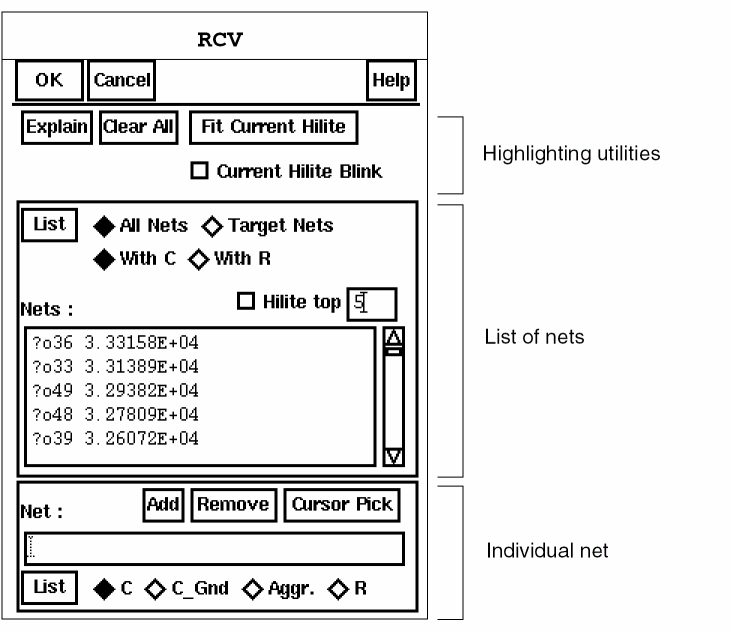
The Resistance and Capacitance Viewing window (RCV) lets you access the parasitic resistance and capacitance display capabilities in the layout window.
Highlighting Utilities
Explain lets you click on a net in the layout window and display information about that net in a text window.
Clear All removes any highlighting from the view and the netlist.
Fit Current Hilite zooms the graphical user interface design window in or out to display the currently highlighted item.
|
Current Hilite Blink makes the last item you highlighted blink. |

List of Nets
The following options let you select the nets with parasitic elements to display in the Nets field:


List lists the nets you selected with All Nets, Target Nets, With C, With R, or Original in the Nets field.

Nets lists the nets being displayed.
Individual Net
Net is the original net name of the net you want to display. You can select a net name from the list of nets in the Nets field, type in an original net number starting with ?o or a subnet number starting with ?p, or use Cursor Pick to select a net.
Add highlights the net with the name you specify in the Net field.
Remove unhighlights the net with the name you specify in the Net field.
Cursor Pick lets you point to the net you want to highlight. If there are multiple nets under the cursor, a list box appears. When you choose a net, the graphical user interface displays the item name in the Net field.
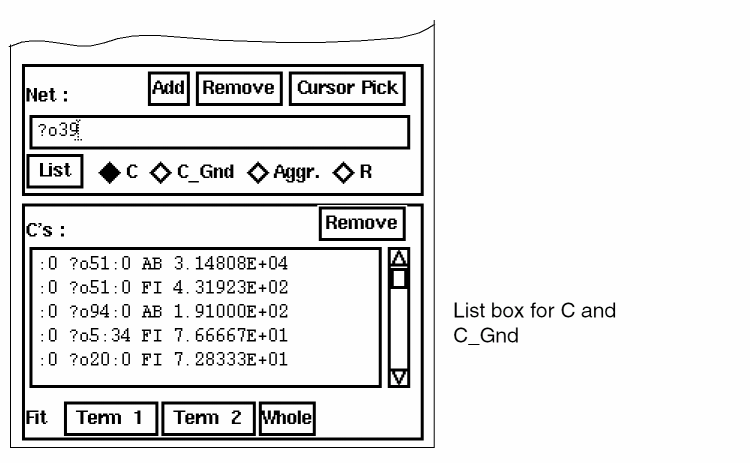
List options select the components of the parasitic shapes to display for the net listed in the Net field. When you select an option and click on List, the RCV form is extended with another list box, which lists the components.
|
C lists all the parasitic capacitance components of the net (PARASITIC CAP, FRINGE CAP) in the format for |
|
|
C_Gnd lists all capacitance from the net to ground in the format for |


|
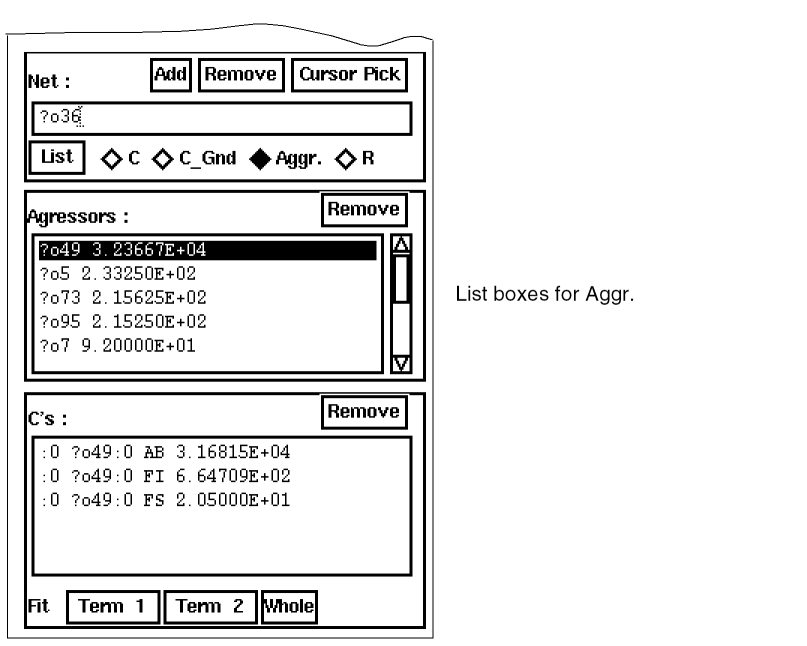
Aggr. lists all aggressor nets, which are nets with cross-coupled capacitance to the net, in the format for |

|
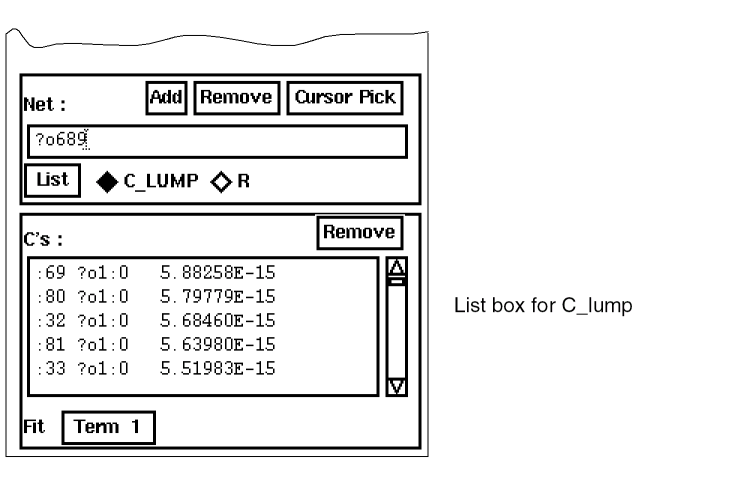
C_LUMP lists all capacitance from the net to ground in the format for |

|
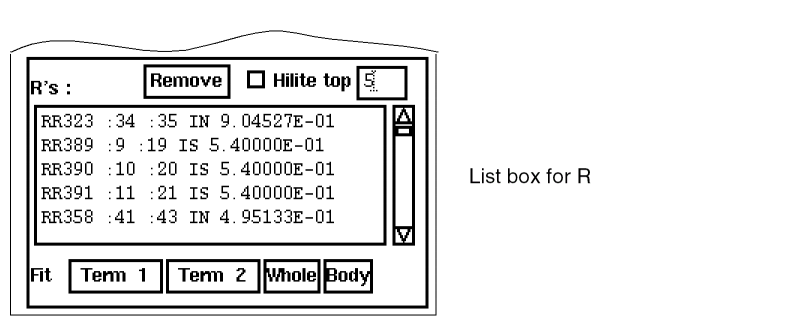
R lists all the parasitic resistance components of the net in the format or |

Remove unhighlights the parasitic component in the layout.
Fit options control how to display parasitic data in the layout window.
Term 1 fits the first terminal of the current capacitor or resistor in the layout window. For capacitors, this terminal is on the “subject” net.
Term 2 fits the second terminal of the current capacitor or resistor in the layout window. For capacitors, this terminal is on the “aggressor” net.
Whole fits all the highlighted parasitic data in the layout window.
Body fits the resistor body in the layout window.
Displaying Parasitic Resistance and Capacitance
To view parasitic resistance and capacitance, do the following:
- From the Dracula graphical user interface window, select LPE – Setup.
- Type the Dracula Data Path.
- Click on OK.
The graphical user interface displays the RCV form.
How Information Is Listed
The RCV form lists parasitic resistance and capacitance for nets in different formats, depending on what type of parasitic RC you are viewing.
Original Net Capacitance
Each entry has the following format:
original_net_name cap_value
Capacitance Components
Each entry has the following format:
subject_subnet original_net:subnet cap_type cap_value
|
The subnet number of the aggressor net involved in the capacitance. |
|
|
Capacitance type specified with PARASITIC CAP[type] or FRINGE CAP[type]. |
|
Original Net Resistance
Each entry has the following format:
original_net_name res_value
Resistance Components
Each entry has the following format:
resistor :subnet1 :subnet2 res_type res_value
|
Subnet of the original net you selected in the left column, representing one end of the resistor. |
|
Highlighting Capacitance Parasitics
To highlight capacitance parasitics on nets in the layout window, follow these steps.
- Specify which nets you want listed by doing one of the following:
- Select With C.
- To list nets with the highest capacitance, select Hilite top and type in a number of nets to highlight, from 1 to 9.
-
Click List.
The nets are listed in the Nets list box, in the format for original net capacitance. -
Highlight the capacitance you want to display by doing one of the following:
- Type an original net name in the Net field.
- Click on a net name in the Nets list box. The net name appears in the Net field.
The net is highlighted in the layout window.
Listing and Highlighting Capacitance Components
To list and highlight capacitance components of nets in the layout window, follow these steps.
-
To list all parasitic capacitance components of the net you specified, select C.
The nets are listed in the C’s list box, in the format for capacitance components. -
To list all capacitances to ground for the net you specified, select C_LUMP if you used LUMPCAP=YES or REDUCER=YES, or C_GND if you did not.
The nets are listed in the C’s list box in the same format as the C option. The value is the capacitance between the net and ground. For example:0 ?o23:33 AC 1.58750E+01
-
To list all aggressor nets that have coupling capacitance to the net you specified, select Aggr.
The nets are listed in the Aggressors list box, in the format for original net capacitance. The value is the capacitance between the aggressor net and the subject net. For example?o49 3.23667E+04
-
To highlight a C or C_Gnd component, click on the component in the C’s list box.
The component is highlighted in the layout window. You can use Explain to show the net name and list the capacitance extraction rule that generated this component.
You can unhighlight the component by clicking Remove. -
To highlight an Aggr component, click on the component in the Aggressors list box. The outline of the aggressor net is highlighted.
Highlighting Resistance Parasitics
To highlight resistance nets in the layout window, follow these steps.
- Specify which nets to list by doing one of the following:
- Select With R.
- To list nets with the highest resistance, select Hilite top and type in a number of nets to highlight, from 1 to 9.
-
Click List.
The nets are listed in the Nets list box, in the format for original net resistance. -
Highlight the resistance you want to display by doing one of the following:
- Type an original net name in the Net field.
- Click on a net name in the Nets list box. The net name appears in the Net field.
The net is highlighted in the layout window. -
To list all parasitic resistance for the net you specified, select R and click List.
The nets are listed in the R’s list box, in the format for resistance components. -
To highlight a resistor, click on an entry in the R’s list box. The resistor is highlighted in the layout window.
You can use Explain to show the net name and list the resistance extraction rule that generated this component. You can use Term 1, Term 2, Body, and Whole to look at the body, terminals, or complete resistor.
View LVS

Lets you set display options and get information about nets, devices, and errors.
For details, see the
Open Netlist Window

Opens a new window that contains the circuit netlist.
For details, see the
Show Network Hierarchy

Opens a browser that displays the hierarchy of the circuit netlist so you can select the cell name for the netlist you want. The browser hierarchy contains only references to cells, not references to nets and devices.
For details, see the
Show Discrepancy Report

Opens a new window displaying the LVS discrepancy report.
For details, see the
Display Text Labels

Displays text labels associated with the view.
For details, see the
Clear Text Labels

Removes the text labels from the current window.
Hierarchical Cell

Lets you control which Hcells to display in the Dracula graphical user interface design window.
For details, see the
Get Reference Window

Displays the Reference window.
Node File

Creates and edits the TARGET.DAT file or other text files containing lines of node names. This feature can be used to generate the list of target nets used by the LPE View Parasitic form.
To bring up the Node File form, choose Node File in the LVS or LPE pull-down menu.
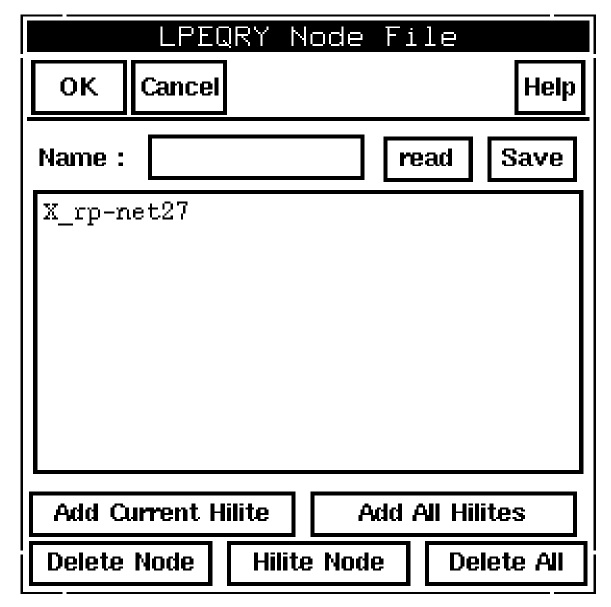
Name contains the filename of the node file. If / exists in the filename, it represents a regular Unix filename with a path. If there is no / in the filename, it specifies a file which resides in the Dracula Data Path, which has been entered during LVS/LPE setup.
The name of the file used for the LPE function is TARGET.DAT. Node names will appear in the list box in layout name format.
Read reads the content of the node file typed in the Name field into the list box. If there are nodes already in the list box when you click on Read, the nodes in the file which were not originally in the list box are added.
Save saves the contents of the list box to the node file.
Add Current Hilite adds the node name of the current net hilite to the list box. This can be used when the hilite is done before bringing up the Node File form.
Add All Hilites adds the node names of all net hilites to the list box. This can be used when the hilites are done before bringing up the Node File form.
Delete Node deletes a node selected it in the list box.
Hilite Node hilites a selected node it in the list box.
Delete All deletes all nodes from the list box.
Return to top