
Creating a Full Edge Pin Group Guide
You can create a pin group guide along the full edge using the Full Edge option that cover the edges completely. Unlike partial-edge pin group guide guides, full-edge pin group guide guides can be specified with a single click on a top-level or soft block edge in the layout design.
To create a full edge pin group guide:
-
Choose Floorplan – Pin Group Guides – Create.
In Layout EXL and higher tiers, choose Plan – Pin Planning – Create/Edit Pin Group Guide.
The Pin Group Guide form appears. -
Specify the name of the new pin group guide in Group Name field or click New to generate a unique group name.
You can edit the automatically-generated group name. -
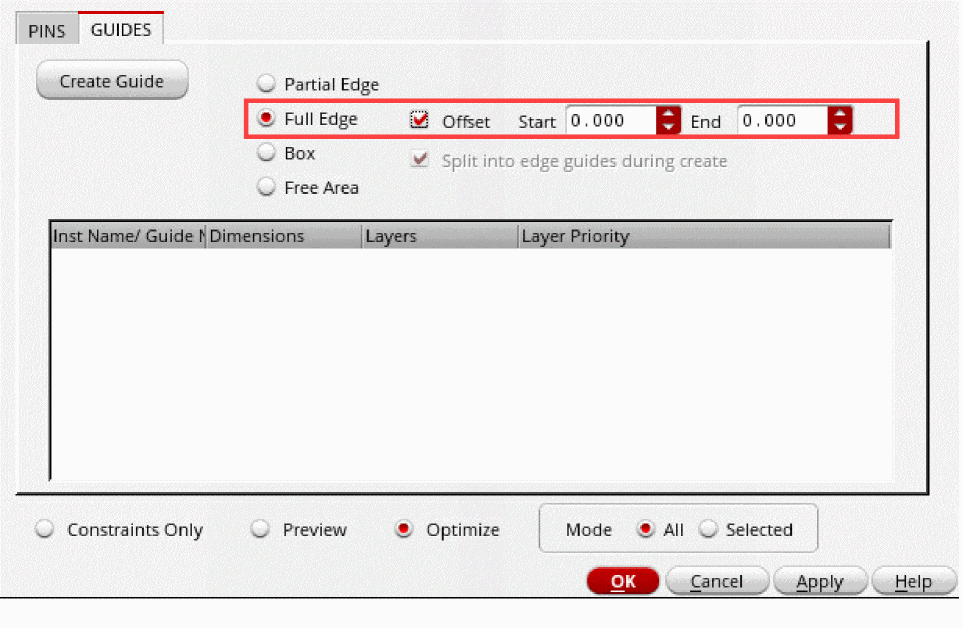
Draw the pin group guide on the layout canvas using the options on the GUIDES tab.
-
Click on a top-level or soft block edge in the layout design.The entire edge on which you clicked is selected.

- Continue to click the required edges to create multiple full-edge pin group guides. While selecting the edges, you can go back to the Pin Group Guide form and select Partial Edge to start creating partial-edge guides along with the full-edge guides that you created. The Enter function automatically switches from the Partial Edge to Full Edge mode.
- Press Esc when you are done.
-
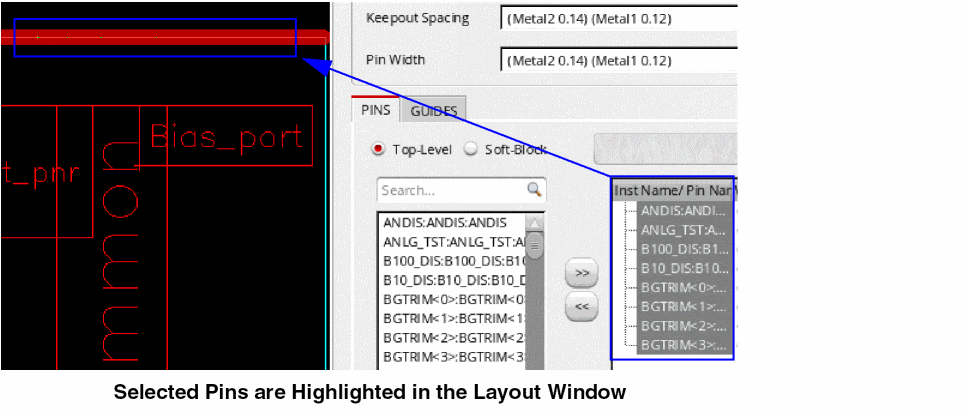
Click Apply to submit the updates you made and to view the pin group guides in the layout design. Pins are automatically placed along the pin group guide that you created.
-
Select the Offset option to specify the Start and End offset values of the pin group guide on the corresponding edges.

Related Topics
Return to top