
Setting Pin Constraints Using a Pin Constraints File
Typically, designers use Pin Optimizer, Pin Planner, or Constraint Manager to set pin constraints. These methods are useful while setting pin constraints for smaller designs with few pins. However, for large, complicated designs with hundreds of pins, these methods may require a lot of time and effort. For such designs, you can create a pin constraints file that includes all the pin constraint definitions. This file can be loaded using a SKILL function. Once loaded, constraints are created, which can be viewed and edited in the Constraint Manager. During pin optimization, these constraints are honored.
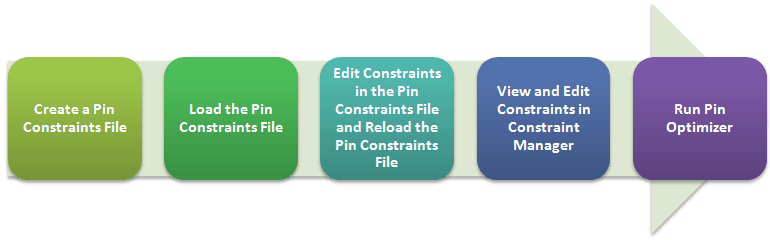
The following image depicts the use of a pin constraints file for defining constraints:
-
Creating a Pin Constraints File: A pin constraints file is a SKILL file with the following constraints entered in a SKILL list:
- Edge Constraint in a Floorplan Pin Constraints File
- Pitch Constraint in a Floorplan Pin Constraints File
- Status Constraint
The pin constraints file also includes:- A Sanity Checker to validate all parameters before running Pin Optimizer.
- An API that automatically loads constraints from the pin constraints file while the file is being read.
You can create a pin constraints file by either entering the constraints manually in a text editor or using a script to generate the file.
A sample pin constraints file,vfpLoadPinCons.il, is available in thedfII/samples/vfp/directory for your reference. Use the file as a reference for creating a pin constraints file. -
Loading the Pin Constraints File: Use the
load(file_name)command to load the pin constraints file. The constraints in the file are read and loaded in the Constraint Manager.
Utility functions to load pin constraint file with and without sanity checkers are available in the sample file. To use these functions, un-comment them as per your requirement. - Edit Constraints in the Pin Constraints File and Reload the File: While loading the pin constraints file, parsing errors, if any, are displayed in the CIW. Make the required edits to the pin constraints file and reload the updated file. Ensure that there are no parsing errors.
-
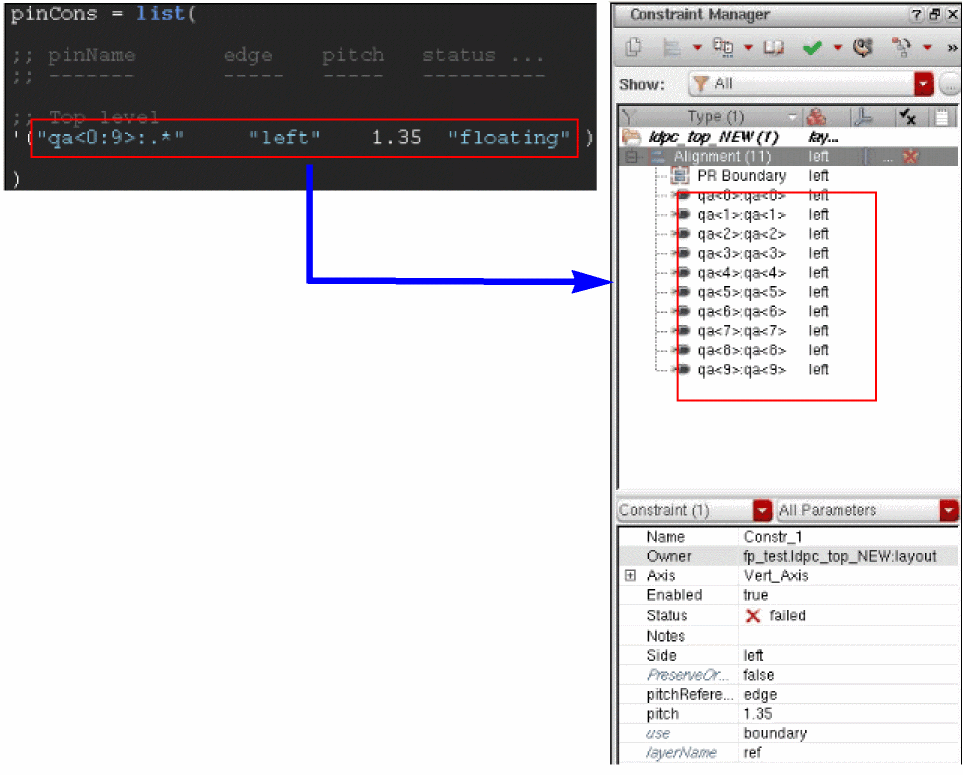
Viewing and Editing Constraints in the Constraint Manager: Open the Constraint Manager to view the constraints. Notice that the constraints in the pin constraints file are updated in the Constraint Manager. Make edits, if required, before running Pin Optimizer.
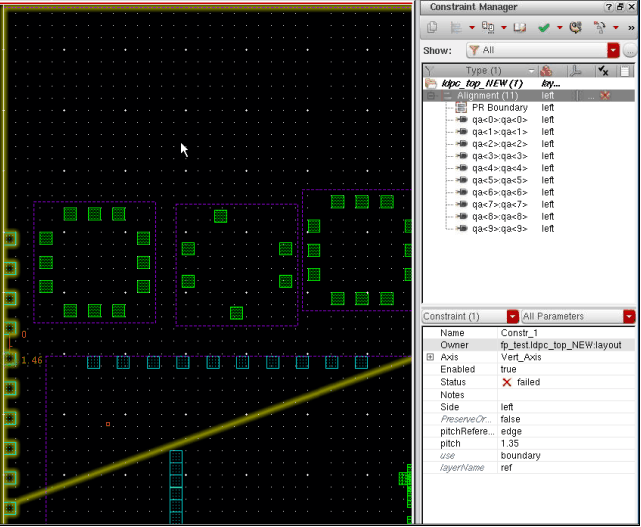
- Running Pin Optimizer: To run Pin Optimizer, choose Floorplan – Pin Optimization.
Notice that Pin Optimizer has honored the constraints during pin optimization.
Related Topics
Floorplanner Pin Constraints File
Specifying the Side for a Pin Using Pin Planner
Return to top