
Copying a Cell in the Library Manager
To copy a cell to another name or into another library, follow these steps:
- Select a cell.
-
Choose Edit – Copy.
The Copy Cell form appears.The selected library and cell appear in the Library and Cell fields in the From group box. They also appear in the Library and Cell fields in the To group box. You can change any or all of these values.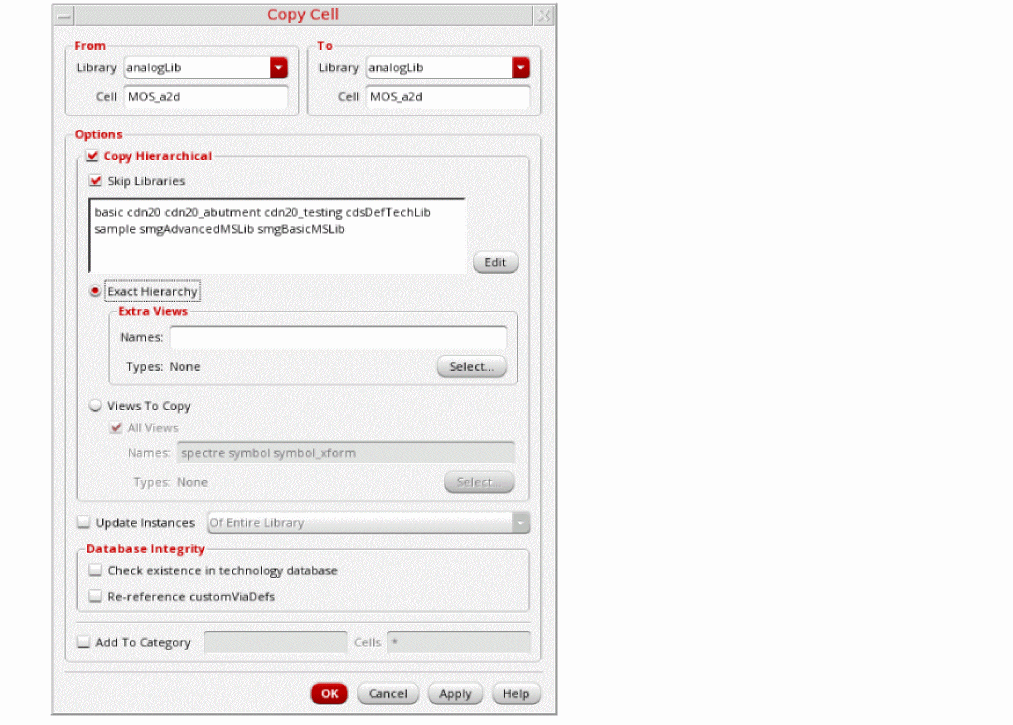
You can set the maximum cell name length allowed by using theCDS_MAX_CELL_NAME_LENGTHenvironment variable. -
To complete the copy cell operation, follow the steps for one of the following tasks:
To copy a cell to another name in the same library,- Follow the steps mentioned above.
- In the To group box in the Cell field, type a destination cell name.
- Click OK.
The From cell name is copied to the To cell name in the same library.-
Copying a cell to another library
To copy a cell to another library, - Follow the steps mentioned above.
- In the To group box in the Library field, type or select a destination library name.
- You can type a new library name or select an existing library from the drop-down list.
- In the To group box in the Cell field, type a destination cell name.
- If you do not change the cell name in the To group box, the copied cell displays the same name as the original cell.
- Click OK.
The From Cell is copied to the To Cell in the To Library. If the destination library does not already exist, the New Library form appears, where you can specify a location and design management option for the new library.
Related Topics
Copying a Cell Hierarchy in the Library Manager
Adding a Copied Cell to a Category
Skip Libraries Together with Update Instances
Return to top