
Resolving Copy Problems
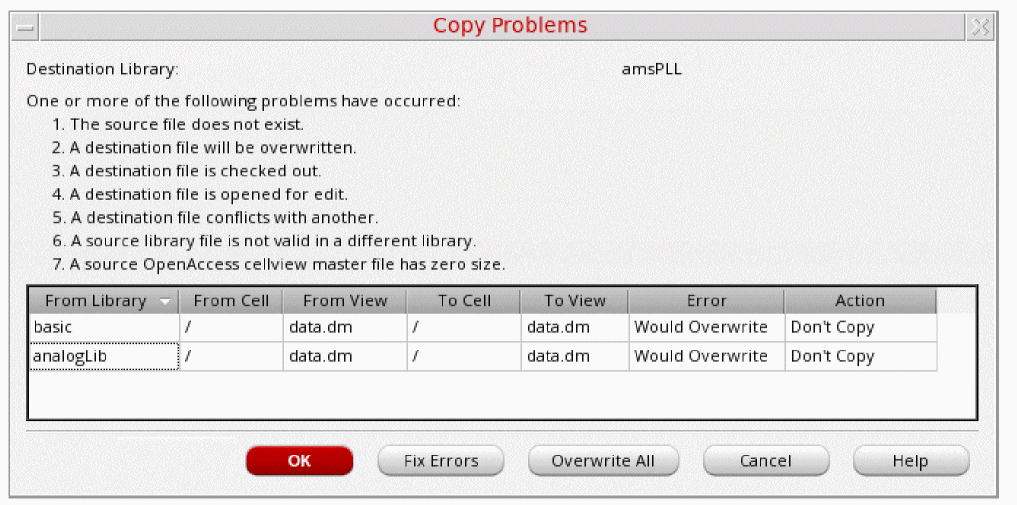
When copying to an existing library, you click OK on the Copy Library form, the Copy Problems form appears listing the copy problems in a sortable table.
To resolve copy problems, do the following:
- In the Error column for each item, view the error.
-
In the Action column for each item, select an action.
For example, the following actions are available for the Would Overwrite error:- Don’t Copy: Does not copy the item to the Destination Library.
- Overwrite: Writes the item to the Destination Library, overwriting the item of the same name.
- Auto Rename: Appends the From Cell name (if different) and the From Library name (if different), to the final cell name by adding an underscore prefix. If a destination cell with the same name already exists, an underscore and a number (for example, _01) is automatically added to the name.
-
Select one of the following options as an action for all items:
- Fix Errors selects the software’s choice for fixing the problem for all items (for example, using Auto Rename to fix the Would Overwrite error).
- Overwrite All selects Overwrite for all items.
You can click Fix Errors or Overwrite All first and then select a different action for some individual items. - Click OK.
The Copy Monitor status window is displayed.
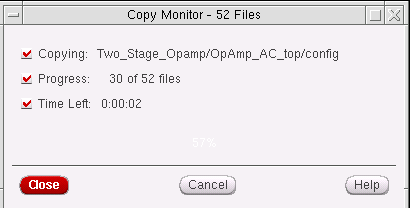
The copy operation completes using the specified actions.
Related Topics
Copying a Library in the Library Manager
Return to top