
You can restrict user access and manage licensing beyond the limits provided by the license file. For example, use an options file or a clients file to restrict licenses to specific workstations.
You can use an options file to
- Return idle licenses to the license pool
- Define groups so that you do not have to list individual users or hosts
- Reserve copies of a feature for specific workstations or specific users
- Allow or prevent specific users from using certain products
- Specify an enhanced log file
Not all Cadence products support all options equally. Search your product's documentation in CDNSHelp to see which options your product recognizes.
Creating an Options File
To create an options file, complete the following steps:
- Log in as cdsmgr or another user.
Note: Because a user can misuse the options file, restrict end-users' ability to start the daemons and modify the options file.
- Change to the install_dir/share/license directory.
cd install_dir/share/license
- If you want to restrict certain products, determine the licenses the products use.
A product can require more than one unique license feature. A FEATURE line in the license file lists each license.
For example, to manage access to Incisive Unified Simulator, you must specify each feature used by Incisive Unified Simulator. The license file lists all licensed features, so it includes these entries as well as many others. An example of a feature line is as follows:
FEATURE VERILOG-XL cdslmd 9999.999 31-jul-2006 3 7D64A871DA8D3AC2824E \
VENDOR_STRING=J:PERM DUP_GROUP=NONE vendor_info=1-may-2006 \
ISSUED=01-may-2006 SN=2006-05-01T01:33:08:819 SIGN2="105E 1584 \
9657 9E22 FBC0 76EC 2DF7 D750 7DE2 D6DC 2EA7 CB33 F7C6 7A64 \
17B1 139B B5EB 8A35 CC13 D2D1 DE2B D132 8C56 F966 3737 A19A \
F63B 1EF2 BF7A A8C9" V7.1_LK=EDF49831CC82D9A60ADF
The product to feature mapping information is available inside the license file. For the Incisive Unified Simulator example, it is
# Product Id : 29300, [Version: Version Independent]
# Product Name: Incisive(TM) Unified Simulator
# Type: Floating Exp Date: 31-jul-2006 Qty: 1
# Feature: VERILOG-XL [Version: 9999.999]
# Feature: Affirma_NC_Simulator [Version: 9999.999]
# Feature: Incisive_Verif_Engine [Version: 9999.999]
# Feature: Incisive_Verif_Environ [Version: 9999.999]
# Feature: Affirma_sim_analysis_env [Version: 9999.999]
To manage access to Incisive Unified Simulator, you must list VERILOG-XL,
Affirma_NC_Simulator, and all the other features under 29300.
- Use a text editor to create and edit an options file.
- Use install_dir/share/license/options.sample as a guide.
A few points to remember:
- Comment lines can begin with a pound (#) sign or with any word other than a keyword.
- Lines have a limit of 4000 characters.
- A backslash (\) continues a line onto the next line.
If you restrict licenses, the restriction applies to the first FEATURE lines encountered in the license file. For example, if you reserve five licenses, you reserve the first five licenses in the license file. Restricting licenses is a complex procedure. For more information, see the FlexNet License Administration Manual at https://www.flexera.com
- The options file uses this format.
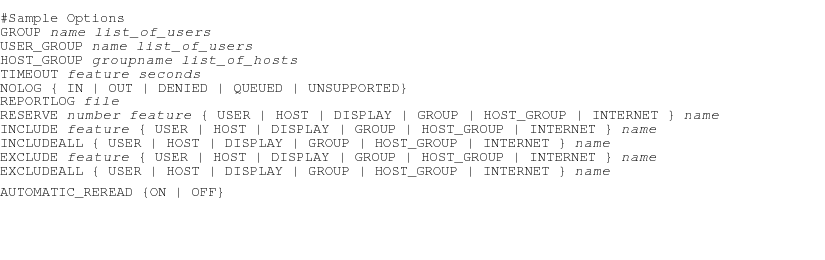
- To use groups instead of listing individual users or hosts, add GROUP, USER_GROUP, or HOST_GROUP lines to the options file.
Creating groups usually makes the options file easier to maintain because you do not need to list individual users or hosts. The FlexNet license manager cannot use UNIX groups.
GROUP groupname name1 name2 name3 name4 name5 …
USER_GROUP is an alias for GROUP and does the same thing.
USER_GROUP groupname name1 name2 name3 name4 name5 …
You concatenate multiple GROUP and USER_GROUP lines on one list.
|
GROUP or USER_GROUP | |
|---|---|
|
Default: |
No groups |
|
Minimum: |
Not applicable |
|
Maximum: |
None |
For example, to create a cadgroup with users gary, julie, and jan, the entry is
GROUP cadgroup gary julie jan
After you create the group, you can reserve, include, or prevent cadgroup from using certain products. To define a group of workstations for which you can include, exclude, or reserve licenses, use HOST_GROUP lines.
HOST_GROUP groupname host1 host2 host3 host4 host5
For example, to create an icwks group for the sunrise, sunset, and orange workstations, the entry is
HOST_GROUP icwks sunrise sunset orange
|
HOST_GROUP | |
|---|---|
|
Default: |
No groups defined |
|
Minimum: |
Not applicable |
|
Maximum: |
Unlimited number of groups |
Reserving Licenses
 To reserve licenses, add a RESERVE line to the options file.
For example, you might want to reserve some Cadence products for specific engineers or hosts.
RESERVE # feature type name
where:
- # Number of licenses reserved.
- feature Name of the feature reserved.
- type GROUP, USER, HOST, DISPLAY, or INTERNET address. The FlexNet license manager cannot use UNIX groups.
- name Name of the user group, host, display, or Internet address for the restricted feature. The Internet address uses the n.n[[.n].n] format and can include asterisks as wildcards.
|
RESERVE | |
|---|---|
|
Default: |
No licenses reserved |
|
Minimum: |
Not applicable |
|
Maximum: |
Determined by the number of licenses in the file |
For example, to reserve one copy of Verilog-XL for a user named jan, the options file entry is
RESERVE 1 VERILOG-XL USER jan
RESERVE 1 VXL-VLS USER jan
RESERVE 1 100 USER jan
RESERVE 1 21900 USER jan
…
You can reserve licenses for a specific display. In an X Window System™ environment, a user can run applications from several workstations while always using one particular display. You can include a DISPLAY entry in the options file.
To reserve a specified number of licenses for cadgroup, the entry might be
RESERVE 3 VERILOG-XL GROUP cadgroup
RESERVE 3 VXL-VLS GROUP cadgroup
RESERVE 3 100 GROUP cadgroup
RESERVE 3 21900 GROUP cadgroup
Timing Out Idle Licenses
To have products return their licenses to the license pool when they are idle, add a TIMEOUT line to the options file.
As long as users have the license checked out, the license is unavailable to anyone else. If no more licenses are available for that product, no one else can use the product. However, the product, not the user, determines when the product is idle (search your product's documentation in CDNSHelp to determine if your product supports TIMEOUT).
Depending on your product, you can specify how long a license can be inactive before being available for someone else. If you set a time-out for a feature and another user requests the feature when no more licenses are available, a license that has been inactive for the specified time returns to the license pool for the user requesting it.
If your product supports TIMEOUT, you can set a maximum amount of time (in seconds) that a license can remain inactive.
TIMEOUT feature seconds
|
TIME-OUT | |
|---|---|
|
Default: |
Licenses do not time out |
|
Minimum: |
Sixty minutes (3600 seconds) |
|
Maximum: |
None |
For example, if you want Allegro™ PCB Editor to time out in 2 hours of inactivity, the entry is
TIMEOUT allegro 7200
Disabling Automatic Reread
To turn off the automatic reread feature, add the AUTOMATIC_REREAD line to the options file.
When a reread is performed, such as calling the lmreread command, it forces the server to source the license file without having to shut down the server. This allows the system administrators to make changes to the license file without stopping and restarting the server.
At midnight each day, a check of each license is made to determine if it has expired. When any license is found to have expired and AUTOMATIC_REREAD is enabled, all license files are reread. A refresh list of available feature sets on the server is determined. Any existing checkouts from a client would be remembered so additional checkouts would not take place via a client heartbeat.
When any license is found to have expired and AUTOMATIC_REREAD is disabled, it is removed from the pools of available licenses. Reread of the licenses will not occur and hence any updated features will not be depcited and will not be part of the pool of available licenses.
AUTOMATIC_READ OFF
|
AUTOMATIC_REREAD OFF | |
|---|---|
|
Defaults |
The automatic reread feature is turned on. |
Note: Current behavior for clients that have performed a checkout prior to lmreread will retain usage of the licecnse. After midnight, the client continues to be active unless a check-in or exit is called. This behavior only happens when there is at least one or more unexpired licenses still valid on the server after the midnight reread. If all of the licenses are expired at midnight, then all clients will report an error message: "-97 server is down" because the daemon is shutdown after it detects that all feature are expired and will exit.
When AUTOMATIC_REREAD is disabled, the following known behavior is displayed on the debug log.
0:00:05 (cdslmd) f1 expired -- rereading to update
0:00:05 (cdslmd) Rereading license file and option file is disabled...
0:00:05 (cdslmd) EXPIRED: f1
0:00:05 (cdslmd) Server started on XGAMES for: f2
0:00:05 (cdslmd) Support removed for feature f1(00DF BDAA D31F 335C )
0:00:05 (cdslmd) Updating feature f2
0:00:05 (cdslmd) ...Finished rereading
Note: The log correctly shows that rereading is disabled and that the exipred option is removed. But note that at the end, it states that it finished rereading. This information is incorrect. There is actually no rereading happening here.
Restricting Access
To allow or prevent access to Cadence products, add INCLUDE, EXCLUDE, INCLUDEALL, and EXCLUDEALL lines to the options file, or use the Cadence Client Filter. For the details and usage of the Cadence Client Filter, refer to section, "Letting Users Access Products."
INCLUDE feature type name
EXCLUDE feature type name
INCLUDEALL feature type name
EXCLUDEALL feature type name
where:
- feature Name of feature restricted.
- type USER, GROUP, HOST, DISPLAY, or INTERNET.
- name Name of user, group, host, display, or the Internet address for the restricted feature. The Internet address uses the n.n[[.n].n] format and can include asterisks as wildcards.
|
INCLUDE, INCLUDEALL, EXCLUDEALL, EXCLUDE | |
|---|---|
|
Defaults: |
Every user can use the licenses |
|
Maximum: |
Determined by the number of licenses in the file |
If you use an INCLUDE line, you automatically exclude everyone else in that category (USER, GROUP, HOST, DISPLAY, or INTERNET). For example, if you include one user, you must specify all users to include those who can use the license. The number of USER, GROUP, HOST, DISPLAY, or INTERNET addresses that you want to restrict determines whether it is easier to use an INCLUDE or an EXCLUDE line.
The INCLUDE and EXCLUDE lines follow these rules of precedence:
- EXCLUDE those listed
- INCLUDE those listed, but exclude everyone else
- If there is no EXCLUDE or INCLUDE list, everyone can use the FEATURE
- If there is an EXCLUDE or INCLUDE list for a FEATURE, no one else can use the FEATURE
- The software excludes someone on both the INCLUDE and EXCLUDE lists
- For more information, refer to the Flexera web site:
http://www.flexerasoftware.com
In the example that follows, including a user named jan to use Verilog-XL forces you to specify everyone else who should be able to access the feature, such as the cadgroup.
INCLUDE VERILOG-XL USER jan
INCLUDE VXL-VLS USER jan
INCLUDE 100 USER jan
INCLUDE 21900 USER jan
INCLUDE VERILOG-XL GROUP cadgroup
INCLUDE VXL-VLS GROUP cadgroup
INCLUDE 100 GROUP cadgroup
INCLUDE 21900 GROUP cadgroup
In the example that follows, including a host workstation named sunny forces you to specify the name of every host that should be able to access the feature.
INCLUDE VERILOG-XL HOST sunny
INCLUDE VXL-VLS HOST sunny
INCLUDE 100 HOST sunny
INCLUDE 21900 HOST sunny
In the example that follows, including a display named sundown:0 forces you to specify every display that should be able to access the feature.
INCLUDE VERILOG-XL DISPLAY sundown:0
INCLUDE VXL-VLS DISPLAY sundown:0
INCLUDE 100 DISPLAY sundown:0
INCLUDE 21900 DISPLAY sundown:0
In the example that follows, including an Internet address of 192.12.13.* forces you to specify every internet address that should be able to access the feature.
INCLUDE VERILOG-XL INTERNET 192.12.13.*
INCLUDE VXL-VLS INTERNET 192.12.13.*
INCLUDE 100 INTERNET 192.12.13.*
INCLUDE 21900 INTERNET 192.12.13.*
To exclude a user, group, host workstation, display, or Internet address from the list of authorized feature users, use the following:
EXCLUDE VERILOG-XL USER jan
EXCLUDE VERILOG-XL GROUP cadgroup
EXCLUDE VERILOG-XL HOST sunny
EXCLUDE VERILOG-XL DISPLAY sundown:0
EXCLUDE VERILOG-XL INTERNET 192.12.13.115
You can even manage all features served by the Cadence daemon, cdslmd. EXCLUDEALL prevents a user, host, group, or display from using all features served by cdslmd (or all daemons in the license file). INCLUDEALL lets a user, host, group, or display use all features served by cdslmd.
INCLUDEALL type name
EXCLUDEALL type name
Limiting Log-File Messages
To limit the messages recorded in the debug log file, add a NOLOG line to the options file.
Because the license daemons write many status messages to the debug log file, the file can grow quickly. To slow the growth of the file, you can limit the logging of several licensing messages. However, if you turn off the messages, gen_report cannot include the information in reports, which can cause the statistics to be inaccurate.
NOLOG IN | OUT | DENIED | QUEUED | UNSUPPORTED
where:
- IN Does not record licenses checked in.
- OUT Does not record licenses checked out.
- DENIED Does not record licenses denied, licenses not available, or when an excluded user tries to check out a license.
- QUEUED Does not record when a user chooses to queue for an available feature.
- UNSUPPORTED Does not log error messages that report a failure due to the feature being unsupported.
Search your product's documentation in CDNSHelp to see if your product supports queueing.
|
NOLOG | |
|---|---|
|
Default: |
All licensing messages recorded in the debug log file |
For example, to avoid logging messages about queueing (if it is available), use
NOLOG QUEUED
If you want to run your own log-file filter, you can incorporate your filter into your rc.lic file.
Note: Cadence no longer provides the gen_report utility. For an enhanced report generator that reads the new FlexNet report log files, contact Flexera for the FlexNet Manager.
Creating FlexNet report log Files
If you want to create detailed usage reports, specify a report log file in the options file.
You can generate additional usage information from the REPORTLOG log file, a non-ASCII log file, by using the FlexNet Manager. In order to turn this option on, you need the following information in the license server OPTIONS file.
REPORTLOG +file_name
If you begin file_name with a + sign, you append the file instead of overwriting it each time the license daemons start.
|
REPORTLOG | |
|---|---|
|
Default: |
No report log file |
After Modifying the Options File
- Save and exit the options file.
- Edit the license file.
Enter the full path to the options file on the DAEMON line after the cdslmd path. For example, enter a line similar to DAEMON cdslmd cdslmd_path install_dir/share/license/options For fault-tolerant licensing, follow these steps:- Copy the options file to the second and third servers.
- Add the absolute path to the options file to the DAEMONline of the license file on the second and third servers, as in the last step.
Note: If you use automount to reference licensing files in fault-tolerant licensing, the license server cannot serve licenses if the remote computer goes down.
- If the license daemons are already running, stop and restart them.
The license options file can contain an IPv6 address to specify host restrictions when using the following options and keywords:
INTERNETenter these keywords:EXCLUDE,EXCLUDEALL,INCLUDE,INCLUDEALL,MAX, andRESERVE.HOSTenter these keywords:EXCLUDE,EXCLUDE_ENTITLEMENT,EXCLUDEALL,EXCLUDE_BORROW,INCLUDE,INCLUDE_ENTITLEMENT,INCLUDEALL,INCLUDE_BORROW,MAX, andRESERVE.HOST_GROUPkeyword (it takes IP addresses).