
Fluid Guard Rings Around Modgens
In addition to multipart path (MPP) guard rings, you can use the Modgen editor to create fluid guard rings (FGRs) around objects. FGRs are a type of fluid Pcells that can be used to enclose one or more objects such as devices or device chains. Before creating FGRs, ensure that the FGR is installed as a device class in the technology file.
To create an FGR, click the Guard Ring  icon on the Modgen Placement toolbar and choose Create Fluid Guard Ring.
The Create Guard Ring form is displayed.
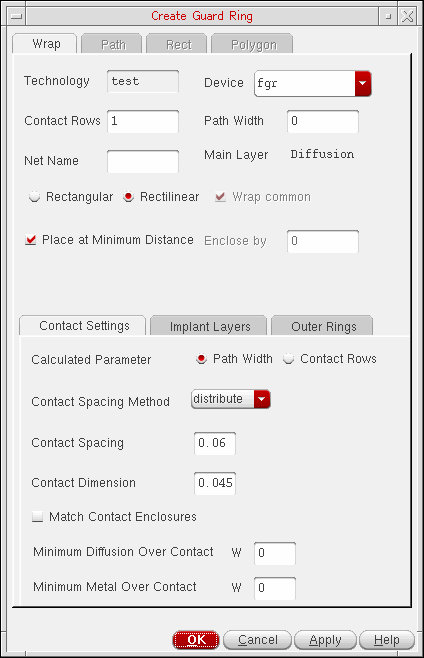
FGRs can be created by drawing a path, a rectangle or polygon, or by using the wrap mode.
Each of these modes represent a tab on the Create Guard Ring form. However, the Modgen Editor only supports creation of FGRs in Wrap mode. In this mode, an FGR is created around the objects you select. The FGR parameters are stored in the Modgen constraint.
When you create an FGR for a FinFET device, the FGR instance automatically snaps to the underlying fin grids if the Snap Pattern Snapping check box is selected in the Layout Editor Options form.
Hand Editing Fluid Guard Rings
When a Modgen is edited, the FGRs in the Modgen are regenerated automatically. As a result, all the manual edits made to the FGRs are lost. To avoid this, switch to hand edit mode for the FGRs. In this mode, the FGRs are not regenerated each time the Modgen is updated. Therefore, all customizations remain.
To switch on hand edit mode, either select Enable Fluid Guard Ring Hand Edit Mode from the Guard Ring menu, or use the mgFGREnterHandEdit SKILL function.
To switch off hand edit mode, either select Disable Fluid Guard Ring Hand Edit Mode from the Guard Ring menu, or use the mgFGRExitHandEdit SKILL function.
Related Topics
Return to top