
Adding Dummy Device Rows or Columns
Modgens provides the ability to add an entire row or column of dummy devices by selecting only one reference device. For instance, you can select any device in the left column and select Add Dummy Row/Column > Left to add an entire column of dummies to the left of the Modgen. You can also choose to add dummy devices to the entire array.
To add dummy devices around an array:
- Select a device in an outer row or column of the Modgen array.
-
Click the arrow next to the Add Dummy
 button on the toolbar.
 -
Select a dummy location.
The Dummy Options form is displayed.
You can either set up the dummy options or accept the default options.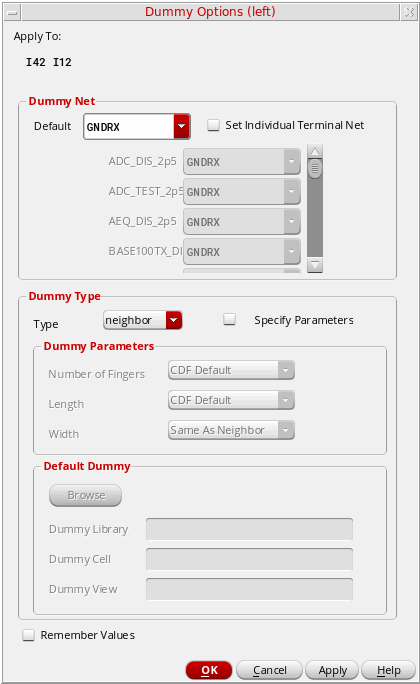
-
Select Specify Parameters in the Dummy Parameters section to specify the number of fingers, length, and width for all dummy devices.
The Specify Parameters check box is available only when the Dummy Options form is invoked by selecting Add Dummy Row/Column button.
If Specify Parameters is not selected, then default values for these fields is determined by the modgenMakeMinDummies environment variable. - Modify dummy device options as required.
- Click OK or Apply.
The Module Generator places the dummy rows or columns as specified.
You can also choose to add dummy devices to an entire array. To do this:
- Select any device in an outer row or column of the array.
-
On the Modgen Placement toolbar, click the arrow next to the Add Dummy Row/Column
 button and choose the location.
Related Topics
Neighbor Dummy Type for Modgens
Adding and Deleting Dummies in the Modgen Editor
Methods to Delete Dummy Devices, Dummy Rows, and Dummy Columns
Return to top