
Open Modgens in the Modgen Editor
Use one of the following methods to open an existing Modgen in the Modgen editor:
- Double-click the Modgen in the design.
-
Double-click the Modgen constraint in the Constraint Manager toolbar.
If the Constraint Manager isn’t visible, choose Windows – Assistants – Constraint Manager. If the Modgen icon isn’t visible, click the >> button.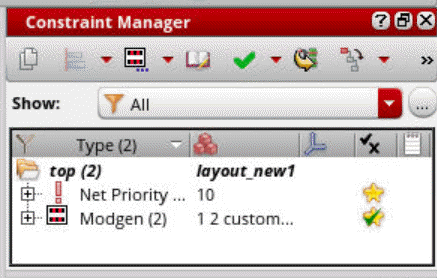
- Select the Modgen and choose Place—Modgen—Create/Edit Modgen.
- Select the Modgen and choose the Module Generator icon in the Constraint Manager assistant toolbar.
-
Select the Modgen figGroups in the layout canvas, right click, and select Edit Modgen.
(Layout only) If you have launched Modgen from the layout, place the module in the layout.
The module appears in the layout window and the layout window moves into Module Generator Edit mode. The Modgen Editor is displayed. The default workspace is displayed.
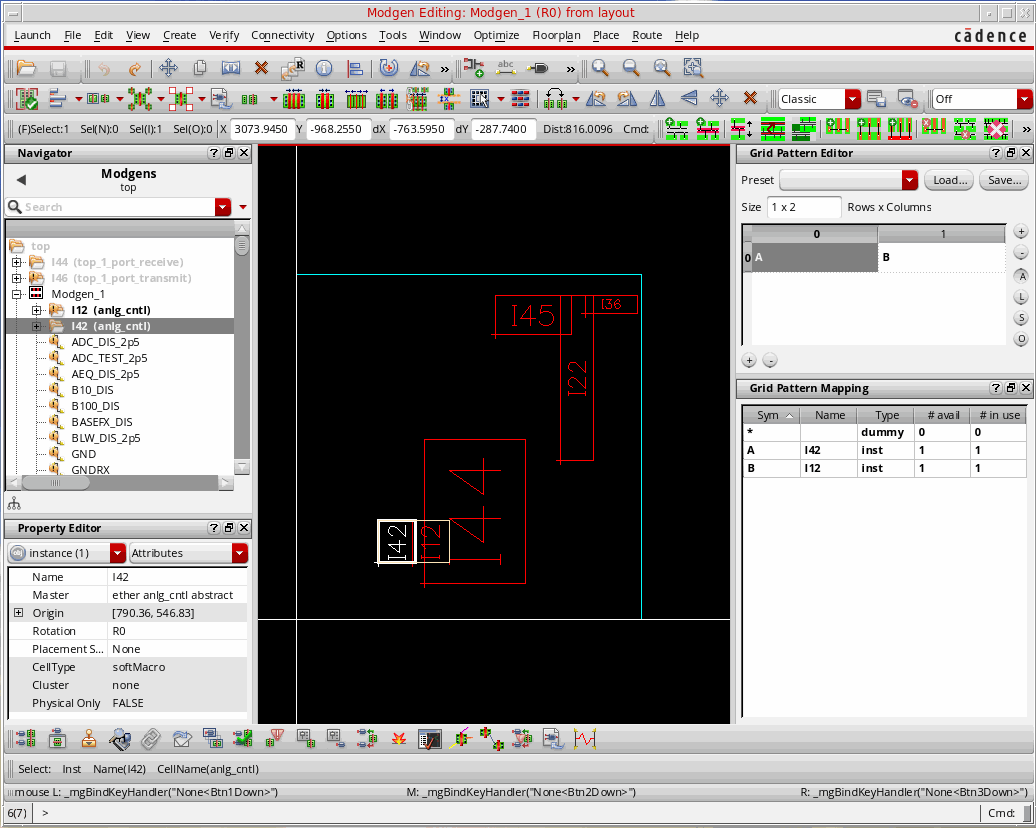
You can either use the existing default workspace or define a different workspace and set it as the default workspace.
Modgen commands are invoked from the Modgen Editor, pop-up menus, and the Modgen Placement toolbar.
Typical Virtuoso commands such as Edit—Delete are not supported in the Modgen Editor mode.
If you want to perform some interactive customizations, such as moving devices inside a Modgen, you need to first disable the Modgen constraint by selecting it in the Constraint Manager and setting the Enabled parameter to False. This will turn the Modgen into a standard database figGroup. Then you need to do an Edit in Place to customize the Modgen. Any operation, such as UCN, should not affect any custom edits in this state.
This operation should only after completing the final layout and configuration of the Modgen. After making these modifications, if you re-enable the Modgen constraint by setting the Enabled parameter to True, all modifications performed outside the Modgen environment will be lost.
When a Modgen is invoked from a schematic cellView, it is displayed in the Modgen Previewer window. Changes made to the Modgen are saved in the constraint view for that schematic cellView. Later, you can transfer these changes from the schematic to the layout cellView.
Related Topics
Return to top