Moving Modgen Instances Interactively
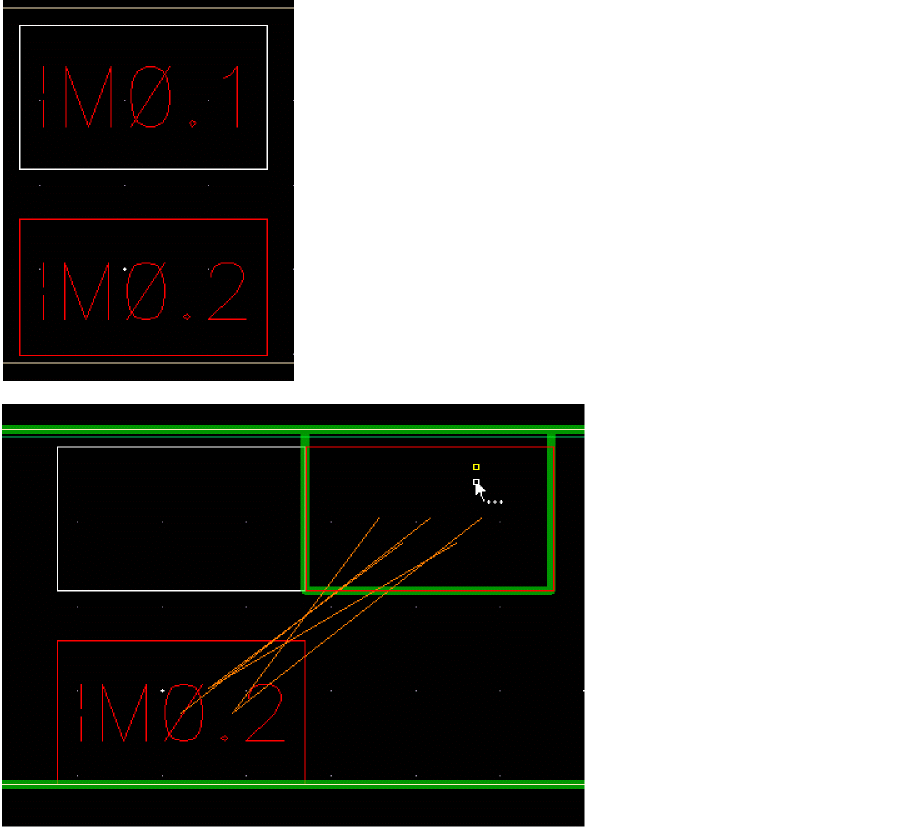
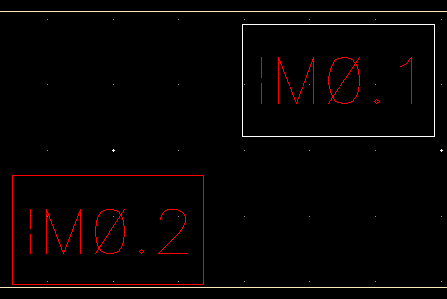
Modgen members can be moved interactively to other empty or non-empty cells on the same or a different row/column. If an instance is moved within the same row/column, the devices in that row/column are re-ordered. If an instance is moved to a different row/column, the positions of the moved instance and the device on which it is dropped are swapped.
To move instances to an empty or non-empty cell, you can use one of the following methods:
-
By dragging the instance to the target location
-
Click the instance you want to move.
-
While holding down the mouse button, drag the instance to the required empty cell.
-
Release the mouse button to place the instance.
-
Using the shortcut menu.
-
Right-click the instance and select Move.
-
Click and release the left mouse button on the instance.
-
Drag the instance to the desired cell.
-
Click to place the instance.
-
Using the Move icon.
-
Select the instance.
-
On the Modgen Placement toolbar, click Move
 .
. -
Click and release the left mouse button on the instance.
-
Drag it to the desired cell
-
Click to place the instance.
Related Topics
Placing Modgen Members Interactively
Rotating and Flipping Modgen Instances
Swapping Instances
Return to top