
Swapping Instances
By using the swap function, you can interchange the position of two instances, rows, or columns. This helps optimize routing. For example, by swapping instances, you can optimally connect resistors in a series.
-
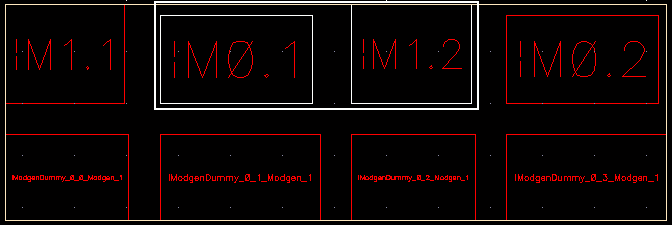
Select the two required instances in the design display area.
-
Do one of the following:
-
On the Modgen Placement toolbar, click the arrow next to the Swap
 button, and select Swap Instances.
 -
Right-click the selected instances, point to Swap, and select Swap Instances.
Alternative SKILL Function: mgSwapCB
-
On the Modgen Placement toolbar, click the arrow next to the Swap
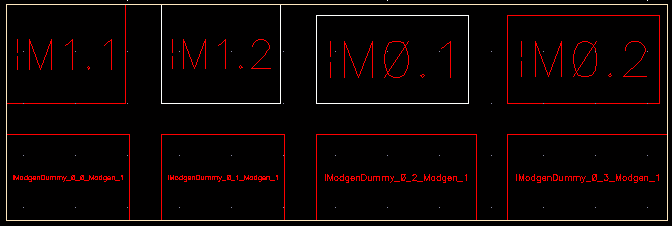
The selected instances are swapped. In the figure below, notice that M1.2 and M0.2 are swapped.
-
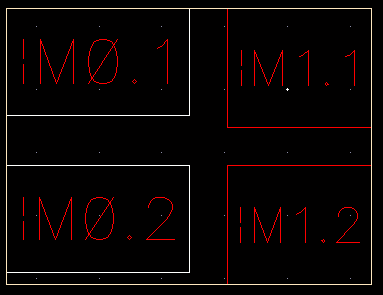
Select an instance each in the two rows that you want to swap.
- Do one of the following:
-
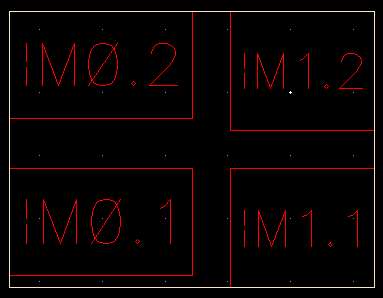
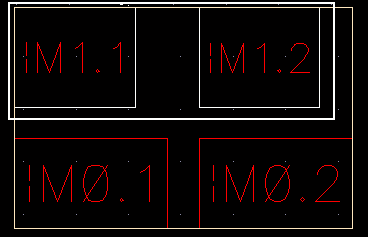
The selected rows are swapped. In the figure below, notice that the row (
M0.2 | M1.2) is swapped with the row (M0.1 | M1.1).
-
Select an instance each in the two columns that you want to swap.
- Do one of the following:
-
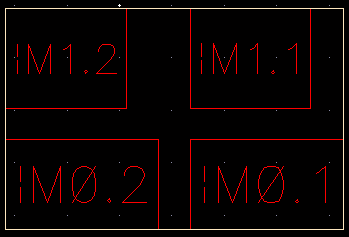
The selected columns are swapped. In the figure below, notice that the column
(Mi.2 | M0.2)is swapped with the column(M1.1 | M0.1).
Related Topics
Placing Modgen Members Interactively
Moving Modgen Instances Interactively
Adding Empty Rows and Columns to Modgens
Return to top