
1
Introduction to OCEAN
This topic provides an introduction to Open Command Environment for Analysis (OCEAN). See the following topics for more information:
- Types of OCEAN Commands
- OCEAN Online Help
- OCEAN Syntax Overview
- Parametric Analysis
- Distributed Processing
- Plotting Simulation Results
OCEAN lets you set up, simulate, and analyze circuit data. OCEAN is a text-based process that you can run from a UNIX shell or from the Command Interpreter Window (CIW). You can type OCEAN commands in an interactive session, or you can create scripts containing your commands, then load those scripts into OCEAN. OCEAN can be used with any simulator integrated into the Virtuoso® Analog Design Environment.
Typically, you use the Virtuoso® Analog Design Environment when creating your circuit (in Composer) and when interactively debugging the circuit. After the circuit has the performance you want, you can use OCEAN to run your scripts and test the circuit under a variety of conditions. After making changes to your circuit, you can rerun your scripts. OCEAN lets you
- Create scripts that you can run repeatedly to verify circuit performance
- Run longer analyses such as parametric analyses and statistical analyses more effectively
- Run long simulations in OCEAN without starting the Virtuoso® Analog Design Environment graphical user interface
- Run simulations from a nongraphic, remote terminal
Licensing Requirements
You must have the Analog_Design_Environment_L licence to use OCEAN. For information on licensing, see Virtuoso Software Licensing and Configuration Guide.
Types of OCEAN Commands
You can create OCEAN scripts to accomplish the full suite of simulation and data access tasks that you can perform in the Virtuoso® Analog Design Environment. An OCEAN script can contain three types of commands, as shown in the following figure:
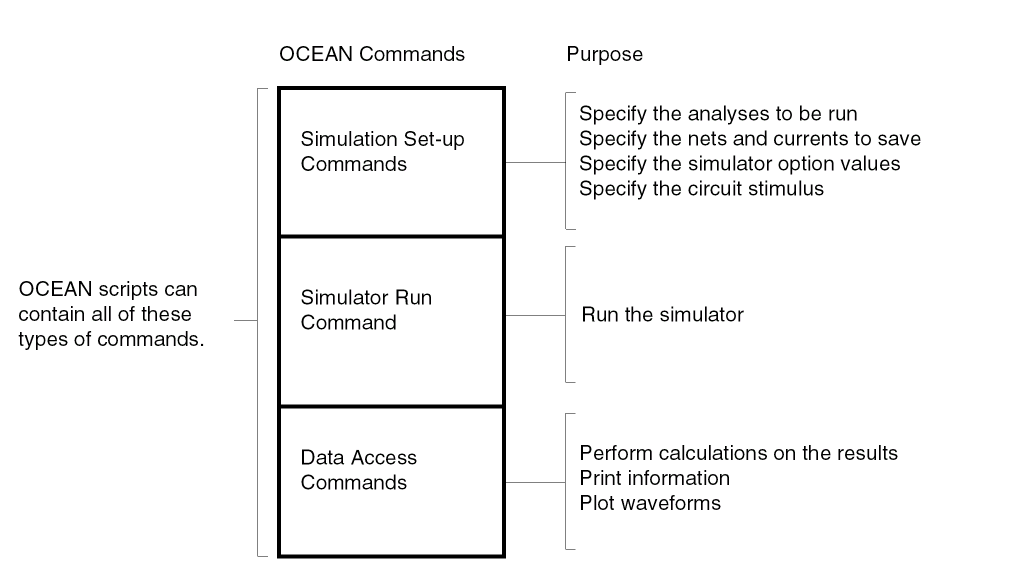
All the parameter storage format (PSF) information created by the simulator is accessible through the OCEAN data access commands. (The data access commands include all of the Virtuoso® Analog Design Environment calculator functions.)
You can use the history command to view the command history from the current session and the most recently terminated session.
OCEAN Online Help
Online help is available for all the OCEAN commands when you are in an OCEAN session. To get help for a specific OCEAN command, type the following:
ocnHelp( 'commandName)
This command returns an explanation of the command and examples of how the command can be used.
To get a listing of all the different types of commands in OCEAN, type the following:
ocnHelp()
For more information, see “ocnHelp”.
OCEAN Syntax Overview
OCEAN is based on the Virtuoso® SKILL programming language and uses SKILL syntax. All the SKILL language commands can be used in OCEAN. This includes if statements, case statements, for loops, while loops, read commands, print commands, and so on.
The most commonly used SKILL commands are documented in this manual. However, you are not limited to these commands. You can use any SKILL routine from any SKILL manual.
Common SKILL Syntax Characters Used in OCEAN
This section provides an overview of some basic SKILL syntax concepts that you need to understand to use OCEAN. For more information about SKILL syntax, see Introduction to SKILL.
Parentheses
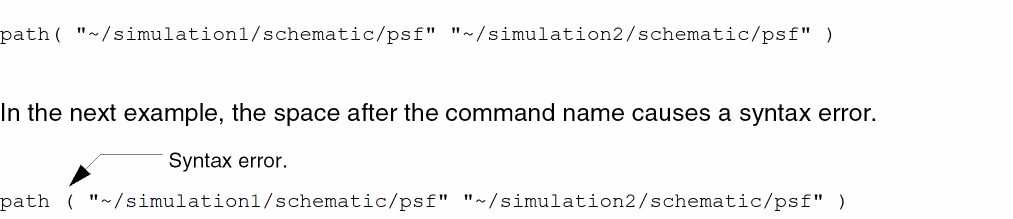
Parentheses surround the arguments to the command. The command name is followed immediately by the left parenthesis, with no intervening space.
Examples
The following example shows parentheses correctly enclosing two arguments to the path command.
Quotation Marks
Quotation Marks are used to surround string values. A string value is a sequence of characters, such as "abc".
In the following example, the directory names provided to the path command are strings, which must be surrounded by quotation marks.
path( "~/simulation1/schematic/psf" "~/simulation2/schematic/psf" )
Convention
In this manual, a SKILL convention is used to let you know when an argument must be a string. When you see the prefix t_, you must substitute a string value (surrounded by quotation marks) for the argument. Consider the following syntax statement:
desVar( t_desVar1 g_value1 t_desVar2 g_value2)
In this case, there are two string values that must be supplied: t_desVar1 and t_desVar2. (The g_ prefix indicates a different type of argument. For more information about prefixes, see Working with SKILL.
Recovering from an Omitted Quotation Mark
Accidentally omitting a closing quotation mark from an OCEAN command can cause great confusion. For example, typing the incorrect command
strcat( "rain" "bow )
appears to hang OCEAN. In an attempt to recover, you type a Control-c. That gives you a prompt but it does not fix the problem, as you discover when you then type the correct command.
strcat( "rain" "bow" )
Again, you have to type a Control-c and OCEAN responds with another message.
^C*Error* parser: interrupted while reading input
If you find yourself in this situation, do not press a Control-c. Instead, recover by entering a quotation mark followed by a right square bracket ( ] ). This procedure reestablishes a normal OCEAN environment and you can then reenter the correct command.
ocean> strcat( "rain" "bow )
"]
"rainbow ) "
ocean> strcat( "rain" "bow" )
"rainbow"
ocean>
Single Quotation Marks
The single quotation mark indicates that an item is a symbol. Symbols in SKILL correspond to constant enums in C. In the context of OCEAN, there are predefined symbols. The simulator that you use also has predefined symbols. When using symbols in OCEAN, you must use these predefined symbols.
Examples
In the following example, tran is a symbol and must be preceded by a single quotation mark. The symbol tran is predefined. You can determine what the valid symbols for a command are by checking the valid values for the command’s arguments. For example, if you refer to “analysis”, you see that the valid values for the first argument include 'tran.
analysis( ’tran … )
The list of items you can save with the save command is also predefined. You must choose from this predefined list. See “save” and refer to the valid values for the s_saveType argument. The ’v symbol indicates that the item to be saved is the voltage on a net.
save( ’v "net1" )
Convention
In this manual, a SKILL convention is used to let you know when an argument must be a symbol. When you see the prefix s_, you must substitute a symbol (preceded by a single quotation mark) for the argument. Consider the following syntax statement:
selectResults( s_resultsName ) => t / nil
In this case, there is one symbol that must be supplied: s_resultsName. For the selectResults command, there is a different mechanism that lets you know the list of predefined symbols. If you type the following command, with no arguments, the list of predefined symbols is returned: results() => ( dc tran ac )
Question Mark
The question mark indicates an optional keyword argument, which is the first part of a keyword parameter. A keyword parameter has two components:
- The first component is the keyword, which has a question mark in front of it.
- The second component is the value being passed, which immediately follows the keyword.
Keyword parameters, composed of these keyword/value pairs, are always optional.
Examples
In the following example, all the arguments to the analysis command except ’tran are keyword/value pairs and are optional.

For example, you can use ?center and ?span instead of ?start and ?stop. You also can omit ?start altogether because it is an optional argument.
Convention
In this manual, a SKILL convention is used to let you know when arguments are optional. Optional arguments are surrounded by square brackets [ ]. In the following example, all of the keyword/value pairs are surrounded by square brackets, indicating that they are optional.
report([?outputt_filename|p_port] [?typet_type] [?namet_name] [?paramt_param] [?formats_reportStyle] ) => t / nil
Data Types Used in OCEAN
The following table shows the internal names and prefixes for the SKILL data types that are used in OCEAN commands.
| Data Type | Internal Name | Prefix |
|---|---|---|
For more information about SKILL datatypes, see Chapter 4, “Working with SKILL.”
OCEAN Return Values
You get return values from most OCEAN commands and can use these values in other OCEAN commands.
The following table shows some examples in which the return value from a command is assigned to a variable.
| Assigning a Return Value to a Variable | Resulting Value for the Variable |
|---|---|
Design Variables in OCEAN
Design variables in OCEAN function as they do in the Virtuoso® Analog Design Environment. Design variables are not assigned in the order specified. Rather, they are reordered and then assigned. Consider the following example:
desVar( "a" "b+1" )
desVar( "b" 1 )
You might expect an error because a is assigned the value b+1 before b is assigned a value. However, OCEAN reorders the statements and sends them as follows:
desVar( "b" 1 )
desVar( "a" "b+1" )
After the reordering, there is no error. (b is equal to 1 and a is equal to 2.)
Suppose you run a simulation, then specify the following:
desVar("b" 2)
You might expect a to be equal to 2, which was the last value specified. Instead, a is reevaluated to b+1 or 3.
This approach is similar to how the design variables are used in simulation. For example, consider a circuit that has the following resistor:
If you change the value of b, you expect the value of R1 to change. You do not expect to have to netlist again or retype the R1 instantiation.
This approach is used in the Virtuoso® Analog Design Environment. Users are not expected to enter design variables in a particular order. Rather, the design variables are gathered during the design variable search then reordered before they are used.
You can also use a conditional expression containing the ternary operator (?:) to specify the value of a design variable, as shown below:
desVar( "b" 1 )
desVar( "a" "((b>1)?1:0)" )
outputs() in OCEAN
Throughout this manual are examples of nets and instances preceded by a “/” as well as examples without the “/”. There is a significant difference between the two.
If you create a design in the Virtuoso® Analog Design Environment and save the OCEAN file, all net and instance names will be preceded with a “/”, indicating they are schematic names. The netlist/amap directory must be available to map these schematic names to names the simulator understands. (If your design command points to the raw netlist in the netlist directory, the amap directory is there.)
If you create a design or an OCEAN script by hand, or move the raw netlist from the netlist directory, the net and instance names might not be preceded with “/”. This indicates that simulator names are used, and mapping is not necessary.
If you are unsure whether schematic names or simulator names are used, after selectResult( S_resultsName ), type outputs() to see the list of net and instance names.
netlist directory, it is not advised. There are other files in the netlist directory that are now required to run OCEAN.Parametric Analysis
There are two ways you can run parametric analyses in OCEAN:
Using the paramAnalysis command is an easier approach. With this command, you can set up any number of nested parametric analyses in an OCEAN script. The paramRun command runs all the parametric analyses. When the analysis is complete, the data can be plotted as a family of curves. The following example shows how you might use nested parametric analyses:
paramAnalysis( "rl" ?start 200 ?stop 600 ?step 200
    paramAnalysis( 'rs ?start 300 ?stop 700 ?step 200
)
)
paramRun ()
In this example, the outer loop cycles through r1, and the inner loop cycles through rs as follows:
Loop through r1 from 200 to 600 by 200.
Loop through rs from 300 to 700 by 200.
So, for r1=200, rs equals 300, 500 and then 700. Then, for r1=400, rs equals 300, 500, and then 700. Finally, for r1=600, rs equals 300, 500, and then 700
Use a SKILL for loop only if the paramAnalysis command is not adequate. You can use the SKILL for loop to set up any number of variable-switching runs. After all the simulations are complete, you have to work with the results directories individually. The following example shows how you might use SKILL loops for parametric analyses.
Cload = list( 2p 4p 6p 8p )
foreach( val  Cload
    desVar( "Cload" val )
    a=resultsDir( sprintf( nil "./demo/Cload=%g" val ) )
    printf( "%L", a )
    run( )
)
foreach( val  Cload
    openResults( sprintf( nil "./<dir>/Cload=%g" val ) )
    selectResults( 'ac )
    plot( vdb( "vout" ) )
)
Data Access Without Running a Simulation
You can retrieve and use data from previous simulations at any time by opening the data with the openResults command. After opening the data, you can use any data access commands on this data. For more information, see Chapter 7, “Data Access Commands.”
You can use query commands such as results, outputs, and dataTypes to see what data is available to be opened.
Distributed Processing
You can use OCEAN distributed processing commands to run simulations across a collection of computer systems. The distributed processing commands allow you to specify where and when jobs are run and allow you to monitor and control jobs in a variety of ways. Using distributed commands, you can
- Submit one or more jobs to a distributed processing queue
- Specify a host or group of hosts on which to distribute jobs
- View the status of jobs
- Specify when a job will run or in what sequence a group of jobs will run
- Suspend and resume jobs
- Cancel jobs
For you to be able to use the distributed processing commands, your site administrator needs to set up the lists of machines to which jobs are submitted. Each list of machines is a group of hosts and is called a queue. Consult the Virtuoso Analog Distributed Processing Option User Guide for more information on how to configure systems for distributed processing. For information on the distributed processing commands for OCEAN, see Chapter 12, “OCEAN Distributed Processing Commands.”
Blocking and Nonblocking Modes
You can configure jobs to run in blocking or nonblocking mode. In blocking mode, execution of subsequent OCEAN commands is halted until the job completes. In nonblocking mode, the system does not wait for the first job to finish before starting subsequent jobs.
Blocking Mode
You must run jobs in blocking mode to be able to use the data resulting from a job in a subsequent command in an OCEAN script or batch run.
For example, if you want to run a simulation, select the tran results from that simulation, and then plot them, you
- Configure the simulation with setup commands
-
Run the simulation with the
run()command -
Select the desired results with the
selectResults( ’tran)command -
Plot the results with the
plot()command
A job like the one in the example above must run in blocking mode so that the commands are processed sequentially. If the jobs in the example above are run in nonblocking mode, the selectResult command starts before the run command can return any data, and the selectResult command and the plot command cannot complete successfully.
Nonblocking Mode
If you are submitting several jobs that have no interdependencies, you can run them concurrently when hostmode is set to distributed.
For example, if you want to run two separate simulations as jobs, but do not want to wait until the first is complete before starting the second, you
- Configure the first simulation with setup commands
- Configure a second simulation with setup commands
In the example above, the script starts the first job and then starts the second job without waiting for the first job to finish.
If you are running several commands, and some of them are data access commands, you can use the wait command is needed between the simulation and the data access commands to ensure the desired simulation is complete before the data is accessed.
For example, if you want to run two separate simulations as jobs (sim1 and sim2), and want to select and plot the results of the second simulation run, you
- Configure the first simulation with setup commands
-
Run the simulation with a
run(?jobPrefix "sim1")command - Configure a second simulation with setup commands
-
Run the second simulation with the
run( ?jobPrefix "sim2)command -
Cause the script to wait until the second simulation finishes before starting the
selectResultscommand with thewait(sim2)command -
Select the desired results with the
selectResults(’tran)command -
Plot the results with the
plot( )command
In the example above, the script starts the first job and then starts the second job without waiting for the first job to finish. When the script reaches the wait command, it pauses until the second simulation runs and then selects the results to plot.
Plotting Simulation Results
The simulation results can be plotted in Virtuoso Visualization and Analysis XL, which is supported in the OCEAN environment.
Return to top