
2
Using OCEAN
This chapter explains the different ways you can use OCEAN to perform simulation tasks. In this chapter, you can find information about
- OCEAN Use Models
- Using OCEAN Interactively
- License Requirements
- Creating OCEAN Scripts
- Selecting Results
- Running Multiple Simulators
- OCEAN Tips
OCEAN Use Models
There are two ways you can use OCEAN:
- You can use OCEAN interactively to perform simple tasks.
-
You can use OCEAN in batch mode and provide the name of an existing (or parameterized) script as a command line argument. OCEAN scripts can be created:
- From the Virtuoso® Analog Design Environment window with the command Session – Save Script
- Using a text editor
For information about creating scripts, see “Creating OCEAN Scripts”.
All the OCEAN commands are described in this manual, and online help is available for all these commands. For information about using the OCEAN online help, see “OCEAN Online Help”.
Using OCEAN Interactively
You can run OCEAN from a UNIX prompt or from the Virtuoso® design framework II (DFII) Command Interpreter Window (CIW).
Using OCEAN from a UNIX Shell
To start OCEAN from a UNIX prompt, type the following command:
This command loads and reads the .oceanrc file. You can place OCEAN commands in your .oceanrc file, which is similar to the .cdsinit file. This file can contain any valid OCEAN command, function or SKILL initialization routine (excluding graphical dfII references, such as bindkeys and so on, which are not applicable to OCEAN). If you do not want to specify any startup initialization options for OCEAN, you do not need to create or add an .oceanrc file.
The OCEAN prompt appears indicating that you have started OCEAN:
If you do not see this prompt after starting OCEAN, press Return. If you still do not see this prompt, you may have redefined the prompt with the setPrompt command. (This does not affect OCEAN; the prompt just will not indicate OCEAN is running.)
Now you can start typing OCEAN commands interactively. For an example of interactive use, see “Interactive Session Demonstrating the OCEAN Use Model”.
To quit the OCEAN executable from UNIX, type the following command:
OCEAN in Non-Graphical Mode
OCEAN is an executable shell script that calls the AWD workbench and passes all its command-line options to it using the following shell command:
This makes OCEAN highly dependent on the UNIX shell environment.
You can run OCEAN in a non-graphical mode by using the -nograph option with the ocean command. This disables the graphical options of the software. This option is useful if OCEAN is started on a machine that does not have X-Windows running.
-nograph option to run the OCEAN job through a cron. Ensure that DISPLAY is set to “:0”. If the screen will be locked when the OCEAN cron job runs, use the allowaccess option with the xlock command on the UNIX prompt. For more information on the usage of xlock, type man xlock in a terminal window.
The -nograph option must only be used to replay logfiles that have been created interactively. For example, while using OCEAN with the -nograph option, your oceanScript.ocn file must have an exit() statement at the end followed by a newline. Otherwise, OCEAN hangs. The reason for this is that when the workbench is started in the non-graphical mode, it does not redirect standard I/O as it normally does; instead, it lets the SKILL human interface (HI) handle the standard I/O. HI expects an explicit exit() statement at the end of the OCEAN script and OCEAN exits only when it detects an exit() at EOF. The command is used as follows:
ocean -nograph < oceanScript.ocn > oceanScript.log
Alternatively, you can execute the OCEAN script using the -replay option. The command is used as follows:
ocean -nograph -replay oceanScript.ocn -log oceanScript.log
.oceanrc is automatically loaded while using ocean -nograph -replay command. If you use the virtuoso command, .oceanrc is not loaded automatically.
While using the -nograph option with ocean, if you find that simulation run messages are not being stored in the log file, check for the following environment variable in the .cdsenv file:
(envGetVal "spectre.envOpts" "firstRun" )
It must be set to nil as shown below for simulation run messages to be stored in it:
(envSetVal "spectre.envOpts" "firstRun" ’boolean nil)
For more information about this variable, see Appendix B of the Virtuoso Analog Design Environment L User Guide.
Using OCEAN from the CIW
You can type OCEAN commands in the CIW after you bring up the Virtuoso® Analog Design Environment. (Starting the design environment loads the required OCEAN files.)
Your .oceanrc file is not automatically read when you start the DFII software (using the virtuoso command). Therefore, you might want to load your .oceanrc file manually in the CIW if you need information that it contains.
You can also use the history command from the CIW to list and reuse the most recently used commands.
Interactive Session Demonstrating the OCEAN Use Model
The following figure shows a typical set of simulation tasks that you might perform interactively in OCEAN with the corresponding commands.
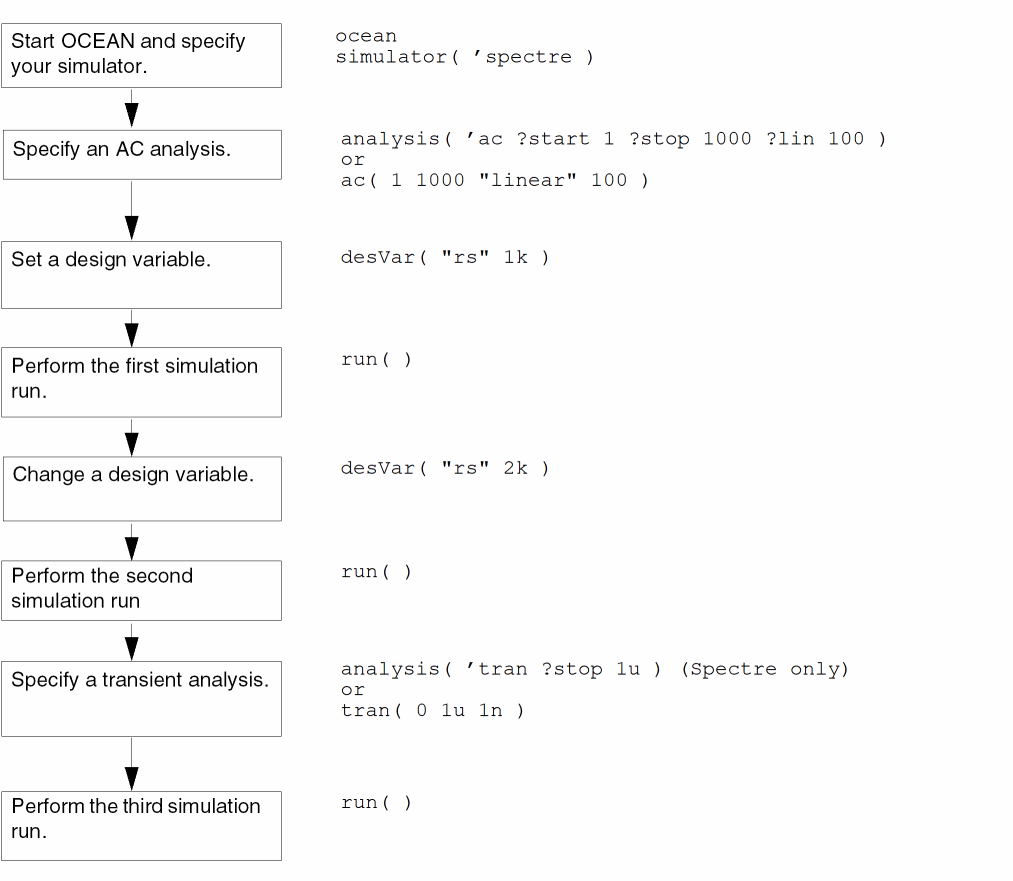
On the second and third run, the AC analysis runs because it is still active. If you do not want it to run, you must disable it with the following command:
delete( ’analysis ’ac )
The simulator is not called and run until the run() command is entered.
The commands can be given in any order, as long as they are all defined before the run() command.
License Requirements
You need licenses to run the simulator() and ocnSetXLMode() OCEAN commands. For more information on these commands, see simulator.
-
To run the
simulator()OCEAN command, you must have one of the following licenses. If one of these licenses are not already checked out, the first available license will be checked out in the following order: -
To run the
ocnSetXLMode()OCEAN command, you must have one of the following licenses. If one of these licenses are not already checked out, the first available license will be checked out in the following order:
Note the following:-
If you have run the
ocnSetXLMode()command, running thesimulator()command subsequently will not checkout an additional license. -
While working with the ICADVM20.1 release version, use the
ocnSetXLMode("explorer")orocnSetXLMode("assembler")command to check out the ADE Explorer or ADE Assembler license respectively since support for ADE XL has been removed in this release version.
-
If you have run the
If you do not want OCEAN to automatically checkout a higher tiered license—for example, if you do not want OCEAN to automatically checkout the 95210 license if the 95200 license is not available—set the following environment variable in your .cdsenv file:
asimenv.misc alwaysTryHigherTieredLicenseInOcean ’boolean nil
alwaysTryHigherTieredLicenseInOcean environment variable is set to nil, errors are displayed if OCEAN is unable to checkout a license.95200 Virtuoso(R) Analog Design Environment L license is checked out when you load the ocean script. Exit Virtuoso, or run the ocnCloseSession() command to release the license.Creating OCEAN Scripts
You can modify the included sample script files or create script files interactively from the Virtuoso® Analog Design Environment.
Creating Scripts Using Sample Script Files
You can create your own script files with a text editor using the sample scripts as examples, or you can make copies of the sample scripts and modify them as needed using a text editor. The scripts can be found in the following directory:
your_install_dir/tools/dfII/samples/artist/OCEAN
Refer to the README file in this directory for information about the scripts.
Creating Scripts from the Analog Design Environment
When you perform tasks in the design environment, the associated OCEAN commands are automatically stored in the simulatorx.ocn file in your netlist directory. For example, if you start the Virtuoso software, open the Virtuoso® Analog Design Environment window, and run a simulation using the Cadence SPICE simulator, a cdsSpice0.ocn file is created in your netlist directory. You can load this cdsSpice0.ocn script as described in “Loading OCEAN Scripts”.
Selectively Creating Scripts
You can be selective about the information that is created in your .ocn script. The Virtuoso® Analog Design Environment has a feature that lets you create an OCEAN script based on the state of your current session. The following example illustrates how using this feature is different than using the automatic script generation feature.
Consider the following task flow:
- Start the Virtuoso® Analog Design Environment.
- Specify a DC analysis.
- Select nets on the schematic to save.
- Run the simulation.
- Turn off the DC analysis.
- Select a transient analysis.
- Run the simulation.
- Save the script from the Virtuoso® Analog Design Environment.
The script that is created, called oceanScript.ocn by default, contains only the selected nets, the transient analysis, and the run command. The script does not contain the DC analysis because it was turned off.
In contrast, the simulator0.ocn script, which is automatically created in the netlist directory, contains all of the commands, including the DC analysis and the current state of the analysis (on or off).
Creating a Script
To selectively create a script from Virtuoso Analog Design Environment L or ,
-
Start the Virtuoso software,
virtuoso
The CIW appears. -
From the CIW, choose Tools – ADE L – Simulation.
The Virtuoso Analog Design Environment window appears. - Perform all of the design environment tasks that you want to capture in the script.
-
Choose Session – Save Script.
The Save Ocean Script to File form appears. -
Click OK to accept the default file name (
./oceanScript.ocn), or change the name for the file and click OK.
A script containing the OCEAN commands for the tasks you performed is created. For information about how to load this script, see “Loading OCEAN Scripts”.
Controlling What Is Included in Scripts
You can use .cdsenv variables to alter the OCEAN script that is created when you choose Session – Create Script in the Virtuoso Analog Design Environment. One variable allows you to include default environment settings in a script, two other variables allow you to run procedures before and after a script is created.
Including Default Control Statements
To save every control statement, including default statements, in your OCEAN script, add the following line to your .cdsenv file.
asimenv.misc saveDefaultsToOCEAN boolean t
Setting saveDefaultsToOCEAN to t results in a complete dump of the current circuit design environment, defaults and all. Because the created OCEAN script contains all the settings, you might use this variable when you plan to archive a script, for example.
If saveDefaultsToOCEAN is not set to t, the created OCEAN script contains only those items that you explicitly set to some value other than their default.
Running Functions Before or After Creating a Script
The information in this section describes how you can specify functions to be run before or after a script is created. You can use these functions, for example, to add information at the beginning or end of a script. To use this capability follow these steps.
-
Decide when you want the functions to run.
-
Add the following line to your
.cdsenvfile to run the function preOceanFunc before the OCEAN script is created.
asimenv.misc preSaveOceanScript string "
preOceanFunc"-
Add the following line to your
.cdsenvfile to run the function postOceanFunc after the OCEAN script is created.
asimenv.misc postSaveOceanScript string "
postOceanFunc" -
Add the following line to your
-
Use the following syntax to specify the functions.
In this syntax, session is the OASIS session andpreOceanFunc(sessionfp )postOceanFunc(sessionfp )fpis the file pointer to the OCEAN script file. For guidance on determining the session to use, see the VirtuosoAnalog Design Environment L SKILL Language Reference. -
Load the functions in your
.cdsinitfile.
For example, you might add the following lines to your.cdsenvfile.asimenv.misc preSaveOceanScript string "MYfirstProc" asimenv.misc postSaveOceanScript string "MYlastProc"
The functionsMYfirstProcandMYlastProcmight be defined like this.procedure( MYfirstProc( session fp) fprintf(fp "; This will be the first line in the ocean script.\n") )
procedure( MYlastProc( session fp)
  fprintf(fp "; This will be the last line in the ocean script.\n")
)
If these procedures are defined in a file calledmyOceanProcs.il, you can load them by adding to your.cdsinitfile a command like the following.load "myOceanProcs.il"
When you choose Session – Create Script, first thepreSaveOceanScriptprocedure is called, then the OCEAN script is created, then thepostSaveOceanScriptprocedure is called.
Loading OCEAN Scripts
You can load OCEAN scripts from OCEAN (in UNIX) or from the CIW.
From a UNIX Shell
-
Type the following command to start OCEAN:
ocean
The OCEAN prompt appears. -
Use the SKILL
loadcommand to load your script:load( "
Messages about the progress of your script appear.script_name.ocn" )
From the CIW
-
Start the Virtuoso software
virtuoso &
The CIW appears. -
In the text entry field, use the SKILL
loadcommand to load your script:load( "
Messages about the progress of your script appear in the CIW.script_name.ocn" )
Selecting Results
You may use OCEAN to run several simulations on the same design and save the results in different result directories. You can then use Analog Design Environment XL to select the results and work with features like annotation etc.
Selecting Results Run from Worst Case Scripts for Cross-Probing or Back Annotating Operating Points
Assume that you have been using Ocean to create separate data directories for worst case parameter sweeps. Also, assume that the new directories you make are accessed with the resultsDir() ocean command in your Ocean script and that these directories are in the standard location where psf data is stored in the Analog Design Environment.
In the Analog Design Environment, psf data is stored in:
<runDir>/simulation/<testSchemName>/spectre/schematic/psf
This implies that your script should store the new directories under the schematic directory. Therefore, if c1, c2 and c3 are the worst case directories, they are located at:
<runDir>/simulation/<testSchemName>/spectre/schematic/c1
<runDir>/simulation/<testSchemName>/spectre/schematic/c2
<runDir>/simulation/<testSchemName>/spectre/schematic/c3
- Choose Results – Select
- The Select Results form opens. Click Browse. A Unix Browser form appears.
- Navigate to the directory that contains your Ocean generated directories c1, c2, and c3.
- Click OK on the Unix Browser form. Now the Select Results Form should show c1, c2 and c3.
- Double-click c1, c2 or c3. Alternatively, you can also single-click c1, c2 or c3 and then choose Update Results and click OK. At this point the data is selected though there is no confirmation in the CIW. Now, you should be able to use Results – Direct Plot , Results – Annotate etc to see the results of that particular directory.
Selecting Results Run from Spectre Standalone
After running spectre standalone, you can select results using the Results Browser and use calculator to plot the results. However, this does not allow you to use ADE features like Results – Direct Plot or Results – Annotate.
<runDir>/simulation/<testSchemName>/spectre/schematic/psf.
- Choose Tools – Results Browser. A pop up box appears. Enter your design path up to the spectre directory.
- Click OK, and the browser comes up.
- Click the schematic directory. The psf directory should appear.
- Click the directory with the data in it, psf. When you click the ’psf’ directory you should see the tree expand with different results from your spectre stand alone simulation, e.g. tran.tran etc.
- Place the mouse pointer over the ’psf’ node in the tree and press down the middle mouse key and scroll down to "create ROF". You should now see the psf directory change, and an intermediate node comes up --Run1-- betweenpsf/ and the results.
-
Place the middle mouse pointer over the Run1 node, scroll down and select "Select Results".
-
You may now use Tools – Calculator to select objects from the schematic. You can then choose ’plot’ from the calculator, or different calculator operations.
Running Multiple Simulators
There are times when you might want to run more than one simulator. You might be benchmarking simulators or comparing results. In OCEAN, you can only use one simulator per OCEAN session. If you change simulators, you must start a new OCEAN session. This is because some OCEAN command arguments are simulator specific, and therefore change when the simulator changes. For example, the arguments to the option command are simulator specific. (No two simulators have the exact same options.) The analyses are typically simulator specific also.
OCEAN Tips
The information in this section can help you solve problems that you encounter while using OCEAN.
-
While working in OCEAN, you might get the following SKILL error message:
*Error* eval: unbound variable - nameOfVariable
In this case, you need to see if you have an undeclared variable or if you are missing a single quotation mark (') or a quotation mark (") for one of your arguments. For example, the following command returns an error message stating thatfromValis an unbound variable because the variable has not been declared:analysis('tran ?from fromVal)
However, the following pair of statements work correctly becausefromValhas a value (is bound).fromVal=0
analysis('tran ?from fromVal)
-
If you get an error in an OCEAN session, you are automatically put into the SKILL debugger. In this case, you see a prompt similar to this:
ocean-Debug 2>
You can continue working. However, if you would like to get out of the debugger, you can typedebugQuit()
Now you are back to the normal prompt:ocean> -
If it appears that OCEAN does not accept your input, or OCEAN appears to hang, then you may have forgotten to enter a closing quotation mark. Type
"]to close all strings. For more information, and some examples, see “Recovering from an Omitted Quotation Mark”. -
In SKILL, the following formats are equivalent:
(one two)andone(two). Results might be returned in either format. For example, OCEAN might returnac(tran)or(ac tran), but the two forms are equivalent. -
You can check your script for simple syntax errors by running SKILL lint. For example, you might use a command like
sklint -file
From within OCEAN, you can run SKILL lint by typing the following at the OCEAN prompt:myScript.ocnsklint(?file "
Running SKILL lint helps catch basic errors, such as unmatched parentheses and strings that are not closed.yourOceanScript.ocn")
Return to top