
1
Introducing the Open Simulation System (OSS)
Open Simulation System (OSS) provides access to the simulators that it supports and lets you integrate and customize new simulators into the Virtuoso Studio design environment. This topic describes the components of OSS and explains how to integrate and customize simulators. The topic also explains how to customize hierarchical netlister (HNL), HNL net-based netlister, flat netlister (FNL), and post layout simulation. In addition, the topic explains the process to maintain a design library for simulation.
This topic is aimed at designers of integrated circuits and assumes that you are familiar with:
- The Virtuoso Studio design environment and application infrastructure mechanisms designed to support consistent operations between all Cadence tools.
- The applications used to design and develop integrated circuits in the Virtuoso Studio design environment, notably Virtuoso Layout Suite and Virtuoso Schematic Editor.
- The design and use of parameterized cells.
- Component Description Format (CDF), which lets you create and describe your own components for use with ADE.
The Open Simulation System provides the foundation for the simulation strategyused by Cadence that lets you integrate simulators into the Cadence system. Simulators integrated using OSS present a consistent user interface for controlling execution of simulation and generation of netlists and input vectors.
The Open Simulation System Reference manual provides the information needed by a CAD developer to integrate a simulator into the Cadence system. In this topic you can find information on the following topics:
OSS Components Overview
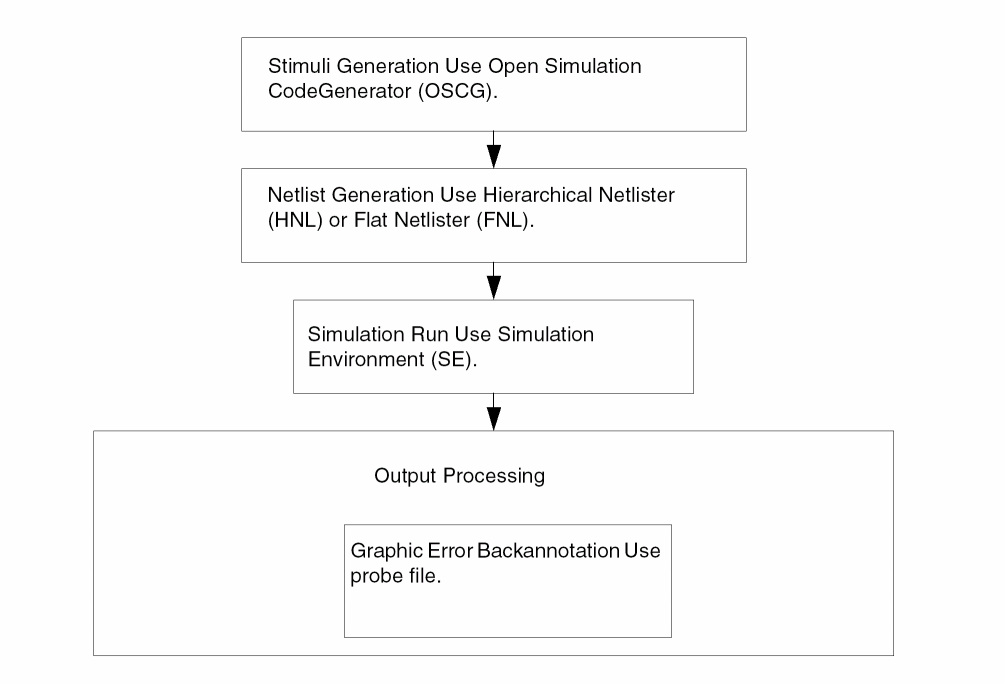
The simulation process can be broken down into several steps. These steps and the tools provided in OSS to implement them are outlined in
Simulator Integration Overview
To integrate a simulator into the Cadence system, you must customize the tools required by your specific application. Depending on the application, you might not need all of the tools provided. For example, if your application require a stimuli, then, you need to develop the stimuli generator. Now onwards, OSS will not support any simulation test language. The following is a brief description of the simulation process stages and the tools provided in OSS to simplify the process.
-
Create an STL code generator for the simulator.
The Open Simulation Code Generator (OSCG) functionality has been removed from OSS. The customer needs to develop its own code generator. -
Create the appropriate netlist.
Before creating the appropriate netlist, you need to decide whether to create a flat or a hierarchical netlist. Accordingly, the Cadence HNL or FNL is used. To customize a netlist, each cell in the library needs to have a view of itself that guides the netlister in terms of the properties that need to be extracted and their format in the netlist. -
Customize SE.
SE controls the simulation execution, including invoking the simulator and the netlister as well as loading the data. Therefore, you need to modify SE so that it recognizes the new simulator and creates the control files for the specific simulator. -
Create an error backannotation file.
A mechanism called probing is used throughout the design analysis process. Probing is a way of graphically highlighting nets (nodes) and instances (devices) in your display. A file format is provided for textually specifying which devices and nets should be probed. With this format, you can store errors in a file, associate any error text with each device, and display the errors graphically at a later time in the design analysis process. This file format is called the probe file format and is described in the “Probe File Format” section of the “Graphics Editor” chapter of theVirtuoso Studio Design Environment SKILL Reference.
Designer and Developer Perspectives
The designer and the developer use OSS differently. The designer is primarily concerned with the user interface, the processes of running simulation, and studying simulation output. The developer needs to know substantially more about OSS internal architecture.
64-bit OSS
OSS is now available in the 64-bit version also. The 64-bit OSS is available in same hierarchy as the 32-bit OSS is. Similarly both versions (32/64 bit) of all the applications using OSS are available in the same hierarchy. Therefore, a change is required in the use model of these applications.
As per the new use model, there are two sub-directories called 32bitand 64bitpresent under the bin directory. The bin directory now contains a wrapper with the same name as that of the binary. You need to call this wrapper and depending upon the environment settings the appropriate version of the binary is invoked.
The directory structure is as follows:
| wrapper to binary | bin/<app>.exe |
|---|---|
The non graphics simulation environment si is also available on both the platforms namely, 32bit and 64bit. Under this new use model the configuration is as follows:
| 32/64-bit wrapper | /bin/si |
|---|---|
The wrapper decides on the version of the application to be executed based on the following conditions.
IF the operating system supports 64-bit applications
AND a 64-bit version of the application exists
AND the user elects to use the 64-bit version
THEN execute the 64-bit application,
OTHERWISE execute the 32-bit version.
The user elects to use the 64-bit version of an application by setting an environment variable $CDS_AUTO_64BIT.
The variable can be set to the following values:
| ALL | all applications are run as 64-bit where possible |
|---|---|
|
A list of case-sensitive application names (delimited by space, semi-colon or colon) and only these applications will be run as 64-bit. |
simIlSleep() function in replay mode, see the Running si in Replay Mode section in Chapter 1 of Simulation Environment Help.Return to top