
2
Integrating Simulators
In this chapter, you can find information about the following topics:
From the user perspective, a simulation in the Cadence system can be run with a single command. Figure 2-1 shows the structure of the Simulation Environment (SE), which allows integrated simulators to have the same single-step simulation interface to your users. This simple interface can be provided by SE, the controlling environment used to run simulations.
Figure 2-1 The Simulation Environment (SE)
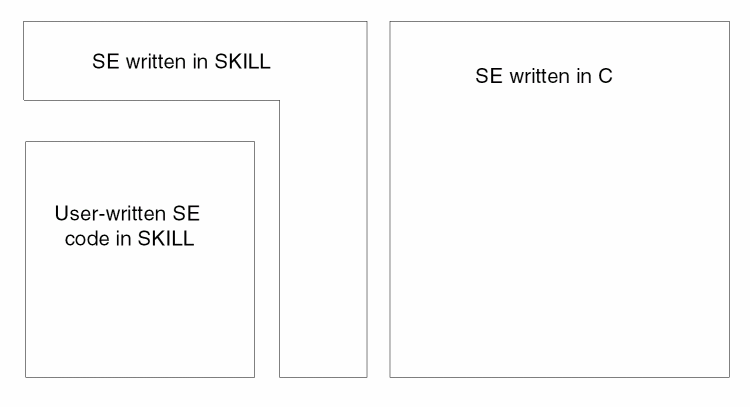
SE is a non-graphics program that uses the SKILL language, the same language and syntax known as SKILL™ in the Cadence graphics program, as its interface. The difference between SKILL in the Cadence graphics program and SKILL in SE is the extensions that have been made to them in each program. In SE, the SKILL language has been extended with several commands, or functions, that are specific to running simulations and generating netlists. In the Cadence graphics program, the SKILL language has been extended to contain commands for graphic access and database manipulation. These are not needed and not available in SE. The syntax of the language is the same in both programs, and the same basic commands are available in both.
Requirements
Before you attempt to integrate your simulator into the Cadence system, you must have certain background information.
SKILL
You must have a working knowledge of SKILL because many of the tools you are using can be modified using the Cadence standard language, SKILL. Before continuing, you should read the Cadence SKILL Language User Guide. Then, write some small SKILL programs to make sure you understand the language and its syntax. You can load and run your programs using SE or SKILL in the Cadence graphics environment.
Database Access Functions (SKILL Database Access)
You should have a good understanding of the Cadence database structure, as described in the
The Cadence tools make it possible for you to interface most simulators without knowing any of the database structure. With database structure knowledge you can develop a better and more efficient interface. It is strongly recommended that you have such background knowledge before you attempt to integrate your simulator into the Cadence system. After you have read the database access functions documentation, write a few small functions to display textual information about a design you create. For example, open a design and make a parts list, or print the names and widths of all of the terminals and nets in the top-level design. You can load and run your programs using SE or SKILL in the Cadence graphics program.
Running Simulation Using SE
To be able to develop an interface, you must understand what you want the interface to look like and what tools are available to you. The simplest way to do this is to use an existing interface. First, read the Simulation Environment Help. Next, create a small schematic, simulate it, and analyze the results in text.
Creating Stimuli Using STL
Since the Simulation Test Language (STL) functionality has been removed from OSS, customers need to develop their own simulation test and data.
Developing a Simulator Interface
After you have read the recommended chapters and completed the suggested exercises, you should have enough background information to develop your simulator interface. The rest of this section explains the basic structure and interrelationship of the tools provided in the OSS and customizing each tool to your specific needs. When you develop an interface, you are not simply creating separate and distinct tools for your designers to use. Rather, you are creating an integrated design analysis system. Therefore, a description of how each tool can be modified is not enough. You need the steps to integrate these tools and produce a single unified interface. The remainder of this chapter explains the various simulation processes performed in the Cadence system and their interrelationships. Detailed explanations for each tool are in separate chapters in the remainder of this manual.
Simulation Steps
To decide which tools you want to use to develop your interface, you must first understand the operation, function, and features of each tool as it relates to simulation as well as the simulation flow in the Cadence system.
Figure 2-2 illustrates the steps performed during a simulation.
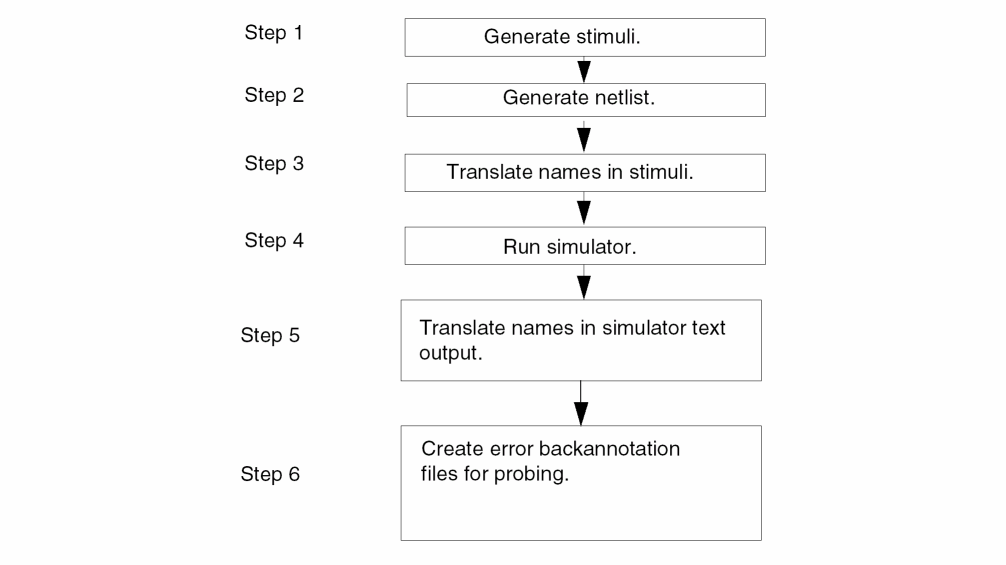
The input preparation and simulation steps must be performed in the order shown in Figure 2-2; however, the post-processing steps can be performed in any order. The following sections describe the function of the tools in performing each of the corresponding steps in the diagram. In addition to explaining what the tool does, there is an explanation of why the tool was designed to function in this manner. This background information should help you decide how best to use each of the tools.
Generating Stimuli
Most design analysis tools require a set of vectors or input patterns to drive the analysis or simulation, and these stimuli must be provided before you can run a simulation. The designer running a simulation can produce these manually.
Generating a Netlist
All design analysis tools require a description of the connectivity for the design to be analyzed. Since non-Cadence tools are not able to read the Cadence database directly, a textual description (or netlist) of the connectivity must be produced. In addition to connectivity, the netlist may contain information such as model descriptions for devices used (required by such simulators as SPICE™), delay information for devices used (such as rise and fall times), and node settings for constant nodes (such as VDD and GND).
Netlist Formatting
Each design analysis tool has its own input syntax for connectivity information. Therefore, as part of OSS, you are able to modify the output syntax produced by the tools that generate these textual connectivity descriptions. Two tools provided to generate netlists are the Flat Netlister (FNL) and the Hierarchical Netlister (HNL). Both of these tools generate textual network descriptions and can be modified in a similar manner. The difference between them is in the type of output produced. (Refer to the “Hierarchical and Flat Netlisting” section in this chapter.)
Both HNL and FNL allow you to format the netlist output using the Cadence standard language, SKILL. In addition to the basic commands available in SKILL, you can use the database access functions, as well as specific netlister-defined functions that simplify the netlisting process.
In addition to SKILL formatting, FNL provides its own formatting language. This is a fast and compact language consisting of predefined variable names and substitution expressions. It is a superset of the syntax used for interpreted labels in schematic entry and requires no database knowledge to use. You can customize the netlister output using either language (SKILL or FNL formatting), or a blend of both. This formatting ability is only available in FNL and is explained in detail in the “Customizing the Flat Netlister (FNL)” chapter in this manual.
Hierarchical and Flat Netlisting
The Cadence design entry system allows the designer to enter designs hierarchically. This means that the designers only need to enter a schematic once and can then reference, or use, that schematic in subsequent designs. FNL “flattens” (or expands) the design hierarchy before outputting the connectivity information. By flattening the design, the netlister replaces all symbols with the connectivity in the schematics they represent. Refer to
Figure 2-3 Example of Flattened Design
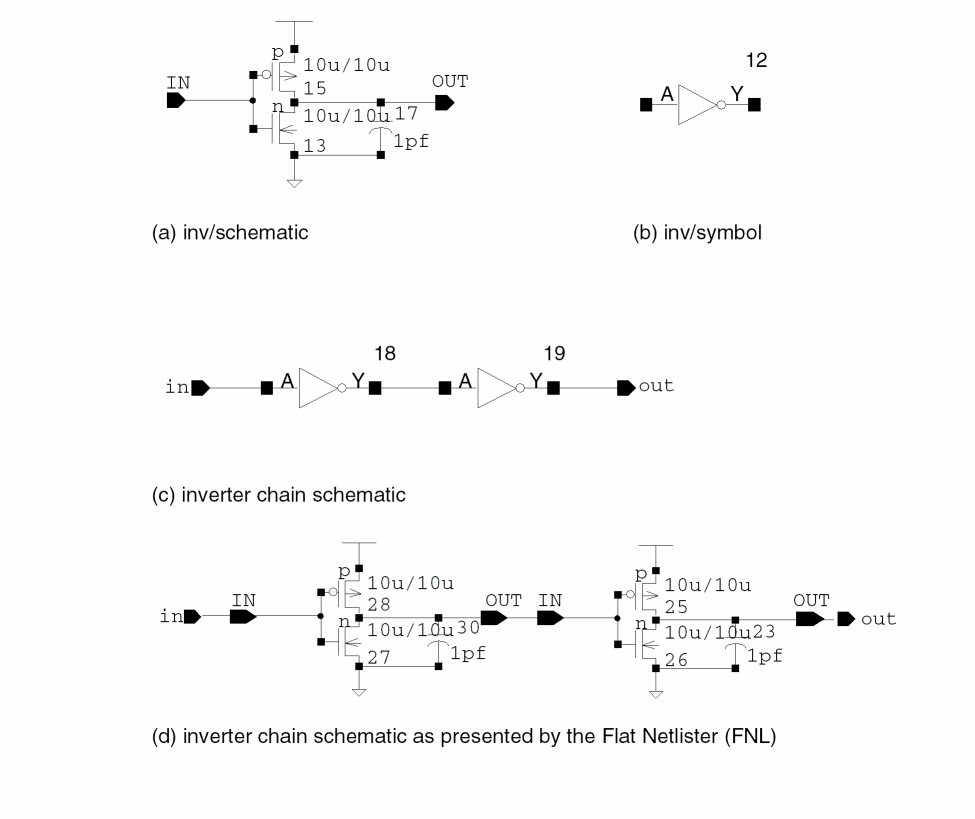
HNL does not flatten the hierarchy before outputting the connectivity. Instead, it produces a hierarchical netlist. Therefore, it outputs the connectivity for low-level cells first, then the connectivity for cells that reference them. In the example in the previous paragraph, a description of the schematic for an inverter is output first, and then a description of the schematic that references the inverters. Instead of outputting the connectivity for the inverter for each reference to it, the connectivity is only output once, and this description is then referenced in subsequent uses of the inverter.
Not all simulators are able to read in a hierarchical netlist. If your simulator can only read in a flat network description, use FNL to produce the netlist for your simulator. If your simulator can read in either type of netlist, you can use either HNL or FNL. Though it is also possible to write your own netlister using SKILL, this is strongly discouraged because the rest of the Cadence system does not understand the name mapping you need to perform.
Netlister Name Mapping
The Cadence design entry system allows the designer great flexibility in naming instances (devices) and nets contained in a design. Most simulators are much more restrictive in the names they can accept. For example, some simulators require that names begin with an alphabetic character. Others have name length restrictions: For example, names may be required to be unique within or not longer than 12 characters. These restrictions usually force some form of name mapping. The names in the design cannot always be used in the netlist produced for a particular simulator. This is especially true in flat netlists. Since a particular schematic may be referenced several times in a higher level schematic, a name must be generated for each net and instance that is unique within the flattened design.This name is generated by putting together the name of each instance (reference) to a lower level schematic down to the most primitive level and separating them by slashes (/). These names quickly become too large for most simulator name spaces. To solve this problem, both netlisters provide a name-mapping mechanism that allows you to map names that are invalid for your simulator to names that are valid.
This name mapping is saved with the netlist for use by the rest of the Cadence system. That way, designers can still reference names placed in designs when generating stimuli for their simulators without being concerned if the name was mapped when the netlist was generated. Functions are provided to translate between the name found in the design and the name placed in the netlist. The users always enter the name they placed in the design. This name is then translated to the name in the netlist before it is given as input to the simulator. The simulator output is then parsed, and the names are translated back to those the user entered. This way, the user never needs to see the names that appeared in the netlist. Refer to the Simulation Environment Help for more information on name mapping.
Translating Stimuli Names
As explained in the “Netlister Name Mapping” section in this chapter, the names appearing in the netlist are not always the same ones entered by the designer. However, designers should always be able to refer to components in their designs using the names they specified. This is true when they generate their simulator input and when they analyze the output. Designers need to be aware that name mapping occurs during netlisting, but they do not need to know the mechanism or the mapped name.
For designers to use and see the names they enter in the design, there are name-mapping functions available in SE. When generating their stimuli, designers simply mark names used in their designs. As part of the simulation process, SE translates all names in the simulator input file before providing it as input to the simulator. From the designer’s perspective, the translation is a transparent part of the simulation process.
Running the Simulator
SE is the environment that controls all the simulation process steps. It provides you with the ability to manage the complex series of steps required to run a simulation and make simulation appear as a single-step process to the designer.
SE can be customized using the Cadence standard language, SKILL. This is the same language and syntax used to customize FNL and HNL output. The basic commands in SKILL have been enhanced with the addition of commands and functions specific to running simulations.
SE can be run interactively or batch from a stand-alone ASCII terminal, or it can be run from within the Cadence graphics environment.
Translating Names in Simulator Text Output
Since netlist names and input stimuli provided to the simulator may have been mapped from user-assigned names to simulator-acceptable names, the text output of the simulator must have these names translated back to the user-assigned names. Functions to do this have been provided in SE and can be run as a transparent part of the simulation process. These functions are explained in detail in the “Customizing the Simulation Environment (SE)” chapter in this manual.
Creating Backannotation Error Messages
To simplify locating errors in a design, you can graphically backannotate error messages into the schematic by means of probes. Probes are the same mechanism used to graphically select nets for waveform display. The information necessary for placing the probes is stored with the error messages in the Probe File. The syntax of this file is described in the “Probe File Format” section of the “Graphics Editor” chapter of the SKILL reference manuals. You can convert the error messages from your simulator as a transparent part of the simulation process using SE, or, preferably, modify your simulator to produce this syntax directly.
The designer can then display all errors found during simulation with a single command. The error regions are highlighted graphically, and the designer can step through each error and display the error message associated with that region. Errors can be associated with nets, instance, or terminals.
Integration Steps
The “Simulation Steps” section in this chapter describes the “what” of simulator integration while this section describes the “how to.” There are many steps to fully integrate a simulator into the Cadence system. You need not complete them all at once; the development can be done in stages. As each stage is completed, you can test that portion. Once that stage is functioning to your satisfaction, you can proceed to the next stage of integration. Some of the tools provided in OSS depend on others being functional first. For example, to make use of FNL, you should first set up an initialization file in SE. To ensure there are no missing dependent packages as you develop any portion of your interface, follow these steps:
- Learn background information.
- Create basic SE command files to run the netlister to produce the netlist for your simulator.
-
Customize netlister output to produce syntax needed for your simulator.
If you want to produce hierarchical netlists, use HNL; to produce flat netlists, use FNL.
Read the “Customizing the Hierarchical Netlister (HNL)” chapter in this manual.
Create HNL format functions in the install_dir/tools/dfII/local/hnl/simulator.ilefile.
Create library elements for netlister use.
Read the “Customizing the Flat Netlister (FNL)” chapter in this manual.
Create a global view whose cellname isnlpglobals, and whose viewname is the same as the name of your simulator.
Create FNL format functions in the install_dir/tools/dfII/local/fnl/simulator.ilefile.
Create library elements for netlister use. - Customize SE to run your simulator in addition to generating netlists.
-
Customize STL output using the OSCG option of STL.
The Open Simulation Code Generator (OSCG) functionality has been removed from OSS. The customer need to develop its own code generator.
Return to top