
Run Settings for Density Analysis
Density analysis generates density results from Pegasus Interactive toolbar for layers of interest. Rule deck is not required. Results are shown in Pegasus Results Viewer as heatmap and histograms.
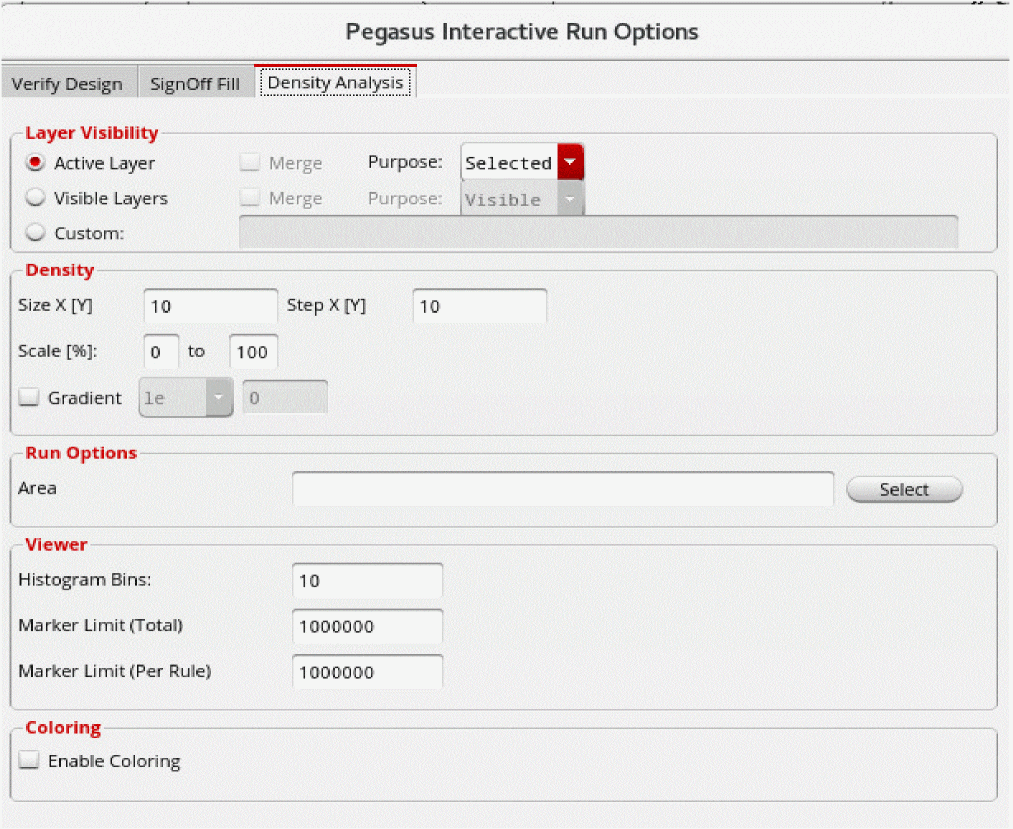
Layer Visibility

-
Active Layer: Select this radio button to perform density analysis on the active layer on Virtuoso Palette.
-
Purpose: By default density results will be generated only for layer/purpose pair, selected on Virtuoso Layer palette. Use the Purpose drop-down list to redefine list of layer purpose.
- All: Density results will be generated for all purposes of selected layer. Each layer/purpose result will be shown in separate tabs of DRC RV.
- Selected: Density results will be generated for selected purpose only.
- Custom: Density results will be generated for purposes defined in the custom field. Each layer/purpose results will be shown in separate tabs of DRC RV.
- Merge: This option is valid when the Purpose field is either All or Custom. Select this check box to merge the result for layer purposes into a single tab. This is useful when you have metal and fills in different purposes (Metal1/drawing and Metal1/fill) and want to generate density results for merged drawing and fill purposes.
-
Purpose: By default density results will be generated only for layer/purpose pair, selected on Virtuoso Layer palette. Use the Purpose drop-down list to redefine list of layer purpose.
-
Visible Layers: Select this radio button to perform density analysis for layers, which are visible on Virtuoso layer palette.
-
Purpose: By default density results will be generated only for layer/purpose pair, visible on Virtuoso Layer palette. Use the Purpose drop-down list to redefine list of layer purpose.
- All: Density results will be generated for all purposes of selected layer. Each layer/purpose result will be shown in separate tabs of DRC RV.
- Visible: Density results will be generated for visible purposes only.
- Custom: Density results will be generated for purposes defined in the custom field. Each layer/purpose results will be shown in separate tabs of DRC RV.
- Merge: This option is valid when the Purpose field is either All or Visible. Select this check box to merge the result for layer purposes into a single tab. This is useful when you have metal and fills in different purposes (Metal1/drawing and Metal1/fill) and want to generate density results for merged drawing and fill purposes.
-
Purpose: By default density results will be generated only for layer/purpose pair, visible on Virtuoso Layer palette. Use the Purpose drop-down list to redefine list of layer purpose.
-
Custom: Select this radio button to perform density analysis for the custom layers defined in the text box. The syntax for specifying layer/purpose in the Custom layer field of the Density Analysis form is the following:
Example 1:Metal1/drawing
Density Analysis ofMetal1/drawingwill be output.
Example 2:(Metal1/drawing Metal2/drawing) Metal3/drawing
Density Analysis histograms ofMetal1/drawingandMetal2/drawingwill be merged to create one tab in the viewer. Density Analysis histogram ofMetal3/drawingwould be created as a separated tab in the viewer.
Example 3:Met*/drawing
All histograms of layers having "Met" in their name and having drawing purpose will be created as separate tabs.
Example 4:(Met*/drawing)
All histograms as explained in Example 3 will be merged in a single tab.
Density

-
Size X[Y] and Step X[Y]: Specify the size of the rectangle window, which is used to calculate density. This is equivalent of the
-windowoption of PVL commanddensity. Default window size is 10x10. - Scale [%]: Specify the scale range between which you want to check the density.
-
Gradient: Optional keyword specifies the gradient value that windows must satisfy. This is equivalent of the
-gradientoption of PVL commanddensity. For more details, refer to Pegasus Developer Guide.
Run Options

-
Area: Enter the coordinates or click Select to select the area to perform density analysis on. Density results will not be generated outside this specified area.
When you complete the selection, the Area field is populated as shown below:

Viewer

- Histogram Bins: Specify the number of histogram data bins.
- Marker Limit (Total): Specify the number to set a limit on the total violation counts shown in the histogram.
- Marker Limit (Per Rule): Specify the number to set a limit on the total violation counts per rule shown in the histogram.
Coloring

- Enable Coloring: For a given Layer-Purpose pair, a set of polygons can have additional color attributes assigned on them: color and color state in the layout. By selecting Enable Coloring check box, Pegasus Interactive understands color implications set on these polygons.
Return to top