D
HDL Package Setup
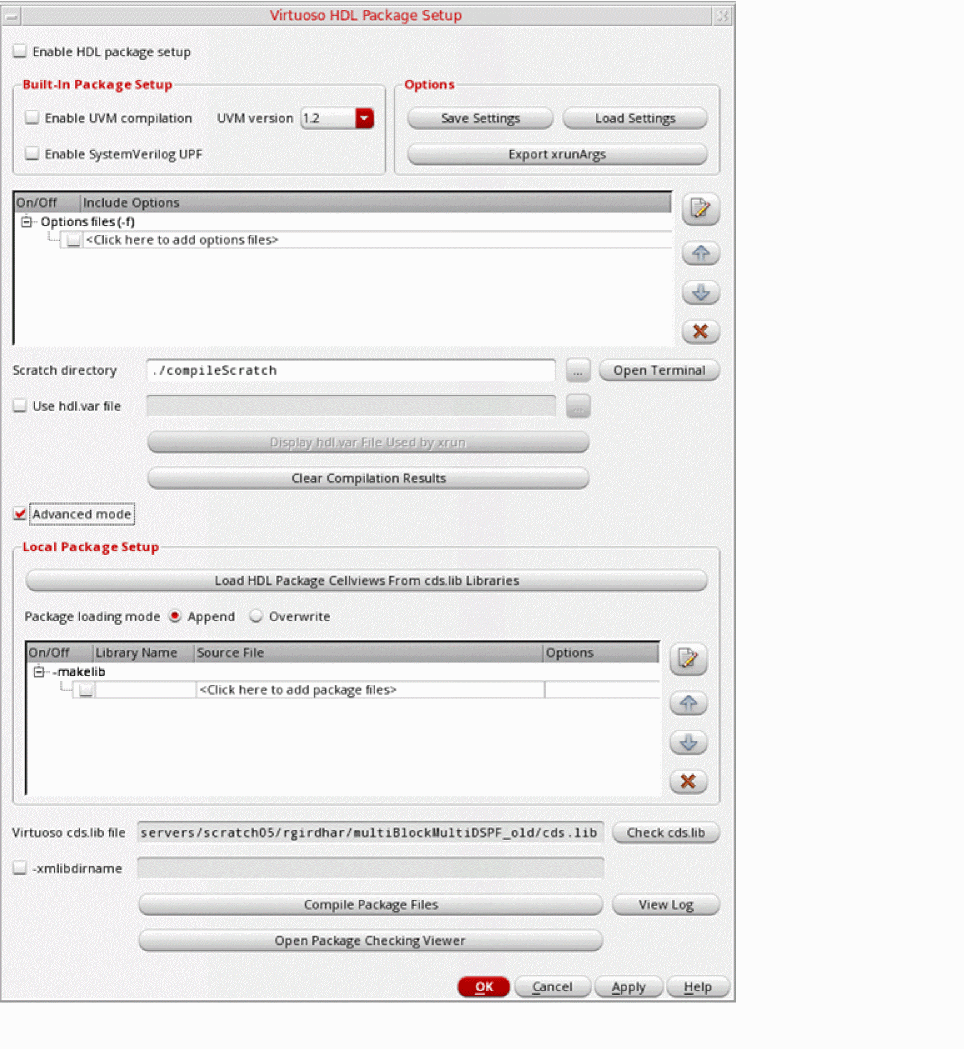
This topic describes the Virtuoso HDL Package Setup form. The package files are important in SystemVerilog, SystemVerilog-AMS, VHDL, and VHDL-AMS for sharing and reusing common code definitions, such as functions or custom data types, between models. The form ensures that handling HDL package files becomes more intuitive, requires less maintenance, and improves the task flow for SystemVerilog, SystemVerilog-AMS, VHDL, and VHDL-AMS package files.
The Virtuoso HDL Package Setup form has the following benefits.
-
Applies the unified HDL package text file setup for all Virtuoso tools.
-
Defines the compilation order for the HDL package text files.
-
Searches the HDL package text views in all
cds.lib libraries. -
Checks HDL package setup and displays dependencies.
-
Exports HDL package setup as xrunArgs file for reuse.
Related Topics
Accessing the Virtuoso HDL Package Setup Form
Virtuoso HDL Package Setup Form
Use of HDL Package Settings in Various Tools
Accessing the Virtuoso HDL Package Setup Form
To access the Virtuoso HDL Package Setup form:
-
Click Tools – AMS – HDL Package Setup.
The Virtuoso HDL Package Setup form appears.
-
Select the Enable HDL package setup check box to implement the HDL package settings defined in this form.
-
Enable the required options for the following tools:
-
ADE
-
Enable the HDL Package Setup.
-
Enable the Reuse HDL package setup option on the Main tab of the AMS Option form.
-
Virtuoso SystemVerilog Netlister
-
Enable the HDL Package Setup.
-
Enable the Reuse HDL package setup option in the SystemVerilog Netlister Options form.
Related Topics
HDL Package Setup
Virtuoso HDL Package Setup Form
Use of HDL Package Settings in Various Tools
Use of HDL Package Settings in Various Tools
The Virtuoso HDL Package Setup form can be used to define the settings for the following tools.
|
Tools
|
Uses
|
|
Text Editor
|
Always used.
|
|
Hierarchy Editor
|
Automatically used through text view check and saved when creating the pc.db information.
|
|
ADE/UNL
|
When enabled through the Reuse HDL package setup option on the Main tab of the AMS Option form, the package setup information is added to the regular netlist and xrun simulation options.
|
|
ADE/Simulation
|
Through maestro views. The status of the Reuse HDL package setup option on the Main tab of the AMS Option form is stored in the maestro view.
|
|
runams
|
Through maestro views. The status of the Reuse HDL package setup option on the Main tab of the AMS Option form is stored in the maestro view.
|
|
Virtuoso SystemVerilog Netlister
|
Always used if you enable the Reuse HDL package setup option in the SystemVerilog Netlister Options form.
|
|
cdsTextTo5x
|
Only the xrunArgs file exported from the Virtuoso HDL Package Setup form is added to cdsHDL_XrunArgsPKG.f.
-
Export the
xrunArgsPKGexport.f from the Virtuoso HDL Package Setup form. -
From the Linux command line, edit the
xrunArgsPKGexport.f by commenting out -cdslib. -
Save the file.
-
Run the following commands at the Linux command line:
-
setenv ProjDir `pwd` -
setenv XRUNOPTS "-f $PWD/xrunArgsPKGexport.f" -
cdsTextTo5x -CDSLIB cds.lib -LANG systemverilog -LIB lib1 -CELL mydesign -VIEW systemVerilog mydesign.sv
You see the following output:
Virtuoso Framework License (111) was checked out successfully. Total checkout time was 0.04s.
INFO (CDS5X-3014): Successfully created 5x structure for cellview '(lib1 mydesign systemVerilog)'
|
|
xrun command line
|
Only the xrunArgs file exported from the Virtuoso HDL Package Setup form is added to cdsHDL_XrunArgsPKG.f.
|
Related Topics
HDL Package Setup
Virtuoso HDL Package Setup Form
Use of HDL Package Settings in Various Tools
Virtuoso HDL Package Setup Form
This topics describes the details of the form fields.
|
Field Name
|
Description
|
|
Enable HDL package setup
|
When selected, enables the flow where xrun is called with the options specified on the Virtuoso HDL Package Setup form to compile HDL files. A *.pak file is created in the default scratch directory instead of the existing Virtuoso library directory.
|
|
Built-In Package Setup
|
This section lets you specify the built-in package settings that are applicable for the HDL package setup flow.
|
|
Enable UVM compilation
|
When selected, adds -uvm -uvmhome CDNS-1.2 as one of the xrun compilation options.
|
|
UVM version
|
Specifies the UVM version from the drop-down list.
|
|
Enable SystemVerilog UPF
|
When selected, adds -makelib worklib -sv `xmroot`/tools/inca/files/1801/upf_package.sv as one of the xrun compilation options.
|
|
Options
|
This section lets you specify various options that can be set for the HDL package setup flow.
|
|
Save Settings
|
Saves the Virtuoso HDL Package Setup form settings to a specified file.
|
|
Load Settings
|
Loads settings from the specified file.
The file specified must be an unmodifiable file saved using Save Settings.
|
|
Export XrunArgs
|
Exports the xrunArgs file based on the Virtuoso HDL Package Setup form settings.
Alternatively, you can use the hdlPkgExportXrunArgs function in Virtuoso CIW.
|
|
Export Environment Variables
|
Opens the Export Environment Variables form to let you export all HDL Package Setup form settings as environment variables.
|
|
Options files table
|
|
|
On/Off
|
Enables or disables the use of the HDL package definition in this row.
|
|
Include Options
|
Specifies xrunArgs files, which contain user-defined xrun compilation options.
Any package files specified in the -f file must be surrounded with -makelib and -endlib to trigger the pre-compilation.
|
|

|
After the xrunArgs file is specified, the Edit button is enabled. You can click it to open and edit the file.
|
|
Scratch directory
|
Specifies a directory to generate the xcelium.d and xcelium compilation results.
It is a mandatory field, and the default value is ./compileScratch. If the directory specified does not exist, the tool creates the directory automatically before compiling.
|
|
Open Terminal
|
Launch xterm with the LINUX path specified in the Scratch directory field.
|
|
Use hdl.var file
|
Specifies an hdl.var file. Recommended only when there is a project hdl.var legacy.
|
|
Display hdl.var File Used by xrun
|
Displays the hdl.var file.
|
|
Clear Compilation Results
|
Removes the Xcelium compilation results by running command xrun -clean -xmlibdirpath ./compileScratch.
|
|
Advanced mode
|
When selected, specifies additional package text files and -xmlibdirname for xrun compilation.
|
|
Local Package Setup
|
This section lets you specify the local package settings that are used in the HDL package setup flow.
|
|
Load HDL Package Cellviews From cds.lib Libraries
|
Searches all libraries defined in cds.lib for package cellviews that have the following view types:
-
systemVerilogPackageText -
vhdl and VHDLAMSText and view name as package or body
|
|
Package loading mode
|
Defines the package files loading mode after the search is completed.
|
|
Append
|
Merges results after comparing with the existing makelib list and appends only the additional ones to the list.
|
|
Overwrite
|
Overwrites the existing makelib list. This option is useful when starting with a new setup or resetting entries.
|
|
makelib table
|
|
|
On/Off
|
Enables or disables the use of the HDL package definition in this row.
|
|
Library Name
|
Specifies Library Name.
|
|
Source File
|
Specifies package source files in this table. You can add the makelib source file by clicking <Click here to add package files>.
|
|
Options
|
Specifies -makelib options to add library and file-specific options needed to compile the design units.
|
|

|
After the local packages are specified, the Edit button is enabled. You can click it to open and edit the file.
|
|
Virtuoso cds.lib file
|
Specifies the cds.lib file.
|
|
Check cds.lib
|
Displays the cds.lib file.
|
|
-xmlibdirname
|
Specifies the name of the xcelium.d directory.
|
|
Compile Package Files
|
Compiles package files based on the setup specified in the Virtuoso HDL Package Setup form, including xrun -f file and the hdl.var file, if specified. The compilation results and xrun.log are generated in Scratch directory.
When the compilation is done successfully, the code checks if multiple package files exist, that is, packages by the same name are compiled into different libraries.
If the compilation fails, the xrun.log file pop-up opens. You can choose to keep the compilation results or remove them by clicking Clear Compilation Results.
|
|
View Log
|
Displays the xrun.log file saved in the default scratch directory when you click Compile Package Files.
|
|
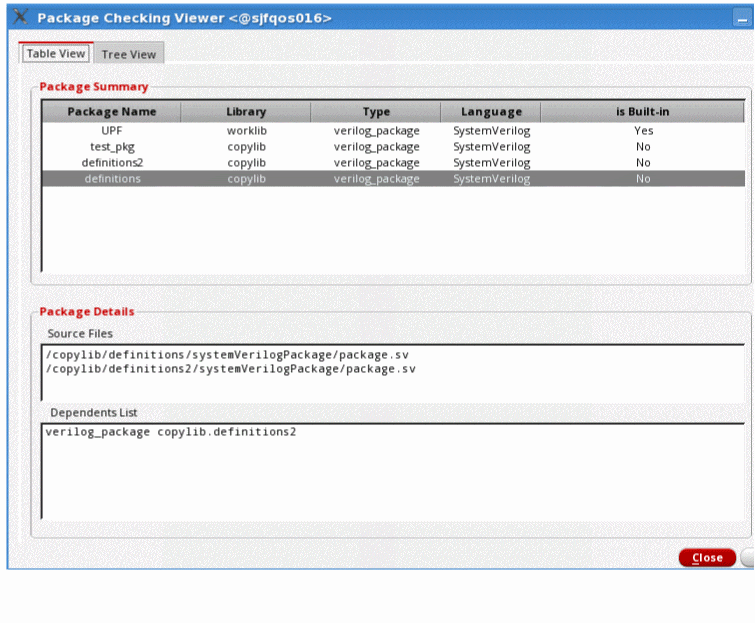
Open Package Checking Viewer
|
Opens the package checking viewer that has two tabs, table view and tree view.
-
Table view: Lists all the package files compiled and found in Scratch directory. There are two kinds of package files listed: Cadence Built-In package files that need to be pre-compiled (for example, UVM and UPF) and user-defined package files (which could either be specified in xrunArgs file or in the makelib table). You can view the package details, such as source files and dependents, by selecting a row of a package file. You can view the source file content by double-clicking the source file listed.
-
Tree view: Lists the compiled module-package dependency relationship, that is, the root node always remains a module and the child nodes are the package files related to the module. If no compiled modules are found or no module-package dependency exists, the tree view is left blank.
|
Related Topics
HDL Package Setup
Accessing the Virtuoso HDL Package Setup Form
Use of HDL Package Settings in Various Tools
Return to top