C
Virtuoso Text Editor Forms
This appendix describes the following Virtuoso Text Editor forms:
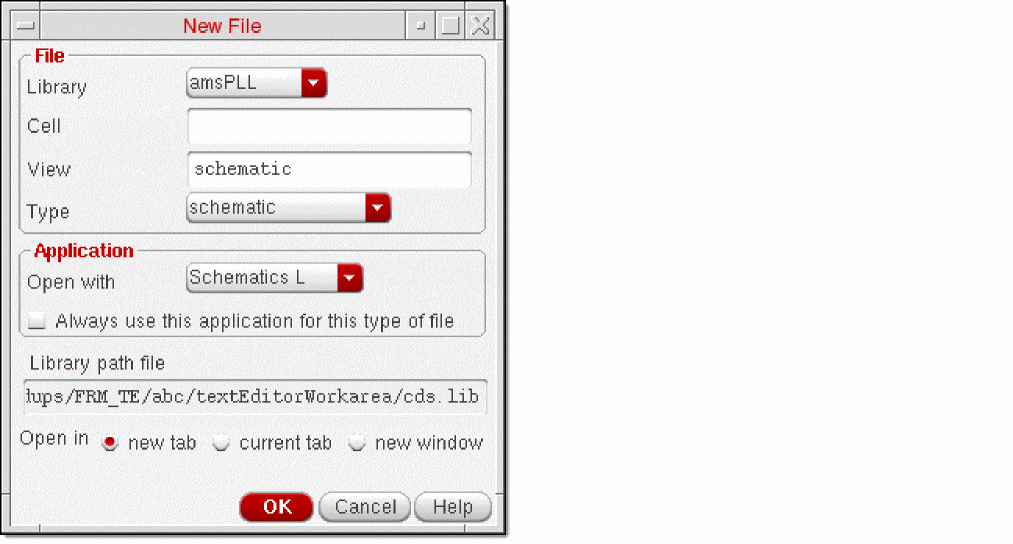
New File Form
The New File form lets you create a new cellview. You can also invoke this form from other Virtuoso applications, such as Virtuoso Library Manager and Virtuoso Schematic Editor.
|
Form Component
|
Description
|
|
Library
|
Choose the name of the library where you want to create a new cellview.
|
|
Cell
|
Type a cell name for the new cellview.
|
|
View
|
Specify the view name for the new cellview.
This field displays the default view name associated with the cell type, which you can edit.
|
|
Type
|
Choose the type of view to be created.
Based on the selection, the View and Open with fields get updated.
|
|
Open with
|
Choose the application that is invoked to display the new cellview.
|
|
Always use this application for this type of file
|
Select to make the chosen application as the default application to open the specified type of cellview.
|
|
Open in
|
Select the location where you want to open the new cellview. You can open the cellview in a new or same tab in the window, or in a new window.
|
Related Topics
Creating a Text Cellview
Opening a New Cellview in Virtuoso Schematic Editor L User Guide
Creating a New Cellview in Cadence Library Manager User Guide
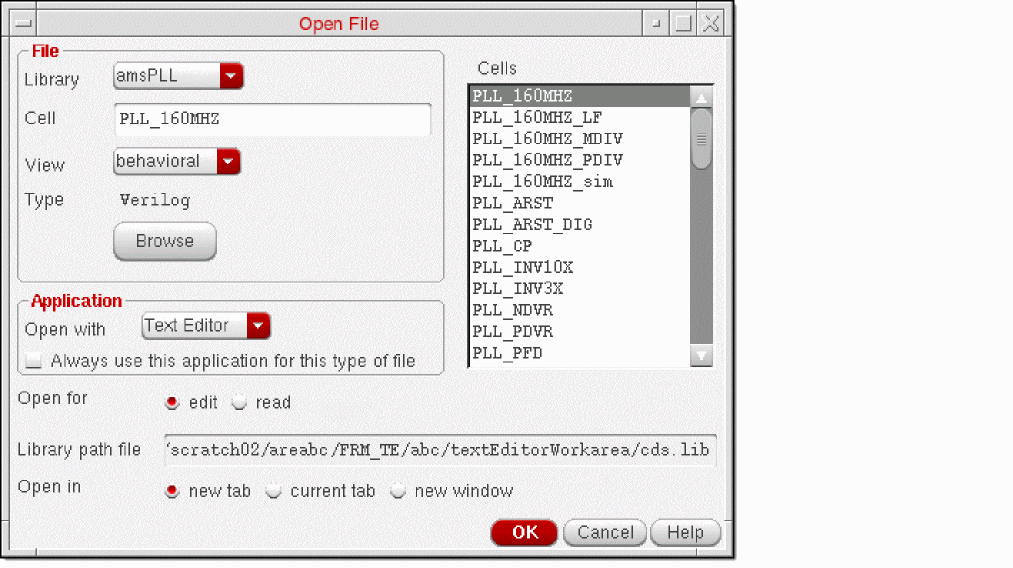
Open File Form
The Open File form lets you open a cellview. You can also invoke this form from other Virtuoso applications, such as Virtuoso Library Manager and Virtuoso Schematic Editor.
|
Form Component
|
Description
|
|
Library
|
Choose the name of the library that contains the cellview you want to open.
The Cells area updates to display the cells available in the library.
|
|
Cell
|
Type the cell name or select the name from the Cells area.
|
|
View
|
Choose one of the available views of the cell you want to open.
The Type field updates to display the type of the selected view.
|
|
Browse
|
Click to open the Library Browser - Open File form to select the library, cell, and view, instead of specifying them in their respective fields. The fields update to reflect the selection.
|
|
Open with
|
Choose the application that is invoked to display the new cellview.
|
|
Always use this application for this type of file
|
Select to make the chosen application as the default application to open the specified type of cellview.
|
|
Open for
|
Select edit to open the cellview in edit mode, or read to open it in read-only mode.
|
|
Open in
|
Select the location where you want to open the cellview. You can open the cellview in a new or same tab in the window, or in a new window.
|
Reference: “Launching Virtuoso Text Editor”
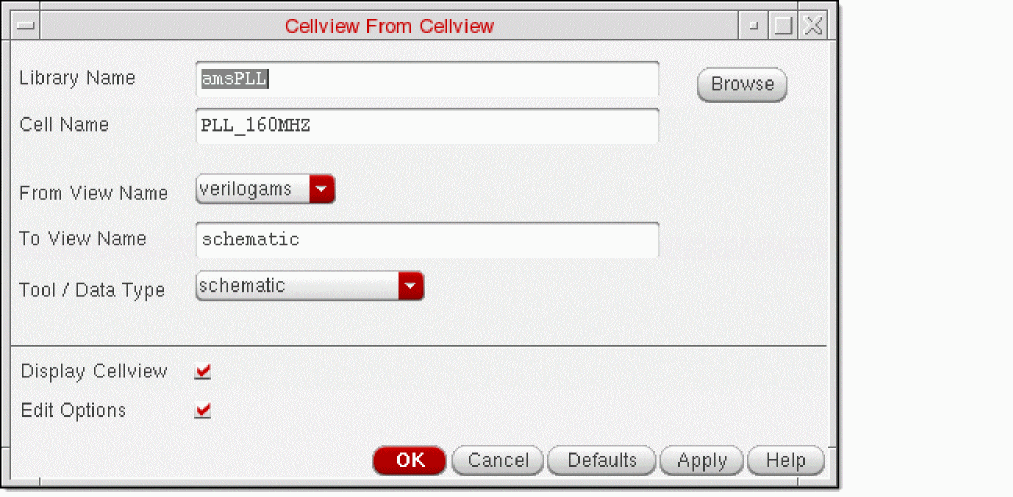
Cellview From Cellview Form
The Cellview From Cellview form lets you create a cellview using another cellview as a source.
|
Form Component
|
Description
|
|
Library Name
|
Specify the library name of the source cellview.
|
|
Cell Name
|
Specify the cell name of the source cellview.
|
|
From the View Name
|
Select the source view name.
|
|
To View Name
|
Specify the destination view name.
|
|
Tool / Data Type
|
Select the destination view type. The To View Name field updates with the default view name of the selected type.
|
|
Display Cellview
|
Select to open the new cellview in a new window.
|
|
Edit Options
|
Select to edit any additional options before the cellview creation.
|
Reference: “Creating a Cellview from an Existing Cellview”
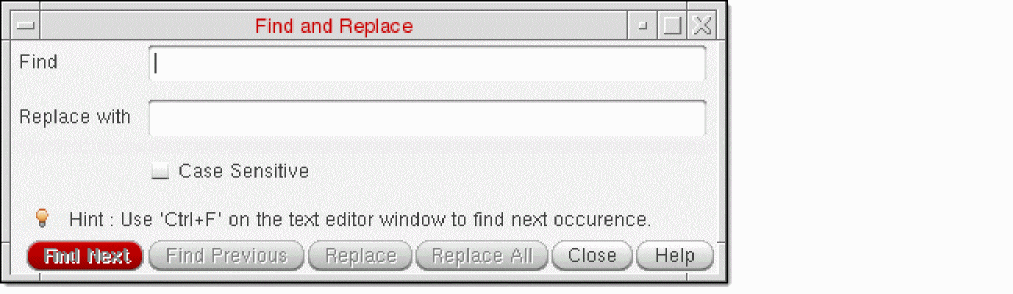
Find and Replace Form
The Find and Replace form lets you locate and replace text in the cellview opened in Virtuoso Text Editor.
|
Form Component
|
Description
|
|
Find
|
Type the text that you want to search in the file currently opened in Virtuoso Text Editor.
All occurrences of the text get highlighted.
|
|
Replace with
|
Type the replacement text, if required.
To replace text, use the Replace or Replace All buttons.
|
|
Case Sensitive
|
Select if you want to search for the text that matches the case of the text you typed in the Find field.
|
|
Find and Replace buttons
|
Use the appropriate button to find the text specified in the Find field, or replace the text specified in the Find field with the text specified in the Replace with field.
The available buttons are Find Next, Find Previous, Replace, and Replace All.
Press Ctrl+F to go to the next occurrence of the text.
|
Reference: “Using Other Editing Features”
Go to Line Form
The Go to Line form lets you go to a specific line number in the displayed file.
Reference: “Showing Line Numbers and Going to a Line Number”
Text Editor Options Form
The Text Editor Options form lets you set certain default behavior of Virtuoso Text Editor.
|
Form Component
|
Description
|
|
Always Edit in External Editor
|
Select to open text cellviews for editing in an external editor.
To revert this setting, open the text cellview in read-only mode in Virtuoso Text Editor and reset the option.
|
References:
Add Bookmark and Bookmark Manager Forms
The Add Bookmark and Bookmark Manager forms let you manage bookmarks for quick access to the book-marked items.
Reference: Add Bookmark Form
Workspaces Forms
The following workspaces forms let you manage the Virtuoso Text Editor workspaces:
-
Save Workspace form
-
Delete Workspace form
-
Load Workspace form
-
Set Default Workspace form
You can access these forms from the Window — Workspaces menu options.
Reference: Virtuoso Workspaces
Return to top