
Virtual Hierarchy Display Controls
By default, when a virtual hierarchy is generated, the Design Planning and Analysis (DPA) tool sets its display depth to 0 to hide the contents within. This helps reduce the clutter at the top level, which is otherwise possible, given that a virtual hierarchy is flat at the top level.
Because the top-cell layout of a virtual hierarchy is flat, setting the display control enables you to show connectivity to the lower-levels instances or the virtual hierarchy at a lower level, which is not possible when working with real cellviews. This access to the connectivity information for lower-level cells allows you to make context-sensitive connections that are useful for creating efficient design plans.
You can choose to display (or hide) the virtual hierarchies at different levels, depending on the task being completed. The DPA tool enables you to control the display level at a global level, although it also honors the display overrides that you may have set on a specific virtual hierarchy. For more information on viewing the individual overrides set on a virtual hierarchy, see Viewing the Virtual Hierarchy Overrides.
The DPA tool provides two methods for you to enable display controls for better layout design planning:
-
Display Depth Options
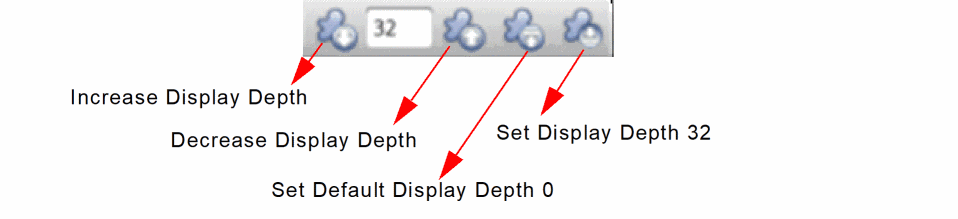
The Design Planner toolbar provides the following display control options:
-
Increase Display Depth
Increases the display depth of all the selected virtual hierarchies to display the objects at a level deeper in the hierarchy than the current display level. The maximum display depth level is32. -
Decrease Display Depth
Decreases the display depth of all the selected virtual hierarchies to display the objects at a level higher in the hierarchy than the current display level. The minimum display depth level is0. -
Set Default Display Depth 0
Removes all the stop level overrides, sets the default display depth to0, and deselects all the objects that were previously selected. -
Set Display Depth 32
Removes all the stop level overrides, sets the display depth to32, and deselects all the objects that were previously selected.
-
Increase Display Depth
-
Analyze Connectivity Command
You can use the Analyze Connectivity command to calculate the number of connections running through virtual hierarchy figGroups, soft blocks, or hard blocks, draw flight lines between each connected pair, and indicate the number of connections by displaying a numerical value on the flight lines. You can also select a virtual hierarchy figGroup, a soft block, or a hard block to view the connections to other associated virtual hierarchy figGroup, soft blocks, or hard blocks. In addition, you can use the command to display the common net connectivity, select connected nets, and create the net sets in the Navigator assistant.
Related Topics
Setting Display Depth in Design Planning and Analysis
Return to top