
4
Invoke Design Rule Checking
This chapter provides a detailed description of Verify Design mode and methods of customizing its behavior.
The content of this chapter is organized as follows:
Overview: Run Behavior
Run Results
The run results are stored under $PWD/PVS_RUNDIR_<VD, PE>. Within this run directory, run results are stored by cell under <cellName>_<viewName>_<libraryName> directory. Within this directory, file run results are stored in <cellName>_<viewName>_<libraryName>.drc.db file. Unlike PVS sign-off run, VIPVS Verify Design only outputs following commands defined in the rule deck:
Any commands asking PVS to output data found in the snapshot are ignored during DRC for optimum performance.
All run logs can be found by default under $PWD/PVS_RUNDIR_<VD, PE>/<cellName>_<viewName>_<libraryName>/vipvs.log.
You can change the default VIPVS run directories through Virtuoso_IPVS_dir.
Violation Markers Handling
Since VIPVS is an area specific run, DRC violations populated on the layout is per run base. In other words, any violations created by the previous VIPVS run are removed before loading the latest run results on the layout.
Also, VIPVS run does not modify the layout. Initially, violations are stored in an ASCII file format. Violation generation and display is different depending on whether you use PVS DRCDE or Annotation Browser. If it is Annotation Browser, OA markers are generated based on ASCII results and populated on the layout. These data are stored in a virtual memory at first, but you can choose to save violations within the cellview by clicking Save. If not, once Layout is closed, these OA markers are lost. On the contrary, DRCDE can populate the latest run results on demand. As long as ASCII results are accessible by DRCDE, you can invoke DRCDE on the toolbar and violation highlights are populated in the layout.
Verify Design Mode
This VIPVS mode is an area specific and on-demand DRC. You can specify initial area of checking ranged from the whole cellview to one changed portion of the layout. There are three initial area of checking modes available:
Both Current CellView and Visible Area are static DRC while Changed Area is a dynamic DRC. By definition, a static DRC is run on polygons within the area of interest as it-is. On the contrary, dynamic DRC checks only on the modified portion of layout, which is tracked by VIPVS. Any editing done from the moment layout is opened prior to DRC is considered as the modified portion of the layout. This layout editing tracking is stored temporarily in the virtual memory and is reset after VIPVS completes DRC.
Regardless the hierarchy depth displayed in the layout, VIPVS checks on all polygons found within the area of checking.
In general, you can interactively set area checking mode for a given window and this is a Virtuoso session based setting. Furthermore, you can control the default Verify Design mode area setting through Virtuoso_IPVS_initArea.
Figure 4-1 VIPVS Verify Design Mode area options

Current CellView
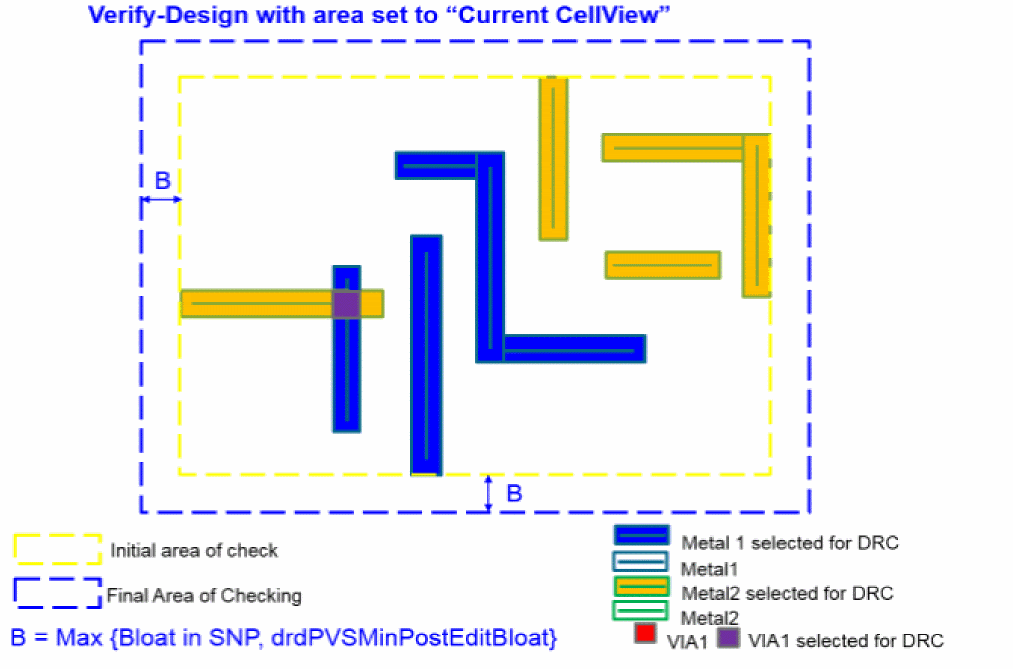
Verify-Design mode area checking is default to Current CellView. Regardless of current viewing area of the layout, VIPVS always checks the entire cellview when this area mode is on. Even though the whole cellview is checked, the final area of checking depends on the bloat value.
Figure 4-2 Final Area of Checking when Area sets to Current CellView
Visible Area
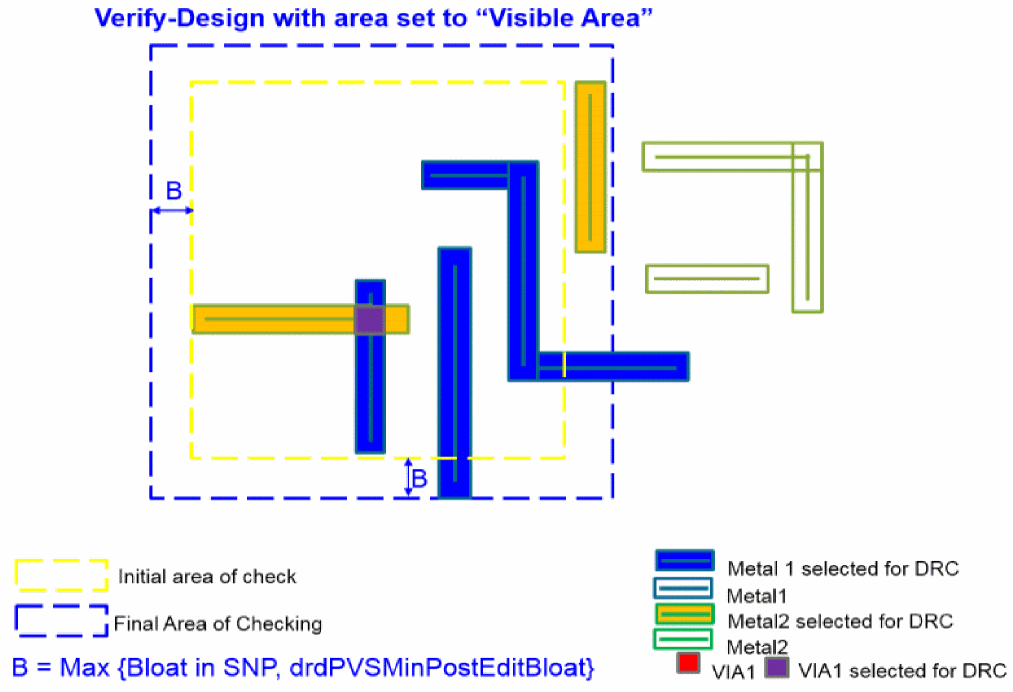
This mode is a What-You-See-Is-What-You-Check mode. The current viewing area is first taken in as an initial area of checking. VIPVS then computes final area of checking by factoring bloat value defined in the current active snapshot.
Figure 4-3 Final Area of Checking when Area sets to Visible Area
Changed Area
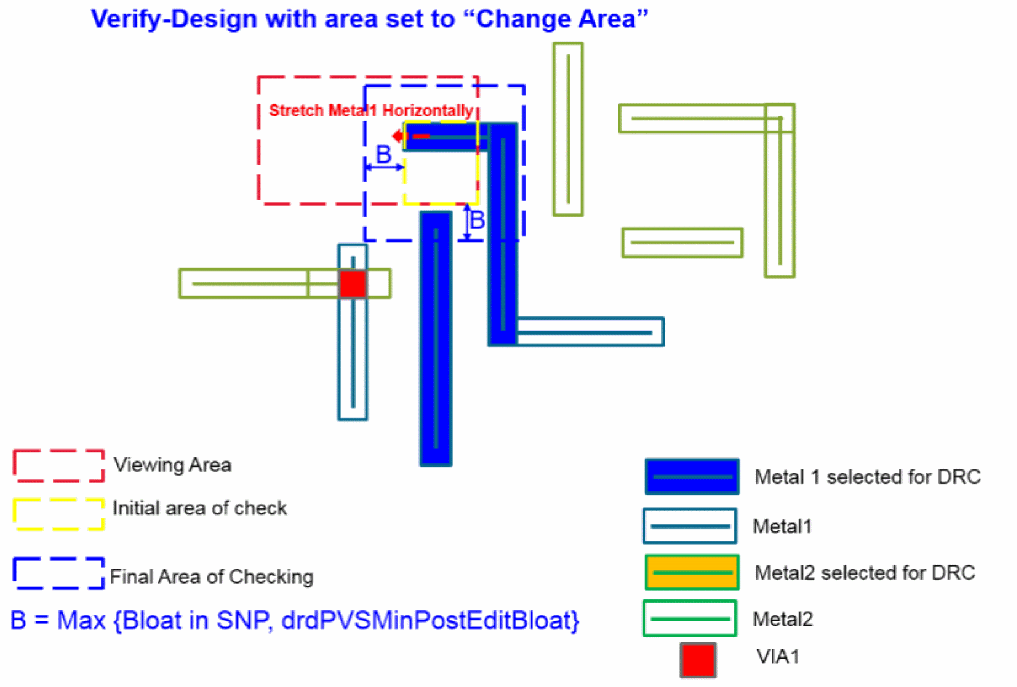
This mode is a relaxed version of Post-Edit mode. It allows you to conduct multiple layout editing and tracks these modification between each DRC. Once you are satisfied with the editing, you can invoke VIPVS to check on the final changed area. Its final area is computed based on the final layout modifications plus bloat value defined in the current active snapshot.
VIPVS starts to track modified polygon after Changed Area is enabled. The tracking is only between each Verify Design run with Changed Area enabled. Once DRC run is complete, the changed area tracking is reset. Also, any change made prior to Changed Area enablement is not tracked by VIPVS.
Figure 4-4 Final Area of Checking when Area sets to Change Area
To disable automatic reset of Changed Area tracking deselect Always Reset Changed Area check box in the Run Options form.
Figure 4-5 Always Reset Changed Area setting

Once deselected the tracking of changed area is kept between each Verify Design runs. You can reset tracking using toolbar button Clear Changed Area.
Figure 4-6 Clear Changed Area from the toolbar

Note that Clear Changed Area button is available only when selected mode is Changed Area and Always Reset Changed Area settings of the Run Options form is deselected.
Return to top