
F
Working With Function Templates
This chapter describes the function templates and how you can use them to create new functions in Virtuoso Visualization and Analysis XL Calculator with supporting examples.
- Function Templates
- Creating a template file
- Working with Template File
- Examples
- Advanced Features to provide GUI Hints
Function Templates
Function templates are a mechanism to facilitate easier construction and addition of new functions in the Calculator. They are described in a prescribed format in function template file.
Virtuoso Visualization and Analysis XL uses these template files to perform the following tasks:
- Builds lists of function names, separated into categories and displays it in the GUI panel.
- Generates an expression using rules present in the template file.
Function Template Search Paths
Virtuoso Visualization and Analysis XL searches for function templates using
Virtuoso Visualization and Analysis XL function templates, shipped by Cadence, are stored at the following location:
<CDS_INST_DIR>/tools/dfII/etc/tools/viva/functionTemplates
Template Catalog Summary File
The template catalog summary file .skeMeaseruesCatalog lists the categories and the templates that exists in each category. Virtuoso Visualization and Analysis XL template catalog file is shipped in the following directory.
<CDS_ROOT>/tools/dfII/etc/tools/viva/functionTemplates/.skeMeasuresCatalog
Different categories are specified in-between the lines skeBeginCategory and skeEndCategory. The below example defines Math, Modifier, RF Functions, Special Function, and Trigonometric as the categories.
skeBeginCategory
Math
Modifier
RF Functions
Special Functions
Trigonometric
skeEndCategory
You can specify different functions within a category in between the lines:
skeBeginMeasures <Category Name> & skeEndCategory.
For example, function “Fourier Evaluation” of category “Special Functions can be defined as follows:
skeBeginMeasures.Special Functions
fourEval;"Fourier Evaluation"
skeEndMeasures
Creating a template file
To add a new function, write a template file for your function and override .skeMeasuresCatalog file.
To create a template file, perform the following steps:
- Choose one of the two directories listed below where you want to store the new functions:
-
After creating a directory named “
measures” which is accessible to the complete project team, copy<CDS_ROOT>/tools/dfII/etc/tools/wavescan/measures/.skeMeasuresCatalogto/measures/.skeMeasuresCatalog. -
Open CSF_SEARCH_PATHS
/measures/.skeMeasuresCatalogfor editing. -
Add an entry of the new function in between
skeBeginMeasures & skeEndMeasurestags of the category where the new function is required to belong.
For example to add a function named ‘testfun’ in math category, add testfun; in betweenskeBeginMeasures Math& nearestskeEndMeasuresline.
Working with Template File
Each Virtuoso Visualization and Analysis XL function template file describes a Calculator function. The template provides information such as:
- The function name
- The function’s categories
- Input parameters and default values
- Gui building tips such as adjacent row hints and parameter dependencies
- Tool tip information (currently ignored).
- Rules to build the function expression
The template is divided into following sections:
Header
Header describes the general function information such as the name, display name, description, and category list.
- function name: This is the name used to construct the expression
- name: This is the display name used as the dialog label in the function panel.
- Category list: Each template can belong to multiple categories. For example, the riseTime template could belong to “Special Functions” and “transient”. Currently we do not define categories according to analysis type. The current categories are:
The Analysis Section
The analysis section describes how to generate the expression, the signal, and parameter arguments.
Examples
Example 1: Sample template with single argument: average.ocn
<CDS_INST_DIR>/tools/dfII/etc/tools/wavescan/measures/average.ocn
1;;; GUI builder information ;;;;;;;;;;;;;;;;;;;;;;;;;;;
2 ocnmRegGUIBuilder(
3 '(nil
4 function average
5 name average
6 description "Compute average of a waveform over its entire range."
7 category ("Special Functions")
8 analysis (nil
9 general (nil
10 args (signal)
11 signals (nil
12 signal (nil
13 prompt "Signal"
14 tooltip "signal to average"
15 )
16 )
17 inputrange t
18 )
19 )
20 outputs (result)
21 )
22 )
- The function name used to build the expression is defined by line 4 (function average).
- Line 5 is the name used in the dialog label if a function panel is displayed. In this case the function signature takes a single argument (signal) and no function panel is required.
- Line 6 is a simple description that will be used at some point for bubble help. (This feature is not yet implemented).
- Line 7 is a set of category names. Typically each function belongs to a single category. Optionally a function can belong to multiple categories.
- Line 8 begins the analysis section.
-
Line 10 is the args statement which provides the rule used by Virtuoso Visualization and Analysis XL to generate the function expression. The args statement is a list of ordered signal and parameter names and in our example contains a single item: signal. Therefore the signature looks something like:
average(VT(“/net10”)), it takes a single signal name
The order in the args statement defines the order the parameter values will be named in the expression that is put into the buffer. This may or may not be the same order that is displayed in the function panel. Some functions require a more complex mechanism to describe the signature. The template mechanism provides a format statement that will be described in a later example. - Line 11 starts the signal section. A function signature might contain multiple signal parameters (ex: the delay function).
- The single signal description begins at Line 12. Line 13 is the signal prompt used to name the signal parameter in the Function Panel. Line 14 is the signal tool tip. This is currently not used.
Example 2: Sample template with multiple arguments: delay.ocn
(<CDS_INST_DIR>/tools/dfII/etc/tools/wavescan/measures/delay.ocn)
2 ;;;;;;;;;;;;;;;;;;;;;;;;;; GUI builder information ;;;;;;;;;;;;;;;;;;;;;;;;;;;
3 ocnmRegGUIBuilder(
4 '(nil
5 function delay
6 name delay
7 description "delay "
8 category ("Special Functions")
9 analysis (nil
10 tran (nil
11 args (signal1 threshold1 edge1 type1 signal2 threshold2 edge2 type2 numberOfOccurences)
12 signals (nil
13 signal1 (nil
14 prompt "Signal1"
15 tooltip "signal to measure"
16 )
17 signal2 (nil
18 prompt "Signal2"
19 tooltip "signal to measure"
20 )
21 )
22 params (nil
23 threshold1 (nil
24 prompt "Threshold Value 1"
25 tooltip "Threshold Value 1"
26 default 2.5
27 type float
28 min 0)
…
periodicity1(nil
prompt "Periodicity 1”
tooltip "Periodicity 1"
default 1
type float )
…
65 periodicity2 (nil
66 prompt "Periodicity 2"
67 tooltip "Periodicity 2"
68 default 1
69 type float
70 )
71 numberOfOccurences (nil
72 prompt "Number of occurrences"
73 tooltip "Occurrence choice"
74 default single
75 type ((single (0 0 nil nil)) (multiple (" %s %s t %s " periodicity1 periodicity2 sweepName)))
76 )
77 sweepName (nil
78 prompt "Plot/print vs."
79 tooltip "Independent variable to plot against."
80 required nil
81 default trigger
82 type (trigger target cycle)
83 min 0)
84 )
The delay template is similar to average. Some differences:
-
Line 11: The args description contains multiple parameters so a Function Panel will be built to describe this function.
The signals section contains two signals named signal1 and signal2. The prompts (lines 14 and 18) will name the respective fields in the panel.
This template contains parameters beginning at Line 22. - Line 77: the parameter sweepName. Line 82 names the type: a simple list of cyclic choices. The default value (line 81) names the default choice to be initially displayed.
-
Line 71: a much more complex example of a cyclic type parameter
(numberOfOccurances).
The cyclic type (Line 75) is a list of two choices: single and multiple:type ((single (0 0 nil nil)) (multiple (" %s %s t %s " periodicity1 periodicity2 sweepName)))
Each choice has an associated value that describes what must be added to the expression signature.
If you select “single”, then the value of numberOfOccurances put into the expression string is literally “0 0 nil nil”.
If you select “multiple”, the choice value is described by a formatted string and will look like: “<periodicity1> <periodicty2> t <sweepName>”. If the default values are used, then the choice resolves to: 1 1 t “trigger”.
Example 3: Signature described by a format statement: compression.ocn
(<CDS_INST_DIR>/tools/dfII/etc/tools/wavescan/measures/compress.ocn)
9 analysis (nil
10 general (nil
11 ;; args (signal ...)
12 format ("compression(dB20(harmonic(%s, %s)), ?x %s, ?compress %s)" signal harmNumber xpoint compressiondb)
The compression function is one of those examples where the expression does not conform to a simple rule of function name plus name/value pairs for the parameters. We have to use the format statement (line 12 above).
The format uses %s to substitute in the values of the named parameters (signal, harmNumber, xpoint, and compressiondb).
Example 4: Creating your own template
This example creates a template for calculator function named ‘trap’ that exists in a new category named ‘MyProject’.
-
Define the function signature:
For example to create a new function named trap with signature:trap(<signal> <from> <to>)
The template signal section will contain a single signal named Signal. The parameter section will contain two parameters named From and To, both of type float. -
Go to the source directory for template files:
<CDS_INST_DIR>/tools/dfII/etc/tools/wavescan/measures
-
Find an existing similar template so that you do not have to start from scratch. For example, if the new function trap was similar to existing function clip:
% cp clip.ocn trap.ocn
% chmod +w trap.ocn
- Define the function information in the header section. Replace the information indicated in boldface below. Redefine the category name as MyProject.
ocnmRegGUIBuilder(
'(nil
function trap
name trap
description "short tool tip description for trap function”
category ("MyProject")
-
Define the args (or format) statement so we have a rule for building the expression.
For the trap example, no change is required in the args statement that comes from the clip template.args (signal From To)
-
Define the signal parameter in the signal section.
For the trap example reuse the clip example. Change the tool tip as required.
signals (nil
signal1 (nil
prompt "Signal"
tooltip "signal to trap "
)
-
Define the parameters
For the trap example, reuse the parameter definitions from the clip template. Change the tool tip values as required
params (nil
From (nil
prompt "From"
tooltip "Trap Start"
default 0
type float
min 0)
To (nil
prompt "To"
tooltip "End Trap Range"
default 0
type float
min 0)
)
-
Install the measures file into the template directory.
Copy trap.ocn to<USER_HOME>/measuresor CSF_SEARCH_PATHS/measures.
For more information, refer Function Template Search Paths. -
Add entry in catalog file by doing following tasks:
% cp <CDS_INST_DIR>/tools/dfII/etc/tools/wavescan/measures/.skeMeasuresCatalog CSF_SEARCH_PATHS/measures.
For more information, refer Template Catalog Summary File.-
Edit your new project catalog file to add the new category and function name:
- Add category name at line #2 after skeBeginCategory keyword
- Add new category section before skeBeginMeasures.Math.
Your.skeMeasuresCatalogfile will look like as below:skeBeginCategory
MyProject
Math
Modifier
RF Functions
Special Functions
Trigonometric
skeEndCategory
skeBeginMeasures.MyProject
trap;trap
skeEndMeasures
skeBeginMeasures.Math
exp;exp
dB20;dB20
-
Edit your new project catalog file to add the new category and function name:
Now run Virtuoso Visualization and Analysis XL and open calculator, you should be able to see trap function added in MyProject function category.
Advanced Features to provide GUI Hints
The template format supports the following advanced features:
-
Sometimes it makes sense for two or more parameters to share the same row. An optional parameter property
gridRowHint <num>directs Virtuoso Visualization and Analysis XL to layout all parameters with the samegridRowHint valueon the same row. -
Sometimes a parameter controls whether one or more other parameters are enabled or disabled. An optional parameter property
guiEnableHint <target list>controls whether other parameters are enabled.
Example: evm.ocn template (evmQpsk)
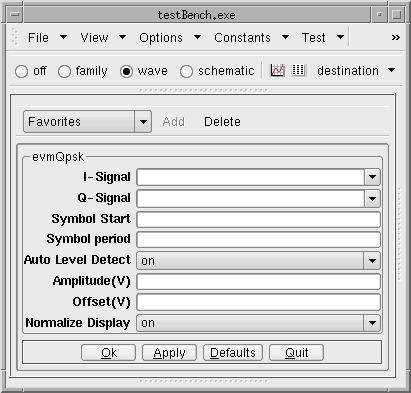
The above example is the GUI form for the original evmQpsk 6.1.0 template. The template contains no gridRowHints or guiEnableHints.
The next example shows how the two hint properties are used to:
- Place the Symbol Start and Symbol period parameters on the same row.
- Place the Amplitude and Offset parameters on the same row.
- The form has three columns instead of two to make the form more compact.
- The Auto Level Detect parameter will enable/disable the Amplitude and Offset parameters.
Example: evmQpsk with gridRowHint and gridEnableHints:
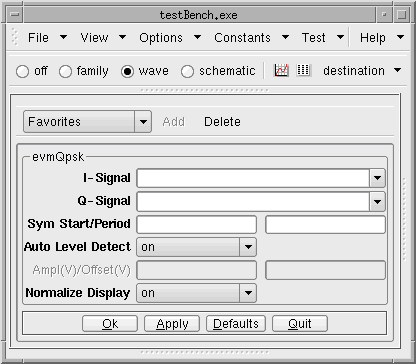
The following is a snippet of the evmQpsk template with modifications is italized:
delay (nil
prompt "Sym Start/Period"
tooltip "Symbol Start"
type float
required t
guiRowHint 1
min 0)
sampling (nil
prompt ""
tooltip "Symbol period"
type float
required t
guiRowHint 1
min 0)
- The guiRowHint properties for delay and sampling have the same value (guiRowHint 1), so the prompt/value pairs for both parameters are put on the same row.
- Column 1 contains the prompt for the delay value. Column 3 is supposed to contain the prompt for the sampling value; however, I wanted to simplify the layout and have three columns instead of four. Look at the prompt value for the delay parameter: it describes BOTH the delay and sampling value fields. The prompt for the sampling parameter is set to an empty string (“”).
The following is a snippet of the evmQpsk template with modifications is italized:
Autoleveldetect(nil
prompt "Auto Level Detect"
tooltip "Auto Level Detect"
type ( ("on" (t, nil, nil)) ("off" ("nil, %s, %s" voltage offset)))
guiRowHint 2
guiEnableHint ( (voltage off) (offset off) )
)
The autoleveldetect parameter is an enumerated type with values “on” and “off”. When it is “on”, there is no need to specify two other parameters: voltage and offset because those values will be automatically calculated.
If you want the GUI fields representing these other parameters to be disabled when autoleveldetect is “on”. The guiEnableHint target list gives the name(s) of the other parameters to enable (voltage and offset). Each target is specified as a list: the first name is the target name, followed by the set of autoleveldetect values that will turn that target on.
Examine the first target list for autoleveldetect’s guiEnableHint:
guiEnableHint( (voltage off) (offset off))
This hint tells the GUI that when the autoleveldetect enumerated value is “off”, the gui for the voltage parameter can be enabled. For any other autoenablehint value, the gui for the voltage parameter will be disabled.
Return to top