
Layers Specification for Tracing a Net
You can specify the via layers and the connected layers through which you want to trace a net. You can either use the via layers defined in the technology file or add your own via layers. To add a via layer, specify it as a (layer1 viaLayer layer2) combination on the Via Layers tab of the MarkNet Options form. Both the layers in the via layer combination can be specified as layer-purpose pairs (LPPs). To define connected layers, specify them in the (layer1 purpose) (layer2 purpose) format on the Connected Layers tab of the MarkNet Options form.
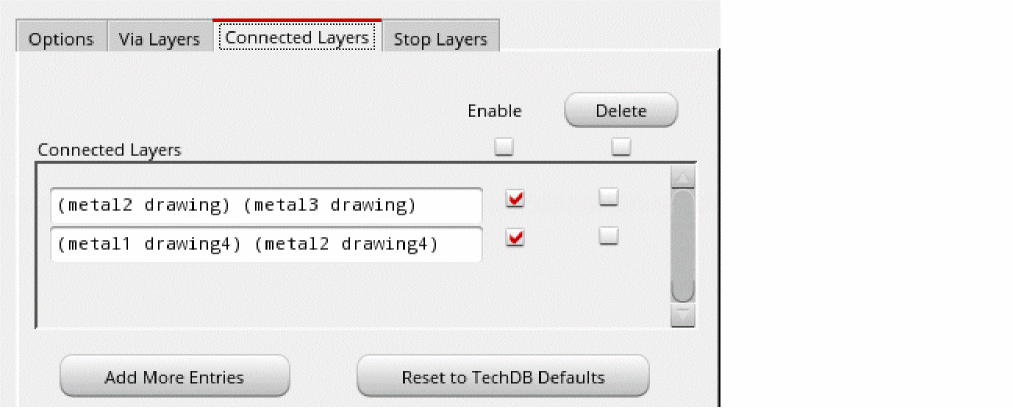
You can also specify the layers through which the Mark Net command must not trace a shape. These resistive layers, referred to as stop layers, help to block tracing through devices such as poly resistor and MIM capacitor. Specify the stop criterion in the layer stopLayer format on the Stop Layers tab of the MarkNet Options form. You can specify both layer and stopLayer as LPPs.
In a new Virtuoso session, if the Customized Via Layers, Customized Connected Layers, and Enable Stop Layers check boxes are selected, the settings for the via, connected, and stop layers are read from the markNetOptions file stored at the following location in the technology library directory:
technologyLibraryName/.cadence/dfII/markNet/markNetOptions
After the Mark Net command completes its run or when you load new settings from a previously saved file, the via, connected, and stop layer settings are automatically stored in the markNetOptions file stored at the following location in your current working directory:
currentWorkingDirectory/.cadence/dfII/markNet/technologyLibraryName/markNetOptions
Subsequently, layer settings read from the markNetOptions file in your current working directory override the settings read from the file stored in the technology library directory.
If you want a file containing your customized layer settings to be read each time you start a new Virtuoso session, use the markNetOptionsFile environment variable to specify the path or name of this file. The layer settings stored in the file specified using the markNetOptionsFile environment variable override the settings stored in the other two markNetOptions files.
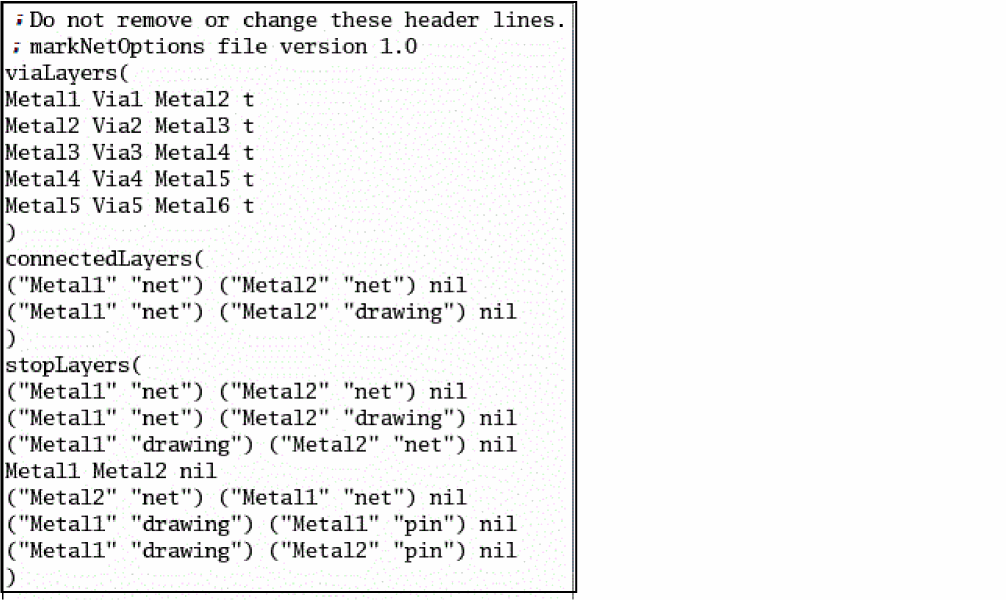
The format of the markNetOptions file is as follows:
connectedLayers(
; (layer1 purpose) (layer2 purpose) ... enabled
)
stopLayers(
; (layer purpose) (stopLayer purpose) enabled
)
The figure below shows a sample markNetOptions file. Notice that there are separate sections in the file for via, connected, and stop layers. These sections can be present in any order. You can edit the markNetOptions file manually.
If the markNetOptionsFile environment variable has not been specified, the file specified in the technology file is preferred over the file specified at other locations such as $CWD.
You can also manually save the settings for any or all via, connected, and stop layers to a file and location of your choice by using the Save feature in the MarkNet Options form. By using the Load feature, you can later load the settings from the saved file.
In the figure below, two sets of shapes are shown, labeled (a) and (b). In (a), M1 dg overlaps M2 net, and in (b), and M1 dg overlaps M2 pin. M1 dg and M2 net are defined as connected layers, and M2 pin is defined as the stop layer for M1 dg. The Mark Net command will stop tracing the shape M1 dg when there is an overlapping M2 pin shape.
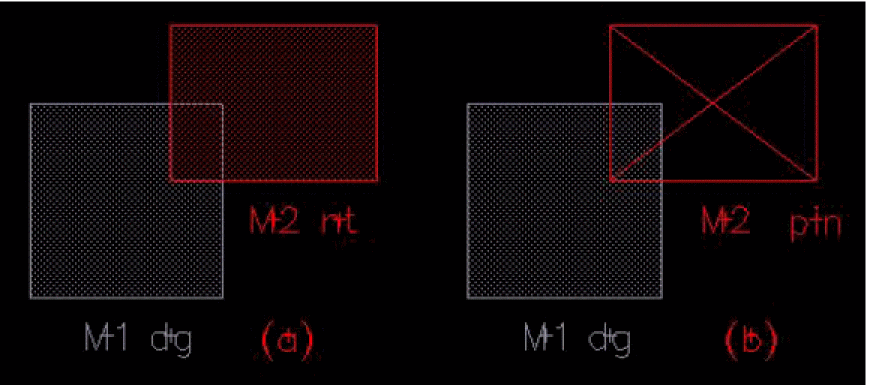
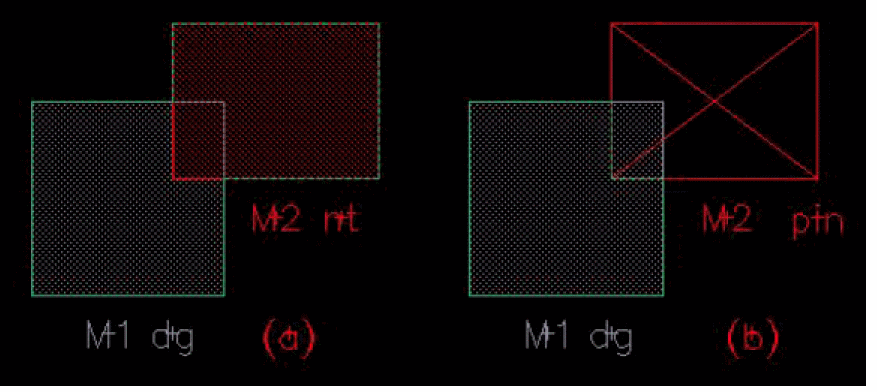
When you click M1 dg in (a), both M1 dg and M2 net are traced because they are defined as connected layers. Only M2 purpose pin is defined as the stop layer for M1 dg, so tracing continues when the overlapping shape is M2 purpose net. When you click M1 dg in (b), the tracing stops at the point the two shapes overlap because M2 pin is defined as the stop layer for M1 dg. The resultant tracing is shown in the figure below.
Related Topics
Return to top